Widgets
Widgets are blocks beside your categories that show something other than links: health, feeds, system figures, a to-do list. The Custom widget reads figures from any service that answers in JSON.
A page holds categories and, beside them, widgets: blocks that show something other than links. Categories and widgets share one order.
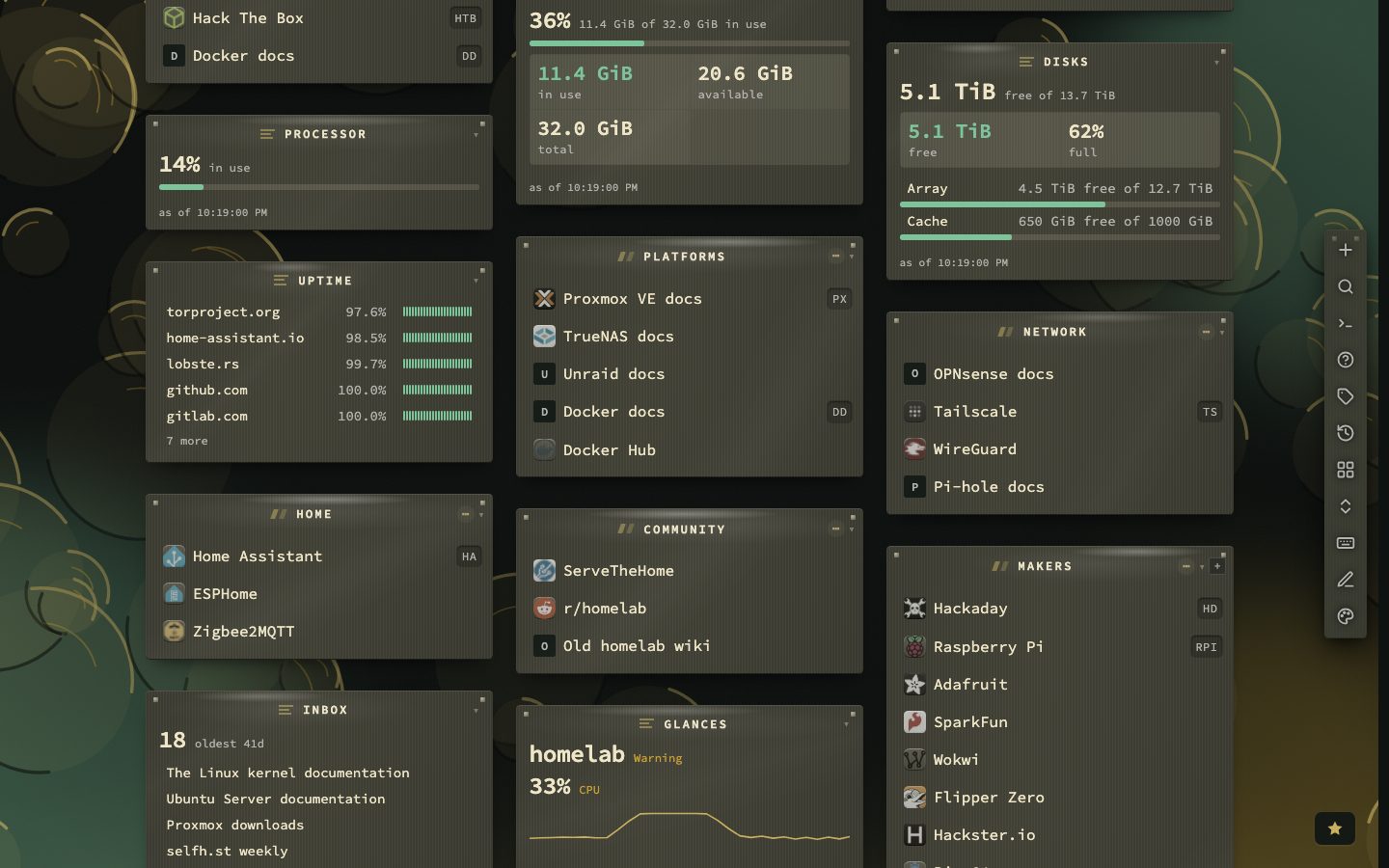
The kinds
Are the links still good?
| Kind | Shows |
|---|---|
| Health | Broken, down, changed and fine; each figure opens its filter |
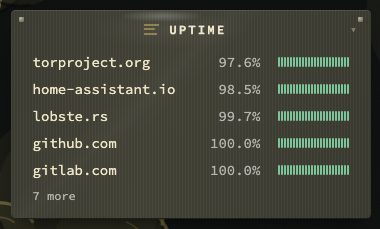
| Uptime | Monitored bookmarks, worst first, with a heartbeat. Show the response time of the last day adds a small line and the latest figure beside each row that is up |
| Certificates | Certificates close to expiry, per host. Also list domains adds the domains that run out in the same window |
| Domains | Domain registrations close to expiry, per registered domain, and the domains no registry gives a date for |
| Health trend | How the collection's health has moved, drawn like the summary in Collection health |
What is arriving?
| Kind | Shows |
|---|---|
| Inbox | How much is waiting, and how old the oldest is. A line under the rows counts the snoozed links (3 asleep); a link saved from another tab or the extension shows without a reload, and a snoozed link comes back when it wakes |
| Unsorted | Links kept from the inbox without a page yet — newest first, at random, by one tag or grouped under every tag, with each address under its title. A row opens the Bookmarks view on Unsorted, with that bookmark's side panel; the overflow row reads Open Unsorted. |
| Sources | What each import source last did |
What needs tidying?
| Kind | Shows |
|---|---|
| Neglected | Bookmarks not opened in a long time |
| Blind spots | Never checked, checked long ago, or not watched |
| Duplicates | The same address stored more than once |
| Archive | How many bookmarks have a copy, and which broken ones have none |
| Trash | What is in the trash and when it goes |
| Backups | The age of the newest automatic backup, and whether the last run failed |
How is this machine doing?
| Kind | Shows |
|---|---|
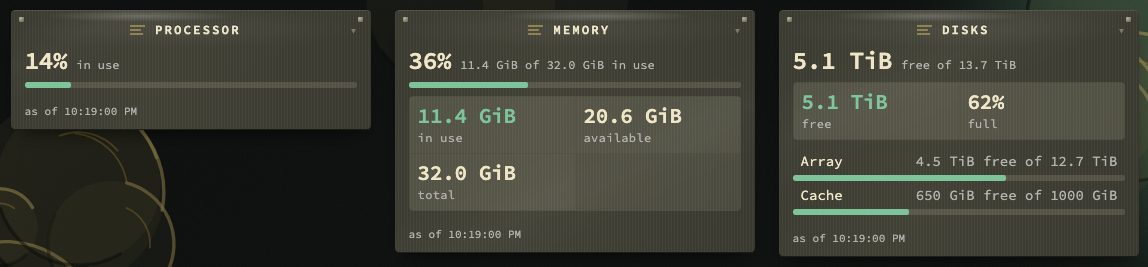
| Processor | CPU use and the load average |
| Memory | What is really in use; the file cache counts as free. Amber from (% used) and Red from (% used) set where the figure changes colour |
| Disks | Used, free and reserved space on the disks you name. Amber from (% used) and Red from (% used) set where the figure changes colour |
| Containers | Running and total containers, failing healthchecks and recent restarts; opens the Containers view, and its update figure links to #docker?filter=updates. The figures you tick can add updates waiting (a skipped or held one does not count), reclaimable disk space — what the Disk tab last measured, measured again in the background once it is six hours old, a dash before the first — and incidents in the last 24 hours (crashes and turns unhealthy, from the timeline). Name the three busiest by CPU lists them under the figures. Nothing ticked means every figure. |
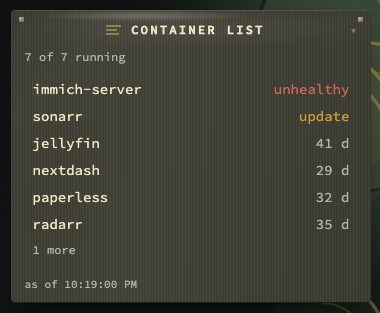
| Container list | The containers themselves, one row each: one column on a narrow tile, two on a wide one. Its settings choose running only or all, the order (problems first, name, longest or shortest uptime, CPU or memory — busiest first), what stands on the right of a row (uptime, the image tag, CPU and memory, or nothing) and where a click goes: the container in the Containers view, or its web UI. A problem — unhealthy, stopped, an update — replaces the uptime on its row. |
Those five report on the machine nextDash runs on. Four more read the other machines, through a Beszel hub:
| Kind | Shows |
|---|---|
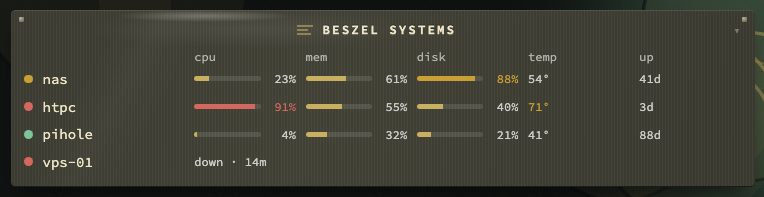
| Beszel systems | Every system the hub watches, a dot for its state. Narrow, the name and the reading closest to its limit (disk 88%); wide, a table with processor, memory and disk as bars, the temperature and the uptime |
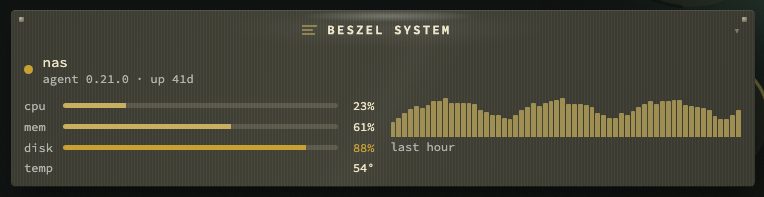
| Beszel system | One system: processor, memory and disk as bars, with its temperature and uptime; wide, the processor's last hour beside them, with the load and the network |
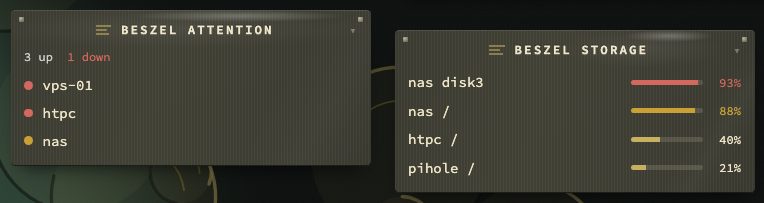
| Beszel attention | Only the systems that need a look — down, waiting or paused, or running hot or full — under a count of how many are up and down; wide, with the reason, and since when for a system that is not up. When none do, one line says all are fine |
| Beszel storage | The disks of every system, the fullest first: the root disk and every extra disk the agent watches. Wide, grouped per system |
| Glances | One host of the Glances page: Healthy, Warning or Critical, and three meters or the processor's last hour; a host that does not answer says since when, never its old figures |
A system that is down shows that it is down and since when, never a figure: the readings Beszel keeps for it are from before it went down. A reading turns amber at 80 % and red at 90 % (a temperature at 70 °C and 85 °C).
How is the Unraid server doing?
| Kind | Shows |
|---|---|
| Unraid | The server at a glance, a line each: array, used, parity, disks, alerts, VMs and the UPS, with the worst problem in colour; wide, it adds the newest alert |
| Unraid array | The array's disks by group (parity, array, cache), each with its fill and temperature or its problem; a sleeping disk is grey. A disk is hot at 45 °C when it spins and at 60 °C when it is an SSD or NVMe, and full at the usage warning set for it in Unraid, else at 90 %. Narrow, only the disks with a problem, or N disks fine |
| Parity | The last parity check, or the running one with progress, speed and time left; wide, its history |
| Shares | Where the shares live — the array, each cache pool, or both when a share overflows from one to the other — each place with its fill and free space, and the shares on it: their names when wide, how many when narrow. Unraid reports a share's space as that of its place, not its own, so this is the honest view. Its settings choose how many places |
| VMs | How many virtual machines run, and which are paused, stopped or crashed; its settings choose how many rows |
| UPS | Charge, runtime and load; amber when the server runs on battery |
| Unraid notifications | Unraid's unread notifications, newest first, the alerts in red; its settings choose how many rows |
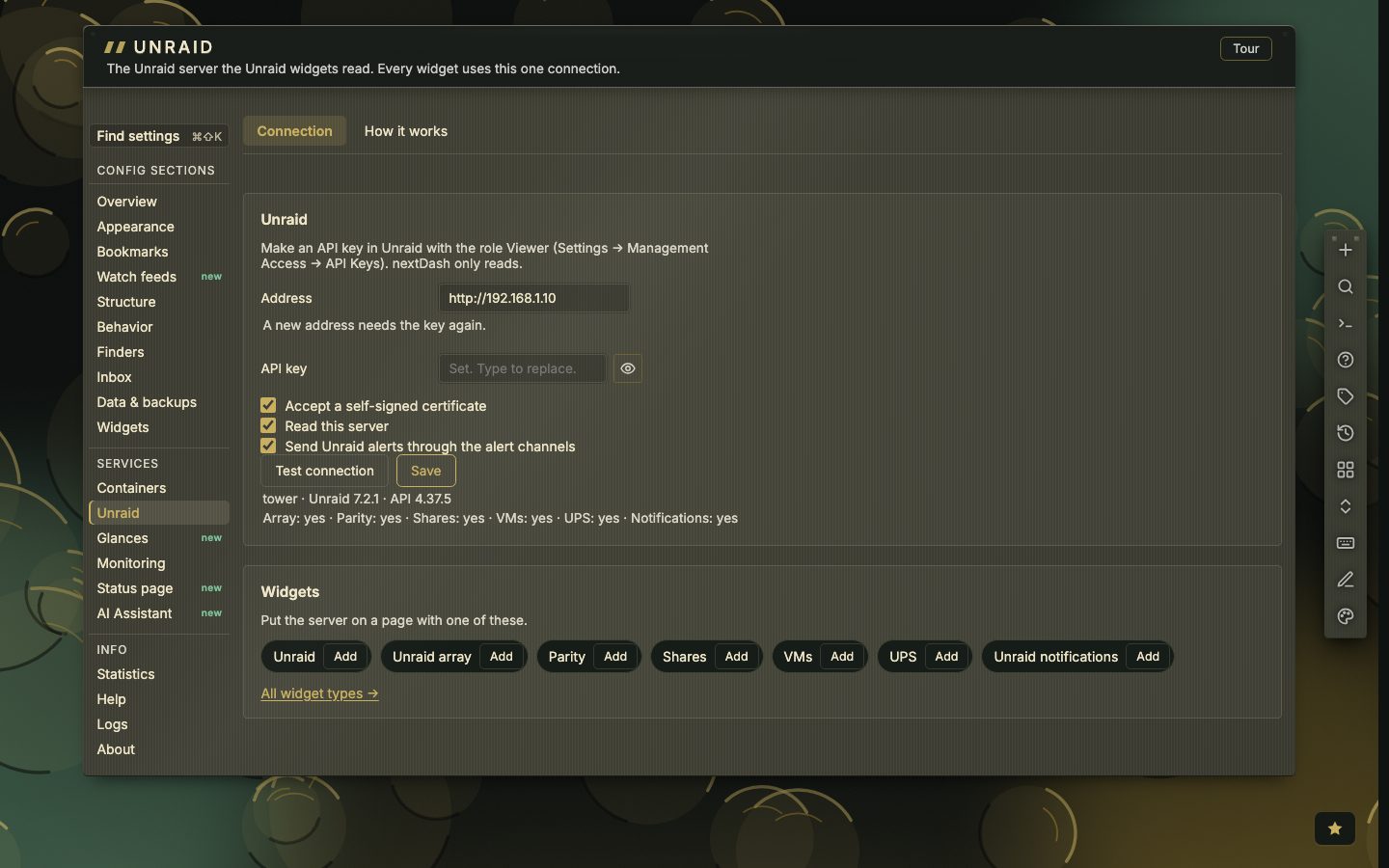
These read one server, set once under Config → Unraid (Unraid widgets).
What is happening around you?
| Kind | Shows |
|---|---|
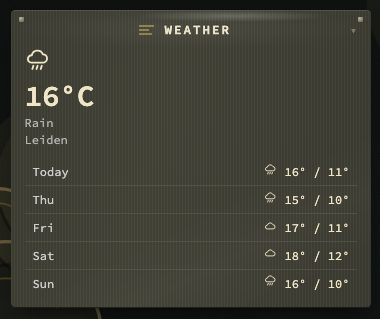
| Weather | Current conditions and a forecast (3 days, 5 days or 24 hours), from the settings under Appearance → Date & weather; wide, it adds what it feels like, the wind, the humidity and the chance of rain |
| Calendar | What is coming up, from the Calendar feed URL (.ics) under Appearance → Date & weather |
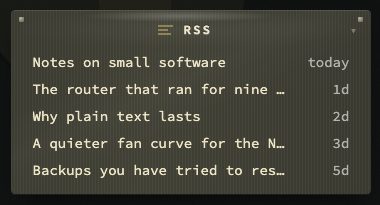
| RSS | The newest articles from up to ten feed addresses set on the widget, merged newest first |
| Watch feeds news | The sites with new items from the feeds you watch (Watch feeds). Layout: Sites, one row each, Headlines with pictures or Compact chips. It fetches nothing itself; every way in leads to the news window |
| Notes | A text of your own, read as Markdown, with checkboxes you tick on the tile; up to 6,000 characters |
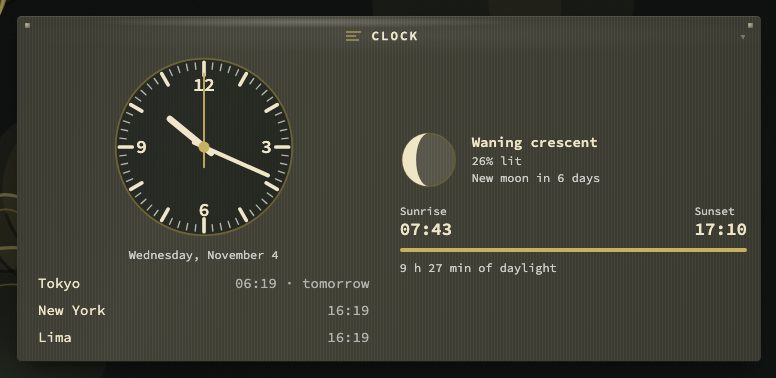
| Clock | The time where you are, and in the other places you add as Name=Region/City (for example Tokyo=Asia/Tokyo), with tomorrow or yesterday where the date differs. Look is A large clock face, other places below it (the first three places) or Plain lines of time. The face can show a seconds hand, and, two columns wide, the moon with its phase and sunrise, sunset and the hours of daylight for the weather location (Appearance → Date & weather). Use a 12-hour clock and Show today's date are switches |
| Countdown | The days left to a Date, or since it. The widget's title says what it counts to. An optional Time of day and Count in hours and minutes near the end switch the figure to hours and minutes in the last two days |
| Tabs | Several widgets of the page in one tile, one tab each. Widgets in the tabs lists the other widgets of the page; each one you tick becomes a tab, in page order, and leaves the grid while the tabs hold it. Up to six tabs; a widget sits in one Tabs widget at most, and a widget moved to another page leaves the tabs. Its settings stay under Widgets. Only the tab in view is drawn |
What is new to watch?
| Kind | Shows |
|---|---|
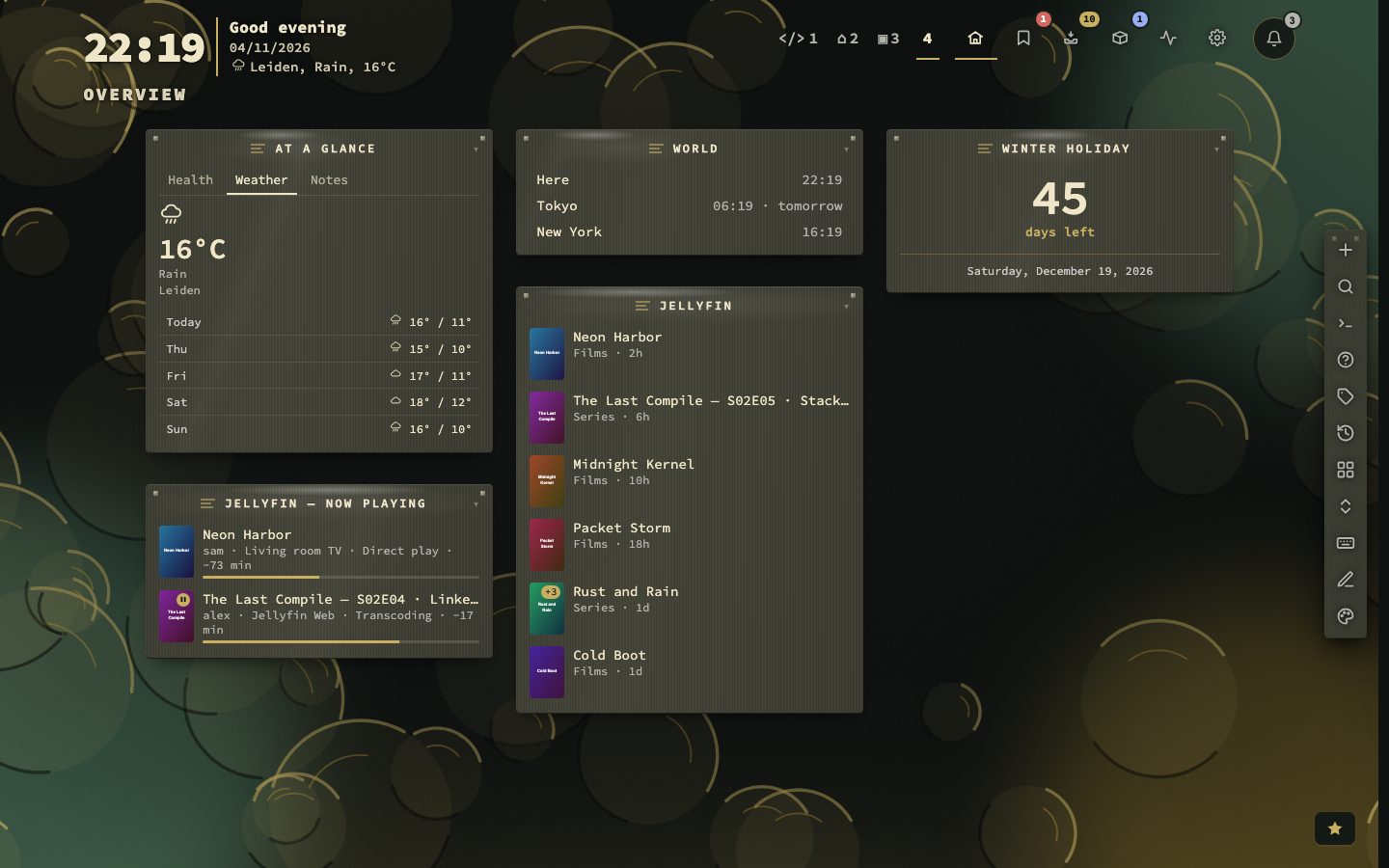
| Jellyfin | What was added to your Jellyfin server lately, with the posters from your own library: a film or series with its poster, an episode under its series' poster. Four layouts — list, strip (a tab per library), hero (the newest large on its backdrop) and grid. See below |
| Emby, Plex | What was added to your Emby server lately, or to Plex (read through Tautulli), with the same four layouts as Jellyfin. See below |
| Jellyfin — now playing, Emby — now playing, Plex — now playing | Who is watching what right now, and how far along they are. It refreshes every 10 seconds by default |
| Sonarr, Radarr | The episodes and films coming up in the next days (a week unless you choose up to 30), a film released today staying on the list until the day is over, and what is downloading, with posters. The same four layouts; in the strip, Upcoming and Queue are the tabs |
| Seerr | Requests in Overseerr or Jellyseerr, under Pending, Approved and Available, with who asked and the poster. Show every request or one state, films, series or both, from everyone or one person |
| qBittorrent, SABnzbd | What is downloading, paused and finished, with progress, speed and time left, and the client's speeds and counts on top. As one list or a tab per part (Downloading, Paused, Done). Without posters, and in the order you choose |
What is the network blocking?
| Kind | Shows |
|---|---|
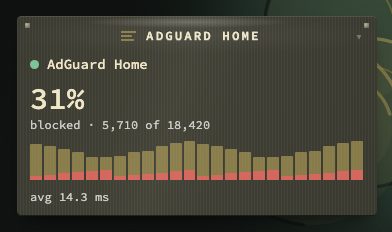
| AdGuard Home | Queries, how many were blocked, the last day by the hour, and the top blocked domains and clients. Four looks: Pulse (one large percentage and the last day, the default), Leaderboard, Tiles and Mix (two columns only); Parts to show picks the rest |
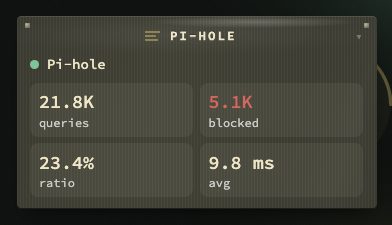
| Pi-hole | The same, with the number of domains on the lists, the query types and the upstreams as extra parts |
A click opens the top ten with a button to the service (or goes straight there when the click is set to open it). Fill in the address and the sign-in the service wants (AdGuard Home: username and password; Pi-hole: password) and press Connect; the sign-in stays on the server.
What is going on at home?
| Kind | Shows |
|---|---|
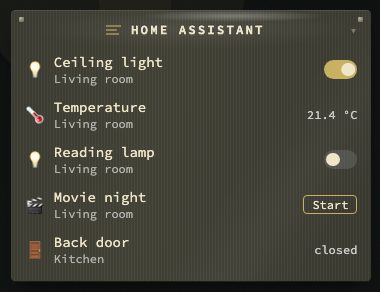
| Home Assistant | The entities you choose, with their value and since when, as loose items with their room, or a tab per room. Lights, switches, fans, scenes and scripts can be switched from the tile; locks, covers, doors and sensors only report |
And the Custom widget, which reads any service that answers with JSON (The Custom widget).
A tile with a row limit shows what it left out (5 of 12). A figure on a tile is a link to the rows behind it.
Settings per kind. Besides the ones named above, the settings panel of these kinds offers the following. Switches are off unless a default says on. Rows to show is 1 to 20 and is five by default, except Sources (six) and Backups (three).
| Kind | Settings |
|---|---|
| Processor | Refresh every (seconds) (1 to 3600, 5 by default), Show load average, Show core count |
| Memory | Refresh every (seconds) (2 to 3600, 10 by default), Show the file cache, Show swap |
| Disks | Disks to show (paths such as /mnt/user), Names for them (written path=name), Show a bar per disk (on), Show how full the file table is, Refresh every (seconds) (5 to 3600, 60 by default) |
| Containers | Refresh every (seconds) (2 to 3600, 30 by default), Name what is failing, Name what just restarted |
| Container list | Rows per column (1 to 20, 6 by default), Refresh every (seconds) (5 to 3600, 30 by default) |
| Health | Figures to show: Broken, Down now, Content changed, Healthy; none ticked shows all four |
| Uptime | Only what is down now, Show a sparkline per row (on), Only bookmarks with these tags, Rows to show |
| Certificates | Expiring within (days) (1 to 730, 30 by default), Rows to show |
| Domains | Expiring within (days) (1 to 730, 60 by default), Rows to show |
| Health trend | Days to plot (7 to 90, 30 by default) |
| Inbox | Rows to show, Show where each link came from (on) |
| Sources | Only sources that failed, Rows to show |
| Neglected | Not opened for (days) (7 to 730, 180 by default), Count bookmarks never opened (on), Only bookmarks with these tags, Rows to show |
| Archive | Count only the links that are already broken, Rows to show |
| Blind spots | Count as stale after (days) (1 to 730, 30 by default), Count bookmarks with checking switched off, Rows to show |
| Duplicates | Report from this many copies (2 to 20, 2 by default), Rows to show |
| Trash | Mark as urgent within (days) (1 to 30, 7 by default), Rows to show |
| Backups | List the backups themselves (on), Rows to show |
| Jellyfin — now playing, Emby — now playing, Plex — now playing | Hide who is watching (hides the names of the viewers), Refresh every (seconds) (5 to 300, 10 by default) |
Adding and arranging
Config → Widgets is one list: Your widgets, one line for each widget you have. Above it are a search (title and type), a page picker (including All pages), a sort (grouped, page order, name, type) and, once rows are selected, a bar with Show, Hide, Move to page… and Delete.
Add widget opens the picker. Type to search the kinds by name or by what they show, ↑ ↓ to choose and Enter to add; the kinds are grouped, and the pane beside the list shows the kind you are on, with a small drawing of what it shows. With more than one page, a page select in the picker says where the widget goes. The first Escape empties the search, the next closes the picker.
- A kind that needs nothing, such as Notes, is added at once, on the page you picked.
- A kind that talks to a service (the media kinds: Jellyfin, Emby, Plex, Sonarr, Radarr, Seerr, qBittorrent and SABnzbd) opens a Connect screen: the address and, where it has one, the key. Test tries them and says what it found, or what to fix. A failed test never blocks you: Add anyway (or Add without testing) adds the widget as it is, and you can correct it in its settings.
- Custom is one of the kinds in the picker, under And anything else: any address that answers with JSON. Test the address on the Connect screen, add the widget, and choose its figures afterwards in the widget's settings (The Custom widget).
- Beszel, Home Assistant, Unraid and Glances keep their connection in the widget's settings for now; they are added straight away and filled in there.
A widget added from the picker lands on Your widgets, with its settings open. The old addresses /#config/widgets/catalogue, /#config/widgets/types and /#config/widgets/custom still work: the first two open the Add widget picker, and /custom opens the wizard on Custom's Connect screen.
The first visit to Config → Widgets offers a short tour (four steps: the list, the picker, Connect and Test, and Custom); the Tour button beside the ℹ plays it again.
Each widget is a card: a badge with the first letter of its kind, the title (click it to rename) with the kind under it, a small chip for the state of a kind that connects (Not set up, Set up, and after a Connect or a test Connected or Not reachable), the Shown switch, and — while the list spans all pages — its page. The chip only shows what is already known; it never asks a server by itself. Settings opens the card in place, across the whole row, with the three sections below; one card is open at a time, and opening another while the first has unsaved edits asks before it drops them. Settings in a widget's own menu on the dashboard opens that widget's card with every other one closed. The width that counts is the section's own, not the window's.
Each widget has a title, a width (one or two columns), the page it counts, a row count and the settings of its kind. With more than one page, Page above the width moves the widget to another page straight away, at the end of that page, with its sign-in and folded state; unsaved changes in the panel ask first. An ℹ explains the harder settings and ↺ resets them. The title and Shown save at once; the rest waits for Save.
Every widget's settings come in the same three folding sections, in this order, and a section with nothing in it is left out:
- Connection — how the widget reaches what it shows: an address, a host, the feed addresses, a key or sign-in, and Connect or Test where there is one. It opens on a widget that has no saved way in yet — and on a media service whose key is missing or whose server did not answer, with the reason in it — and starts folded on one that has; a media service's title adds how it stands, such as connected. Saving or connecting while you work in it leaves it open. For the processor, memory, disks and Docker it holds only the note on what the host needs, and starts folded.
- Display — what you see on the tile: the page, the width, what to show, the order, how many rows, the style and, for Custom, the figures. It is open.
- Advanced — how often it refreshes, how long an answer is kept, where a click goes, and when the widget shows. It is folded.
When a widget shows
Every kind has, under Advanced, Show from (time of day), Show until (time of day) and Show on (Mon to Sun). Outside them the widget is off the dashboard; its settings are kept. Set both times or neither. An end before the start runs past midnight. With no day ticked the widget shows every day, and so it does with all seven ticked.
A clock that shows only in office hours: Show from 08:00, Show until 18:00, Show on Mon to Fri. A widget for the night shift: from 22:00 until 06:00, which runs past midnight into the next morning.
Open or shut a section yourself, or work in one, and it stays that way while Config is open, even as the panel redraws; close Config and they go back to these starting states. Save and Discard stay below the sections and cover all three.
Widgets share one order with the categories and are moved on the dashboard: drag the // in the title, or use the keys in Keyboard › Acting on a category or widget. On a one-column dashboard — and on a phone — a wide widget narrows itself and keeps the important half.
Two columns say more, not the same thing larger. A tile drawn wide adds the readings a narrow one leaves out: the load average behind the processor's percentage, the container that is failing by name, used and total beside free space, what the weather feels like, the date a certificate expires, when an import last ran. Lists of rows run in two files instead of one. This follows the width the tile actually got, so narrowing the dashboard takes it back at once.
On the dashboard
- A widget's title sits on a lighter strip with a line under it, and its handle is a small panel where a category has
//; it is dragged the same way. Widget background and Widget opacity under Appearance → Surfaces set how it looks (Appearance › Surfaces). - Click the title, or
Enteron the header, to fold a widget..folds everything. The state is kept per page. - Right-click the title to rename, change the width, fold, open the settings, move it to another page (Move to page…, the same move as in Config → Widgets, keeping its sign-in and folded state), Duplicate it or close it. Duplicate makes a copy right after the widget, with the same settings and sign-in. A widget with a title gets (copy) added to it. Closing hides it and keeps its settings; Config → Widgets switches it back on.
- The menu of the media widgets, Beszel, Home Assistant and Custom has Refresh now, which asks the service again instead of waiting for the next refresh.
- The arrow keys walk through a widget's rows;
Enterdoes what a click does. See Keyboard › Acting on a category or widget. - Widgets that read something outside refresh on their own interval, and not at all while the tab is hidden.
Calendar — your server fetches the feed (the private ICS address from your calendar app, not its web page), shares one copy between widgets and refreshes it every 15 minutes. A recurring event shows every occurrence that falls within the widget's look-ahead, at the same local time on both sides of a clock change; skipped, extra, moved and cancelled occurrences show as your calendar app set them. A repeat pattern the widget cannot read (such as the last weekday of the month) shows only its first occurrence. Changing the address redraws the widgets at once.
RSS — your server fetches each feed and caches it for 15 minutes. A headline shows the feed's summary on hover or focus. Rows past the row count fold into a more row. A feed that fails does not empty the tile.
Jellyfin — fill in the server's address and an API key (Jellyfin: Dashboard → API Keys) and press Connect. The server tries both and says Connected to the server's name and version, then fills the choices below: Read as (a user, or no one for the newest of everything) and the Libraries that exist, so nothing is typed by id. Then the Layout, what A click does (open the item in Jellyfin, or show its details here first), where it opens, Hide what was watched, Items to show (in the strip, per library) and how often to ask Jellyfin (a minute at least). The key stays on the server: the tile and its posters come through nextDash, which keeps the posters in data/media-images/, shared by all the media tiles (up to 200 MB, oldest out first, not in backups; the data/jellyfin-images/ folder of v1.19.4 is removed the first time a poster is stored). When Jellyfin cannot be reached, the tile keeps the last list and says how old it is. Jellyfin also has a Custom widget preset for its library counts (The Custom widget).
Emby — set up exactly like Jellyfin, with the Emby server's address and an API key (Emby: Dashboard → API Keys). Plex — the address is Tautulli's, not Plex's, and the key is Tautulli's API key (Settings → Web Interface → API key): it only reads, where Plex's own token opens the whole account. After Connect it offers the libraries; Tautulli has no user to read as. Pictures come through the nextDash server, so a key never sits in a page. Each now playing tile is set up the same way as the widget it belongs to.
Sonarr, Radarr, Seerr, qBittorrent, SABnzbd — set up the way Jellyfin is: the address, the key and Connect, which says Connected to with the version. Where to find the key:
| Service | Key | Chosen after Connect |
|---|---|---|
| Sonarr, Radarr | Settings → General → API Key | — |
| Seerr | Settings → General → API Key, with the == at the end. A key copied without it is mended | Requested by: everyone, or one person |
| qBittorrent | Sign in with Username and password (every version), or API key (Options → WebUI, 5.2 and later) | Category: all, or one |
| SABnzbd | Config → General → API Key | — |
Then the settings of the kind. Sonarr and Radarr: Show (what is coming, what is downloading, or both) and Look ahead (1–30 days). Seerr: Show (every request, waiting for approval, approved and on its way, or arrived) and Films or series. qBittorrent and SABnzbd: Show (everything, downloading, paused or finished), Order (newest, furthest along or fastest first), Leave out what has finished, Leave out the speeds on top, and a layout of One list or A tab per part. All of them: A click (open the item in the service, or show its details here first), where it opens, Items to show and Refresh every — a minute at least for the first three, 15 seconds for the download clients, which change while you look. The keys stay on the server, as with Jellyfin. Seerr's posters come from TMDB, which your server fetches without any key. A failure keeps the last answer and says how old it is; a refused key or sign-in says so on the tile.
Home Assistant — fill in the address of your Home Assistant (http://homeassistant.local:8123) and a long-lived access token (Home Assistant: your profile, under Security) and press Connect. The server lists your entities in a searchable list you can narrow by kind (lights, switches, sensors, scenes and so on); pick up to 60 and set their order with ↑ and ↓. Then the Layout (a list of loose items, or a strip with a tab per room), Group by (room, kind or nothing), Show since when, what A click does, where it opens, Items to show and Refresh every (15 seconds at least, 30 by default). Lights, switches, fans and input_boolean entities switch with one click and a scene or a script has a Start button; switching needs the write token, like the other actions. A lock, a cover or a door is shown and never operated. The token stays on the server.
Beszel — fill in the hub's address (http://beszel.local:8090), and the Email and Password of a Beszel user who can see the systems; a read-only user is enough. Press Connect: nextDash signs in itself and says Connected to Beszel with how many systems it found, then lists them. Beszel systems, Beszel attention and Beszel storage take Systems as boxes to tick — all ticked means every system, including one added to the hub later — and Beszel system takes one System. Then Figures to show (Processor, Memory, Disk and Temperature to start with, plus Graphics card, Network and Load; a figure the agent does not report is left out, never shown as zero), Order for Beszel systems (By name, Busiest first or Trouble first), Leave out paused systems, what A click does (open the system in Beszel, or show its details here first), where it opens, Items to show and Refresh every (30 seconds at least, a minute by default — Beszel measures once a minute). The four tiles on one page ask the hub once per refresh, not four times. The password stays on the server, and nextDash signs in again when the session runs out. A hub that does not answer says could not be reached; a refused password says so on the tile.
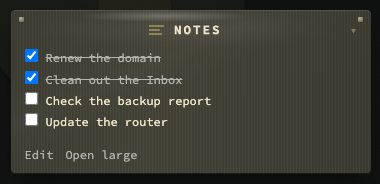
Notes — headings (# to ###), bullet and numbered lists, quotes, tables, code blocks, bold, italic, code and links are drawn as such; a line that starts with [ ] is a checkbox, and ticking it on the tile saves at once. Edit opens a plain editor (Ctrl/Cmd + Enter saves, Esc cancels); typing / there offers commands: /date, /time, /uuid, /upper, /lower, /title, /todo, /h1, /code and /table. Open large shows the text beside a preview with a toolbar (heading, bold, italic, code, link, list, task, quote, table, and / for the commands). A tile drawn wide adds the length and how many tasks are done. Config → Behavior → General → Notes widget → Notes are processed chooses where the Markdown and the commands are worked out: On the server (the default) or In the browser, which needs no request while you type. If the server cannot be reached, the tile shows the plain text.
System widgets and what they need
Processor, Memory, Disks, Containers and Container list report on the machine nextDash runs on. The Containers view shares the same connection. The Glances widget is not one of them: it needs a Glances 4 server and its address in Config → Glances, not the Docker socket (Glances › What it needs). Running the binary directly needs no setup. In a container:
Processor and Memory usually work as they are — /proc is not namespaced. Mount it only to be explicit:
volumes:
  - /proc:/host/proc:ro
environment:
  - NEXTDASH_HOST_PROC=/host/proc
Disks need a mount. Mount the disks under a prefix, keeping their names, and point NEXTDASH_HOST_ROOT at the prefix:
volumes:
  - /mnt:/host/root/mnt:ro,rslave        # Unraid, most Linux
  # - /volume1:/host/root/volume1:ro,rslave   # Synology, QNAP
  # - /:/host/root:ro,rslave                  # everything
environment:
  - NEXTDASH_HOST_ROOT=/host/root
Name the disks in the widget as the machine knows them — /mnt/user, /volume1. Mounted, readable disks are offered under the field.
Containers need the Docker socket, for the widget and the Containers view alike. Read-only still exposes the daemon's whole read API — every container, image, environment and mount. Use a socket proxy if that is too much.
volumes:
  - /var/run/docker.sock:/var/run/docker.sock:ro
environment:
  - NEXTDASH_DOCKER_SOCKET=/var/run/docker.sock
A read-only mount is enough to look. Starting, stopping, updating and removing containers from the Containers view needs a writable socket and NEXTDASH_DOCKER_CONTROL=1 — :ro on the mount does not stop the daemon's API from accepting writes on a socket that is otherwise reachable, so treat a writable socket as root on the host regardless of the mount flag. On Docker Desktop the socket is root:root, so the container may also need NEXTDASH_RUN_AS_ROOT=1 to reach it.
| Variable | Needed for |
|---|---|
NEXTDASH_HOST_PROC | Processor, Memory (optional; default /proc) |
NEXTDASH_HOST_ROOT | Disks (required) |
NEXTDASH_DOCKER_SOCKET | Containers widget and view (required; unset hides both) |
NEXTDASH_DOCKER_CONTROL | Containers view: start, stop, pause, restart, update and remove (1; needs a writable socket) |
On Unraid these are rows in the container template (Docker → nextDash → Edit):
| Config Type | Name | Container Path / Key | Host Path / Value | Access Mode |
|---|---|---|---|---|
| Path | Host proc | /host/proc | /proc | Read Only |
| Path | Host disks | /host/root/mnt | /mnt | Read Only |
| Path | Docker socket | /var/run/docker.sock | /var/run/docker.sock | Read Only |
| Variable | Host proc | NEXTDASH_HOST_PROC | /host/proc | — |
| Variable | Host root | NEXTDASH_HOST_ROOT | /host/root | — |
| Variable | Docker socket | NEXTDASH_DOCKER_SOCKET | /var/run/docker.sock | — |
Then name /mnt/user and /mnt/cache in the Disks widget. A user share reports the pool total; /mnt/diskN reports one disk. Mount / instead of /mnt to reach disks outside the array.
Good to know. A source that is not mounted says so on the tile. The processor figure appears from the second reading on. Each widget has its own refresh interval with a sensible minimum. On Docker Desktop for Mac or Windows the figures describe Docker's Linux VM, not your computer.
The Custom widget
The Custom widget reads figures from any service that answers with JSON — the queue in Sonarr, blocked queries in Pi-hole, a sensor in Home Assistant, or something you run yourself. It only reads. Your server makes the request, so a key never reaches the browser, and a machine on your network is reachable as long as Allow localhost & private-network bookmarks is on (Security and self-hosting › Local addresses and outgoing requests), which it is by default.
Start from one of the 42 presets (Presets) or from an empty widget. The parts, in the order you meet them:
- Step by step — from an empty widget to a working tile.
- Sign-in — the ways to prove who you are to a service.
- Paths and shapes — how a figure is found in the answer and how it is written.
- Presets — every service that comes filled in.
- When it shows nothing — what each message means.
Step by step
- Open Config → Widgets and press Add widget. Choose Custom, under And anything else: the Custom widget. The widget lands at the end of the page with its settings open.
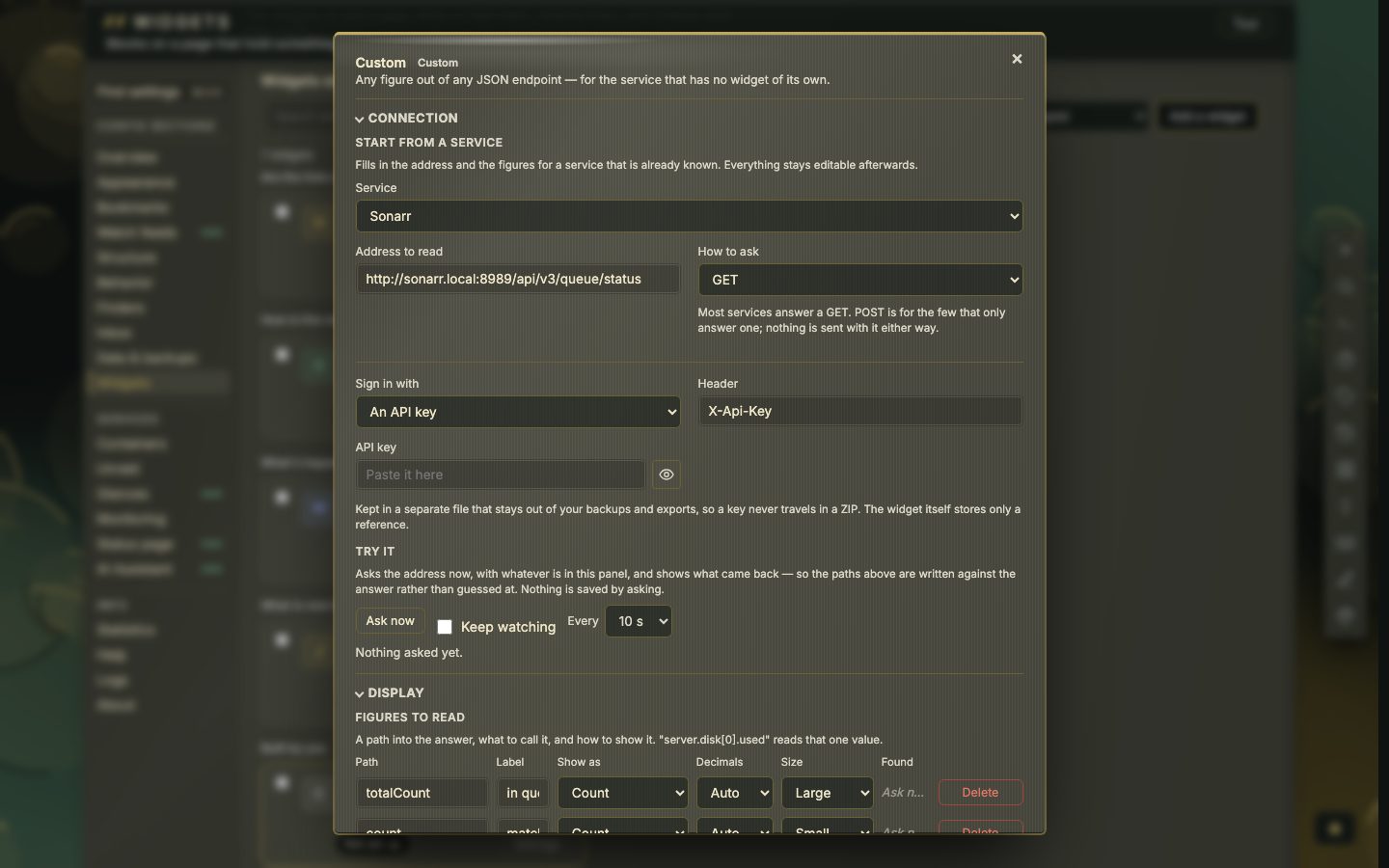
- Under Start from a service, pick one in Service — or leave it empty for a service that is not in the list. A preset fills in the address, the figures, the sign-in type and the refresh interval, and a notice says what is still left to do. See Presets.
- Under Where to read from, type the Address to read. If a preset put a sample address there (
*.local), replace the host and leave the path. A word such asYOUR_NODEin the address or the figures is a placeholder for something of your own; the panel says which. How to ask isGET, orPOSTfor the few services that only answer that. Nothing is sent with either. - Still there, Refresh every (seconds) takes 30 seconds to 24 hours; empty means five minutes. List from (path, optional) points at an array to show as rows instead of figures, up to twenty.
- Sign in with picks how nextDash proves itself: nothing, an API key, a username and password, or a sign-in nextDash keeps. Paste the key or type the password; a saved one shows as Set, and the eye button reveals it. See Sign-in.
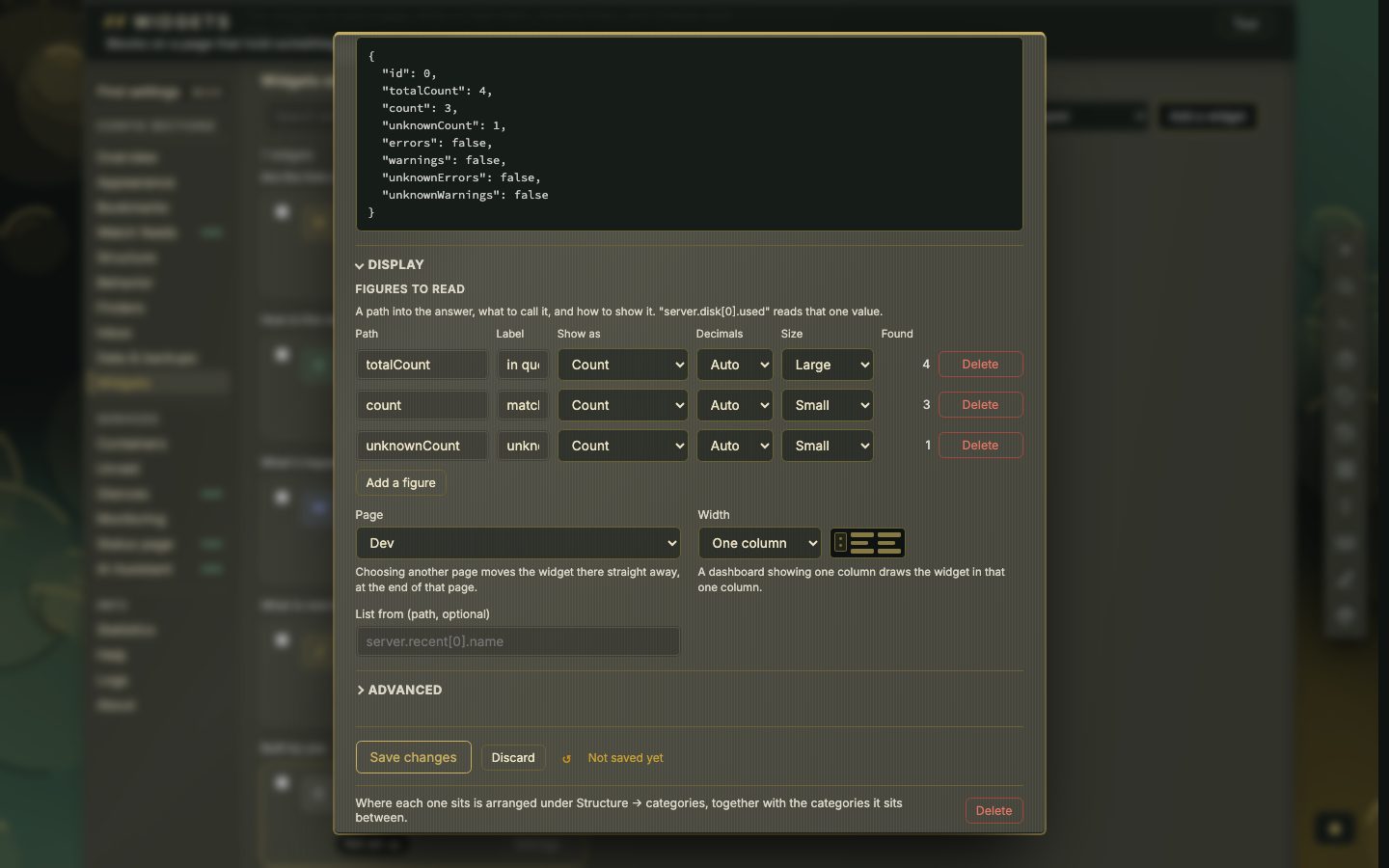
- Under Figures to read, press Add a figure for each reading, up to eight. Each row has a Path, a Label, Show as, Decimals and a Size. A preset has already filled these in. See Paths and shapes.
- Under Try it, press Ask now. nextDash makes the request with what is in the panel right now — including a key you only just typed — and shows three things: What came back (with a Find a key… search box), What the tile would show, and the request's method, host, status, time, size and whether a sign-in was sent. Nothing is saved by asking.
- Read the Found column. Each row shows what its path read, or not found. Fix a path, press Ask now again, and repeat until every row reads what you expect. Keep watching repeats the request every 5, 10, 30 or 60 seconds for up to five minutes, which helps when you are watching a figure move.
- Under On the dashboard, choose the Width — one column or two. Press Save changes. Until you do, the tile does not change.
Refresh now. Right-click the tile's title to skip the cache. It needs the write token if the install has one.
Shared by everyone. One answer is kept for everyone looking at the dashboard, and the tile refreshes itself on its interval while the tab is visible. A failed request is remembered for 30 seconds, so a service that is down is not asked again by every open dashboard in between.
Sign-in
Sign in with offers up to six choices, depending on the widget:
- Nothing — ask anonymously — for a service that answers without a credential.
- An API key — a Header name and the API key. When the header is
Authorization, most services want a word before the token (Bearer,Token); a preset starts the box with that word, and you paste the token after it. - A key in the address — for services that take their key as a parameter (SABnzbd, Plex, LazyLibrarian, Mylar3). The stored address keeps a
YOUR_KEYplaceholder, and nextDash puts the key in on each request, so it stays out of the widget's file. It is offered once a preset has chosen it. - A sign-in that nextDash keeps — you give the username and password (a service that signs in with a password alone, such as Pi-hole v6 or Duplicati, asks for no username) and nextDash signs in itself, keeps the session or token, and signs in again when it expires. This is how qBittorrent (login), Nginx Proxy Manager, Pi-hole v6, Duplicati and Beszel work. It is offered once a preset has chosen it.
- A username and password — plain basic sign-in, sent with every request.
- A sign-in saved elsewhere — appears once a sign-in is already stored, by another widget for instance, so you pick it instead of typing it again. Health checks can use the same stored sign-ins (Checks & health › Availability modes).
Secrets are stored in their own file, readable only by the account nextDash runs as, and left out of backups unless you include stored tokens (Data, backups and import › Backups & data); the widget itself keeps only a reference. A sign-in is not sent along when the service redirects the request to a different host.
Paths and shapes
A path names one value in the answer. Dots walk into objects, [0] picks a list entry by position, and the figure is shown the way Show as says.
Take this answer, from a made-up service:
{
  "server": {
    "name": "nas",
    "cpu": 0.43,
    "disk": [ { "used": 412000000000 }, { "used": 98000000000 } ]
  },
  "jobs": [
    { "name": "backup", "state": "ok" },
    { "name": "sync",   "state": "failed" },
    { "name": "scrub",  "state": "failed" }
  ]
}| Path | Gives | What it does |
|---|---|---|
server.name | nas | Walks into objects. |
server.disk[0].used | 412000000000 | [0] is the first entry of a list. |
server.disk[-1].used | 98000000000 | A negative position counts from the end: [-1] is the last. |
jobs[-1].name | scrub | The last entry — where a growing list keeps the newest. |
jobs# | 3 | A # at the end counts: the length of a list (or the number of keys of an object). |
jobs[state=failed]# | 2 | A [key=value] filter followed by # counts the entries that match. |
jobs[state=failed].name | sync | Without #, a filter picks the first entry that matches. |
jobs.sync.state | failed | A name against a list finds the entry that calls itself that (by its entity_id, id, name, key or slug). |
server.gpu | not found | Not in the answer: the Found column says so, and the tile shows a dash, not a zero. |
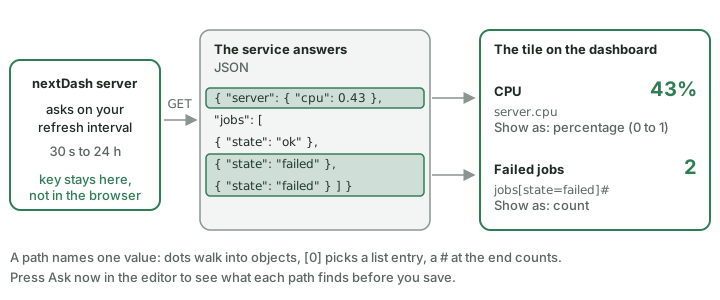
Some services answer with a list at the top, and Home Assistant answers with every sensor in one:
[
  { "entity_id": "sensor.p1_meter", "state": "431", "attributes": { "friendly_name": "P1 meter" } },
  { "entity_id": "sensor.boiler",   "state": "58.2" }
]| Path | Gives | What it does |
|---|---|---|
[entity_id=sensor.p1_meter].state | 431 | The explicit form: the entry whose entity_id is that, then its state. |
sensor.p1_meter | 431 | The short form. A dotted name is read as one entry, and on its own it gives its state. |
sensor.p1_meter.attributes.friendly_name | P1 meter | Anything after the name is walked into the entry. |
[1].state | 58.2 | A position at the top of the answer. It moves when a device is added, so a name is safer. |
# | 2 | The number of entries in the answer. |
A path names exactly one value: the first match wins, nothing fans out, and there is no arithmetic — no adding, no dividing, no "free space as a share". A path is at most 200 characters, a label at most 60.
Show as chooses how the value is written:
| Show as | Reads | Looks like |
|---|---|---|
| Count | A number, rounded to whole, thousands apart | 1 049 808 |
| Size | Bytes | 130.8 MB |
| Data size | A number counted in the unit you pick under Counted in (Bytes, KB, MB, GB, TB) — for services that already did the arithmetic | 3342.67 counted in GB shows 3.3 TB |
| Speed | Bits per second | 1.046 Gbps |
| Power | Watts | 4.5 kW, -1.1 kW |
| Temperature | A number, with the weather unit's suffix; it is not converted | 21.5 °C |
| Percentage (0–100) | A number already on a 0–100 scale | 43.7% |
| Percentage from a share (0–1) | A number on a 0–1 scale | 0.43 shows 43% |
| Duration | Seconds | 3h, 5d — the largest whole unit |
| Milliseconds | Seconds, written as milliseconds | 0.0052 shows 5 |
| Time ago | A date or a Unix time | 3h |
| Text | Whatever is there, cut at 120 characters | ok |
Sizes step by 1024, speeds and power by 1000. A field saved before the two percentage choices existed may still say Percentage (guessed), which reads 0 to 1 as a share; it stays until you change it. A value that is not a number is shown as text.
Decimals is Auto or 0 to 3, and works on every number — also on one a service sends as text, such as "0.00". For Data size the box turns into Counted in; Duration and Time ago have no decimals.
Size is how the figure is drawn: Normal, Large (the one that matters), Small (context), or Bar — a filled bar, offered only for a percentage. Presets choose the sizes for you, including whether a full bar is good news or bad.
Presets
42 presets come filled in — 41 services, because qBittorrent has two: one for its sign-in, one for the API key of version 5.2 and later. They are in five groups, in the order the Service list offers them. Every preset puts in:
- a sample address and the path the service answers on;
- the figures worth reading, with labels and sizes;
- the sign-in type, with the word before a token where the header wants one (
Bearer,Token,PVEAPIToken=); - the refresh interval, five minutes unless the service moves faster or slower;
- a notice that says where to find the key.
If the widget already has an address, the host you typed is kept and only the path is replaced, so moving a tile from Sonarr to Radarr on the same machine is one choice. Everything stays editable afterwards. A YOUR_… word in an address or a figure is a placeholder for something of your own.
Under Reads are the figures' labels, in order; Sign-in is what to choose under Sign in with.
Media & downloads — 21 presets
| Service | Sample address | Reads | Sign-in | Where the key is |
|---|---|---|---|---|
| Sonarr | http://sonarr.local:8989 + /api/v3/queue/status | in queue · matched · unknown | API key, header X-Api-Key | Settings → General → API Key. |
| Radarr | http://radarr.local:7878 + /api/v3/queue/status | in queue · matched · unknown | API key, header X-Api-Key | Settings → General → API Key. |
| Lidarr | http://lidarr.local:8686 + /api/v1/queue/status | in queue · matched | API key, header X-Api-Key | Settings → General → API Key. |
| Prowlarr | http://prowlarr.local:9696 + /api/v1/system/status | version · up since | API key, header X-Api-Key | Settings → General → API Key. |
| Bazarr | http://bazarr.local:6767 + /api/badges | episodes wanted · movies wanted · throttled | API key, header X-API-KEY | Settings → General → API Key. |
| Seerr (Overseerr / Jellyseerr) | http://seerr.local:5055 + /api/v1/request/count | pending · processing · available · requests | API key, header X-Api-Key | Settings → General → API Key. |
| Tautulli | http://tautulli.local:8181 + /api/v2?cmd=get_activity | streams · transcoding · kbps · kbps remote | API key, header X-Api-Key | Settings → Web Interface → API key. |
| Jellyfin / Emby | http://jellyfin.local:8096 + /Items/Counts | films · series · episodes | API key, header X-Emby-Token | Dashboard → API Keys. |
| Plex | http://plex.local:32400 + /status/sessions | streams now | Key in the address (X-Plex-Token) | The X-Plex-Token from any Plex URL. Plex answers XML unless asked otherwise, so nextDash sends the Accept header for you. |
| Immich | http://immich.local:2283 + /api/server/statistics | photos · videos · stored | API key, header x-api-key | Account Settings → API Keys. The statistics are an admin's: the key must belong to an admin and include the server.statistics permission. |
| qBittorrent (login) | http://qbittorrent.local:8080 + /api/v2/transfer/info | down/s · up/s · downloaded | Session: username and password, signed in by nextDash | The username and password you sign in to the Web UI with. |
| qBittorrent (5.2+, API key) | http://qbittorrent.local:8080 + /api/v2/transfer/info | down/s · up/s · connection | API key, header Authorization (Bearer <key>) | Tools → Options → Web UI → API key. On an older version, choose qBittorrent (login). |
| SABnzbd | http://sabnzbd.local:8080 + /api?mode=queue&output=json | in queue · speed · MB left · time left | Key in the address (apikey) | Config → General → API Key. |
| NZBGet | http://nzbget.local:6789 + /jsonrpc/status | down/s · MB left | Username and password | The control username and password. Works with the maintained nzbgetcom/nzbget as well as the original. |
| Whisparr | http://whisparr.local:6969 + /api/v3/queue/status | in queue · matched | API key, header X-Api-Key | Settings → General → API Key. |
| LazyLibrarian | http://lazylibrarian.local:5299 + /api?cmd=showStats&json=1 | books · wanted · authors | Key in the address (apikey) | Config → Interface → API key (the read-only one is enough), with the API switched on. |
| NZBHydra2 | http://nzbhydra.local:5076 + /externalapi/v1/history/downloads?limit=1 | downloads · last grab | API key, header X-Api-Key | Config → Main → API key. A wrong key answers 404, not 401. |
| Komga | http://komga.local:25600 + /api/v1/series?size=1 | series | API key, header X-API-Key | Account settings → API keys. |
| PhotoPrism | http://photoprism.local:2342 + /api/v1/config | photos · videos · to review | API key, header Authorization (Bearer <key>) | An app password (Settings → Account → Apps and Devices). If every figure reads 0, the password was not accepted: PhotoPrism then answers with its public settings. |
| Jellystat | http://jellystat.local:3000 + /stats/getPlaybackActivity?size=1 | plays logged · last played · played | API key, header x-api-token | Settings → API Keys. Counts the plays Jellystat has logged. |
| Mylar3 | http://mylar.local:8090 + /api?cmd=getIndex | series | Key in the address (apikey) | Settings → Web Interface → API key, with the API switched on. |
Network — 6 presets
| Service | Sample address | Reads | Sign-in | Where the key is |
|---|---|---|---|---|
| Pi-hole (v6) | http://pi.hole + /api/stats/summary | queries · blocked · blocked % · on the list | Session: password only, signed in by nextDash | The web interface password, or an app password from Settings → Web interface / API. |
| AdGuard Home | http://adguard.local:3000 + /control/stats | queries · blocked · avg ms | Username and password | The web interface username and password. |
| Traefik | http://traefik.local:8080 + /api/overview | routers · services · router errors · middlewares | None | No credential when the API is exposed on the internal network. |
| Speedtest Tracker | http://speedtest.local:8080 + /api/v1/results/latest | down · up · ping ms · healthy · last test | API key, header Authorization (Bearer <key>) | An API token with the results:read ability. |
| Nginx Proxy Manager | http://npm.local:81 + /api/reports/hosts | proxy hosts · redirects · 404 hosts | Session: email address and password, signed in by nextDash | The email address and password you sign in with. An account with two-factor sign-in cannot be used here. |
| Tailscale | https://api.tailscale.com + /api/v2/tailnet/-/devices | devices · need an update | API key, header Authorization (Bearer <key>) | An API access token from the admin console (Settings → Keys). These tokens expire after at most 90 days. |
System — 4 presets
| Service | Sample address | Reads | Sign-in | Where the key is |
|---|---|---|---|---|
| Proxmox VE | https://proxmox.local:8006 + /api2/json/nodes/YOUR_NODE/status | uptime · cpu · ram used | API key, header Authorization (PVEAPIToken=<key>) | An API token. Replace YOUR_NODE in the address with your node's name — it is in the left-hand tree of the Proxmox web interface. |
| Glances | http://glances.local:61208 + /api/4/quicklook | cpu · memory · swap · load | None | No credential unless the web server was started with a password; then choose basic auth under Sign-in. Or use the dedicated Glances widget (Glances › The widget), which reads nextDash's own record. |
| Syncthing | http://syncthing.local:8384 + /rest/db/completion | in sync · to sync · to transfer | API key, header X-API-Key | Actions → Settings → API Key. |
| Duplicati | http://duplicati.local:8200 + /api/v1/serverstate | state · status · error | Session: password only, signed in by nextDash | The password of the Duplicati web interface. |
Monitoring — 6 presets
| Service | Sample address | Reads | Sign-in | Where the key is |
|---|---|---|---|---|
| Beszel | http://beszel.local:8090 + /api/collections/systems/records?perPage=200 | systems · down · paused | Session: email address and password, signed in by nextDash | The email address and password of a Beszel user (a read-only one is enough) that can see the systems. |
| Netdata | http://netdata.local:19999 + /api/v1/info | critical · warning · version | None | No credential on a default agent. |
| Gatus | http://gatus.local:8080 + /api/v1/endpoints/statuses?pageSize=1 | down · endpoints | None | No credential unless Gatus is set up with basic security; then choose basic auth under Sign-in. |
| Uptime Kuma | http://uptime-kuma.local:3001 + /api/status-page/heartbeat/YOUR_SLUG | monitors | None | Reads a published status page, without a credential. Replace YOUR_SLUG in the address with its slug. One monitor's latest ping is heartbeatList.<id>[-1].ping, with the id from the monitor's own address. |
| Scrutiny | http://scrutiny.local:8080 + /api/summary | drives · status · temp | None | No credential on a default install. Replace YOUR_WWN in the figures with a drive's WWN, shown on its detail page (0x…). |
| Healthchecks | https://healthchecks.io + /badge/YOUR_BADGE | status · down · late · checks | None | Paste the JSON badge address (the json3 one, from Settings → Badges) into the address in place of the sample. The address itself is the key. |
Apps — 5 presets
| Service | Sample address | Reads | Sign-in | Where the key is |
|---|---|---|---|---|
| Nextcloud | https://nextcloud.local + /ocs/v2.php/apps/serverinfo/api/v1/info?format=json | files · users · active today · free | API key, header NC-Token, plus OCS-APIRequest that nextDash adds | The token from Administration settings → System (Monitoring). |
| Paperless-ngx | http://paperless.local:8000 + /api/statistics/ | documents · in the inbox · characters · tags | API key, header Authorization (Token <key>) | An API token. |
| Home Assistant | http://homeassistant.local:8123 + /api/states | now · sensor · updated | API key, header Authorization (Bearer <key>) | A long-lived access token from your profile page. Then replace YOUR_SENSOR in each figure with an entity of your own — Developer tools → States lists them. |
| Grafana | http://grafana.local:3000 + /api/health | database · version | None | The health route answers without a credential. |
| ntfy | http://ntfy.local:8080 + /v1/stats | messages · per second | None | The stats route answers without a credential. |
Retired. Three presets are no longer offered because the service or its API is gone: Readarr, Pi-hole v5 and TrueNAS. A widget that was started from one keeps working and still shows its choice, but a new widget cannot pick it, and they are not part of the 42.
Every preset above is tested against a recorded answer of its service, through the same request, sign-in, path and formatting that Ask now uses: a figure that reads nothing fails the test. A service that changes its API is one line in the preset, so a figure that suddenly reads a dash is worth a look at What came back before anything else.
📷 Screenshot — Start from a service, after choosing Sonarr
When it shows nothing
Press Ask now first. It shows the status and the answer, which is usually the whole explanation.
- The figure reads a dash and Found says not found. The path does not match the answer. Paths are case-sensitive. Search What came back for the value you want and copy its path; a service that renamed a field after an update shows up this way. A path that stops matching is marked, never shown as zero.
- The status is 401 or 403, or the tile says the service answered with an error. The sign-in was refused. Check the key, the header name and the word before the token (
Bearer,Token). Ask now says whether a sign-in was sent at all; if it did not, nothing is chosen under Sign in with. A few services answer a wrong key differently: NZBHydra2 with 404, PhotoPrism with its public settings, so every figure reads 0. - "That address is not allowed." The address is private and Allow localhost & private-network bookmarks is off, or it is not an
http/httpsaddress. See Security and self-hosting › Local addresses and outgoing requests. - "No answer from that address." Nothing answered within eight seconds, or the host could not be reached. Remember it is your server that asks, not your browser: in Docker,
localhostis the container itself, so use the machine's address. - "That address answered with a web page, not JSON." The address names a web interface, often the host with no path. Add the path of the service's API; a preset does this for you.
- "That answer is not JSON." or "…answered with … not JSON." The service sent XML, plain text or something else. An answer is also read only up to one megabyte; a bigger one is cut off and no longer parses, so point at a smaller endpoint, as the NZBHydra2, Komga, Jellystat and Gatus presets do with
?limit=1,?size=1or?pageSize=1. - "Could not sign in to that service." The username and password were refused. A two-factor account cannot be used (Nginx Proxy Manager says so in its notice).
- "Nothing to show yet" or "no address yet". The widget has no figure and no list, or no address. Add one and save.
- The tile did not change. Changes wait for Save changes.
Limits. Eight figures, or one list of up to twenty rows. An answer has eight seconds to arrive and is read up to one megabyte. Refresh every 30 seconds to 24 hours. There is no arithmetic, and a tile cannot change anything on the service.
Unraid widgets
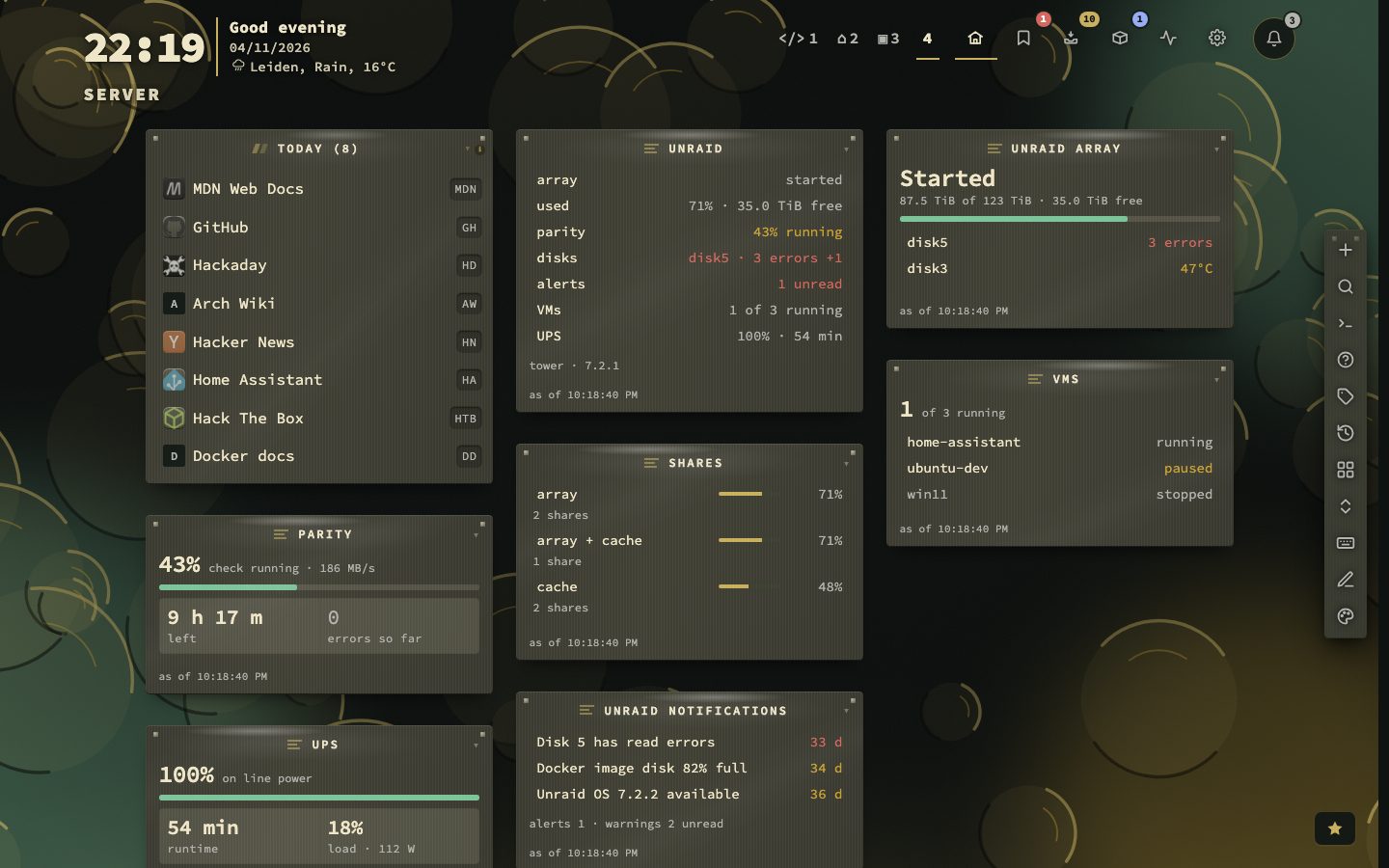
Seven widgets read an Unraid server through its API: Unraid, Unraid array, Parity, Shares, VMs, UPS and Unraid notifications. They are read-only — nextDash never starts or stops anything on the server.
A tour and a step. The first visit to Config → Unraid opens a five-step tour, and its Tour button above the tabs plays it again (Config). On an Unraid server the Quick start guide adds a step, Connect your Unraid server, that opens this section.
What they need. Unraid 7.2, or an older Unraid with the Unraid Connect plugin, and an API key with the role Viewer (in Unraid: Settings → Management Access → API Keys). A key that can do more than read is accepted, but Config says Viewer is enough.
One connection for all seven. Config → Unraid holds it: the Address, the API key (a saved key shows as Set; the eye button reveals what you type), Accept a self-signed certificate, Read this server and Send Unraid alerts through the alert channels. When nextDash runs in a container, the Docker bridge gateway is suggested as the address. The address starts with http:// or https://; one without is refused. Test connection names the server, its Unraid and API versions and what the key may read — yes, not allowed or not in this version per area. When the server answers but the key may not read its info, or its Unraid lacks what nextDash reads, the test says that rather than The server did not answer. A new address needs the key again: change the address without typing a key and the saved key is dropped. The key is stored apart in data/unraid-secrets.json, is never sent back to the browser, and travels in a backup only with Tokens and passwords.
On the tile. A widget has only how it draws: Refresh every (seconds) (30 at the least; one answer per area is shared by everyone viewing the dashboard), Rows to show where it lists (Shares, VMs, Unraid notifications), and A click — Opens the page in Unraid or Does nothing. An area the key may not read, or an Unraid version that lacks it, is named on the tile instead of showing zero; a server that stops answering keeps the last reading, with its age. Nothing is shown until the connection is saved.
Alerts. With Send Unraid alerts through the alert channels ticked, four things go through the channels that carry downtime and container alerts (Checks & health › Alerts): Unraid's own ALERT notifications, the array stopping, a parity check that finished with errors, and a disk whose error count went up. The first look after a start only remembers what is there, and so does the first look after the address changes or Read this server or the alert switch is turned off and on again. Four or more at once become one message, N Unraid alerts.
Local addresses. The server is asked from nextDash, so a LAN address needs Allow localhost & private-network bookmarks (Behavior → General, on by default) — the same rule as other outgoing requests (Security and self-hosting › Local addresses and outgoing requests). Unraid usually answers with a certificate of its own; tick Accept a self-signed certificate for that, or use an address with a certificate nextDash trusts.
📷 Screenshot — the Unraid widgets
📷 Screenshot — Config → Unraid after Test connection