

Containers
The Containers view shows the Docker containers on this machine, with logs, updates and disk use. Looking needs the Docker socket; acting needs NEXTDASH_DOCKER_CONTROL=1, and a write token as well if you set one.
The Containers view shows the Docker containers on the machine nextDash runs on — the same connection the Containers widget and system widgets use. It needs the Docker socket (What it needs). When a Glances host runs on the same machine, the two views link to each other and the view can read CPU, memory and network from Glances instead of from Docker (Glances › The Docker host).
IMPORTANT
It needs setting up first: the Docker socket, NEXTDASH_DOCKER_CONTROL=1 for actions, a write token, and on some hosts NEXTDASH_RUN_AS_ROOT=1. See What it needs.
Opening it
Open it with Shift + Y, the Containers icon in the header, :docker, or /#docker. Search also finds containers by name, and the Containers widget's tile opens the view. Two tabs sit above the list: Containers and Disk (Disk). The ℹ beside Tour in the header gives a five-part reference: the list, acting on containers, the side panel, updates and Disk. Tour plays a six-step walkthrough with moving drawings — offered once on your first visit (Config).
The list
| Filter | Shows |
|---|---|
| All | Every container |
| Running | Containers that are up |
| Stopped | Containers that are down or paused |
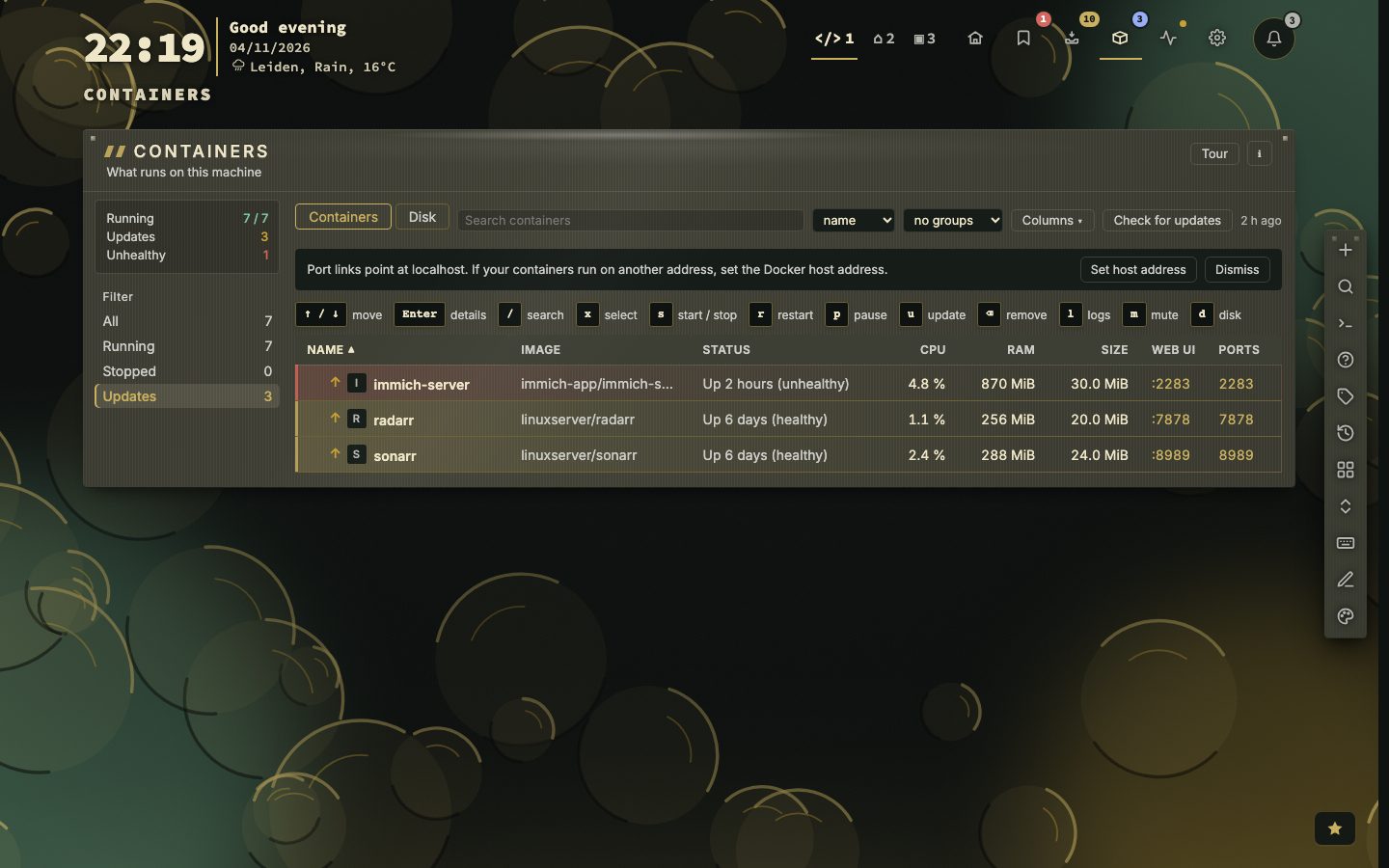
| Updates | Containers with a newer image waiting |
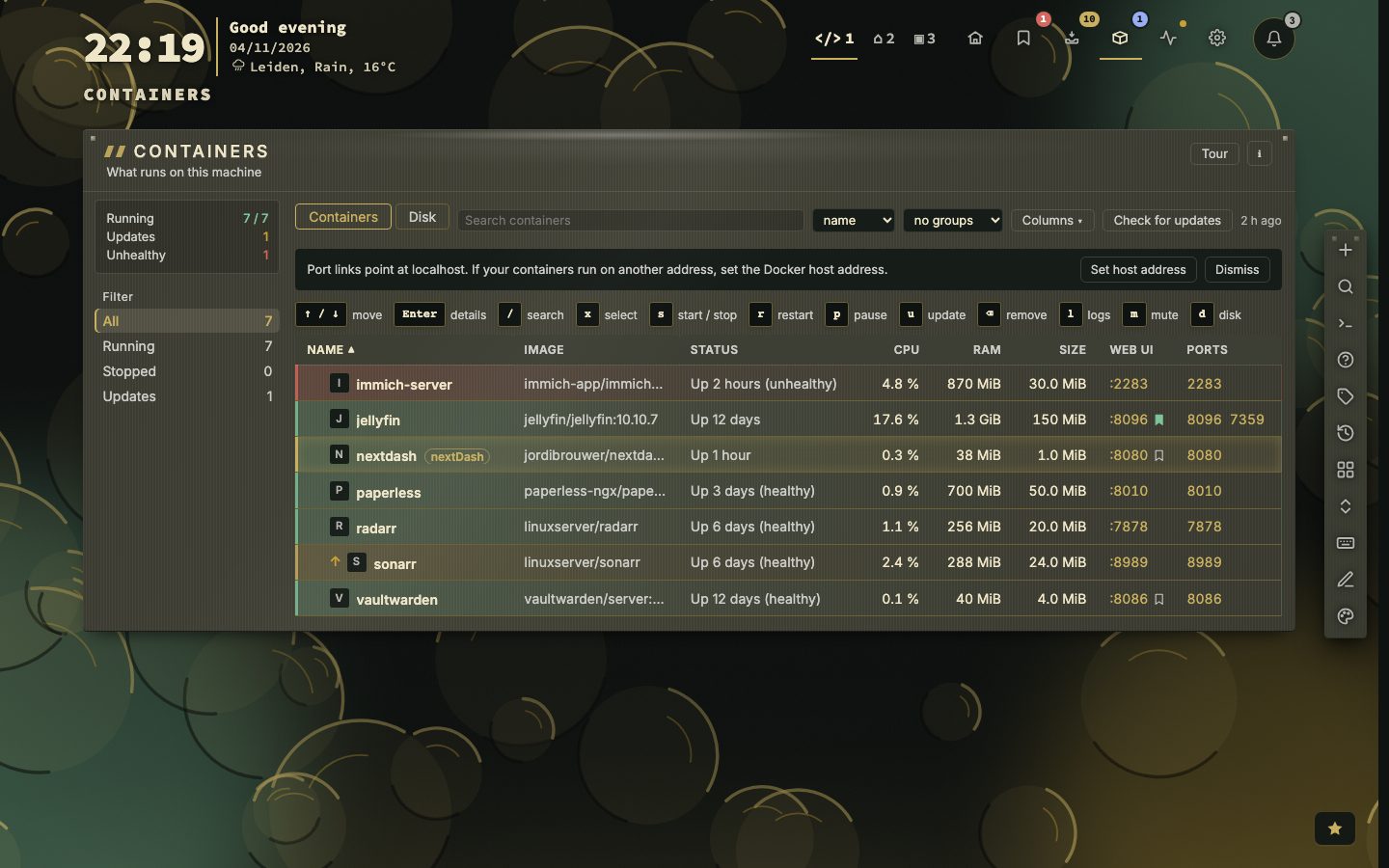
Group by status folds the list under Updates, Running, Paused and Stopped, each band with its count (Updates · 9); by network under the network each container runs in (its network mode, else the first network it joined); by image under its image, whatever the tag; group by project folds it under each compose project, and a project's row has Start, Stop and Restart for the whole stack, and Update (n) for the n containers in it with an update waiting — not a skipped or held version, not an image no check has looked at. Stop and Update ask first, naming the containers, and they go one at a time.
Each row shows the container's app icon, its name, image, status, CPU and RAM, its Size — what the container wrote, with the size including its image on hover — a link to its web UI and its ports. The icon comes from the app icon sets, matched by the image and the name (Data, backups and import › Icons & previews); a container the sets do not know — or an icon that fails to load — shows its first letter, and nextDash's own container shows the nextDash logo. A container with an update waiting has an orange ↑ in front of its name. Name and image stay on one line, cut short with the whole text on hover, and the image drops its registry host and a :latest tag (lscr.io/linuxserver/sonarr:latest reads linuxserver/sonarr). The first three published ports show in the row; more go behind +N, which opens a list of all of them with the port inside the container and tcp or udp. A port published for both counts once in the row. Sizes are measured in the background every half hour (the Docker daemon takes a while to work them out) and when Disk is refreshed; a container not measured yet shows —. CPU and RAM are the last reading, taken every 30 seconds; they are there while Config → Containers → Keep the last hour of CPU and memory is on. On a narrower screen the Image column goes first (below 1100 pixels), then CPU, RAM and Size (below 900). Click Name, Status, CPU, RAM, Size or Restarts to sort, and again to turn the order round; the sort menu also offers uptime, CPU, memory, size and restarts, highest first. A container without a figure — stopped, or not measured yet — goes last either way.
When Config → Glances says the Glances host is this machine, and Use Glances for the CPU, memory and network in the Containers view is on (it is by default), CPU, RAM and network come from Glances instead, in one request; containers Glances does not know are still read from Docker.

Columns in the toolbar ticks which columns show: Image, Status, CPU, RAM, Size, Restarts (off at first: how often the container started again in the last 24 hours, from its timeline), Web UI and Ports. Name always shows. The choice is kept in this browser; Reset columns puts them back. CPU and RAM show only while the stats history is on, ticked or not, and only once a container has a reading; with none running they stay away instead of showing a dash on every row.
Row colours. The coloured edge of a row is red only when something is wrong: a container that exited with a code other than 0, is dead or restarting, or reports unhealthy. A container that finished its job or was stopped on purpose is grey, so a few idle ones no longer drown the one that failed. A port link or web UI link on a container that is not running is greyed and out of the tab order, with Not running in its tooltip; the row itself still opens the side panel.
The web UI link is the address you set in the side panel's Custom section, else the one the container's own labels offer (Unraid's template), else its first published TCP port. A local address shows as its port (:8123), another as its host. A port link goes to the host you opened nextDash on unless Config → Containers → Docker host address names the server — its LAN address or name only, without http:// or a port, for example 192.168.1.10 or tower.local, so port 8080 opens http://192.168.1.10:8080. A line under the field checks what you type and cuts a full http://…:8080 down to its host when it is saved; opened through a domain — a reverse proxy — that is rarely right. While the address is empty the view says where port links point, above the list, with a button to that setting and one to dismiss the note; an address of your own has a dot in front of it, and a long one is cut short, with the whole address on hover.
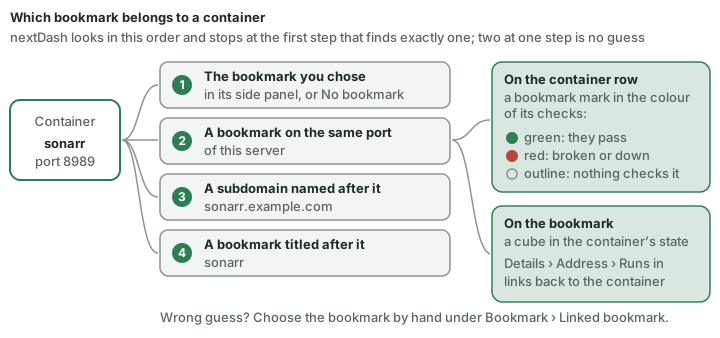
The web UI's bookmark. When a bookmark is saved for a container's web UI, a small bookmark mark follows the link, in the colour its checks give it: green when they pass, red when it is broken or a monitor finds it down, an outline when nothing checks it. Hover says which bookmark and how it was found; a click opens it in the Bookmarks view, its row in view and in focus, its side panel on Details. nextDash finds it in this order and stops at the first step that finds exactly one address — two at one step is no guess at all:
- the one you chose in the side panel's Bookmark section (The side panel), or none if you chose No bookmark;
- a bookmark on the same port of this server (the Docker host address, the address you opened nextDash on, or the container's own LAN address);
- a bookmark whose subdomain is the container's name —
sonarr.example.com, as a reverse proxy gives; - a bookmark titled after the container.
The bookmark's own side panel says it back: Details → Address → Runs in names the container, a link to its side panel.
Selecting several. Tick containers with the box in front of the name, x or Space; Shift-click a box, Shift + X or Shift + ↑/↓ ticks a run, and Ctrl/Cmd + A ticks everything the filter shows (again to clear). A bar above the list then offers Start, Stop, Restart, Update, Remove, Mute notifications and Update automatically (Actions and updates) for the lot, one container at a time with a count, and ends with one notice such as 3 restarted, 1 failed, naming each one that failed and why. Update takes only the ticked containers with an update on offer: the question names the ones it leaves out for having none, and with none on offer it says so and does nothing. Skipped and held ones are left out without a word. Remove asks once, naming the ones that still run, and stops those first; ⌫ or Delete with containers ticked does the same, and so does a right-click on one of the ticked rows, whose menu then offers the bar's actions for all of them. The container nextDash runs in is left out. Without actions switched on (What it needs) the bar offers only muting. Clear selection or Esc lets go. The header badge counts containers with an update waiting; a skipped or held update does not count.
The side panel
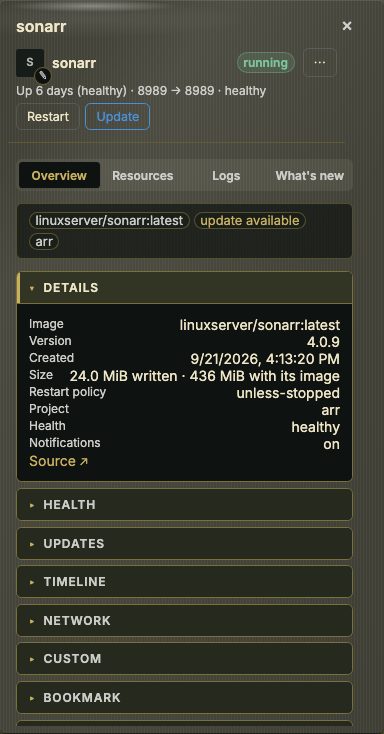
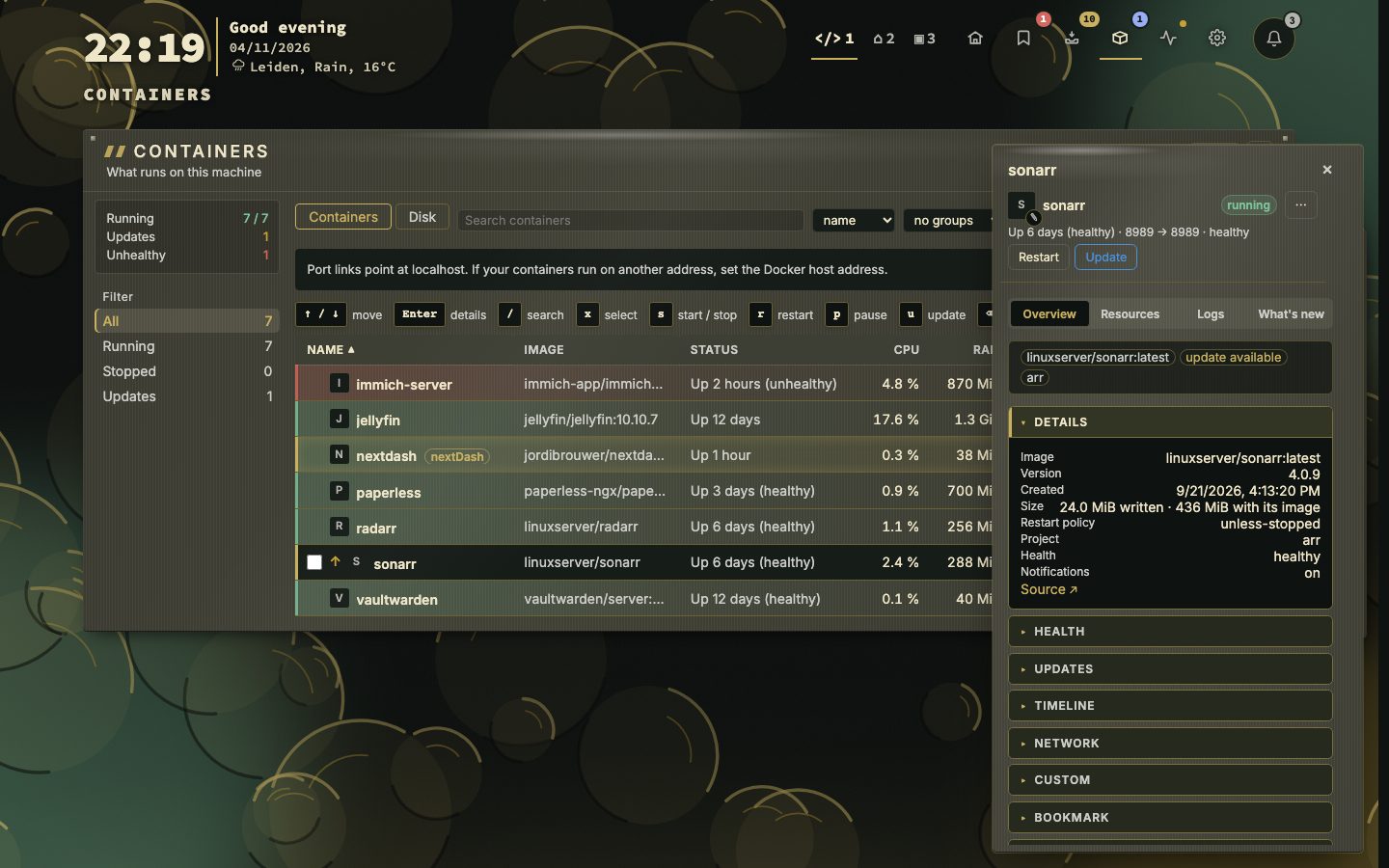
Selecting a container opens its side panel, with four tabs. Its head shows the container's web UI address under the name, tagged Custom when it is one you set; the tag opens the Custom section. A click beside the panel closes it, one on another row moves it there (Config → Containers → Close on a click beside it).
The ✎ on the icon in the panel's head chooses what the container shows: Choose app icon… opens the icon search, Use letter keeps the plain letter, and Automatic goes back to the icon the sets matched. The choice is kept per container name, so it survives an update. nextDash's own container has no pencil.
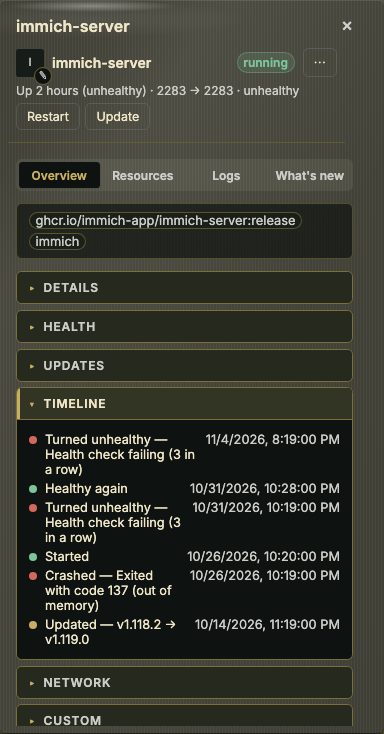
- Overview — an accordion of Details, Health, Updates, Timeline, Network, Custom, Bookmark, Volumes and Environment. Health, for a container with a healthcheck, shows its status, how many checks failed in a row, the check it runs, and the last five checks — each a mark and a time, a failed one with its exit code and output. Volumes lists each mount by where it appears in the container, with where it comes from under it and a tag for its kind (bind, volume) and for read-only. Updates is Actions and updates. Timeline is what happened to the container, newest first: starts and stops (by you or by nextDash), crashes with their exit code, out-of-memory kills, a run of crashes as one Kept restarting line, health changes, pauses, updates and rollbacks. nextDash writes these down from Docker's own events, whatever the notices are set to — a hundred per container, for thirty days, from the moment this version runs. Details also gives its size (written, and with its image) and says whether its notices are on, muted or off. Custom holds the container's Web UI address: an
http://orhttps://address of your own, where[IP]stands for this server. Empty uses the container's default. The address is used everywhere the web UI opens: the list, the Container list widget and:docker <name> open. Back to the default removes it. Bookmark shows the bookmark of its web UI — name, address, what its checks say and how it was found — with Open in Bookmarks, and Linked bookmark to choose: Automatic (naming what it found), No bookmark, or any bookmark by hand. - Resources — CPU, memory, size, Network (in and out) and Disk I/O (read and written), with four charts under them: CPU, memory, network and disk I/O over the last hour — one cursor across the four, a tooltip, a drag to zoom (double-click or
0back), and the arrow keys to walk the points with the value read out (Shiftsteps ten;+and-zoom in and out around the reading,0shows the whole hour). Network and disk are rates between two samples, so they show a dash until there are two. nextDash samples the running containers every 30 seconds and keeps the samples in memory, so a restart starts the charts again. Config → Containers → Keep the last hour of CPU and memory switches the sampling and the charts off. - From Glances — for a container the linked Glances host knows: what Glances recorded about it, with Open in Glances ↗; the moments it restarted are marked on the Glances graphs (Glances › The Docker host).
- Logs — the last lines, with Refresh and Open logs window (The logs window).
- What’s new — the release notes behind an available update.
📷 Screenshot — a container's timeline: a failed health check, a crash and an update
📷 Screenshot — the Containers view with the side panel open, full page
Keys
| Key | Action |
|---|---|
↑ / ↓ | Move through the containers |
x / Space | Tick or untick the selected container |
Shift + X / Shift + ↑/↓ | Tick a run of containers |
Ctrl/Cmd + A | Tick every container the filter shows; again to clear |
Enter | Open the side panel |
/ | Search the containers |
s | Start or stop the selected container |
r | Restart it |
p | Pause it |
u | Update it |
⌫ / Delete | Remove it (asks first; a running one is stopped first); with containers ticked, the ticked ones |
l | Open its logs window |
m | Mute or unmute its notices |
d | Switch between the list and Disk |
Esc | Clear the ticks, then the selection, close the panel, then leave the view |
The legend above the list names them; Config → Containers → The key legend puts it below the list or hides it. Without actions switched on, the legend leaves out the keys that act on Docker.
Actions and updates
Starting, stopping, pausing, restarting, updating and removing a container are all behind NEXTDASH_DOCKER_CONTROL=1, on top of the write token if the install has one — read-only access to the socket is not enough by itself. Update and remove always ask first; Config → Containers → Safety can add the same confirmation to stop and restart.
Image update checks run on request and on an interval (Config → Containers → Updates: off, 6, 12 or 24 hours), asking the image's registry whether a newer tag is available. An optional GitHub token (Config → Containers → Updates) raises the rate limit for images hosted there, for release notes and for nextDash's own release check. The container nextDash itself runs in refuses stop, pause, restart, remove and update.
The side panel's Updates part says where the image stands and keeps your say over it:
- Skip this version — the version on offer stops counting as an update: no badge, no count, and an update of a selection leaves it out. A newer version counts again. Undo skip takes it back.
- Hold updates — the image never counts as having one until you choose Resume updates; the row shows a quiet held label.
- History — what updates did, newest first, with the versions where the image names them.
- Roll back to … — while the image the last update replaced is still on the host, this puts the container back on it after asking: the old image gets its tag back and the container is recreated on it, without a download. The version it leaves is skipped, so it is not offered straight back. Pruning dangling images (Disk) removes the images a rollback needs.
Updating by hand still works on a skipped or held image.
While an update runs the progress window lists each container with its steps — check, pull, compare, stop, rename, create, connect networks, start, remove the old one — ticked off as they happen, and a short log of the pull. A finished container folds up with Done in 12 s or Already current; one that failed stays open with the step that broke and the reason, and the window waits for Close.
Update automatically — a switch in the same part, or the selection bar for several — lets nextDash update the container on its own, in the nightly window set in Config → Containers → Updates (03:00 to 05:00 until you change it; a window past midnight, 22 to 4, works too). Inside it, every five minutes, a container with this switch on and an update waiting — as the last check found it; not skipped, not held, never nextDash's own — is updated as the Update button would, one at a time, and tried once per night for a given image. It is then watched for five minutes: if it stops, starts again on its own or turns unhealthy, it is rolled back to the image it had, started again, and that version is skipped. A stop or restart you make yourself during those five minutes is left alone. A container that was not running is updated and left stopped, without the watch. Each update, rollback or failure sends a notice (Notices). It needs NEXTDASH_DOCKER_CONTROL=1, and the update check switched on — that is what finds a newer image.
Offered, not assumed. The check for new images is off until you switch it on, because it asks the registries. After your third visit to the Containers view a toast points to it (The dashboard); Config → Containers → Updates has the same switch and the interval.
📷 Screenshot — the Containers view filtered on Updates, full page
What it needs
IMPORTANT
Nothing in this chapter works until the container can reach Docker. Four settings decide what the view can do:
| Setting | Needed for | Why |
|---|---|---|
Mount /var/run/docker.sock and set NEXTDASH_DOCKER_SOCKET=/var/run/docker.sock | Seeing anything at all | nextDash talks to Docker through its socket. Without it the view shows a setup card and the Containers widget is hidden. :ro is enough to look. |
NEXTDASH_DOCKER_CONTROL=1 | Start, stop, pause, restart, update, remove | Off by default, so a mounted socket only reads. |
NEXTDASH_WRITE_TOKEN | Keeping other sites and scripts out | Access to the socket is root on the host: :ro on the mount does not stop the Docker API from accepting writes. The token refuses requests that do not carry it — another website, a script that only knows the address. It is not a login: the dashboard gives it to every browser that opens the page. Keeping the actions yours also needs a gate in front — Tailscale, or a reverse proxy with authentication (Security and self-hosting). |
NEXTDASH_RUN_AS_ROOT=1 | Only when the socket belongs to gid 0 | See below. |
WARNING
With NEXTDASH_DOCKER_CONTROL=1, anyone who can open the dashboard can stop, update or remove your containers, and access to the Docker socket is root on the host. Put nextDash behind a gate first (Security and self-hosting).
Why root is sometimes needed. The container starts as root, fixes the ownership of /app/data, then drops to its own nextdash user. Before it does, it looks at the group that owns the socket and adds nextdash to it — the docker group, gid 281 on Unraid — so the unprivileged user can read the socket. When the socket is owned by root's own group (gid 0), as on Docker Desktop and some NAS systems, joining that group would amount to root anyway, so the entrypoint does not; the log then says nextdash: /var/run/docker.sock is owned by gid 0; set NEXTDASH_RUN_AS_ROOT=1 to use it, and Config → Containers shows No access to the socket. NEXTDASH_RUN_AS_ROOT=1 keeps the whole app running as root. Set it only in that case.
Docker Compose:
services:
  nextdash:
    volumes:
      - ./data:/app/data
      - /var/run/docker.sock:/var/run/docker.sock:ro
    environment:
      - NEXTDASH_DOCKER_SOCKET=/var/run/docker.sock
      - NEXTDASH_DOCKER_CONTROL=1
      - NEXTDASH_WRITE_TOKEN=change-me-to-a-long-random-string
      # - NEXTDASH_RUN_AS_ROOT=1        # only if the log says "owned by gid 0"
Unraid (Docker → nextDash → Edit):
| Config Type | Name | Container Path / Key | Host Path / Value |
|---|---|---|---|
| Path | Docker socket | /var/run/docker.sock | /var/run/docker.sock |
| Variable | Docker socket variable | NEXTDASH_DOCKER_SOCKET | /var/run/docker.sock |
| Variable | Write token | NEXTDASH_WRITE_TOKEN | a long random string |
| Variable | Docker actions | NEXTDASH_DOCKER_CONTROL | 1 (the template starts at 0) |
| Variable | Run as root | NEXTDASH_RUN_AS_ROOT | leave at 0 |
All five are in the template. Docker actions starts at 0, so the view only reads until you set it to 1. Unraid's socket belongs to the docker group, so Run as root stays at 0 there.
Synology and QNAP use the same /var/run/docker.sock path. If the log names gid 0, add NEXTDASH_RUN_AS_ROOT=1.
Checking it. Config → Containers shows the connection as the server sees it: whether the socket answers, whether actions are on, whether a write token is set, and whether nextDash recognises the container it runs in. Widgets › System widgets and what they need covers the same socket for the Containers widget and the other system widgets.
Disk
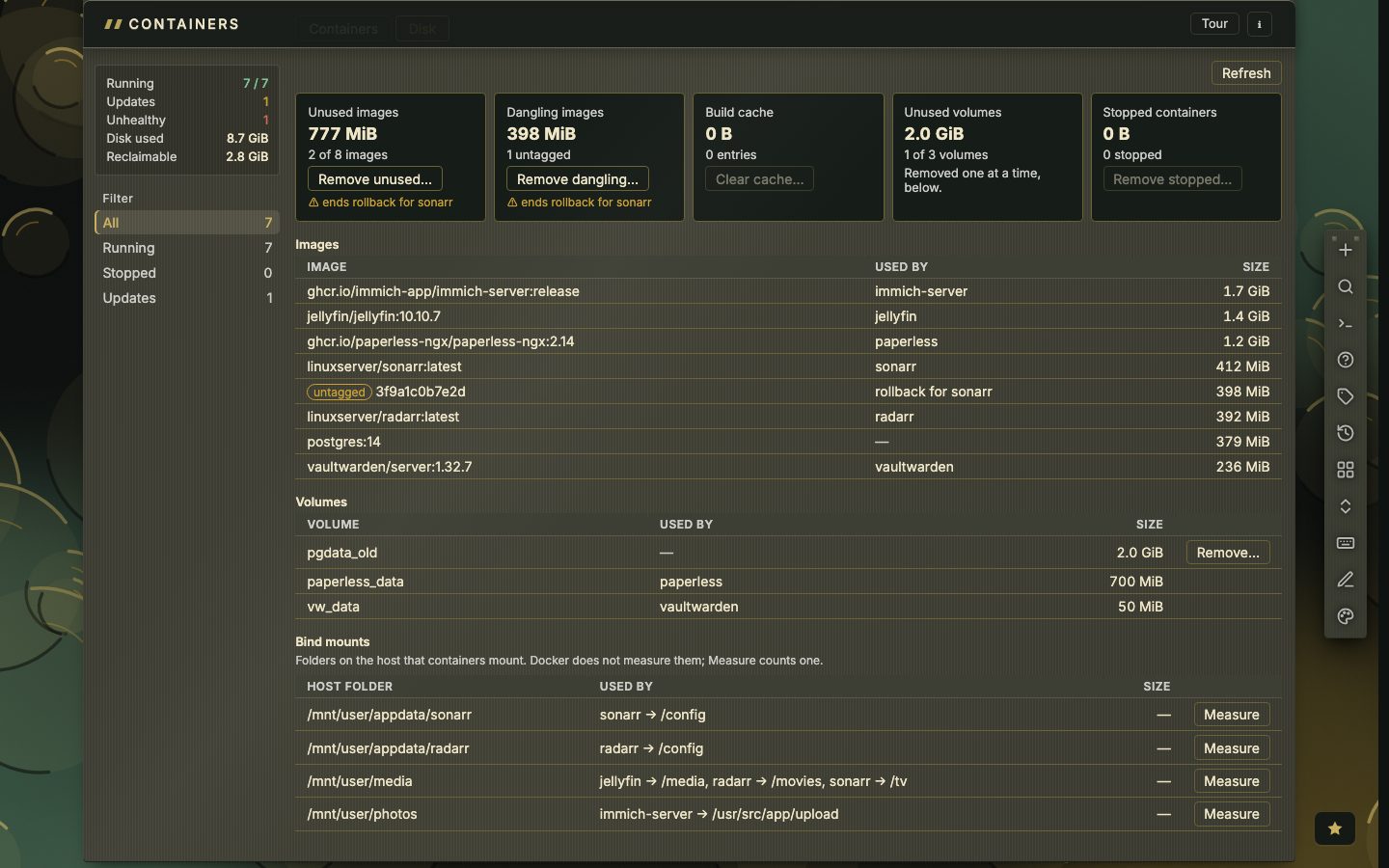
Disk (the tab beside Containers, d, or /#docker/~disk) shows what images, volumes and the build cache take up. Measuring is slow on a large host, so it happens when you open the tab and on Refresh; after that the rail shows Disk used and Reclaimable.
| Tile | Clears |
|---|---|
| Unused images | Every image no container uses — a container that needs one later downloads it again |
| Dangling images | Untagged images — among them the ones a rollback would go back to; the tile names those containers |
| Build cache | What docker build left behind |
| Unused volumes | Nothing in bulk: volumes hold data, so they go one at a time |
| Stopped containers | Every exited or created container, after naming them — their volumes and images stay; hidden ones and nextDash's own are left |
Every clean-up asks first and says how much it frees. Below the tiles, the images and volumes are listed biggest first, with what uses them; an untagged image that is still a container's way back says rollback for …. An unused volume has Remove… on its row: type delete to go on. A volume a container holds — a stopped one included — cannot be removed.
Bind mounts lists the host folders containers mount, with which container mounts each where (sonarr → /config). On Unraid that is where container data lives — /mnt/user/appdata/… — so the Volumes list is mostly empty there, or holds anonymous volumes (long hex names) that containers left behind. A folder is not a volume: Docker neither measures nor removes it, so there is no Remove…. Measure counts one on request: a short-lived container (alpine, pulled the first time, a few MB) mounts the folder read-only with no network, runs du, and is removed. One folder at a time, up to five minutes; the size is kept, with when it was measured on hover, and the button becomes Measure again. Only a folder a container mounts can be measured. The Docker socket and host files such as /etc/localtime are left out. All of it needs NEXTDASH_DOCKER_CONTROL=1; without it, Disk shows the sizes only.
📷 Screenshot — the Disk tab
The logs window
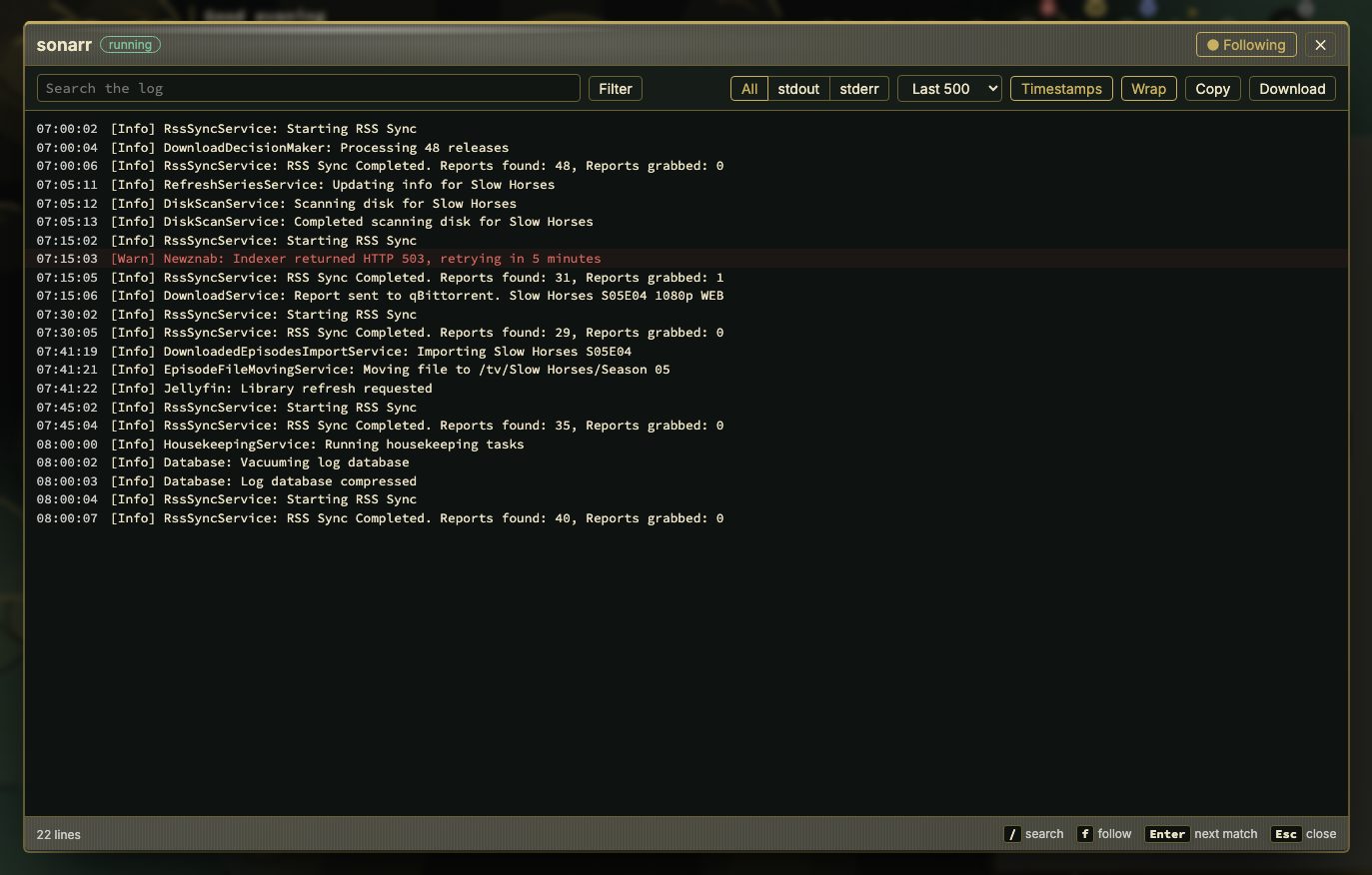
Show logs in the row menu, l on the selected row, :docker <name> logs, or Open logs window in the side panel opens a window over most of the page (the whole screen on a phone) that follows the container's log as it is written.
- Following — scroll up and it pauses, counting what arrives meanwhile; Jump to latest catches up.
fdoes the same. - Search marks every match;
EnterandShift + Enterstep through them. Filter keeps only the matching lines. - All / stdout / stderr, how many lines to start with (100 to 1000), timestamps and wrapping — remembered in this browser. stderr lines are red.
- Copy takes the lines on screen; Download saves the loaded lines as a
.logfile. - When the container stops the stream ends; Resume picks up after the last line.
/ searches, Esc closes. Reading logs sits behind the write token, as the side panel's Logs does.
📷 Screenshot — the logs window
Notices
When a container stops unexpectedly, keeps restarting (three crashes in ten minutes) or turns unhealthy, nextDash sends a notice — and a second one when it recovers. A stop you or nextDash asked for is not a notice, and neither is a crash the restart policy fixes within 30 seconds. One notice per incident; four or more at once become one message.
They go where Health's downtime alerts go: the alert webhook under Monitoring → Notifications → Downtime alerts (with its presets), and browser notifications with Notify when a container stops, keeps restarting or turns unhealthy switched on. Config → Containers → Notifications switches them off. Mute a single container from its row menu, its side panel's ⋯ menu, or m; Muted containers lists them and says where notices go. Hidden containers and nextDash's own raise nothing.
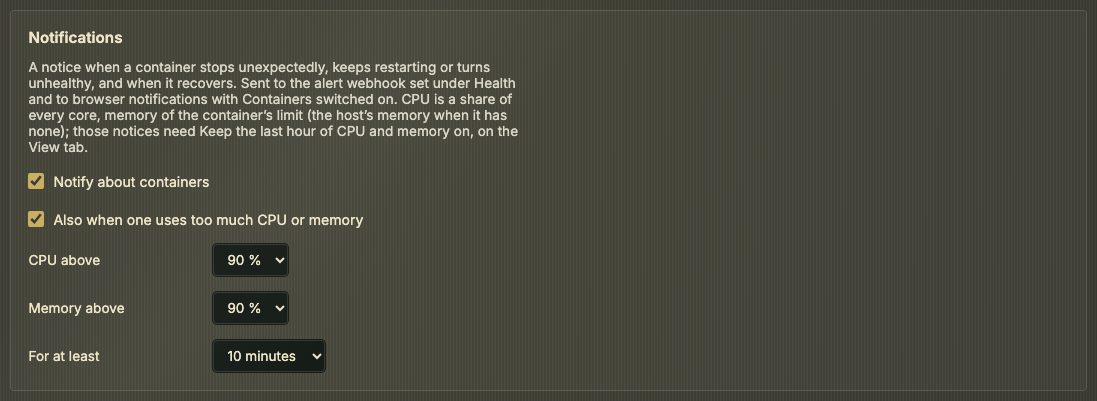
Running hot. Also when one uses too much CPU or memory (on by default) sends a notice when a container stays above a line for a while — CPU above 90 % of every core, Memory above 90 % of its limit (the host's memory when it has none), For at least 10 minutes, each adjustable — and one when it is back under both. It reads the stats history, so it needs Keep the last hour of CPU and memory on. One notice per spell; the same mutes apply.
Automatic updates send a notice when one went through, when one was rolled back and why, and when one could not be done.
Apps it finds on its own
With the Docker socket mounted, nextDash notices which containers are web apps and offers them as bookmarks. A container counts when it answers with a web page or a sign-in page, checked from where the server itself reaches. Its address comes from, in this order:
- a
nextdash.urllabel on the container; - a reverse-proxy label on the container (Traefik's
Host(…)rule or a Caddy host); - a published port, on the Docker host address (Config › Config → Containers) — a port link follows the host you opened nextDash on.
Nothing outside nextDash is asked: only the Docker socket and its own checks, never a proxy's or another container's API. Databases, message brokers, socket proxies, updaters and nextDash itself are never proposed, and neither is a container that already has a bookmark — matched the same way the Containers view links one (The list).
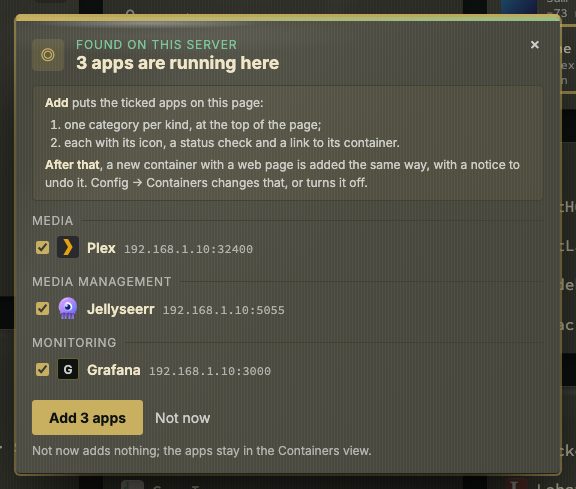
The first time. Once the Quick start guide, the tour and any card in the corner are out of the way, a card in the middle of the screen says how many apps are running here, grouped by kind — Media, Media management, Downloads, Monitoring, Network, Home, Documents & photos, Development, Tools — and all ticked. Add puts the ticked ones on the page: one category per kind, at the top, each bookmark with its icon, a status check and a link to its container. While the page still holds the links nextDash starts with, Replace the starter links on this page clears them as well. A notice afterwards offers Show, Undo and Done. Not now adds nothing; the apps stay in the Containers view.
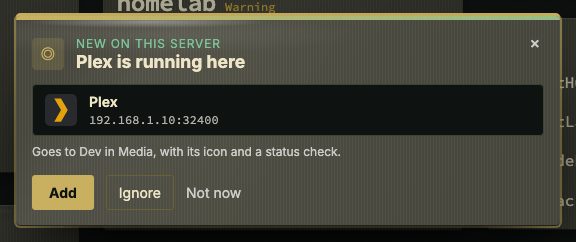
A new container later. Config → Containers → View → New apps decides what happens to a container that turns up after that:
| New apps | What happens |
|---|---|
| Ask first (default) | The same card, for the new ones only, with Add, Ignore and Not now. Untick one and choose Add: the unticked ones are ignored. |
| Add straight away | It goes on the dashboard at once, with a notice that offers Undo, Move and Done. |
| Propose in the Inbox | It waits in the inbox, where Promote fills in the bookmark form and Ignore keeps it away (Inbox › Getting links in). |
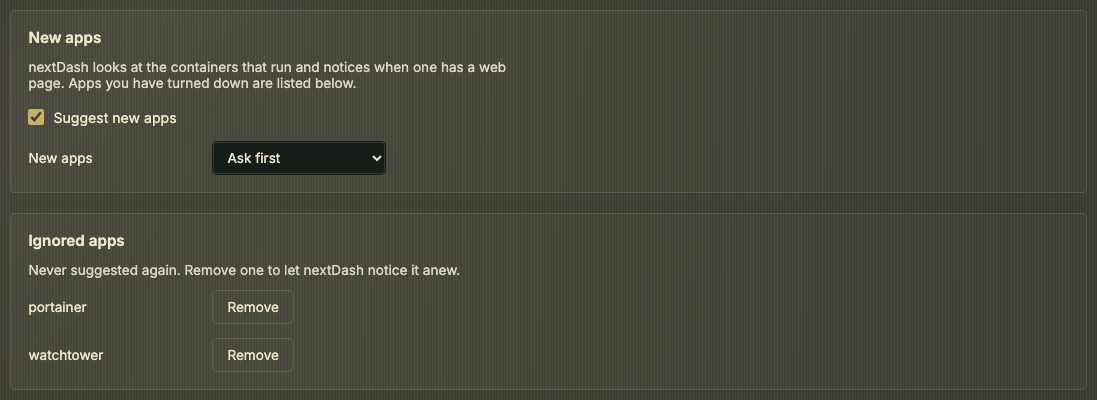
A container that was already there when nextDash first looked is not new, so it is not asked about again. Suggest new apps turns all of it off. Ignored apps lists every app you turned down; Remove lets nextDash notice it again.
Labels. On the container itself, these steer the bookmark:
| Label | Meaning |
|---|---|
nextdash.url | The address to use; wins over everything else. |
nextdash.name | The bookmark's name instead of the container's. |
nextdash.category | The category instead of the detected kind. |
nextdash.icon | An icon-set name or an image address. |
nextdash.hide | true: never propose this container. |
services:
  grafana:
    image: grafana/grafana
    labels:
      - nextdash.url=https://grafana.lan
      - nextdash.category=Monitoring