

Pages, categories and collections
Organise with pages, categories and collections: sort, fold and spread categories over columns, move bookmarks, and let smart, custom and tag collections gather links for you.
Pages
- Create — New page in the pages panel (
,, thenn),:page new, Structure → Pages, or New page… in the bookmark form. - Add a bookmark — right-click the header → Add new bookmark opens the add-bookmark form (Adding bookmarks › The full form (+, Shift + B, Ctrl + Shift + A)) with this category already chosen. It is not offered on a smart collection or the list of unfiled bookmarks.
- Rename, emoji, colour — double-click the page tab, or use Structure → Pages.
- Reorder — drag a row in Structure → Pages, or
↑/↓on a focused row. - Delete — the × in the pages panel (asks twice) or Structure → Pages. The page goes to the trash with its categories and bookmarks.
- Duplicate — on the page row in Structure → Pages; asks whether the bookmarks come too.
- Share or import — Share this page… and Import a page… in the page switcher, Save as template… on the page row in Structure → Pages, or the palette (Page templates).
Page names are unique. Each row in Structure → Pages shows how many bookmarks the page holds.
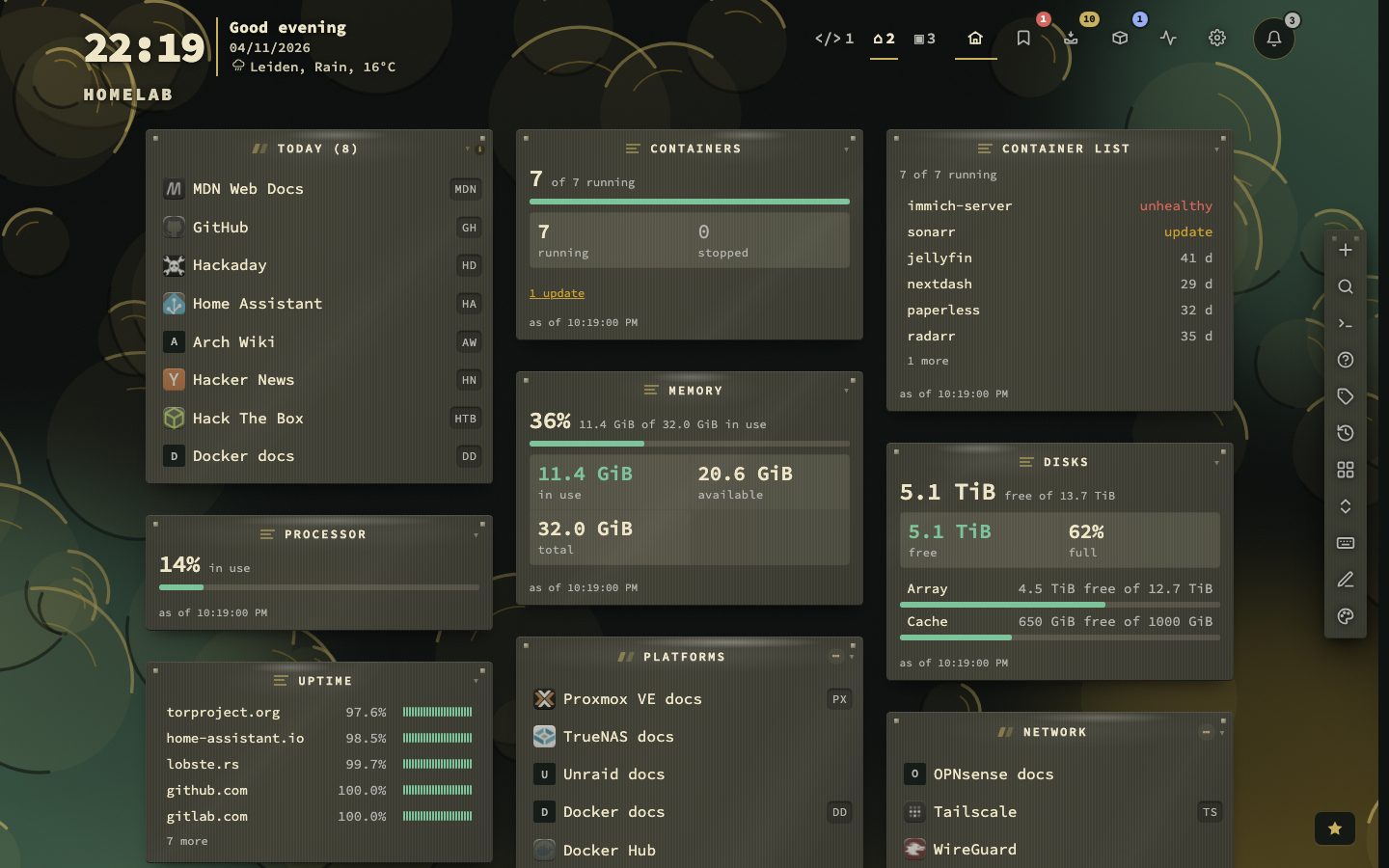
📷 Screenshot — another page, full page
Categories
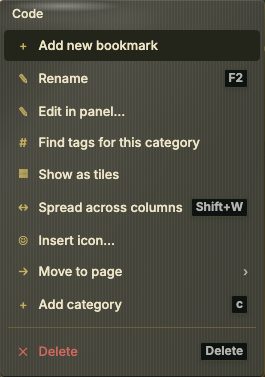
- Create — the + in a category header or the button under the last category (on the page you are on),
:category new, New category… in the bookmark form, or Structure → Categories. - Rename —
F2, a long press or double-click on the header, the right-click menu, or Structure → Categories. - Icon — an icon is part of the title. Type an emoji in the name, or right-click the header → Insert icon… to put an app icon in it (written
:file.svg:in the name). Widgets are titled the same way. - Tiles — right-click the header → Show as tiles draws the category's bookmarks as a grid: a large icon, the name under it, the status as a dot on the corner. Show as rows goes back. The choice belongs to that category; Terminal and Launcher keep their own designs.
- Move — drag the
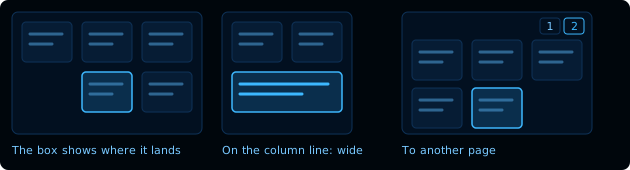
//in the title. The page holds still and a dashed box shows where the category lands; drop it on the line between two columns to make it wide. On the header,Alt + ←/→moves it one place andShift + Alt + ←/→to the previous or next page. Without a mouse:↑on the block's top row (orShift + Home) steps onto the title,Tabgoes to the//, andSpacepicks the block up — the arrows move the box,Wswitches one column and wide,Enterdrops,Esccancels. Move to page in the right-click menu sends it to any page, where it lands last. Widgets and collections move the same way, except a tag collection, which shows wherever its tag is. Undo is on the notice, orCtrl/Cmd + Zwhile it shows. - Overview — Structure → Categories is one table for every page, grouped by page; a page's row folds its categories away. Chips narrow it to some pages or to a view (Spread, With broken links, Empty), and columns show each category's bookmarks, broken links and whether it spreads. The order of categories is set on the dashboard, not here.
- Delete —
Deleteon the header, the right-click menu, or Structure → Categories. The bookmarks are kept and lose their category; the category goes to the trash. - Duplicate — on the row in Structure → Categories, with its width, icon and sort, and optionally its bookmarks.

A category you just created stays visible even with hide empty categories on, until you leave the page.
Sorting and folding
Each category header has a ⋯ menu with Manual, A–Z, Last opened, Newest and Most opened. The chosen sort shows as a short chip in front of the ⋯ (A–Z, Rec, New, Top); click it to go back to manual order. Last opened and Most opened put bookmarks never opened last. Pinned bookmarks always stay on top. A sorted category cannot be dragged — the cursor and a short note say so. Sorting is only a view; the stored order changes when you drag.
Click a header, or press Enter on it, to fold the category. . folds or unfolds everything on the page, widgets included; the state is kept per page. Start with categories collapsed (Appearance → Layout) starts every category folded.
Moving and reordering bookmarks
- Drag a row within its category or onto another. A click still opens; a long press still edits.
Alt + ↑/↓moves the selected bookmark within its category;Shift + Alt + ←/→moves it to the next category.Shift + Mmoves it to any category or page.- Moves can be undone from the toast for eight seconds.
- Lock layout (Behavior → General, or
:locklayout) turns dragging and moving off for bookmarks, categories and widgets.
Spreading a category across columns
A category can run across several columns, so a long list of short entries flows across instead of down.
| Route | How |
|---|---|
| Mouse | Right-click the header → Spread across columns |
| Keyboard | Shift + W on the header |
| Command | :width on / :width off, or :width all to switch every category back |
| Config | The ↔ button on the row in Structure → Categories |
The number of columns is not a setting: it follows from items per category and the number of bookmarks. With a limit of fifteen:
| Bookmarks | Columns |
|---|---|
| 1–15 | 1 |
| 16–30 | 2 |
| 31–45 | 3 |
The column count of the grid is the ceiling. Spreading needs a limit on items per category and at least two columns. With Pack columns tightly on, the categories after a spread one fill in beside and below it. On a phone held upright every category is one column wide. Appearance → Layout → Categories across columns holds the limit, whether new categories start spread (they do by default), and whether turn spreading off everywhere covers this page or all pages. A walkthrough is under Config → Help → Structure & bookmarks.
Smart collections
Structure → Collections turns them on. Each has its own item limit (0 = unlimited) and can be limited to certain pages.
| Collection | Shows |
|---|---|
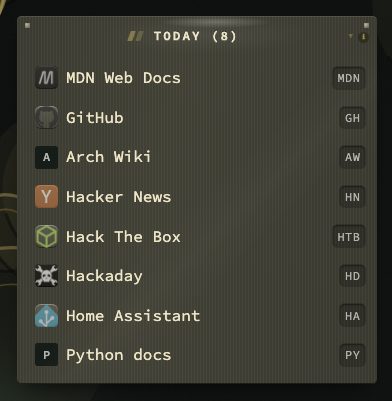
| Today | What you tend to open at this time, tuned by keywords for office hours, evenings and weekends |
| Recently opened | What you opened last |
| Recently added | What you saved last (off by default) |
| Most used | Ranked by opens; appears once you have opened bookmarks from the dashboard |
| Stale | Not opened within the stale threshold |
Editing or deleting a bookmark inside a collection changes the real bookmark.
Custom and tag collections
Custom collections (Structure → Collections) take a name, an icon and rules, combined with AND or OR. A rule picks a field:
| Field | Matches |
|---|---|
| Tag, Category, Shortcut | A bookmark that has (includes) or lacks (excludes) the value you give. The value fields suggest what is already in use |
| Pinned | Pinned bookmarks. No value to fill in |
| Has no tags | Bookmarks without a tag. No value to fill in |
| Not opened in (days) | Bookmarks not opened for that many days, or never |
| Changed within (days) | Bookmarks you edited in the last that many days |
For example, Has no tags AND Not opened in 90 days gathers what you saved and forgot.
Tag collections turn each tag used by enough bookmarks into its own group; raise the minimum to keep one-off tags out.
Page templates
A page can be saved as a template file and imported on another install, or kept as a starting point. The file holds the layout, the categories, the widgets and the links; it never holds when a link was opened, how it checked, stored sign-ins or other settings.
- Share. Share this page… in the page switcher (or Save as template… in Structure → Pages, or
Share “name” as a template filein the palette) lists the addresses on your own network —192.168.1.10,nas.lan— and turns each into a name you can change, such asjellyfin. The importer fills in their own address for each service once. Public addresses go as they are, and Include the text of notes is off until you tick it. Download saves the file, or copy it to paste into a post. Icons travel inside the file. - Import. Import a page… (or
Import a page from a template filein the palette) takes a file or pasted text and shows what is in it — categories, widgets, links — and asks for one address per service. A link whose service is left empty is skipped, as are links with an address that is not allowed and widgets this version does not know; the result says how many. Importing always makes a new page; nothing on your other pages changes. - Start from a template. An empty page offers Start from a template…: the template fills that page instead of making another.
- The three that come with nextDash. The import dialog also offers Homelab, Media server and Developer under Or start from:, and the Quick start guide offers them too (Installation and first launch › First launch). For these, Where do these run? takes one server address and fills in every service's address with its usual port; an address you change by hand stops following it. In the guide the page goes where your answer about the example links says: a new page beside them when you kept them, the emptied first page when you started empty.
A file is at most 2 MB.