Installation and first launch
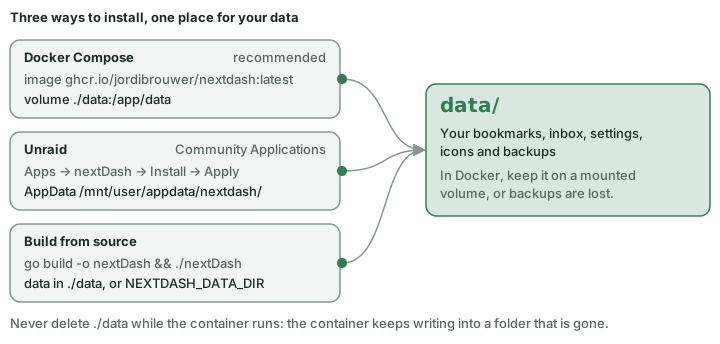
Docker Compose (recommended)
services:
  nextDash:
    image: ghcr.io/jordibrouwer/nextdash:latest
    container_name: nextDash
    ports:
      - "8080:8080"
    volumes:
      - ./data:/app/data
    environment:
      - PORT=8080
restart: unless-stoppeddocker compose up -dOpen http://localhost:8080.
From a git checkout, docker-compose.prod.yml is the production file (only ./data is mounted; the assets are built into the binary) and docker-compose.yml is for development (it mounts ./static, ./locales and ./templates). The development file ships with NEXTDASH_DOCKER_CONTROL=0 and NEXTDASH_RUN_AS_ROOT=0 and the Docker socket commented out. Put your own mounts and variables in a docker-compose.override.yml beside it: Compose reads that file on its own, and your changes stay out of the checkout.
Never delete ./data while the container runs. ./data is a bind mount: the folder disappears from your disk, but the container keeps writing into a directory that no longer exists, and the data is gone at the next restart. Nothing in the app shows it.
- Check. If
docker psshows the container running while./datais gone on the host, copy the data back out first:docker exec nextDash tar cf - -C /app data | tar xf - -C ., thendocker compose up -d --force-recreateso the mount points at the new folder. (nextDashis thecontainer_namein the snippet above; use the name in your own compose file.) - Clean reset.
docker compose down, delete./data, thendocker compose up -d. nextDash makes the folder and its default files again.
Unraid (Community Applications)
nextDash is in Unraid's Community Applications, so on Unraid there is no compose file to write.
- Open the Apps tab and search for nextDash.
- Click Install. The template opens with every row filled in.
- Check the rows below, then click Apply. Unraid pulls the image and starts the container.
- Open it from the Docker tab: click the icon and choose WebUI, or go to
http://<server>:8103.
| Row | Default | What it is |
|---|---|---|
| WebUI Port | 8103 | The port on the server. Change it if something else uses 8103; inside the container it stays 8080 |
| AppData | /mnt/user/appdata/nextdash/ | All your data: bookmarks, settings, icons, backups. Back this folder up with the rest of appdata |
| Write token | empty | A long random string. Needed before the Containers view may start or stop anything, and for scripts that change data (Security and self-hosting › The write token) |
| Trusted proxies | empty | The address of your reverse proxy, when nextDash sits behind one |
| Host proc, Host disks | /proc, /mnt, read only | Let the Processor, Memory and Disks widgets read the server rather than the container |
| Docker socket | /var/run/docker.sock, read only | Lets the Containers widget and view see the server's containers |
| Docker actions | 0 | Set to 1 to start, stop, restart and update containers from nextDash. Needs the write token |
| Run as root | 0 | Leave at 0. Unraid's socket belongs to the docker group, which nextDash joins on its own |
Every row except the port and AppData is optional: nextDash runs as a plain bookmark dashboard without them, and you can add them later under Docker → nextDash → Edit.
After the first launch.
- Disks. In the Disks widget, name
/mnt/userfor the whole array and/mnt/cachefor the cache pool;/mnt/diskNshows one disk (Containers › What it needs). - The Unraid widgets. Seven widgets read the server through Unraid's own API: overview, array, parity, shares, VMs, UPS and notifications. They need an API key with the role Viewer, set once under Config → Unraid (Widgets › Unraid widgets).
- A look that fits. Unraid Black, Unraid Azure, Unraid Ember and Unraid Blaze follow Unraid's own colours, each in dark and light (Appearance).
- Updates. Unraid shows when a new image is out: update ready on the Docker tab. Click it, or let the Auto Update Applications plugin do it.
Build from source
go build -o nextDash && ./nextDashData is stored in ./data next to the binary. NEXTDASH_DATA_DIR points it elsewhere.
Which branch to clone
| Branch | Use it for |
|---|---|
main (default) | Self-hosting and Docker builds — the released code |
dev | Contributing — tests, scripts and work in progress |
First launch
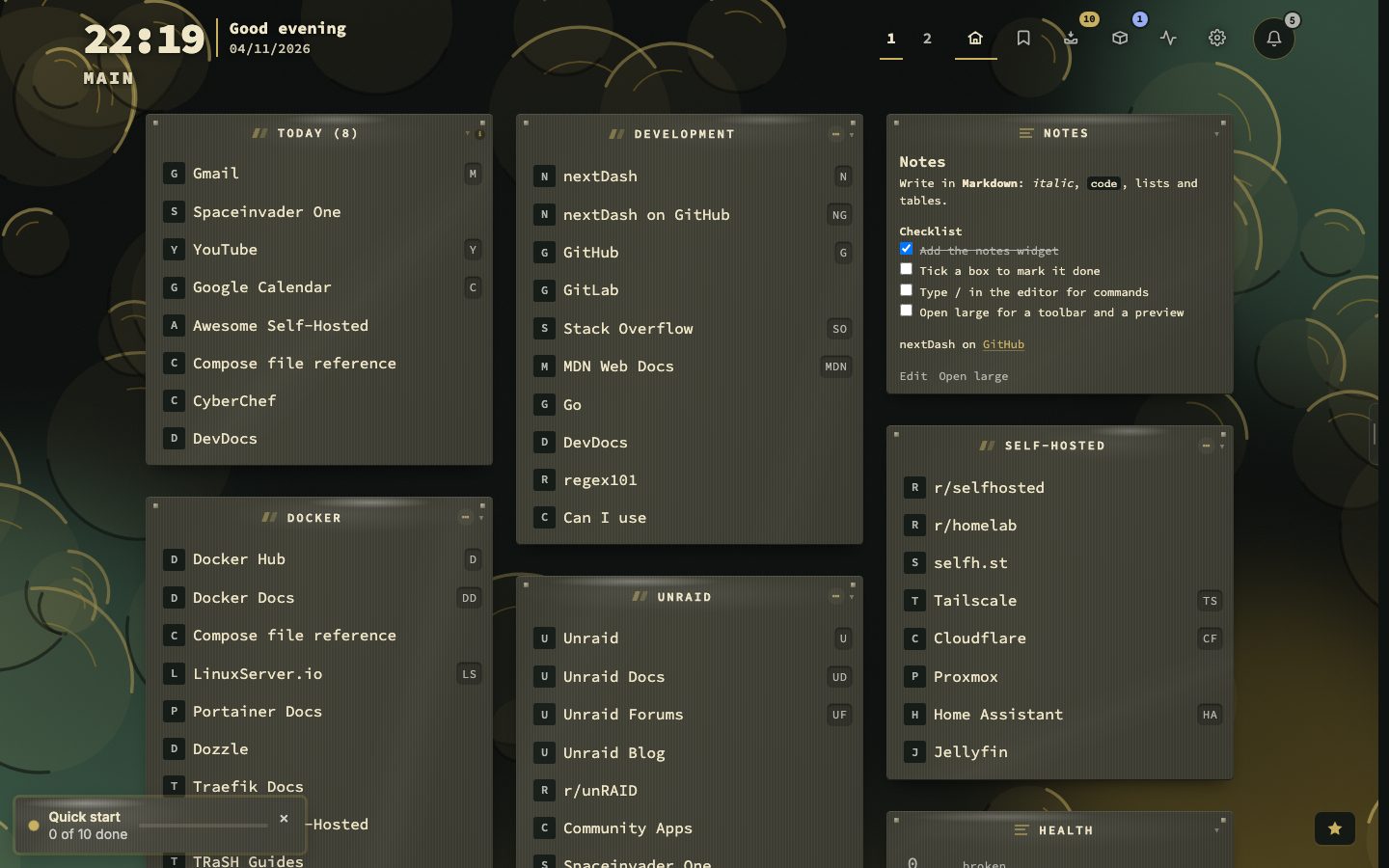
- The dashboard comes first. A new install opens on the dashboard with its example links. After a moment a Quick start bar slides in at the bottom of the screen and pulses until you have found it. Three seconds after the bar is up, the guide grows out of it to the middle of the page, once, so you meet it first; closing it folds it back into the bar. After that it opens only when you press the bar.
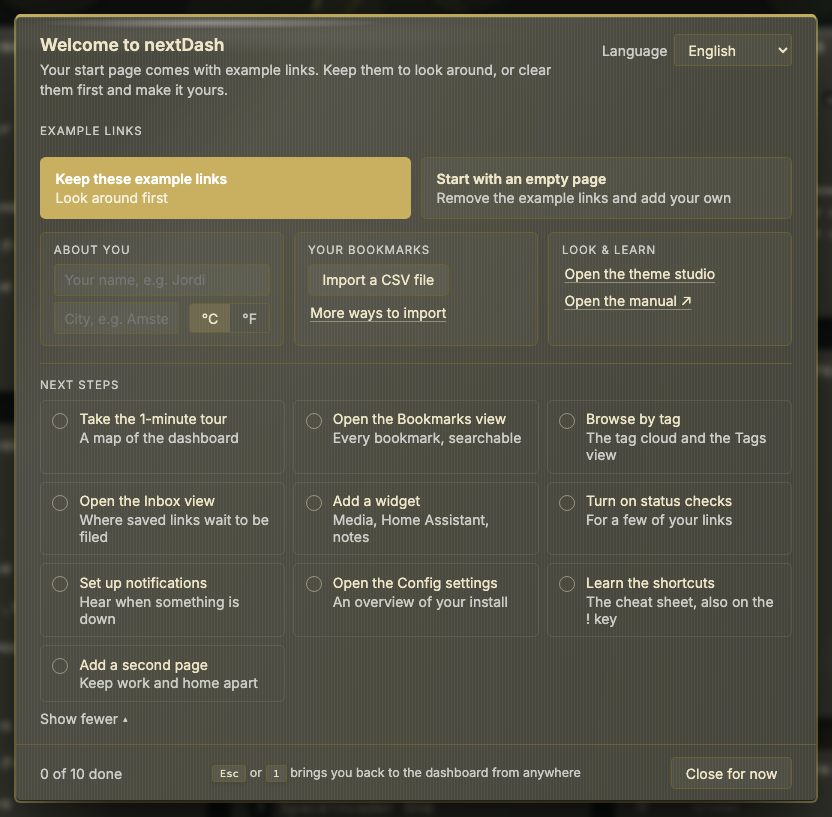
- The guide. It reads Welcome to nextDash until you have answered the first question, and Quick start after that. At the top left, Keep these example links leaves the starter pages as they are, to look around; remove the links any time. Start with an empty page asks first (Remove the example links from this page?), then clears the example links and their categories off the first page — its widgets stay — and removes the example news page and the ten example links waiting in the inbox, as long as you have not changed them (an inbox link you have read or put to sleep stays). Open the theme studio is a link under them. Under that come Weather (a city and Celsius or Fahrenheit, the same settings as Appearance → Date & weather) and A lot to explore, a button that opens the manual in a new window. Language sits at the top right and changes the dashboard and the guide at once; when your browser speaks one of the other five languages, a line says so, with a Switch button.
- Bring your bookmarks. Import a CSV file reads a file straight from the guide (it needs a
urlcolumn; name, category, tags and notes are optional), and a link points to the other ways in under Config → Data & backups (Data, backups and import). - Start from a ready-made page. Homelab, Media server and Developer (Pages, categories and collections › Page templates). They wait for your answer about the example links: kept, the page is added beside them as a new page; started empty, it fills the page that is left. Type your server's address once to fill every service, then Create page; a short note says how to edit, delete, add and monitor links on it. On an Unraid server the cards say so.
- Next steps. Ten, in the order a reader would take them: take the 1-minute tour, open the Bookmarks view, browse by tag, open the Inbox view, add a widget, turn on status checks, set up notifications, open the Config settings, learn the shortcuts and add a second page. On an Unraid server an eleventh, Connect your Unraid server, opens Config → Unraid. Three show at a time; Show … more lists the rest as a grid, and each step ticks itself off when you do it. Browse by tag opens the tag cloud — or, while no bookmark has a tag yet, an example cloud (Tags › Filtering by tag) — and counts as done once you go on to the Tags view.
- Bring your bookmarks. Import a CSV file reads a file straight from the guide (it needs a
- The bar. Close for now (the ×, a click outside the guide, or
Escape) folds the guide back into the bar. The bar stays on the dashboard, on every page, until every step is done — it steps aside in Config and the other views, then says All set; Close for good closes it for ever, after asking. Show quick start again (Behavior → Privacy & sync → Onboarding) brings it back. While the bar is up no other corner card shows, and the others wait ten seconds after it is closed; an Undo for something you have just done still appears. The ready-made pages are also in the import dialog (Pages, categories and collections › Page templates). - Example bookmarks. Kept the example links? A new install starts with 98 links on two pages, so there is something to try search, tags and the keys on. main has Development, Docker, Unraid, Self-hosted, Tools and Daily, the Today collection and three widgets: Notes at the top right, and Health and Health trend at the bottom; news has Tech news, Dev & blogs, Security, Communities, Videos and News. With the Docker socket mounted, a card in the middle of the screen then offers the apps running on this server as bookmarks — once the guide, the tour and any corner card are out of the way (Containers › Apps it finds on its own). The inbox starts with ten example links, none of them on the pages, to read, keep, promote or throw away (Inbox).
- Your own bookmarks. Import your browser's bookmark file under Config → Data & backups (Data, backups and import), or add them with + and & (Adding bookmarks).
- Config. Press
Shift + Sor click the gear. Config is a view inside the dashboard;Escapetakes you back.
The first hour. Split your bookmarks across a few pages, give the ten you open daily a shortcut, and switch on link checking under Config → Monitoring → Checks. Everything else can wait until you know what you want.
📷 Screenshot — a new install on its first launch, full page
📷 Screenshot — the Quick start guide, open
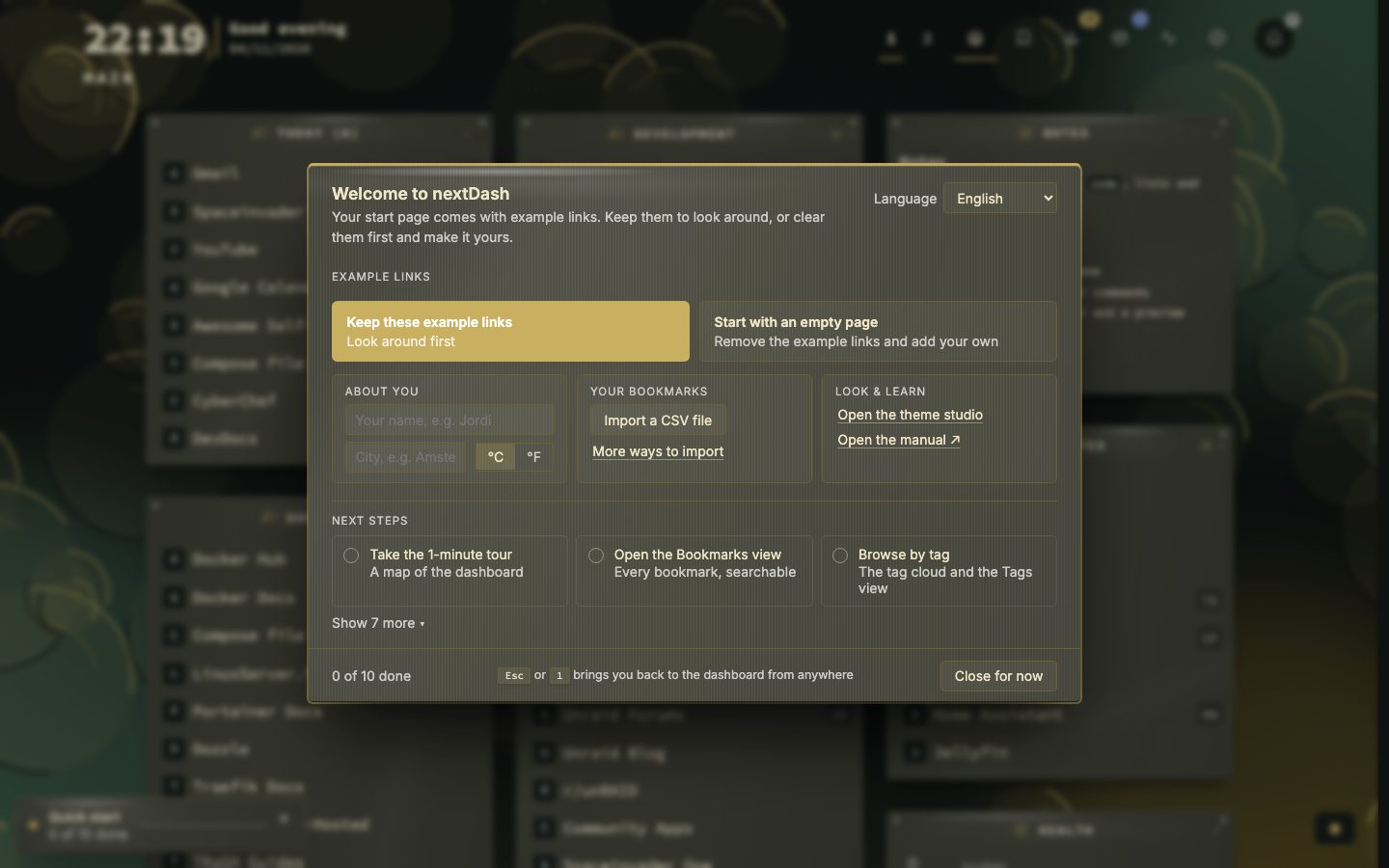
The guide as a new install shows it, in two columns: the choice about the example links, the weather and the manual on the left, a CSV import and the ready-made pages on the right, and the first three next steps along the bottom.
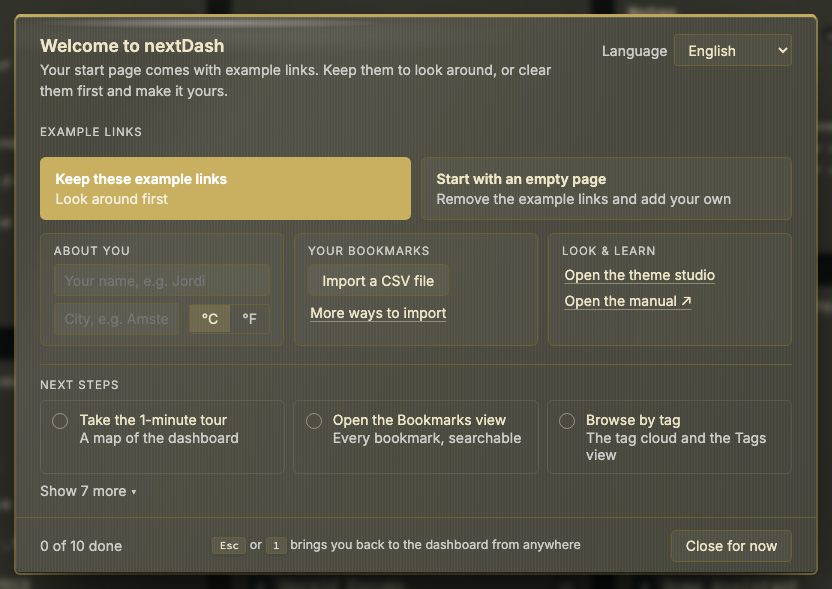
Show 7 more unfolds every step.