

Tags
Tags are free labels, stored in lower case. Add them in the form or with Shift + T, filter by them, manage them in one place and accept suggestions. Notes are covered here too.
Tags on a bookmark
- Set them in the bookmark form, the side panel in the Bookmarks view, with
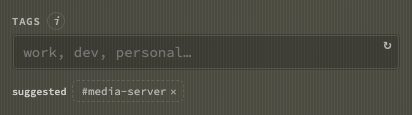
Shift + T, or with:tag +name. The form, the side panel,Shift + Tand the selection's tag picker each show the tags this bookmark is likely to want, under Suggested;Shift + Topens at the top of its list, with those first. - Stored in lower case, trimmed, without duplicates. Autocomplete offers the tags you already use.
- Tags on rows (Appearance → Rows → Bookmark display) shows them as chips on the dashboard — the first few, then a count. The chips are labels only; to see everything with a tag, use the tag cloud (
/) or select the bookmark and presst.
Filtering by tag
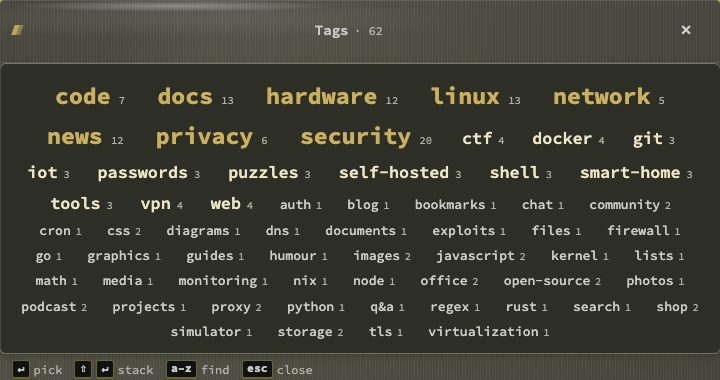
The tag cloud. / opens it, centred in the window. It shows every tag in your library, from every page, in three sizes: the most used are largest. Each tag has its count beside it, and within a size tags stand in A–Z order.
- Click a tag, or press
Enteron it, to open that tag's tag view. Shift+click orShift + Enterstacks tags instead of opening: the view then shows bookmarks with any of them. Each other tag shows +N: how many bookmarks it would add. A tag that would add nothing is dimmed.- Type a few letters to find a tag. Tags that do not match are dimmed, and the first match is selected.
Backspaceremoves a letter, andEscapeclears what you typed before it closes the cloud. - The cloud is for desktop windows. On a phone, open a tag view with a
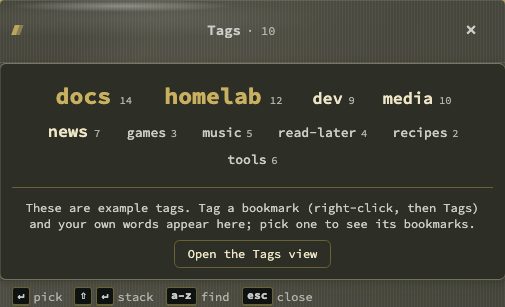
#tag/link or:filter <tag>. - An example, while you have no tags. With no tag on any bookmark there is no cloud to show. The Quick start step Browse by tag then opens an example once, so you can see the shape of it: ten made-up words, a line saying so and an Open the Tags view button. Its words are nobody's tags and cannot be picked. Afterwards the step opens the Tags view itself, and the real cloud takes over as soon as a bookmark carries a tag.
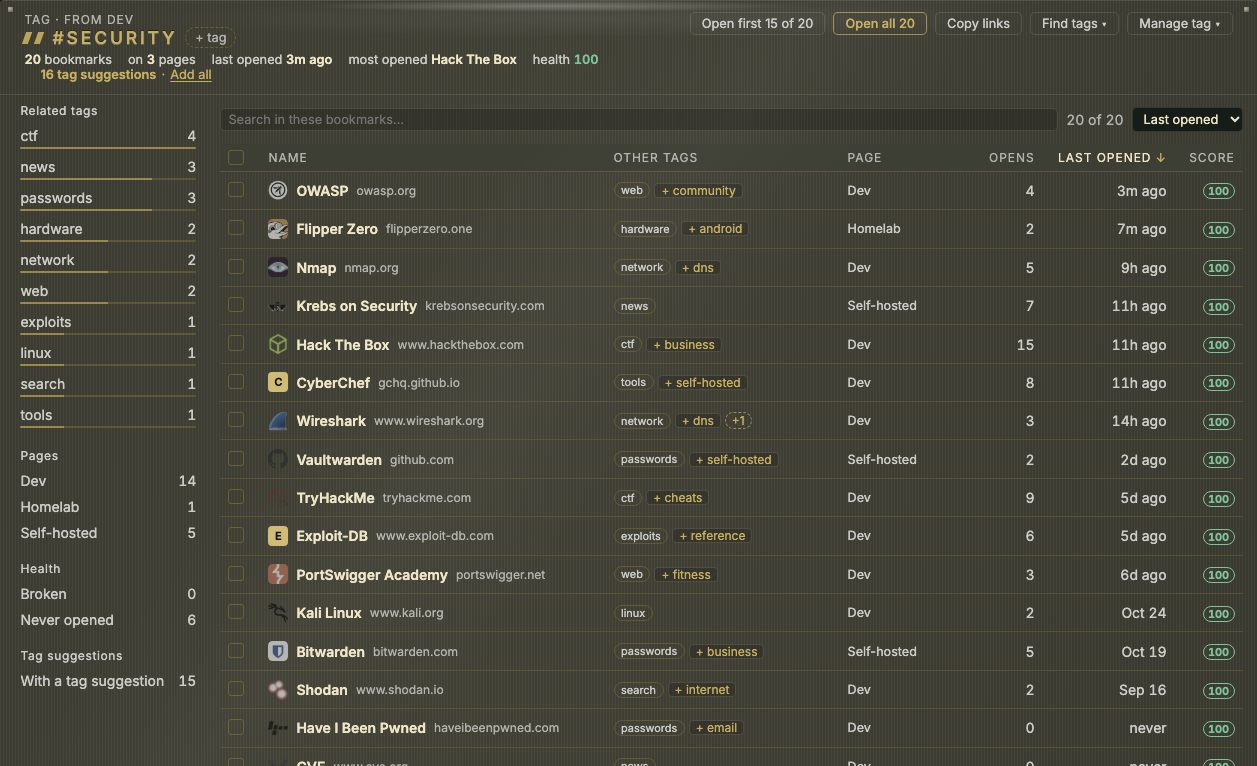
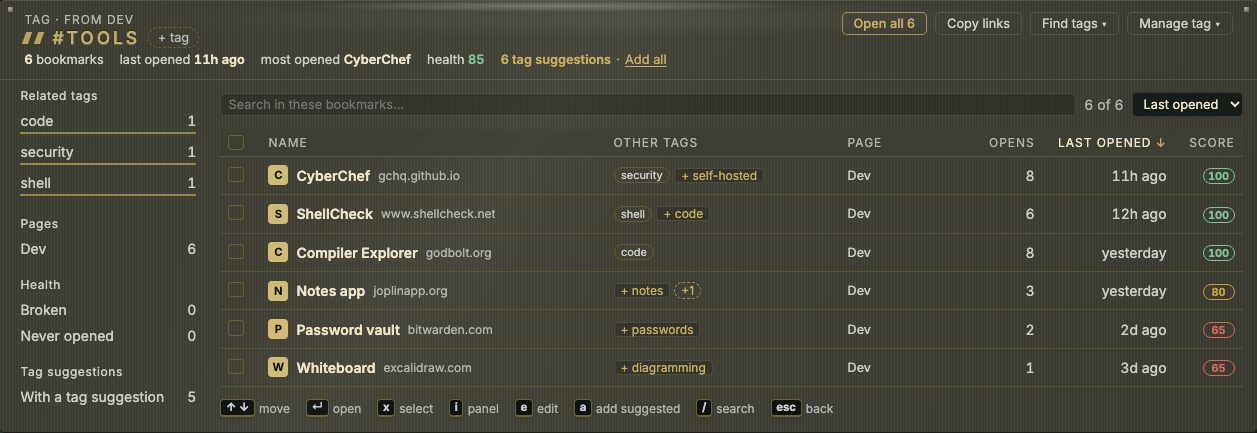
The tag view. It lists the bookmarks that carry the tag, from all pages, in one table. A tag you stacked shows as pills, each with a × to take it out, and + tag adds another, with suggestions. With two or more tags the word between the pills is a switch: or shows the bookmarks with any of them, and only those with every one. An and view that finds nothing offers Show any of them.
- The header shows where you came from, the tag (or tags), and a line of figures: how many bookmarks, on how many pages, what was opened last and most, and how many are broken. Open all opens every bookmark shown, Copy links copies their addresses, and Manage tag can Rename the tag, Merge into another tag, or Remove from all bookmarks. Each of these can be undone.
- The rail on the side lists Related tags (click one to switch to it,
Shift+click to add it), the Pages the bookmarks live on, and a Health filter for broken or never opened bookmarks. - The toolbar has a search box (
/jumps to it), a count such as "12 of 40", and a sort menu. The search reads names, addresses, sites and tags; with several words, every word must match somewhere, in any order. Clicking a column head sorts by it too. The table shows each bookmark's name and site, its other tags, its page, how often and when it was last opened, and its score. Score sorts by health score, highest first, with bookmarks not checked yet last; Page follows the order of your page tabs. The view remembers the sort you picked last, on this device. - Move with
↑↓,gandEndjump to the first and last row,Enteropens the bookmark,iopens its side panel (details, tags, health, with Open and Edit), andeopens the bookmark form.aadds the suggested tags of the focused row (Tag suggestions). Each row carries the site's icon. - On a row,
ShiftplusE,P,T,M,D,C,R,LorJdoes what it does on the dashboard: edit, pin, tags, move, delete, check mode, health, share link and QR code.Deletedeletes,Ctrl/Cmd + Ccopies the address, and the row menu is the dashboard's. The cheat sheet has a Tag view section with all of it (Keyboard › The cheat sheet). xticks a row.Alt+click ticks one,Shift+click ticks a range, and the tick in the header ticks everything shown. A bar then offers Open, Add tag…, Move to…, Delete and Clear. Add tag… puts one or more tags (separate them with commas; the tags in use are suggested) on every ticked bookmark, and can be undone. Move to… takes a page; categories belong to one page, so they are offered only when every bookmark is on the same one.Escapelets go of one thing at a time: the side panel, then the selection. After that it leaves the view and takes you back to the page you opened it from. In the search box,Escapefirst clears what you typed. The home icon and your browser's Back button do the same.- Ways in: the tag cloud,
ton a selected bookmark (it opens the view for that bookmark's tag),:filter <tag>, orShift + Twith no bookmark selected (below). - The view's address is
#tag/<tag>(several tags are joined with+, and?allmarks an and view, as in#tag/linux+security?all). Bookmark it or share it, and it opens on the same tags.
The tag view of every bookmark. Shift + T with no bookmark selected opens the tag view with no tag picked: every bookmark from every page in one table. The header says how many have no tags, and the rail starts with a Without tags filter that keeps the list to those, followed by the tags in use. Click a tag there to open its own tag view; Back returns here. The address is #tags. With a bookmark selected, Shift + T still opens that bookmark's Tags popover.
- Tag chips on dashboard rows are labels only; they are not clickable.
tag:workin search narrows results without opening the view.
Managing tags
Config → Bookmarks → Tags lists every tag with how many bookmarks carry it. Rename or delete a tag everywhere at once; renaming onto an existing tag is refused. Expand a tag to see its bookmarks and remove it from one. ↑/↓ move and / focuses the filter.
Each tag row has a colour menu: No colour, Red, Orange, Yellow, Green, Teal, Blue, Purple or Pink. A coloured tag is tinted in the tag cloud, in the tag chips on bookmark rows and in the preview card. The tint follows the theme, pale on a light one and deep on a dark one. The colour follows the tag when you rename it and goes with it when you delete it.
Tag suggestions
nextDash proposes tags for bookmarks that lack them. It never tags anything behind your back: every suggestion waits for a click, unless you switch on Add what it finds straight away. This section explains where suggestions come from, where you see them, and how to steer them.
Where suggestions come from. For each bookmark the app weighs these sources, strongest first. A bookmark is offered at most two tags, and a stronger source wins over a weaker one.
- Your rules — written on the Your rules tab of Config → Bookmarks → Tag suggestions:
github.com → #code, a site or a site plus one section (youtube.com/@veritasium). A rule needs no evidence and beats everything else. - Your own tags — when at least three bookmarks on a site are tagged and most of them (60%) share a tag, the rest of that site is offered it.
- Self-hosted apps, by name — an app on your own network sits at an address no list can know (
192.168.1.20:8989,sonarr.home.lan, a Tailscale name), so it is recognised by what it is called: the first part of the host name, a word in the bookmark's name or page title, or its default port. Some 1,900 apps are known, from Sonarr to phpMyAdmin; each gives#self-hostedplus what it does (#media-server,#networking…). The long tail is only trusted on a private address, so a public page called Ghost is not taken for the blog engine. A domain where two or more of your apps live (jellyfin.example.cc,radarr.example.cc) counts as home too. - Anything else at home — a bookmark on a private address that matches no app still gets one row offering
#self-hosted, labelled On your home network. - The catalogue — a list shipped with the app of 645 subjects and some 81,000 sites that belong to them, from
#newsand#bankingto#3d-printingand#adult. Subjects have broader parents (#kotlinunder#dev), and a subdomain is known by its parent domain. A section of a site can have its own subject: a science channel on YouTube is#science, YouTube itself#video. - Wikidata (on by default) — for a public site the catalogue does not know, the server asks Wikidata once what it is. Only the host name leaves the server; an address on your network never goes out. Answers are kept for 90 days, and for 30 when Wikidata does not know the site.
- The page itself (only after Read their pages) — the page's own keywords. At least two of them have to point at the same subject before it is offered.
In your words. The catalogue's subject is renamed to the tag you already use for it. If every GitHub link here is tagged #code, a new one is offered #code, not #dev, so a tidy collection is not split in two.
Where you see them.
- In the rows of the Bookmarks view, the inbox and the tag view: a dashed chip after a row's tags. Click it to add the tag, × to turn it down. A suggestion comes first in the row; when there is no room, the row's own tags fold into +n, and further suggestions into +N. +N opens a list of every suggestion for that row, each to add or turn down; +n lists the tags the row already carries. A line over the list counts them, 7 tag suggestions in this list · Add all.
- One bookmark at a time — in the bookmark form, the Bookmarks view's side panel,
Shift + Tand the selection's tag picker, under Suggested (Tags on a bookmark). In the form and the tag popover, Read page reads that one page when nothing else turns up. - Grouped — Config → Bookmarks → Tag suggestions proposes one tag for a whole group: every bookmark on a site, or every bookmark an app or rule covers. Each row names its source and its count; click the row or its count to open the group and leave single bookmarks out. Apply tags the rest (undo in the toast). At most 25 rows show at a time.
- A row in the notifications bell offers a look when ten suggestions are waiting; switch it off with Offer to review tag suggestions under Behavior → Privacy & sync → Onboarding.
Opening a view never goes online by itself: the rows show what the catalogue, your rules, your own tags and pages already read can say.
Finding more. Find tags asks further, the catalogue first and then Wikidata:
- In Config → Bookmarks → Tag suggestions its menu offers Bookmarks without tags, All bookmarks, Unsorted and Inbox, each with its count, and Read their pages for the bookmarks nothing else can place. Reading pages fetches each one, so it says how many first, shows progress and can be stopped; only a dozen keywords per page are kept.
- In the tag view (
#tagsor#tag/<tag>) its menu offers Bookmarks without tags and Bookmarks shown for the rows on screen, and Read pages for them. - The inbox's ⋯ menu runs it for the inbox's links, and its With a tag suggestion filter keeps the list to the ones it found something for.
- The row menu and the selection bar do it for one bookmark or the ones you ticked.
- For one category, from the right-click menu of its title on the dashboard (Find tags for this category), or from the right-click menu of a bookmark in Config → Bookmarks. It looks only at the bookmarks in that category on that page, and says so when the category is empty.
What it finds lands in the rows as suggestions, and a toast offers Show. With Add what it finds straight away ticked, the tags go on at once instead. That choice is a setting: it is kept on the server with your other settings, or in the browser if you keep settings per device, and it is off until you switch it on.
Quietly, for new links. A link that arrives in the inbox or your bookmarks after this browser first looked is looked up on its own, quietly: nothing is shown, no tag is written, and what turns up waits as a chip like any other suggestion.
Turning suggestions down. × on a chip, or No thanks on a group, stops that tag from being offered for that site again, wherever you turned it down. A tag you take off a bookmark by hand is not offered back to it either. N turned down above the rows, and the list at the foot of the Tag suggestions tab, show what you refused, with a search box and a way to offer any of it again.
Privacy and switches. Look up unknown sites on Wikidata in the Tag suggestions tab's ⋯ menu switches off every online lookup, the quiet one included. Forget the scanned keywords (in the same menu, or under Data & backups → Icons & previews) clears what Read their pages kept.
Notes
Notes are plain text. Edit them in the form, the side panel or with :note. Search matches them, and the preview card shows them.