

Adding bookmarks
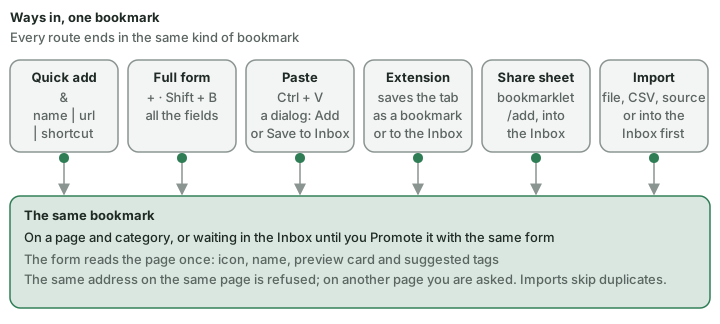
Add a bookmark with one line (&), the full form (+) or by pasting a URL. The extension, the share sheet and imports bring in more.
Quick add (&)
Press &, type one line — name | url | shortcut (shortcut optional) — and press Enter.
GitHub | https://github.com | gh📷 Screenshot — quick add with a line typed

The full form (+, Shift + B, Ctrl + Shift + A)
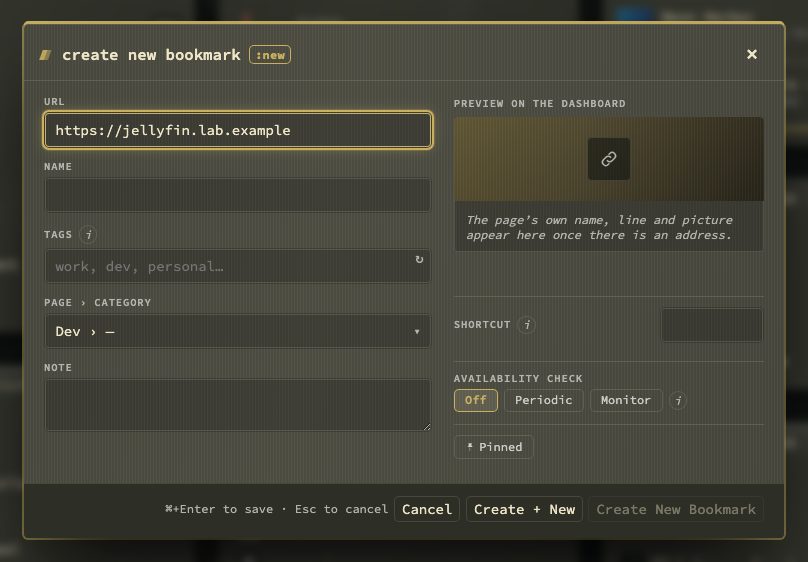
One bookmark form is used everywhere: the dashboard, the Bookmarks view, the inbox, config and :new.
+on the dashboard, or the add button.Shift + Bfrom anywhere on the dashboard, unless you are typing in a field.Ctrl + Shift + Afrom anywhere.
On a screen with a mouse or trackpad the form has two columns. On the left are the fields in the order you fill them in: address, name, tags, page › category and the note. On the right is the preview card — the bookmark as the dashboard will show it — with the shortcut, availability checking and pin under it. Tab runs down one column and then the other. On a phone or in a narrow window it is one column, in the same order. It opens with the cursor in the address field, adding and editing alike.
One read of the page. When you leave the address field, the page is read once, and that one read fills in the rest:
- The icon — with a ✎ on it. Choose app icon… heads its menu and opens a search over the app icon sets (Data, backups and import › Icons & previews), in the page itself so the form no longer clips it; under it come Upload…, Fetch again and Clear. When the sets know the app, up to three suggested icons also show under the address — one click chooses one. An icon you chose or uploaded, or one the bookmark already had, is kept when the address changes; a fetched one is replaced.
- A name — left empty, the name field shows the page's own title, Suggested from the page · Clear; a name you typed stays, with Page: … · Use under it to take the page's title instead.
- The card — the page's host, its own line and its picture. It says Reading the page… while a slow site answers, and No preview with Try again when the page could not be read; the bookmark saves fine without one.
- Suggested tags — chips under the tags field, from the same sources as Tag suggestions (Tags › Tag suggestions). + adds one, ✕ turns it down for that site everywhere, and ↻ asks again. Editing a bookmark shows its suggestions straight away, from the words stored for it.
Change the address and the whole read starts again; only the latest one counts.
- Page › category is one field. It opens the same list as Move to… (
Shift + M), with a filter at the top: type to narrow it, arrows andEnterto pick. Its first rows are New category on … and New page…; after a new page, the form asks for its first category. - ⓘ beside Tags, Shortcut and the checking choice explains each one.
- Availability is the same Off / Periodic / Monitor choice as everywhere, with the interval for Monitor. A new bookmark starts on Periodic; change that under Config → Bookmarks → New bookmarks → Availability (an install that still had Off from before was moved to Periodic once).
- The shortcut field warns when a shortcut is taken, and says which letters the grid itself uses.
- Save or
Ctrl + Entersaves. Create + New saves and clears the form for the next one, keeping page and category. - Before it saves, the form asks: with no page it says a bookmark needs one; with no category it asks Save without or Choose a category; a link already on another page is named, with Save anyway; a link already on the same page is refused, naming the bookmark that has it.
- The keyboard alone fills in the whole form:
Tabwalks the fields in order and wraps round inside the form, andEscapecloses the innermost thing first — the tag list, the icon menu, the page list — and the form last. The dashboard behind it does not scroll. - On a phone the form leaves out the icon and note fields; existing values are kept.
This same form, titled Promote bookmark, is how an Unsorted bookmark from the inbox or the Bookmarks view gets a page (The Bookmarks view › Unsorted and Promote).
📷 Screenshot — the full bookmark form
Paste a URL (Ctrl + V)
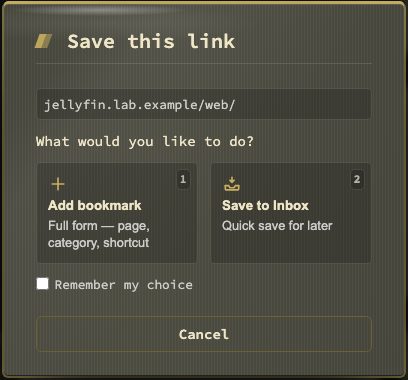
With no field active, paste a URL on the dashboard. A dialog offers Add bookmark (1 or b) or Save to Inbox (2 or i). While you choose, a card shows what the link is — the site's icon and domain, its title, a line of description and its picture — from the same preview the hover card uses; it stays hidden when the site gives nothing to show. Set a fixed answer under Config → Inbox → Collecting → Paste destination — Ask each time, Always add bookmark or Always save to Inbox.
Other routes
- Browser extension — saves the current tab (Browser extension and capture).
- Share sheet and bookmarklet — save to the inbox from a phone or any browser (Browser extension and capture).
- Import — a browser bookmark file, a CSV file, or a source such as GitHub stars (Data, backups and import).
- Add bookmark in the Bookmarks view's toolbar — the same form, on the page the list is filtered to (The Bookmarks view).
:newand:addin the command palette.
A link you already have
nextDash compares addresses loosely: a trailing slash, a #fragment, the case of the host and a default port do not make a link different.
- Same page — refused. Two identical rows on one page are never intended.
- Another page — you are asked, and told where it is: "You already saved this on Work · Docs", with a link. Save anyway keeps the second copy.
The form, quick add and the extension all ask. Imports skip duplicates and say how many.