

Phones, tablets and the installed app
NextDash adapts to touch screens, with its own layout, gestures and long-press editing. Add it to the home screen to install it as an app and share links to it.
nextDash adapts to touch screens (a touch device without a hover pointer) rather than to window width alone.
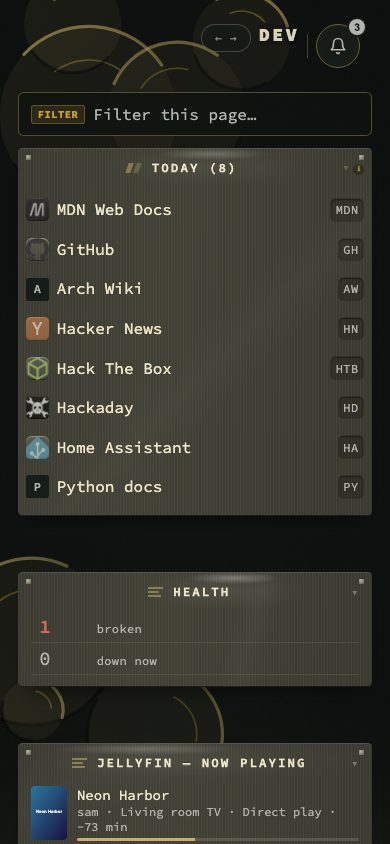
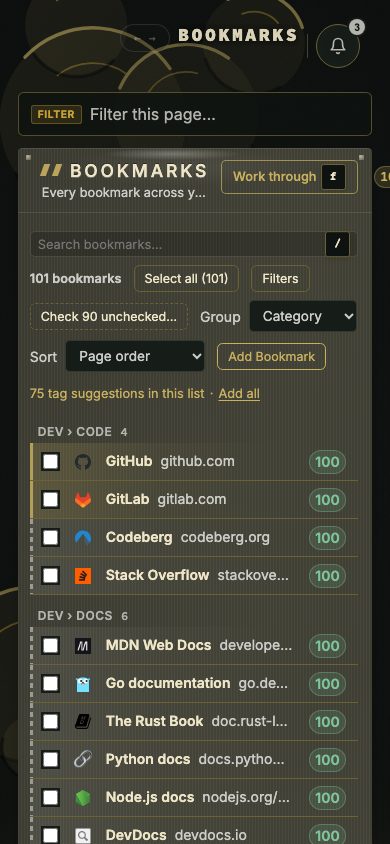
| Phone | Tablet and desktop | |
|---|---|---|
| Header | The page name and a ← → hint: swipe sideways to change page. The clock, the page tabs and the destinations drop away | Full header |
| Action buttons | Search | As configured |
| Commands and finders | The : and ? tabs in the search panel | Buttons or keys |
| Tag filter | tag: in search, or :tag | The tag cloud (/) |
| Page filter | A bar stays above the bookmarks, full width; it does not take focus until you tap it, and the × and Escape empty it | Shift + F |
| Preview cards | Off | As configured |
| Categories | One column each | Can spread |
| Config | All sections; the section list scrolls sideways | Rail and content side by side |
| Bookmarks view | Rail as a drawer, side panel as a sheet | Rail, list and panel |
| Theme editor | Read-only | Full |
| Quick start bar | Skipped | Shown on first visit |
On phones and tablets. Three switches under Config → Behavior → General → On phones and tablets act on a touch screen only; on a computer they change nothing. Open links in a new tab on phones (off) opens bookmark and result links in a new tab; without it they open in the same tab, whatever Open links in a new tab says. Hide notifications on phones (errors stay) (on) keeps the toasts away so nothing covers the page; errors still show. Hide corner cards on phones (on) holds back the invitations and reports in the bottom-left corner; they are not dismissed and show again on a computer or when you switch it off.
Touch gestures:
| Gesture | Action |
|---|---|
| Long-press a bookmark | Edit in place |
| Drag the grip over a bookmark's icon | Move it; the rest of the row scrolls the page, so a swipe that starts on a row never grabs it |
| Long-press a category header or a widget title | Rename |
| Swipe sideways | Change page |
| Tap search | The search panel, with its mode tabs |
Install as an app. Add to Home Screen (or the install button in your browser) uses /manifest.webmanifest; the custom title and favicon from Branding are used for the app. Behavior → General shows install steps for your platform. Long-pressing the installed app's icon offers shortcuts to Inbox (only while the inbox is on), Health (the Bookmarks view on the broken ones) and Config, besides the dashboard. Hypr mode makes a click open the bookmark in a browser tab and then close the app window.