

Security and self-hosting
NextDash has no user accounts: put it behind a private network or an authenticating proxy. The write token, local-address rules and a short list of what it contacts are covered here.
nextDash has no user accounts. Anyone who can reach the address can read your bookmarks and change them, unless you put something in front of it.
| Setup | When |
|---|---|
| Tailscale or another private network | Access from your own devices only |
| Reverse proxy with authentication | Caddy, Traefik or nginx with basic auth, OAuth2 Proxy or SSO |
| localhost and an SSH tunnel | A single machine |
Do not expose plain HTTP to the internet without authentication.
Production Docker
docker-compose.prod.yml mounts only ./data; CSS and JavaScript are built into the binary. The container starts as root so host Docker hooks can run, then switches to the nextdash user (NEXTDASH_RUN_AS_ROOT=1 keeps root — also needed when the Docker socket is root:root, as on Docker Desktop). The compose file sets a 256 MB memory limit. For TLS and long-lived static caching in front of the app, use docker-compose.proxy.yml with deploy/Caddyfile.
A reasonable environment for a LAN or VPS:
environment:
  - PORT=8080
  - NEXTDASH_WRITE_TOKEN=change-me-to-a-long-random-string
  - NEXTDASH_CORS_ORIGINS=https://dash.example.com
  - NEXTDASH_ACTIVITY_LOG=mutate,status,security
  - NEXTDASH_ACTIVITY_LOG_PERSIST=1
  # Optional:
  # - NEXTDASH_OUTBOUND_REQUESTS_PER_MIN=120
  # - NEXTDASH_SSRF_API_RATE_PER_MIN=60
  # - NEXTDASH_STATUS_PING_RATE_PER_MIN=300
  # - NEXTDASH_TRUSTED_PROXIES=10.0.0.0/8
  # - NEXTDASH_CSP=off
  # - NEXTDASH_DISABLE_PREFETCH=1
  # Containers view — add these only once you also mount the Docker socket:
  # - NEXTDASH_DOCKER_CONTROL=1
Before it listens, the server checks that PORT is valid and that the data directory can be created and written; otherwise it stops with a clear error. The full list of environment variables is in the README.
The write token
Set NEXTDASH_WRITE_TOKEN and every write or destructive API call — saves, imports, deletes, uploads, resets, backups, retests, preview fetches, container actions — needs the header X-NextDash-Token. The dashboard supplies it automatically for pages served by the same install. Unset, nothing needs a token.
WARNING
The token is not a login. Every browser that opens nextDash receives it, so anyone who can reach the address can still read and change everything. Keep nextDash behind a private network or a proxy that asks who you are.
What it stops, and what it does not. The dashboard gets the token from the page it loads, so every browser that opens nextDash has it. The token keeps out requests that do not come from that page: another website firing requests at your network from a tab you have open, and scripts or scanners that only know the address. It does not keep out a person who can open the dashboard — that is what Tailscale or a reverse proxy with authentication is for. With container actions on, put one in front.
Choosing one. Use a long random string, such as the output of openssl rand -hex 32. At startup the server logs a warning when NEXTDASH_WRITE_TOKEN or NEXTDASH_CAPTURE_TOKEN is shorter than 16 characters or still one of the example values from these docs. It still starts.
Read-only routes (bookmarks, settings, the health list, ping) stay open, with two exceptions: without the token, settings come back without the stored keys and tokens (the archive keys, the Pushover token and user key, the alert URL), and the server log needs it. The dashboard reads both with the token. The extension stores the token under Settings → Write token. GET /api/backup and the automatic-backup routes need the token, because a backup is the whole library.
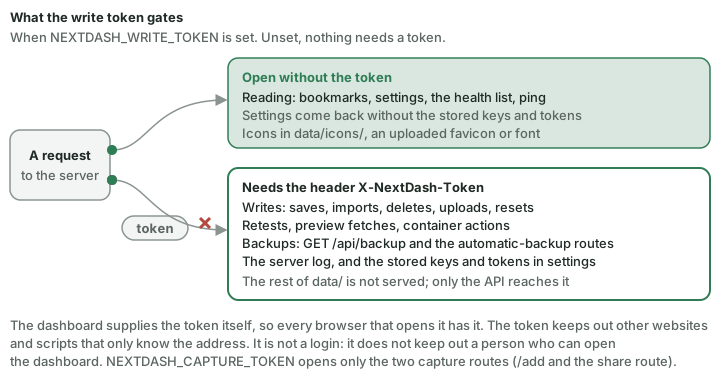
The data directory is not served. Only data/icons/ and an uploaded favicon or font are published, with a long cache lifetime. Settings, bookmark files, the inbox, the trash and stored backups are reachable only through the API.
NEXTDASH_CAPTURE_TOKEN opens only the two capture routes (Browser extension and capture › Capture without the extension).
Which names may open it. With a write token set, nextDash also refuses a request that names a host it does not know, since a page on another domain could otherwise point its own name at your address and hand itself the token. An IP address, localhost, a name without dots and the private endings .local, .lan, .home.arpa, .internal and .ts.net always pass. For a public name — your domain behind a reverse proxy — list it in NEXTDASH_ALLOWED_HOSTS, comma-separated; *.example.com allows every subdomain and * turns the check off. A request that is refused gets Host not allowed (status 421) and the reason is in the log. Status pages under /s/ are not checked, and without a write token nothing is.
NEXTDASH_ALLOWED_HOSTS=dash.example.com, *.example.orgLocal addresses and outgoing requests
Allow localhost & private-network bookmarks (Behavior → General) is on by default. Turn it off when nextDash is reachable on a shared network.
With it off, the server's pings, previews, icon downloads, redirect detection, alerts and webhooks only reach public hosts. Redirects are only followed to hosts that pass the same rule. Addresses are checked again when the connection is made, and a resolved public address is pinned for about two minutes, so a host name cannot switch to a private address in between (DNS rebinding).
Rate limits apply per client to the requests the server makes for you:
NEXTDASH_OUTBOUND_REQUESTS_PER_MIN=120   # previews, pings, favicons, redirect detection
NEXTDASH_SSRF_API_RATE_PER_MIN=60        # /api/bookmark-preview, icon uploads, archives, /api/health/check-url, alert tests
NEXTDASH_STATUS_PING_RATE_PER_MIN=300    # /api/ping, the browser's own status checks
Above the limit the API answers 429, and the security channel records it.
Who a request is counted against. By default, the address the connection comes from. Behind a reverse proxy that is the proxy for everyone, so the limits are shared by every reader — which is deliberate: X-Forwarded-For can be set by anyone, and believing it would let a client hand itself a fresh allowance simply by inventing a new value. Name your proxy to have the header believed:
NEXTDASH_TRUSTED_PROXIES=10.0.0.0/8, 192.168.1.5 # addresses and ranges, comma-separatedOnly a request arriving from one of these is taken at its word, and only its first X-Forwarded-For entry — the client the proxy saw — is used.
CORS
By default only a browser extension's origin (chrome-extension://…, moz-extension://…, safari-web-extension://…) receives Access-Control-Allow-Origin. Any other web page cannot read the API.
NEXTDASH_CORS_ORIGINS is a comma-separated allowlist for pages of your own. Extension origins never need an entry. * answers every origin.
NEXTDASH_CORS_ORIGINS=https://dash.example.comContent-Security-Policy
HTML pages send a strict Content-Security-Policy. NEXTDASH_CSP=off switches it off when a proxy or integration requires that.
The MCP endpoint
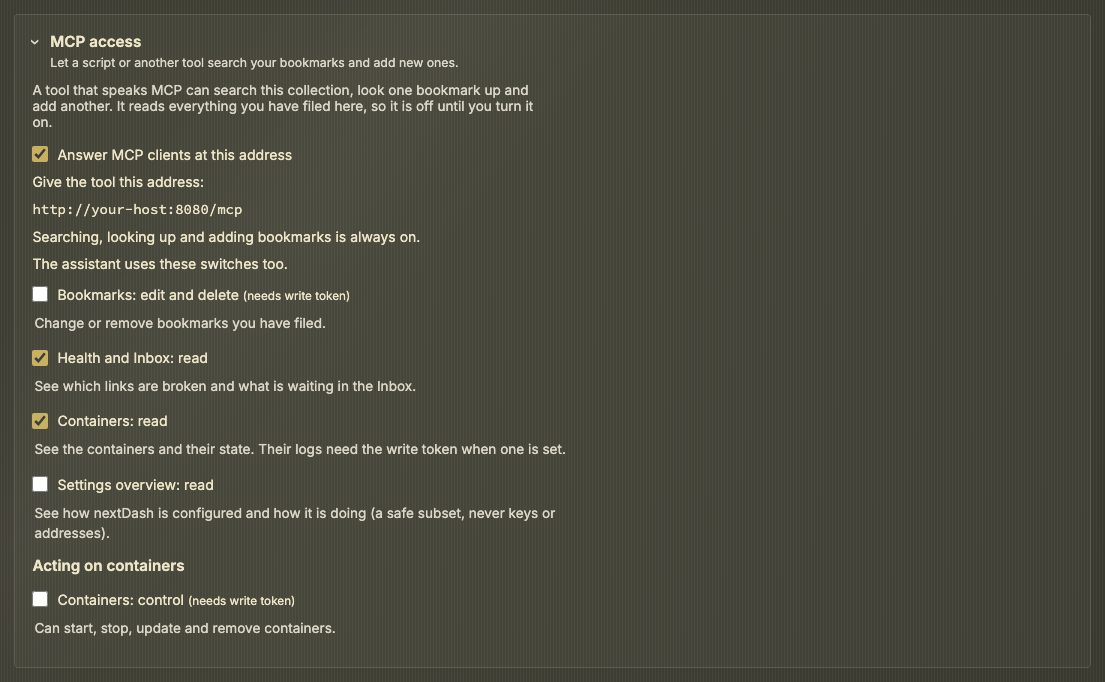
nextDash can answer MCP clients (the Model Context Protocol) at /mcp, for example http://your-host:8080/mcp. It is off until you tick Answer MCP clients at this address under Data & backups → Webhooks → MCP access, which then shows the address. Under it are five group switches, all off until you tick them:
| Tool | What it does | Group |
|---|---|---|
search_bookmarks | Search by name, URL, tag or note; each result names its page and category; 20 by default, at most 100, with truncated when more match | Always on |
get_bookmark | Everything stored about one bookmark, with its usage (opens, last opened, added); with Health and Inbox: read on also its health (status, score, reasons, flags, last check) and monitoring (interval, uptime, response time), and with Containers: read on the container linked to it | Always on |
list_tags | Every tag with its count | Always on |
list_pages | The pages with their categories and ids | Always on |
add_bookmark | Add a bookmark, with the usual duplicate check | Always on |
update_bookmark | Change a name or note, add or remove tags | Bookmarks: edit and delete |
move_bookmark | Move to another page or category; refused when the target page already holds the URL | Bookmarks: edit and delete |
delete_bookmark | Delete a bookmark; it goes to the Trash, where you can restore it | Bookmarks: edit and delete |
create_category, rename_category | Add a category to a page, or rename one | Bookmarks: edit and delete |
get_health_summary | Counts from the last link checks, the average health score and how many bookmarks fall in each score range; it does not run a check | Health and Inbox: read |
list_health_issues | Bookmarks that are down or whose certificate is due to expire, each with its score, reasons and flags; filter by status, max_score or flag (the last two look at every bookmark) and sort by score, how long it has failed or name; 25 by default, at most 100, with total and truncated | Health and Inbox: read |
query_bookmarks | Filter, sort, count and group bookmarks: by words, page, category, tag, status (ok, broken, unknown), score, health flag, monitoring, how long since opened, how often opened, when added, a note, and whether a container is linked; sort by score, name, opens, last opened, added or uptime; group_by page, category, tag, status, flag or container link. total and the groups count every match, not only the listed ones; 25 by default, at most 100, and with group_by limit 0 returns only the groups | Health and Inbox: read |
get_stats | Statistics over the whole collection: bookmarks per page, per category and the 20 commonest tags; health (the Health view's broken links, monitors down and content failures, and their sum; the average score and score ranges over every bookmark in the report, checked or not; a count per flag, certificates due, duplicates, unused); monitoring (monitors down as the header counts them) and pooled uptime; opens, and bookmarks never opened (leaving out those told to ignore unused, as the weekly digest does); the daily health trend (30 days by default, trend_days up to 365, about 90 are kept); and container totals (running, not_running, a count per state, with updates, linked) when Containers: read is on; the inbox block (added, promoted, deleted and kept since a date, the average time to triage, the count per source, the items waiting now and the last trend_days days of daily activity) and the trash block (items, a count per kind, the oldest and newest deletion time, never what was deleted) | Health and Inbox: read |
get_bookmark_history | One bookmark's checks per day, found by its URL: checks, how many answered, the uptime ratio and the mean response time, for 30 days by default and at most 90, plus its current score and flags and its open count and last opened (opens are only counted in total, there is no per-day history). A bookmark without recorded checks gets an empty list and a note; a failure is named by its kind | Health and Inbox: read |
list_inbox | Unread links in the Inbox, newest first; 25 by default, at most 100, with truncated when more exist | Health and Inbox: read |
list_containers | The containers with state, image, update availability, the last CPU and memory reading and the bookmark each is linked to (and how: manual, port, subdomain or title), plus a summary of linked and unlinked; 50 by default, at most 200, with truncated when more exist | Containers: read |
get_container | One container's detail, as the Containers view shows it, with the bookmark it is linked to | Containers: read |
query_containers | Filter, sort, count and group containers: by state, image, update, whether a bookmark is linked, CPU and memory; sort by name, CPU, memory, uptime or restarts; group_by state, image, host (a macvlan or ipvlan container's own LAN address, else the Docker host) or link. Uptime is given as text such as 3d 4h and in seconds. total and summary count every container; 50 by default, at most 200 | Containers: read |
get_container_logs | The last lines of a log; 100 by default, at most 200 | Containers: read |
container_action | Start, stop, restart, pause, unpause, remove, update or rollback one container | Containers: control |
get_settings_overview | How this install is configured, as a safe read-only subset (see below) | Settings overview: read |
get_app_status | The install itself: version and whether the last update check found a newer one (no check is made for the question), the size of the data folder, how many pages, categories and bookmarks, whether the status page is on and how many monitors it shows, how many bookmark feeds are followed, failing or given up on, and how long the server has been running. Counts, yes/no and versions only | Settings overview: read |
Searching, looking up, listing tags and pages, and adding bookmarks are always on while the endpoint is. The container link is the one the Containers view shows: the same steps in the same order, with a link set by hand first, and a bookmark filed on two pages linked on both. For the address your browser has open, which the view also counts as this server, nextDash uses the address the dashboard was last opened on. Without Docker, or with the Containers view off, the tools say so in notes instead of failing, and a count they cannot know is marked as unknown rather than given as zero. A failed check is reported only as its kind (Unreachable, Timed out, an HTTP status or a failed content check), never with its error text, which can repeat the address or quote the expectation; expectations and credentials are never included. Bookmarks in Unsorted are not part of the health report, so they have no health status or score. Bookmarks: edit and delete and Containers: control are marked needs write token in Config.
Write token. With NEXTDASH_WRITE_TOKEN set, adding, editing, moving and deleting bookmarks and categories, and every container action, need it. Container logs need it too, because logs can contain secrets. Container environment variables are never returned. Without a token, the switches are the only gate.
Settings overview: read is off by default. With it on, get_settings_overview describes your configuration from a fixed list: the health checking and monitoring settings (automatic recheck and its interval, timeouts and retries, monitor emphasis, uptime badges, how many bookmarks ignore which condition, and only whether down alerts are configured), the Containers settings (the view, refresh, hidden containers, alerts and their thresholds, automatic updates and their window, resource history, which container is linked to which bookmark by the bookmark's name and page, whether a container has a custom web UI address and its host, and the host address as a host), your pages and their categories with bookmark counts, which features are on (Containers view, Inbox, status page, uptime badges, automatic recheck, analytics), language and theme, and the MCP and assistant switches with the provider, the model, the conversation limits and the server address as a host. It never contains keys, tokens, passwords, webhook or notify addresses, chat ids or user keys, anything from the secrets files, push subscriptions or the write token. The same switch adds get_app_status, which holds no addresses or paths either.
The container read tools need the Containers view switched on; Containers: control also needs Docker control switched on for the server (NEXTDASH_DOCKER_CONTROL); the switch stays greyed out until it is. It acts exactly like the Containers view: nextDash cannot stop, restart, pause, remove or update itself, only a stopped container can be removed, and only one action runs on a container at a time.
Activity log. Changes made this way show up in the activity log with the source mcp and the client's User-Agent. Container actions appear as the usual docker.<action> events, also with source mcp.
Which clients. Claude Desktop and Claude Code can reach nextDash from your LAN. claude.ai, as a custom connector, needs an address it can reach: a public HTTPS one (sign-in with OAuth is not built). Do not put /mcp on a public address until sign-in exists: anyone who can reach it can use every tool you switched on, and without a write token that includes the write tools.
It starts closed because it answers questions about every bookmark. The Origin of every request is checked against the host it arrived on.
The in-app assistant (The assistant) reads through the same group switches, whether or not this endpoint is switched on.
What nextDash contacts
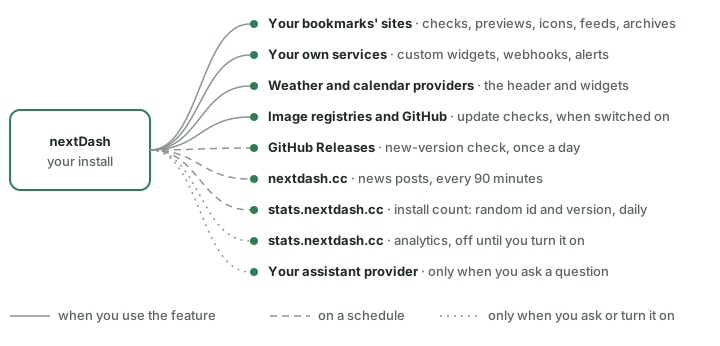
| What | When | Switch |
|---|---|---|
| Your bookmarks' sites | Checks, previews, icons, watched feeds, archives | Per feature |
| GitHub Releases API | Once a day, to see whether a newer release exists; with the Containers GitHub token when you set one; a failure is explained in Troubleshooting › The update check fails | Behavior → Privacy & sync → Check GitHub for new releases; DISABLE_UPDATE_CHECK=true for the whole server |
| nextdash.cc feed | Every 90 minutes, by the server, for News & features | Behavior → Privacy & sync → Show posts from nextdash.cc; DISABLE_NEWS_FEED=true |
| Weather and calendar providers | For the header and widgets | Appearance → Date & weather |
| Container image registries and GitHub | Image update checks, when switched on | Config → Containers → Updates |
| Your own services | Custom widgets, webhooks, alerts | Per widget or receiver |
| Your assistant provider (Anthropic, OpenAI or your own server) | Only when you ask a question or press Test connection | Config → AI Assistant |
| Install count | Once a day: a random install id and the version (on Unraid, also the word Unraid) | Behavior → Privacy & sync → Count this install; DISABLE_TELEMETRY=true; NEXTDASH_DISABLE_INSTALL_PING=1 for the count alone |
| Analytics | Only when switched on, with a random install code (v1.22.3) | See below |
Analytics
nextDash can send anonymous usage statistics to a self-hosted Umami instance at stats.nextdash.cc. It is off until you turn it on. The aim is to learn which features are used and what can be improved.
Install count — separate from the analytics below, and on by default. Once a day the server sends one request to stats.nextdash.cc with a random install id and the release you run, so the project can say how many installs exist. On Unraid, which sets HOST_OS=Unraid in every container, it also says Unraid. Nothing else: no address, no settings, no bookmarks, no counts. The id lives in the file install-id in the data folder; delete it for a new one. The card that announces it waits two days after the analytics question. Turn it off under Behavior → Privacy & sync → Count this install, or for the whole server with DISABLE_TELEMETRY=true, which also stops the analytics below. NEXTDASH_DISABLE_INSTALL_PING=1 (v1.22.3) stops the count alone and leaves the analytics as they are. It is for test runs and CI: every server started on an empty data folder is a new install to the count.
- Turning it on or off — the card on the dashboard (Turn on, What is recorded?, No thanks), Config → Behavior → Privacy & sync → Privacy-friendly analytics, or
:telemetry on/:telemetry off. The page reloads, because the tracker script is only added to the page when analytics is on. Closing the card without answering asks again later; an answer is final. - For the whole server —
DISABLE_TELEMETRY=true(also1,yes,on) turns it off for everyone and greys out the switch. The same spellings work forNEXTDASH_DISABLE_INSTALL_PING, which switches off the install count only. - When off — the tracker is not in the page and nothing is downloaded. The install count above is the only request that remains, until you switch that off too.
What is recorded — event names from a fixed list, with a few properties:
| Area | Recorded |
|---|---|
| Views and navigation | Opening views and config sections and tabs, switching pages by position |
| Panels | Opening search, commands, finders, the cheat sheet, the tag cloud, what's new and the bookmark form, and how the last two closed |
| Actions | Which command ran (by name), which menu entry was picked, bookmark opens and where from, edits, moves, deletes, checking changes, inbox, health and container actions |
| Outcomes | Whether adding or editing succeeded, or hit a duplicate, conflict or error |
| First-run help | Tours and tips shown and finished; how the Quick start guide opened and closed, which step was taken (by name), how many steps are done (as a band) and whether the language hint was used |
| Settings | The name of a setting you change, and on/off for toggles; which features are on, the language you set and the release you run (see How often below) |
| Size | Bucketed counts (for example 500+ bookmarks) |
| Widgets | How many widgets of each type, bucketed; a type you do not have is left out |
| Releases (v1.22.3) | When this browser moves to a newer release: the minor release it came from and went to (v1.19 to v1.21), never on the first visit |
| First bookmark (v1.22.3) | Once per browser, on a new small install: how long after the first visit the first bookmark was added, as a band (10 minutes, a day, a week, later) |
| Errors (v1.22.3) | That something failed and in which view (config, inbox, page); never the message or the stack, at most three per page load, and only from nextDash's own scripts |
| Containers | How the Containers view is set up: which options are on, whether a socket and control are configured, and bucketed counts of hidden containers, custom addresses and waiting updates. Docker itself is not asked. Per action (start, stop, restart, update, mute and the like): which one, whether it worked, where it came from (row, side panel, menu, key, command, selection bar) and, for a selection, a bucketed count |
| Health, Inbox, Bookmarks view | Bucketed counts (checked, down, certificates due, unread) and the layout options chosen in their Config tabs |
How often (v1.22.3) — the settings, size, widgets, containers and view snapshots are not sent on every page load. A snapshot goes out the first time, when it has changed, in a new calendar month, or when a week has passed since the last one; a new release always sends a full set. What this browser last sent is kept in its local storage under nextdash.analytics, and only while analytics is on. Settings that never differ between installs are no longer sent, and a widget type you do not have is left out rather than sent as zero.
Install code (v1.22.3) — with the analytics on, the settings snapshot carries a random code so that visits from one install count as one. Without it, the same install would count again every month and in every browser. The code is also handed to the statistics tool as the identity of the visit, so the sessions of one install stay together for longer than the 30 days its own visitor id lasts. The code is made on the server from the install-id file and hashed, so it cannot be matched to the install count; delete the file for a new one. It is only sent while analytics is on, and not at all in the demo. There is no extra switch: it follows Privacy-friendly analytics.
Where it runs (v1.22.3) — nextDash does not send the address you open it on. The hostname is replaced by one word, localhost, lan (a private address or a name without dots) or domain; the referrer and the page title are not sent. The snapshot also says how the server runs (docker, unraid or other) and which language is set. A page load is one pageview; moving between views is a view event, not a pageview.
Every count is rounded into a band. Never recorded: bookmark names, URLs, search text, page or category names, notes or tag names, container, image or widget names, or any address. No cookies, no profile, no cross-site tracking. This is separate from the open counts in Opening and editing bookmarks, which never leave your server.
Operations
GET /version— version and commit.GET /api/data-revision— a hash of the bookmark data; open dashboard tabs poll it and refresh when something changes elsewhere.- Preview data is kept in memory and written to disk every 30 seconds and on shutdown.
NEXTDASH_DATA_DIRsets the data directory;NEXTDASH_DISABLE_PREFETCH=1skips the icon prefetch at start-up.NEXTDASH_HEALTH_STARTUP_GRACE(default15m, a Go duration;0turns it off) is how long after start-up a bookmark's first failed check is held back instead of recorded, so services that start together with nextDash are not marked broken; a second failure at least 45 seconds later is recorded as usual, and Retest all always records at once.- For the public demo only:
NEXTDASH_DEMO=1turns an instance into a seeded demo that puts its data back to the start everyNEXTDASH_DEMO_RESET_MINUTES(default 30) and once nobody has written forNEXTDASH_DEMO_IDLE_MINUTES(default 10). It empties its data directory on every start and reset, so it needsNEXTDASH_DATA_DIRset to a directory of its own and refuses one that holds a real install. Seedeploy/demo/docker-compose.yml. - Demo only:
NEXTDASH_DEMO_ANALYTICS_IDis the Umami website id the demo counts its visits into (page views, events, heatmaps and screen replays), in a count separate from every install's. Unset, the demo counts nothing. The demo bar and Config → Privacy say so. A normal install ignores it, andDISABLE_TELEMETRYswitches it off as well. - For the test suite only:
NEXTDASH_ICON_SETS_FIXTUREandNEXTDASH_UNRAID_FIXTUREname a directory the app icon sets and the Unraid API answer from instead of the network. A real install leaves them unset. - For the test suite only:
NEXTDASH_SEED=minimalstarts a new data folder with the small one-page set instead of the 98 starter links, andNEXTDASH_DISCOVERY_FIXTUREnames a JSON file that app discovery reads instead of the Docker socket. A real install leaves both unset.
Sharing the status page over the internet
The status page (Checks & health › The status page) is meant for people outside your home. nextDash has no login, so never put the whole app on the internet for it. Let your reverse proxy pass only two paths: /s/ (the page and its data) and /static/status/ (its own style and script). Everything else gets a 404 from the proxy.
With Caddy:
status.example.net {
    @status path /s/* /static/status/*
    reverse_proxy @status nextdash:8080
    respond 404
}
With nginx, inside the server block:
proxy_set_header X-Forwarded-For $remote_addr;
location /s/             { proxy_pass http://nextdash:8080; }
location /static/status/ { proxy_pass http://nextdash:8080; }
location /               { return 404; }
8080 is the container's own port in these examples; use the address and port of your install. The proxy_set_header line tells nextDash who the visitor is, and replaces whatever the visitor sent in that header themselves. Caddy does this on its own.
Name the proxy. Add the proxy's address to NEXTDASH_TRUSTED_PROXIES (Local addresses and outgoing requests). Without it nextDash cannot tell who is behind the proxy:
- With Only from the home network on, every request that comes through the proxy is refused, whatever address it claims. The same happens with a named proxy that does not pass the visitor's address on.
- Every visitor counts as the proxy's one address for the rate limit of 60 requests a minute, shared by page loads and the once-a-minute refresh. With about 50 or more pages open at once, visitors start getting not found.
The link is the key. Anyone who has the link can open the page, so sharing the link is sharing the page. When it went further than you meant, press New link… in Config → Status page; the old link stops at once. For a page only your household needs, turn on Only from the home network.
Logs. nextDash keeps the link's secret part out of its own log (it writes /s/…). Your proxy's access log may still record the full address: turn logging off for these paths, or keep that log private.
What nextDash does for you. The page asks search engines not to index it, sends no referrer to the services it links to, and answers a wrong, old or stopped link with the same plain not found as any unknown address. After restoring a backup the old link does not come back; Config → Status page makes a new one when you open it.
Think about what it reveals. The page shows which services you run and when you plan maintenance. Tick Link only for services whose address is meant to be public.
The assistant
The assistant answers questions about your bookmarks in plain words, for example which of my Docker bookmarks are down? or tag everything about Proxmox. It runs on a model you choose: Claude, OpenAI, or a server of your own such as Ollama. It is off until you turn it on, and it is off in the demo. Open it with :ask in the command palette, with or without a question after it: with one, it starts a new conversation and asks it straight away. = in the search bar does the same: = on its own lists your latest conversations (Enter opens one), and = followed by a question asks it as a new conversation. Like :ask, what follows the = is never stored in the search history or the recents.
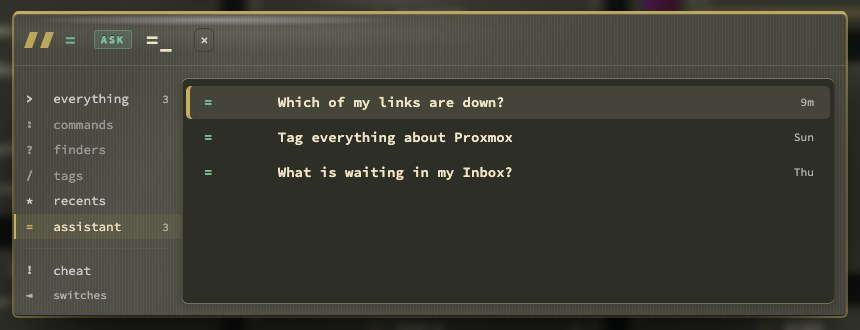
= on its own lists your latest conversations.The panel is laid out like the command palette: you type your question in the line at the top (Enter sends, Shift+Enter starts a new line), your conversations are listed on the left and the open one is shown on the right. With the question line empty, ↑ and ↓ walk the list and Enter opens the conversation you are on; Esc closes the panel.
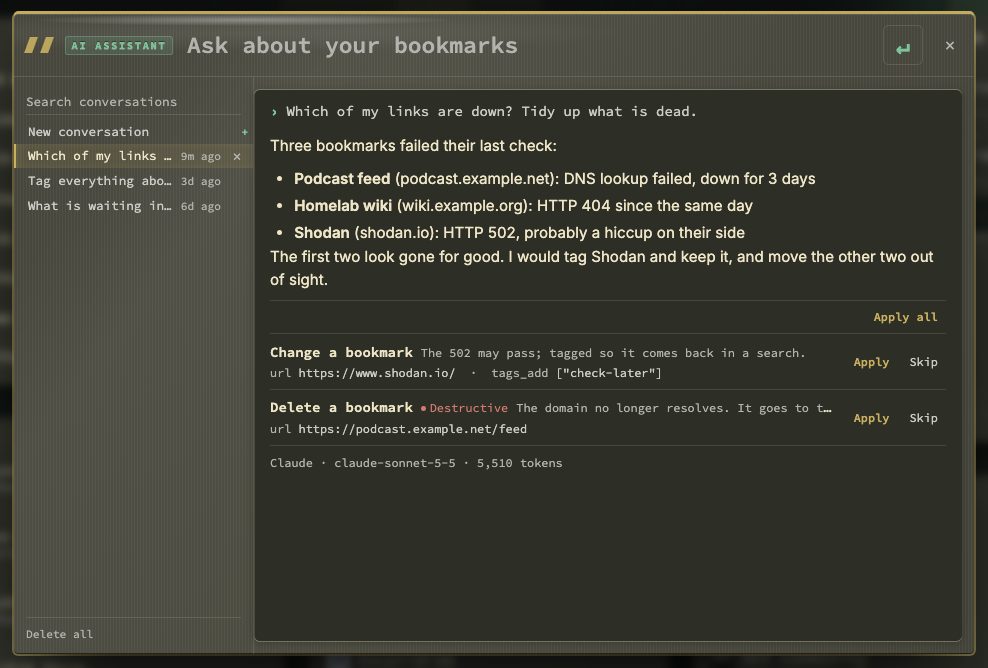
How an answer is drawn. The panel shows Markdown: headings (as bold lines), lists, numbered lists, code and code blocks, links to pages of nextDash and tables. A table that is wider than the panel scrolls sideways. The assistant is asked for a short layout: one sentence that answers, then the detail, a list item per thing, and a table only for three or fewer short columns.
Setting it up. Under Config → AI Assistant (a page of its own in the Services group, with one tab, Settings) four panels follow each other: Turn it on, Provider, Conversations and What it can see and do. Each opens with a line saying what it is for, and the controls that need more than a label have an ℹ button beside them that explains them: the switch, the provider, the key, the server address, the model, Test connection, the two limits, Delete all conversations and the last panel. Under Test connection a line says what is still missing (the assistant is off, no key is saved, no address or no model). The fields stay open while the assistant is off, so you can fill them in first. To set it up, tick Turn the assistant on and pick a Provider:
| Provider | What you fill in |
|---|---|
| Claude | An API key. Model is optional; left empty, nextDash uses its built-in default, shown as the field's placeholder |
| OpenAI | An API key. Model is optional in the same way |
| OpenAI-compatible (Ollama, LM Studio…) | The Server address, for example http://ollama.lan:11434/v1, and a Model. The key is optional; most home servers take none. Local and LAN addresses are allowed here |
Save key keeps the key on the server in data/ai-secrets.json, apart from your settings; it is never shown again, only Key saved., and Remove key deletes it. A key per provider is kept, so switching back and forth does not lose one. Test connection sends a tiny test request to the provider and reports the model it used or what went wrong. Nothing else leaves nextDash until you ask something.
What the provider receives. Only when you ask a question or press Test connection; there are no background calls. A question carries:
- your question, and the earlier messages of that conversation (the last 20);
- today's date and the names of your pages;
- the answers of the lookups the assistant makes while it works on that question, for example the bookmarks a search found.
Nothing else is sent: not your whole collection, not your settings (unless Settings overview: read is on and it looks them up, and then only the safe subset in The MCP endpoint), and not your key to anyone but the provider.
What it can read. The same read tools as the MCP endpoint (The MCP endpoint), following the same group switches under Data & backups → Webhooks → MCP access. Searching and looking up bookmarks, tags and pages are always available; Health and Inbox: read, Containers: read and Settings overview: read add those lookups when ticked. With them on it can answer counts and rankings (how many bookmarks are linked to a container, which bookmarks have the lowest health score), health and usage statistics for one bookmark or the whole collection, which container belongs to which bookmark, check how one bookmark has fared day by day, read the Inbox and Trash figures, say which version is running and whether the status page is on, and describe how nextDash is configured; when a switch it needs is off, it says which one. The group checkboxes can be ticked when either the MCP endpoint or the assistant is on, and the assistant does not need the /mcp address to be switched on. Container logs still need the write token when one is set, and environment variables are never returned. The assistant does not run container actions itself, whatever Containers: control says. The last panel of the settings page shows the five switches as On or Off, read-only, with an Open MCP access button that takes you to them.
What it knows about nextDash. Ask it how something works, what nextDash can do or where a setting lives and it looks the answer up in the manual and the README that ship with your install; the lookup happens inside nextDash and sends nothing to the web, and the passages it finds travel with the question like the other lookups above. Its answers can contain links that open a page, such as Config → Containers, and they open without leaving the dashboard. Where the manual does not say, it tells you so rather than guessing.
What it can change. Nothing by itself. When it thinks something should change, it adds a proposal under its answer, one row per change: a bookmark to add, edit, move or delete, a category to create or rename, or a container action. Adding is always possible; editing, moving, deleting and the categories need Bookmarks: edit and delete to be ticked, container actions need Containers: control. Each row shows what would happen and why, with Apply and Skip at its right end. Nothing is touched until you press Apply, and the change is checked again at that moment: the group must still be ticked, and with NEXTDASH_WRITE_TOKEN set Apply needs the write token (The write token). Apply all applies the pending changes of an answer in one go, but it skips deletes and container actions: those you apply one at a time. A change that failed can be tried again or skipped; an applied or skipped one is final. Applied changes appear in the activity log with the source assistant, and a deleted bookmark goes to the Trash as usual.
What is stored. Conversations are kept in data/ai-conversations.json: the texts, which tools were used and how large their answers were, the proposals with what became of them, and the token counts. The full answers of the lookups are never stored. nextDash keeps the Conversations to keep most recent (50 by default) for Days to keep them (90 by default); older ones are removed when a new answer is saved, and both numbers can be changed. Delete one conversation with the × button next to it in the panel, or all of them with Delete all at the foot of the list (it asks once more first) or Delete all conversations in the Assistant section. With NEXTDASH_WRITE_TOKEN set, asking a question, Test connection and deleting conversations all need the write token (The write token), because asking spends your key; reading conversations and the assistant's status do not.
Limits and cost. One question runs at most 8 rounds of lookups, 20 lookups in all, and two minutes; if it hits the rounds or the lookups, you get the partial answer with a line saying where it stopped. The two minutes are different: if the time runs out the whole question is dropped, with the lookups and proposals so far, and you see The provider took too long to answer. A provider error saves nothing and puts your question back in the box. Every answer shows the provider, the model and the tokens it used, so you can see what a question costs on your account.
Backups. The conversation file travels in every backup. The key travels only with Tokens and passwords (Data, backups and import › Backups & data); without it, a restore keeps the key in use.