

Data, backups and import
Back up everything or restore a backup, import and export bookmarks, feed in links from other services, set up webhooks, and keep or empty the trash. Reset is here too.
Config → Data & backups has six tabs.
Backups & data
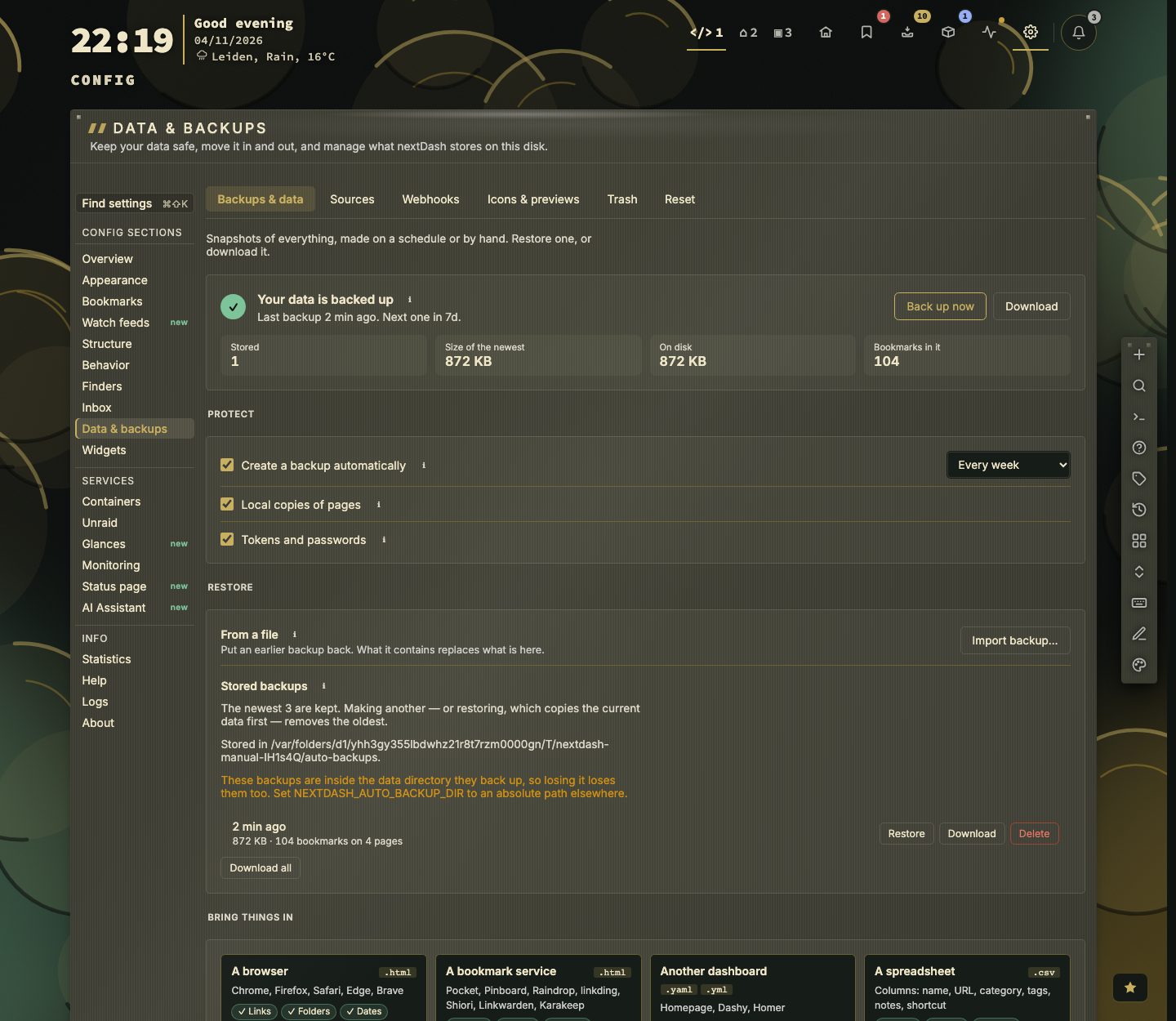
Backups & data reads top to bottom. At the top a status says Your data is backed up, No backup yet, or that the last automatic run failed (it then turns red), with Back up now and Download beside it and four figures under it: how many backups are stored, the size of the newest, what they take on disk and the bookmarks in it. Under that come three groups — Protect, Restore and Move — and nothing is folded away. An ℹ beside a control explains it.
- Download — a ZIP of everything, to your computer.
- Back up now — stores one on the server.
- Protect → Create a backup automatically and How often — every day, week (default), two weeks or month. A run happens whenever the newest backup is older than that, so frequent restarts do not skip it. The newest three are kept;
NEXTDASH_AUTO_BACKUP_KEEP(1–50) changes that andNEXTDASH_AUTO_BACKUP_DIR(an absolute path) stores them elsewhere. The default place isdata/auto-backups/, which is left out of backups. The panel names the directory it is actually using, and warns when that is inside the data directory — backups kept there are lost with the thing they back up. - What a backup carries (two switches under Protect) — a backup holds the whole data directory: bookmarks, pages, categories, finders, the inbox, settings, custom themes, check history, icons and uploads, and the images held or skipped in the Containers view. Two switches decide the rest:
- Local copies of pages — the largest part of a backup.
- Tokens and passwords — source tokens, stored sign-ins, webhook keys, the Containers view's GitHub token, the Unraid and Brave keys, the assistant's keys, and the secrets in the alert settings (the alert address with its bot token, Pushover's keys, the archive keys and the iCal address). Without them, those settings go into the backup blanked, and restoring it keeps the ones in use. With them in, a restore needs nothing typed again, and the ZIP itself becomes a secret. They are written back with owner-only permissions.
- The assistant's conversations travel in every backup, whatever the two switches say.
- Left out on purpose: cached previews and pictures, the health cache, and browser push subscriptions — all rebuilt or re-registered after a restore. The Containers view's timeline, update history, disk sizes and logs stay out too: they belong to the Docker host, not to the data.
- Restore → Stored backups — each with its age, size and contents (1.7 MB · 412 bookmarks on 5 pages), and Download, Restore and Delete. Download all saves them all.
- Restore → From a file → Import backup… — restores a ZIP.

Restoring replaces all current data. First, nextDash checks the archive and writes a backup of the current data, so a restore can be undone. An archive without any bookmark page is refused. So is one over 1 GiB in total, with a file over 64 MB or with more than 50,000 entries (the page captures nextDash writes itself do not count towards the total). The import is atomic. A ZIP without finders.json or health-history.json leaves your current ones in place. Bookmarks with an invalid address are skipped and counted; the imported settings.json decides whether local addresses are allowed.
In Docker, keep
data/on a mounted volume, or automatic backups are lost with the container.
Bring things in is the top group of the tab. It shows a card for each kind of file you can import, with the file type, the services it covers, and what comes along (a green chip) and what does not (a grey one). The button on a card, Choose a file…, is the same one as in the table below.
| Card | File | Covers | Comes along |
|---|---|---|---|
| A browser | .html | Chrome, Firefox, Safari, Edge, Brave | Links, folders, dates |
| A bookmark service | .html | Pocket, Pinboard, Raindrop, linkding, Shiori, Linkwarden, Karakeep | Links, tags, notes |
| Another dashboard | .yaml, .yml | Homepage, Dashy, Homer | Links, groups; not widgets, not keys |
| A spreadsheet | .csv | Columns: name, URL, category, tags, notes, shortcut | Links, tags, notes, shortcuts |
| Settings | .json | Exported from another nextDash | Settings; not bookmarks |
| A nextDash backup | .zip | A full backup of everything | Everything; replaces what is here |
Links are counted first, then you choose where they go: this page, a new page, or the inbox. Links you already have are skipped.
Another dashboard. Pick the configuration file of a Homepage (services.yaml or bookmarks.yaml), Dashy (conf.yml) or Homer (config.yml). nextDash reads each service or link as a bookmark with its name, address and group, and each group becomes a category; a group inside a group becomes a category named after the inner group. Widgets, themes, colour schemes and API keys are not read, so no credential leaves the file. Add widgets afterwards under Config → Widgets. A file that is too large or too deeply nested is refused as a whole.
Move → Bookmarks (import and export, below the import cards):
| Button | What it does |
|---|---|
| Import browser bookmarks… | Reads the HTML file every browser exports — and Pocket, Pinboard, Raindrop, linkding, Shiori, Linkwarden and Karakeep — or a Homepage, Dashy or Homer configuration (.yaml). Shows a preview (12 new, 3 conflicts), then asks where the bookmarks go: Onto the dashboard (on the current page), On a new page (a page of its own called Imported, or Imported 2 when that name is taken, so what is on the current page stays as it is) or Into the inbox first, to sort them one by one — folders then become tags, and links the dashboard already holds are skipped. Each answer says how many it would add and skip. Folders become categories; tags, notes and dates come along; duplicates are skipped; missing icons are fetched afterwards. |
| Export bookmarks (HTML) | The same format, for a browser or another tool |
| Export bookmarks (CSV) | Name, URL, category, page, shortcut, tags and notes, with translated headers |
| Import bookmarks (CSV) | Reads that file back, onto the current page, a new page or into the inbox — the same question as above. The Quick start guide's Import a CSV file asks it too. Columns are matched by name; rows without a URL and existing URLs are skipped. |
Move → Settings exports or imports settings.json alone. The Unraid server is left out of an import: it is set only under Config → Unraid, so an imported file can never point the saved key at another address.
| Situation | Use |
|---|---|
| Disaster recovery, moving servers | ZIP backup |
| Leaving a browser or read-later tool | Import browser bookmarks |
| Moving from Homepage, Dashy or Homer | Import browser bookmarks, with the configuration file |
| Moving your collection elsewhere | Export bookmarks (HTML) |
| Tidying in a spreadsheet | CSV export and import |
| Links that keep arriving | Sources |
📷 Screenshot — Backups & data
Sources
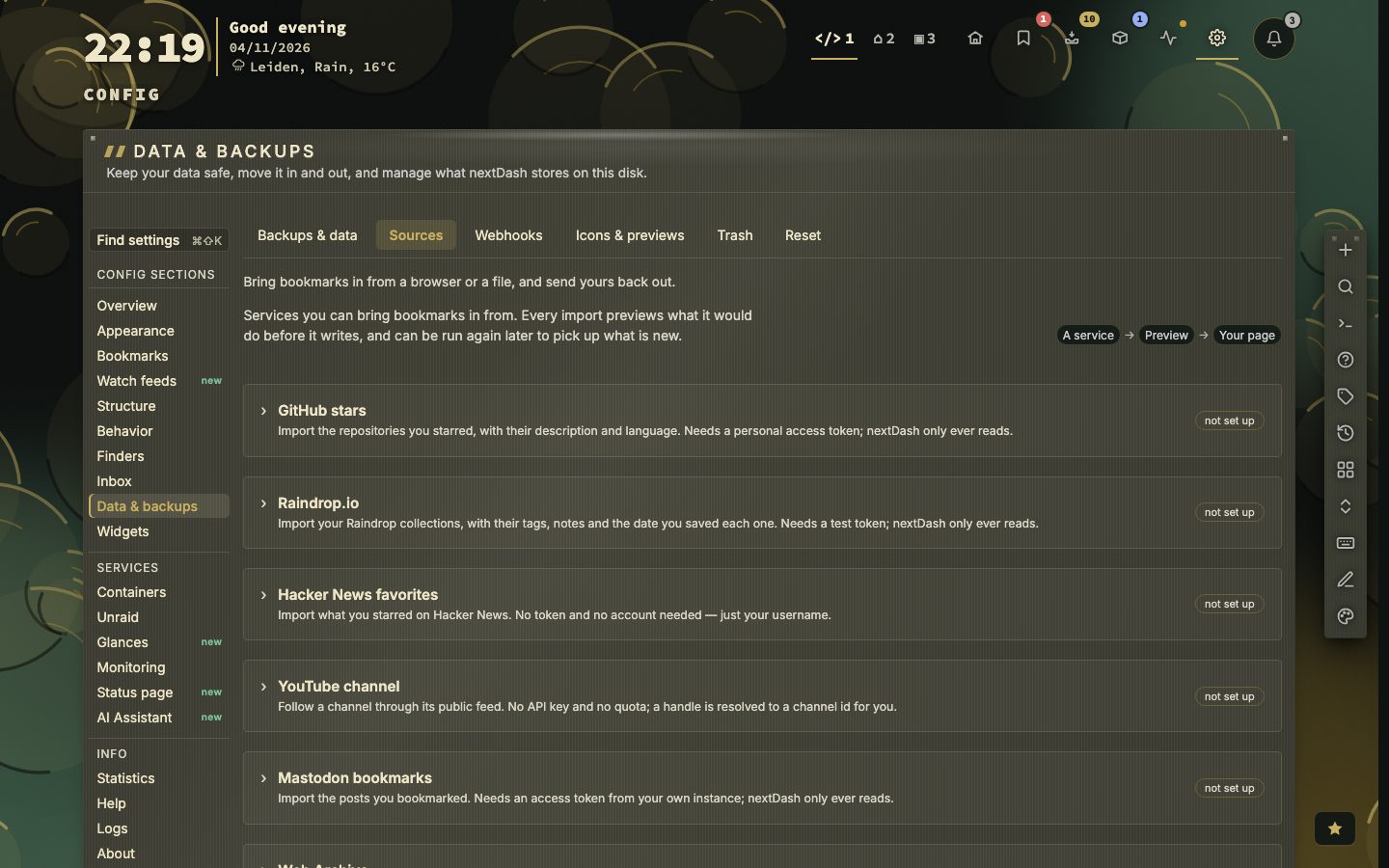
A source is a service bookmarks keep arriving from. Each panel asks for its token, where the bookmarks go (Page to import onto, and Category for imported bookmarks, used only for bookmarks the service files nowhere: folders and collections keep their own names), and offers import now and the last result. Every run previews before it writes, and remembers where it got to.
| Source | Needs |
|---|---|
| GitHub stars | A personal access token |
| Raindrop.io | A test token |
| Hacker News favorites | Your username |
| YouTube channel | A handle or channel id |
| Mastodon bookmarks | An access token from your instance |
nextDash only reads from these services. Tokens are stored in sources.json with owner-only permissions and left out of backups unless you include tokens. The Sources widget shows the last result of each.
The Web Archive and Local copies panels live on this tab too (Checks & health › Keeping a copy of a page). In Local copies, Page to save takes the address of any page you have in hand and Save a copy… stores it.
📷 Screenshot — Data & backups → Sources, full page
Webhooks
Webhooks tell another program the moment something happens here. Add a receiver with a name and an address and tick its events; nothing ticked means all.
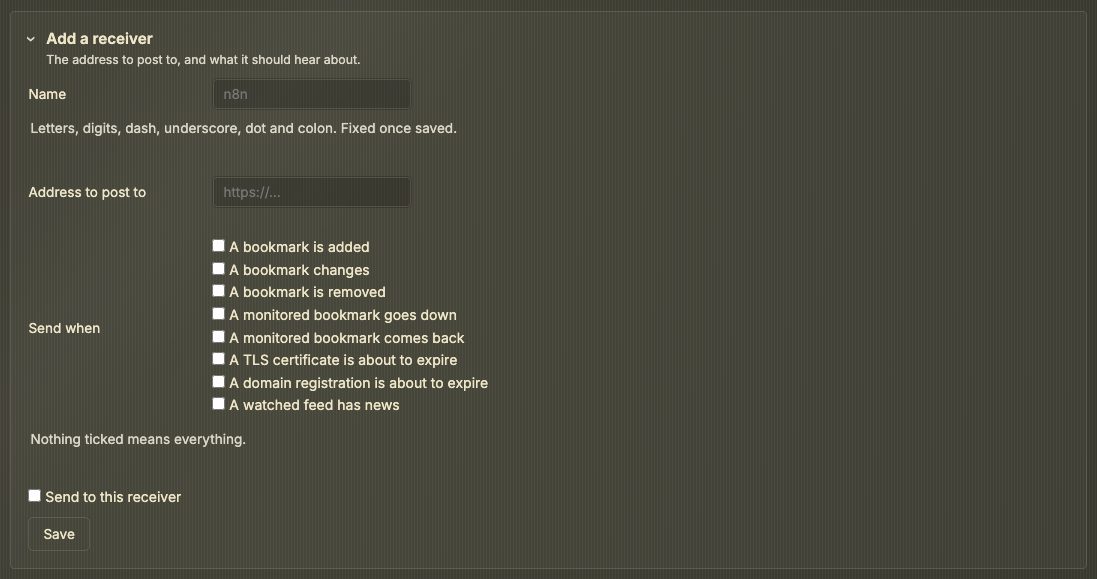
| Event | When |
|---|---|
bookmark.added | A bookmark is added, from any route |
bookmark.updated | Name, URL, tags, note, category or pin changes |
bookmark.deleted | A bookmark is removed |
health.down | A monitored bookmark stops answering |
health.up | It comes back |
health.cert-expiring | A TLS certificate is about to run out (Checks & health › Alerts) |
health.domain-expiring | A domain registration is about to run out (Checks & health › Alerts) |
feed.news | A watched feed has news (Watch feeds) |
Every delivery is signed with the Standard Webhooks scheme:
webhook-id: msg_2b7f…
webhook-timestamp: 1756253400
webhook-signature: v1,K5s0…
The signature is HMAC-SHA256 over {id}.{timestamp}.{payload}, base64. The signing key is shown once, when you save; afterwards the panel only says a key is set. A key starts with whsec_ and can be given as it is to the official Standard Webhooks libraries, which sign with its base64-decoded bytes. A key from before that (64 hex characters) keeps working, signed with its text as it is. Keys live in webhooks.json with owner-only permissions.
A failed delivery is retried twice and then dropped; a 4xx is not retried; redirects are not followed. Send a test posts one delivery and shows the status. Addresses follow the same rules as bookmark checks, checked when saved and again at delivery. Reading the list of receivers needs the write token.
The MCP endpoint is switched on from this tab as well — see Security and self-hosting › The MCP endpoint.
Icons & previews
- Refresh favicons — never, monthly, weekly or on every load; Refresh all favicons now.
:favicons fetchdoes the same from the dashboard. - Image cache size — 50, 200 or 500 MB, with the current use. Remove cached images empties it.
- Refresh all link previews / Clear all link previews — the stored titles, descriptions and images. Refreshing is one request per bookmark, shows progress, waits out a rate limit and can be stopped.
- Forget the scanned keywords — what Read their pages kept for tag suggestions.
App icons. Containers and bookmarks to self-hosted apps get the app's own icon from two open icon sets, dashboard-icons and selfh.st/icons. A container is matched by its image and name, a bookmark by its host — a private name such as sonarr.lan or plex.local included; the icon follows the theme between its light and dark variant. When the sets know an app, its icon is used instead of the site's favicon — an icon you chose or uploaded is never replaced. When the sets know the app but cannot deliver its file, the favicon is fetched after all.
- Choosing one — the pencil on a bookmark's icon in the form offers Choose app icon… (and up to three suggestions appear under the address); the pencil on the icon in a container's drawer and in the Bookmarks view's side panel offers Choose app icon…, Use letter and Automatic. A chosen icon is copied into
data/icons/and is then an ordinary icon of yours. - Where they come from — the server fetches the sets' indexes from jsDelivr once a week and each icon on first use, asks for an icon again after a week, keeps at most 3000 per set in
data/icon-sets/(left out of backups, like cached previews) and serves them itself; the browser never contacts the icon sets.DISABLE_ICON_SETS=1switches all of it off. The sets are credited under About.
Trash
Deleted bookmarks, pages and categories stay in the trash for 30 days (at most 500 entries). :trash opens it. Every route into the trash — the dashboard, the Bookmarks view, :remove, single or bulk — lands here.
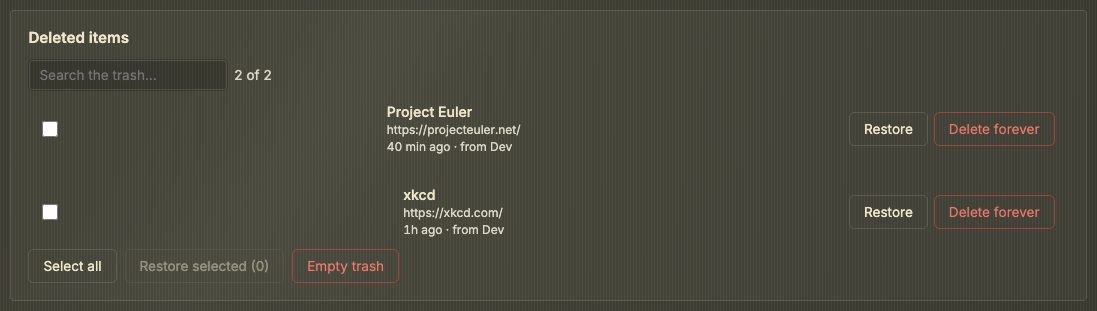
- Search by name, URL, tag, category or page.
- Restore puts a bookmark back on its page, at its old position.
- A deleted page is one entry (Page · 12 bookmarks) and comes back with its categories and bookmarks, in its old place.
- A deleted category comes back at its old position; its bookmarks were never removed.
- Restore selected restores each ticked entry on its own.
- Delete forever and Empty trash ask first.
A restore that cannot go ahead is refused and the entry stays: a bookmark or category whose page is gone needs that page first, and a page whose place was taken by another page cannot replace it.
Reset
- Delete all bookmarks — keeps pages, categories and settings. Asks once.
- Reset all data — deletes pages, categories, bookmarks, finders, settings, custom themes, uploads, icons and caches, and brings back the example bookmarks and default settings. Asks twice; you type RESET (or the word in your language).
WARNING
Neither can be undone. Make a backup first.