Keyboard
Every action on a bookmark is Shift plus a letter, and the cheat sheet (! or F1) lists them all. This chapter is the full key map.
Every action on a bookmark is Shift plus a letter. Bare letters belong to search until the cursor is on the grid, and then to the grid. The right-click menu shows each key, and the cheat sheet (! or F1) lists all of them.
Views and panels
| Keys | Action |
|---|---|
1–9, 0 | Go to a page (0 is the tenth) |
Shift + ← / Shift + → | Previous / next page |
Shift + I | Inbox |
Shift + H | The Bookmarks view, the whole list |
Shift + U | The Bookmarks view, on Unsorted |
Shift + Y | Containers |
Shift + G | Glances, from every view (once it is set up in Config) |
Shift + S or < | Config (and back) |
Shift + A | The theme studio |
Shift + M | With no bookmark selected, edit mode (The dashboard › Edit mode); with one selected, Move |
> : ? | Search, commands, finders — from every view |
+ · Shift + B · & | Full bookmark form · from anywhere · quick add |
/ | Tag cloud (type to find a tag, Enter opens its tag view, Shift + Enter stacks) |
Shift + T | With no bookmark selected, the tag view of every bookmark (Tags › Filtering by tag); with one selected, that bookmark's tags |
* | Recent bookmarks — from every view |
, | Pages panel (n there makes a new page) |
! or F1 | Cheat sheet |
. | Fold or unfold every category and widget |
Shift + N | Open the news of the feeds you watch (when at least one feed is watched) |
' or Shift + O | Slide a docked action bar away or back |
Shift + F | Filter this page in place |
Shift + Z | Key legend under the grid off or on |
Shift + K | Play the dashboard tour again |
Shift + Q | Switch whether letters search names or shortcuts |
Esc | Close the panel; on a bare grid, go to the first page; on the first page, open search |
The Containers view opens with Shift + Y, its header icon or :docker. The Glances page opens with Shift + G, its header icon or :glances; its own keys are in Glances › Keys.
> : ? and * work in every view — the Bookmarks view, the inbox, Containers and config too — not only on the dashboard. A view that uses one of these keys for itself keeps it. Quick add (&) and the full form (+) stay with the bookmark grid.
Moving on the grid
| Keys | Action |
|---|---|
↑ ↓ ← → | Move the cursor. The first arrow key starts it. |
k / j | Up / down, once a row is selected |
Tab / Shift + Tab | Next / previous bookmark |
Home / End | First / last bookmark in the category |
Ctrl + Home / Ctrl + End | First / last bookmark on the page |
Page Up / Page Down | One screen up / down |
g then 1–9 | First bookmark in that category or collection |
g then p | First pinned bookmark |
G G | First bookmark on the page |
Enter / Space | Open |
Enter on + N more | Show or hide the rest of a long category |
Esc | Clear the cursor; undo a drag that has not saved yet |
With the cursor on a row, a bookmark's own shortcut opens it. The letters the grid uses — g, j, k, t, x — keep their grid meaning; reach a bookmark with such a shortcut through search.
Acting on a bookmark
| Keys | Action |
|---|---|
Shift + E | Edit in place |
Shift + V | Preview card, kept open |
Shift + M | Move to another category or page |
Shift + T | Tags |
Shift + D or Delete | Delete (asks first; undo in the toast) |
Shift + P | Pin or unpin |
Shift + C | Availability checking — o off, p periodic, m monitor |
Shift + L | Share, or copy name and URL |
Shift + J | The bookmark as a QR code, to open it on a phone |
Shift + R | Open the bookmark in the Bookmarks view, on its Health tab |
Ctrl + C | Copy the URL |
Ctrl/Cmd + Enter | Open in a new tab |
t | Filter the grid by this bookmark's tag |
Alt + ↑ / Alt + ↓ | Move it within its category (manual order) |
Shift + Alt + ← / → | Move it into the category beside it |
Shift + F10 or Menu key | The right-click menu |
Acting on a category or widget
Shift + Home — or ↑ on the block's top row, for a keyboard without Home — steps from the rows up to the header. ↓ goes back to the row, ↑ again goes on to the block above. There:
| Keys | Action |
|---|---|
Enter / Space | Fold or unfold |
F2 | Rename |
Shift + W | Spread across columns (on a widget: one or two columns) |
Alt + ← / Alt + → | Move the category, widget or collection one place |
Shift + Alt + ← / → | Move it to the previous or next page, last in line there |
Space on the // | Pick it up: the arrows move the landing box, W switches one column and wide, Enter drops, Esc cancels |
Ctrl/Cmd + Z | Undo the last block move while its notice shows |
Delete | Delete the category (bookmarks are kept) or close the widget |
Tab | Onto the //, where Space picks the block up (Pages, categories and collections › Categories) |
Shift + F10 | The header menu |
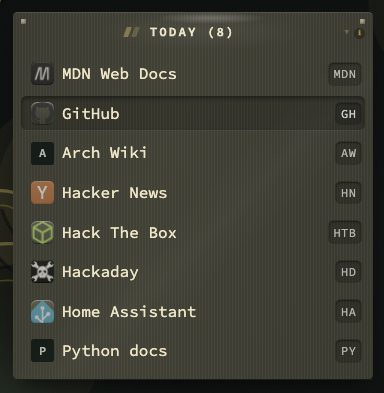
The arrow keys walk into a widget and through its rows; Enter does what clicking the row does. On a row:
| Keys | Action |
|---|---|
Ctrl/Cmd + Enter | Open the address the row stands for in a new tab, where it has one (the Uptime rows do) |
Shift + F10 | The menu for the row and its widget: the row's own action first, then rename, width and close (right-click does the same) |
On a tab of a Tabs widget, ← and → move one tab, Home goes to the first and End to the last. Holding the pointer on a widget's title renames it, as on a category header; a double-click does the same.
Selecting several
| Keys | Action |
|---|---|
x | Tick the row and move to the next |
X | Tick the whole category |
Shift + ↑ / Shift + ↓ | Extend the selection |
Ctrl/Cmd + A | Tick everything on screen |
Alt + click / Shift + click | Add one / extend with the mouse |
Delete | Delete the selection (one confirmation, undo in the toast) |
Esc | Clear the selection |
A toolbar appears with Move, Tags, Pin, Checking, Open, Copy links, Re-check, Fetch icons, Fetch previews, Export CSV and Delete, and Clear selection to leave. Fetch icons and Fetch previews read the icon and the page card of every selected bookmark, with a progress bar, and wait when a site asks them to slow down. The tag picker shows a ✓ for tags the whole selection has and on 2 of 3 for tags only some have. Above them, Suggested lists up to three tags the selection is likely to want (Tags › Tag suggestions); a suggestion that fits only some of the rows says on 1 of 3, and choosing it tags only those rows. While a selection is open, a plain click clears it instead of opening a bookmark. A bulk change can be undone from its toast for eight seconds, and deleted bookmarks stay in the trash for 30 days.

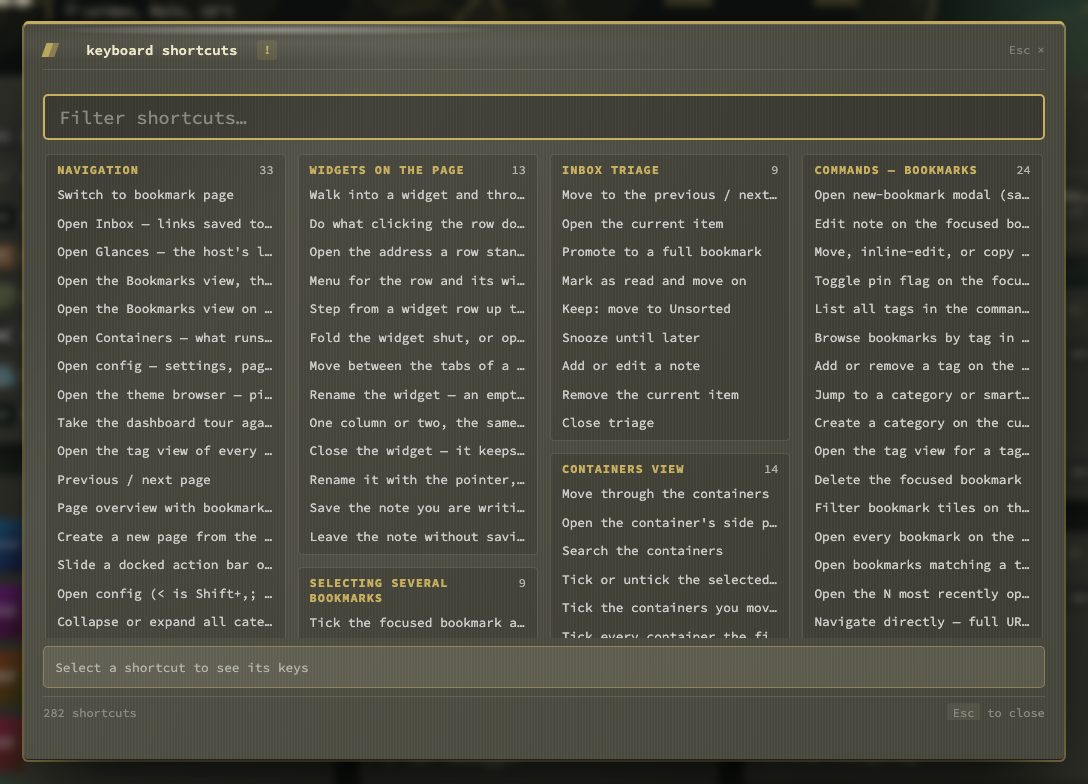
The cheat sheet
! or F1 opens the cheat sheet, with a search field at the top. It opens on the section for the view you are in, and lists more than 250 keys and commands by topic — Navigation, Bookmarks, Widgets, Selecting several, the Bookmarks view, the Tag view, the Inbox view and Inbox triage, the Containers view, the Glances view, the Config view, search modes and every command. The topics stand side by side in columns, and each row names an action. Pick a row — with the arrows or a click — and the dock under the list shows the keys that do it; the keys are also read out with the row by a screen reader. The search field finds an action, a key or a section name and ignores spaces, so shift + y finds Shift+Y. A printable version is linked at the top of Config → Help and at the top of this manual. Keys cannot be rebound.
While a panel is open, the grid behind it does not react. Tab stays inside the panel, and Escape closes it and puts focus back where it was.
📷 Screenshot — the cheat sheet (!)