

Config
Config is a view inside the dashboard, with a section for each part of nextDash. Open it with Shift + S, find any setting with Ctrl/Cmd + Shift + K, and most Config changes save the moment you make them.
Config is a view inside the dashboard: same tab, no page load.
| To open | To leave |
|---|---|
Shift + S, <, the gear, or /#config | Escape (when nothing is open on top and you are not typing), Shift + S, <, 0–9 (0 is the tenth page), or the browser's Back button |
Config reopens on the section and tab you left, for five minutes after you leave. Each section keeps its tab the same way: back within five minutes, it shows the tab you had open there; later, it opens on its first tab. A link like /#config/appearance/layout opens a section and tab directly and wins over the remembered place; /#config/bookmarks/<pageId> opens Bookmarks for one page. Moving between sections is not a browser history step.
The sections
| Section | What lives there |
|---|---|
| Overview | One line of what needs you, then Your install — panels for bookmarks, the inbox, containers, health and statistics — beside From nextDash: the newest posts, the version you run, the newest features and a tip of the day (Overview, Help and About). |
| Appearance | Look: Theme · Background · Surfaces — Bookmarks: Layout · Rows · Previews — Header & bars: Header · Action bar · Date & weather (Appearance) |
| Bookmarks | View · Tags · Tag suggestions · Your rules · Settings · Local copies (Config → Bookmarks) |
| Watch feeds | Feeds · Settings: every watched feed with its newest item, and how the news is kept and shown (Watch feeds) |
| Structure | Categories · Pages · Collections (Pages, categories and collections) |
| Behavior | General · Keyboard & search · Privacy & sync (Behavior and Monitoring) |
| Finders | Your search shortcuts: name, shortcut and URL (Search, commands and finders › Finders (?)) |
| Monitoring | Checks · Notifications · Schedules (Config) |
| Inbox | Collecting · List · Panel & clicks · Header icon (Config → Inbox) |
| Data & backups | Backups & data · Sources · Webhooks · Icons & previews · Trash · Reset (Data, backups and import) |
| Widgets | Your widgets, with Add widget (Widgets › Adding and arranging) |
| Containers | Connection · View · Updates · Alerts (Config → Containers) |
| Unraid | Connection · How it works — the one Unraid server the Unraid widgets read (Widgets › Unraid widgets) |
| Glances | Connection · Page · Recording · Notices · Advanced, for up to five hosts — the Glances page and the Glances widget (Glances › Config → Glances) |
| Status page | The read-only page for the people who use your services: its link, its top, groups and services, and linked maintenance (Checks & health › The status page) |
| AI Assistant | One tab, Settings: the switch, the provider, the key, the model and the conversations it keeps (Security and self-hosting › The assistant) |
| Statistics | Summary · Usage · Collection · Inbox · Health · Server (Statistics) |
| Help | The in-app guide |
| Logs | Server logs · Activity trail (Logs) |
| About | Project · Install · News & features (Overview, Help and About) |
In the rail the Containers row opens a group labelled Services (Containers, Unraid, Glances, Monitoring, Status page, Assistant) and Statistics one labelled Info (Statistics, Help, Logs, About); the labels are headings for the eye, not tabs.
Old addresses still land in the right place — for example /#config/pages-tags opens Structure, /#config/data-backups/logs opens Logs, /#config/behavior/fresh opens Bookmarks → Watch feeds, and /#config/behavior/status — Status & alerts, before it became a section of its own — opens Monitoring → Checks. The tab ids in addresses did not always change when tabs were renamed: Look is general, Grid layout, Rows display, Action bar buttonbar.
📷 Screenshot — Config → Appearance, full page
Tabs and saving
Config is one pane — round its header, its list of sections and its content — on the same surface as the dashboard: glass, card or open, following Category surface (Appearance › Surfaces), like the Bookmarks, Inbox, Containers and tag views. Inside it a panel, an overview card or a table keeps a faint tint and a hairline instead of a pane of its own, so a long settings page still shows where a block starts and ends.
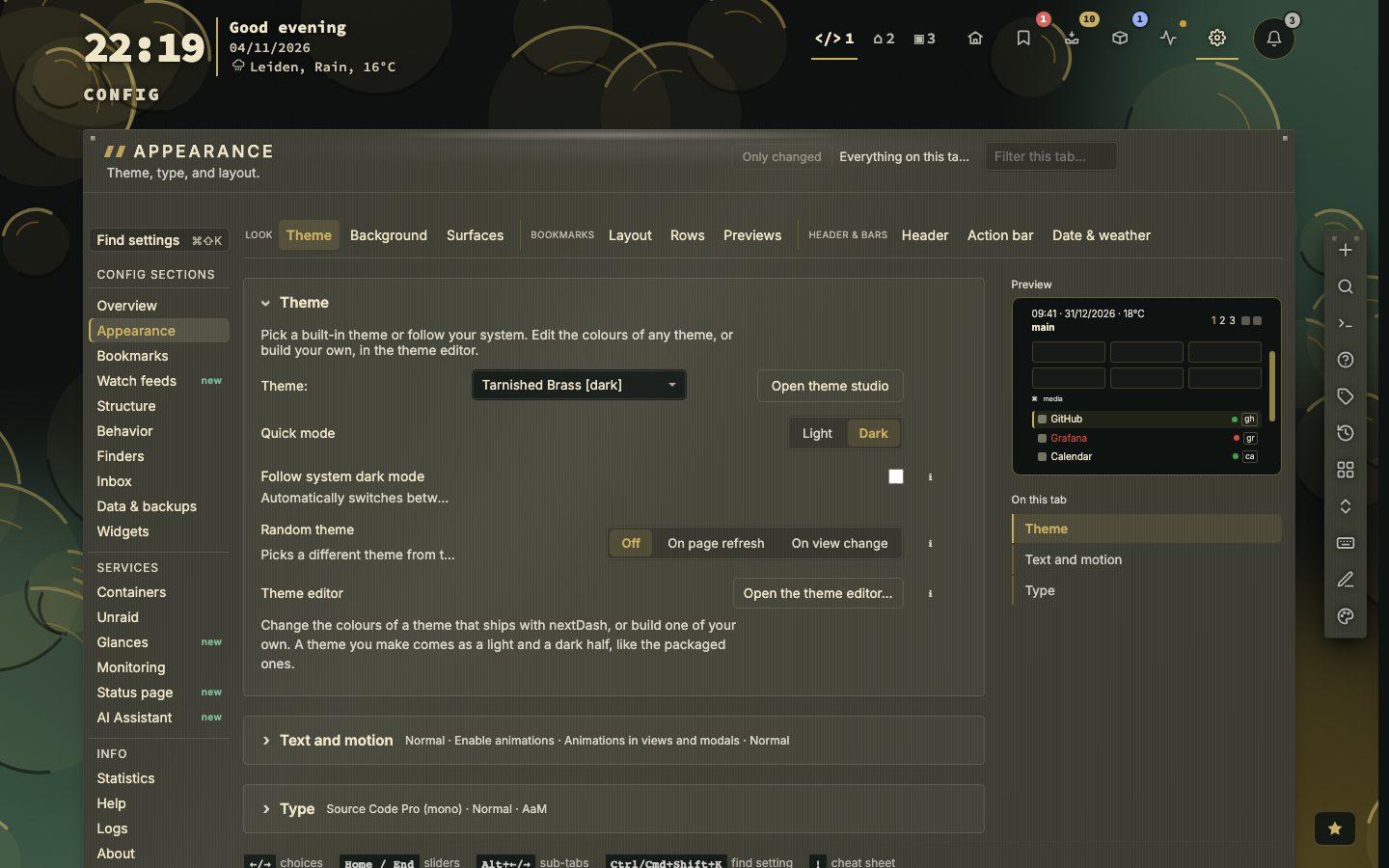
Appearance, Behavior and Monitoring open straight on their settings, in tabs, on the tab you had open in the last five minutes, or on the first one. Appearance's tabs stand in three labelled groups, on one line from about 1440 px wide and wrapping by whole groups below that; Behavior's and Monitoring's stay on one line and scroll sideways on a narrow screen. Every setting of a tab is on it — the ones that change most first — with a short line under each saying what it does. Appearance keeps a live preview of the dashboard beside its tabs (Appearance).
Bookmarks and Inbox each have a view of their own, and the way to it is the same in both: Open the Bookmarks view ↗ or Open the Inbox ↗ at the right edge of the section's header.
Every change saves the moment you make it, confirmed by a short message. The exceptions are forms with their own Save button — the bookmark form and a widget's settings. Config only writes what changed.
- A short line under a setting says what it does. ℹ beside it opens the longer explanation where there is more to say, and is left out where it would only repeat that line.
- ↺ puts one setting back to its default; Reset panel puts a whole group back (it asks first).
- Only changed hides settings that are still on their default; the Filter this tab field beside it narrows the tab by label, hint or option. Both name the other tabs of the section where they find something, and a click goes there. The filter and the count of what is shown stand in the same place on every tab, so moving between tabs does not move them.

Finding a setting
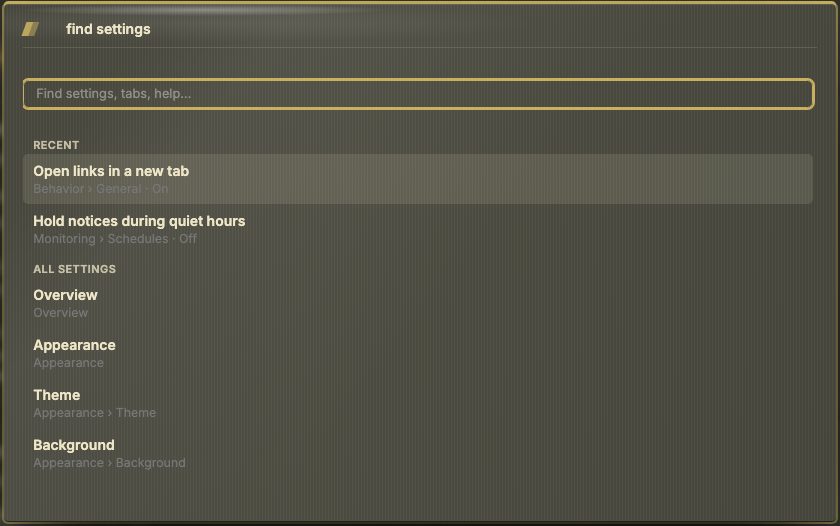
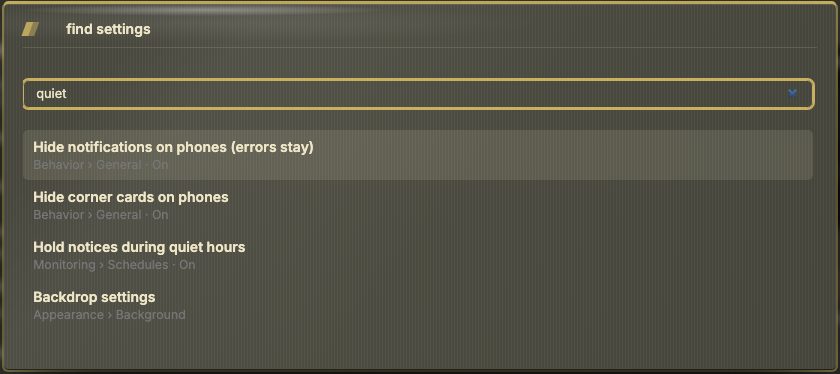
Ctrl/Cmd + Shift + K — or Find settings below the section rail — searches every section, tab, setting and help topic. It also finds settings by related words (uptime, wallpaper, hotkey) and by their current value (8099, Monitor), and shows that value beside the result.
Before you type, the list starts with Recent: the last eight settings you opened from here or changed on their tab, newest first, above All settings. They are kept in this browser only. Typing leaves the heading out.
Actions. Besides settings, the list holds a few things to do, marked Action. Choosing one goes to where it lives and never changes anything by itself:
| Action | Where it goes |
|---|---|
| Add a widget | Config → Widgets, with the Add widget picker open |
| Open the theme studio | The theme studio |
| Show what's new | The release notes |
| Check for an update | The Overview, running the update check |
| Make or restore a backup | Data & backups → Backups & data |
| Import bookmarks | Data & backups → Backups & data, where the import cards stand |
| Restore an earlier layout of this page | The layout history of the page in view |
| Show what I changed from the defaults | The list of changed settings |
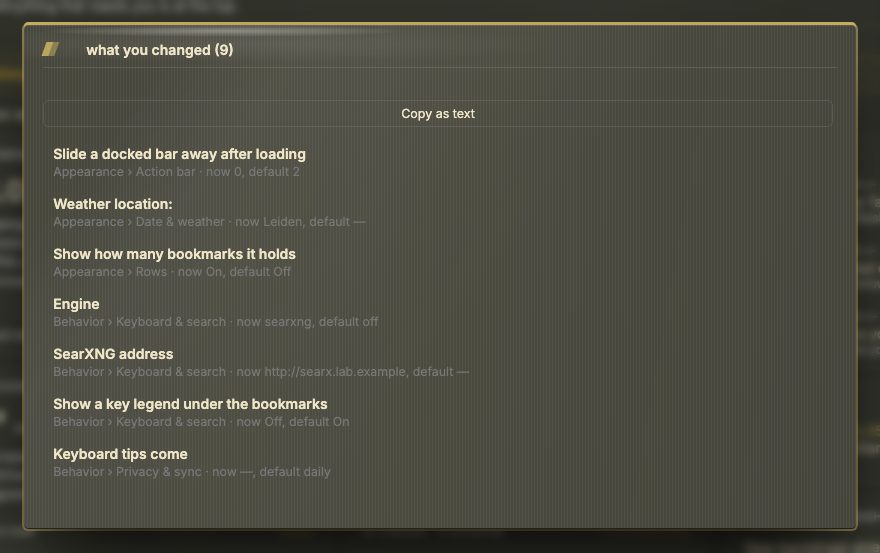
What you changed. Show what I changed from the defaults (or What changed on the Overview's Settings panel) opens a list titled What you changed, with a count. Each row is a setting that differs from the default, with its section and now … , default …. Clicking a row goes to the setting. Copy as text puts the list on the clipboard, for a bug report or to compare two installs. The list is read-only.
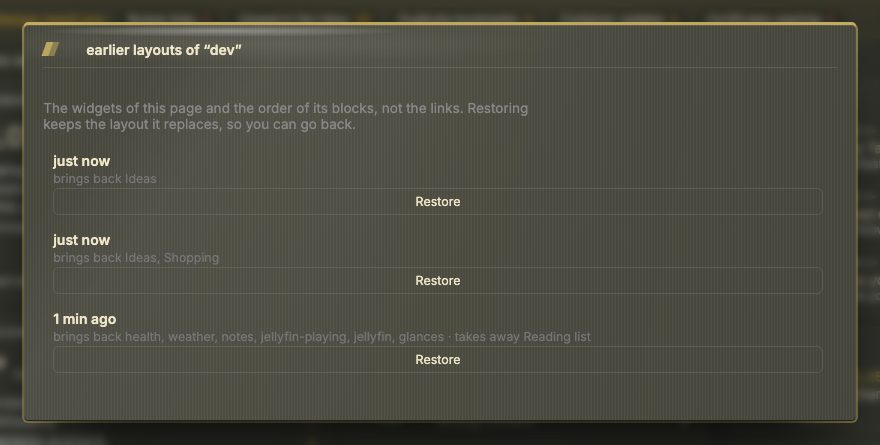
Layout history. nextDash keeps earlier arrangements of each page: its widgets, their settings and the order of its blocks, not the links. They are kept when widgets are added, moved, closed or changed. Restore an earlier layout of this page lists them, newest first, under Earlier layouts of “…”, and each line says what restoring it would change (brings back …, takes away …, puts the blocks in another order or changes widget settings). Restore saves that layout back. The layout it replaces is kept too, so a restore can be undone the same way. The history travels in the backup.
Settings per device. Settings live on the server, so every browser shows the same dashboard. Keep settings on this device only (Behavior → Privacy & sync) keeps appearance and layout in this browser instead. The few settings that stay shared — such as the custom favicon and font, collections, the action bar position, web search and container icons — carry an all devices mark.
Config → Bookmarks
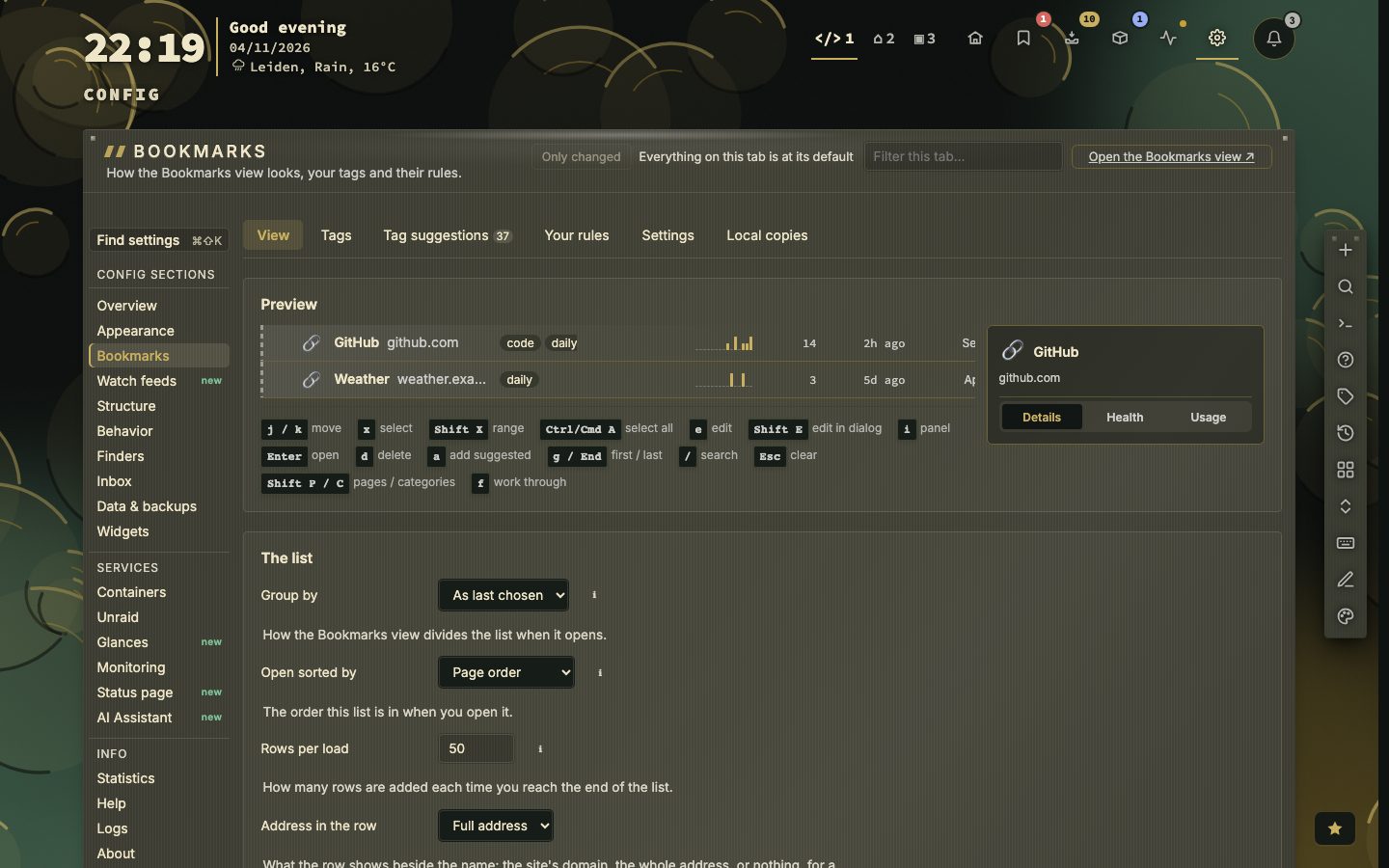
View is the Bookmarks view's own settings, with a live preview (a fixed GitHub example):
| Group | Settings |
|---|---|
| The list | Group by (as last chosen, or fixed), open sorted by, rows per load, address in the row (full, domain, hidden), row height (Compact, as tall as a row in Containers and Inbox, or Comfortable), colour rows by health |
| Columns | Which columns show — tags, shortcut, pinned, opens, last opened, added, usage, score — and how many days usage covers |
| Rail | Open or folded to start; which blocks show — Views, Health, Pages, Tags |
| Side panel | Opens on the last tab, Details, Health or Usage; close on a click beside it; width (normal or wide) |
| Clicking | A click opens the panel or only selects; a double click opens the bookmark or edits it |
| Health | Health in large opens on today, 7, 14, 30 or 90 days; a count on the Bookmarks icon, and whether it shows the most urgent kind or every problem added up |
| Keys | The key legend below the list, above it, or hidden |
Row height is this view's own setting: the app-wide density (Appearance › Layout and rows) does not size these rows.
The other tabs:
- Tags — rename or delete a tag everywhere (Tags › Managing tags).
- Tag suggestions and Your rules — Tags › Tag suggestions.
- Settings — what a new bookmark starts with (Availability, which is Periodic unless you change it; pinned; monitor interval), when bulk actions ask first, the stale threshold, and Archive service, the address used for See an old copy (
https://web.archive.org/web/*/{url}by default;{url}stands for the bookmark's address, so a self-hosted ArchiveBox or archive.today works too). - Local copies — Checks & health › Keeping a copy of a page.
📷 Screenshot — Config → Bookmarks, full page
Behavior and Monitoring
| Tab | Settings |
|---|---|
| General | Language; remember where you were on a page; Lock layout; open links in a new tab; allow localhost and private-network bookmarks; Hypr mode; On phones and tablets (Phones, tablets and the installed app); Notes widget → Notes are processed, On the server (the default) or In the browser, which needs no requests while you type (Widgets) |
| Keyboard & search | Typing a bookmark shortcut, switch search mode, include finders, search unsorted bookmarks, fuzzy suggestions, prefer matches that start with the query, keep search open when empty, the search hint; Web search (engine, SearXNG address, Brave key, Test connection); and the keys: global shortcuts, shortcut hints on header links, the key legend under the grid |
| Privacy & sync | Count this install (on by default, Security and self-hosting › Analytics), analytics, Check GitHub for new releases, posts from nextdash.cc; Keep settings on this device only; Onboarding: keyboard tips (they wait in the bell, two a day) and the bell's sound, whether a section offers its tour on a first visit, the review and offer notices, every tour (replay it with its button), Show quick start again, Bring back dismissed notifications, and the list of notices — each Answered or Not shown yet, with Show again (The dashboard) |
Watch feeds has its own section (Feeds · Settings, Watch feeds), and so has Finders; neither is a Behavior tab.
Paste-to-quick-add, the inbox and how a kept link is filed moved to Config → Inbox (Config → Inbox).
Monitoring is everything about watching your bookmarks: how they are checked, how you hear when one goes down, and when to keep quiet. It used to be the Status & alerts tab of Behavior; old links and saved places open the matching Monitoring tab.
| Tab | Settings |
|---|---|
| Checks | Checks in this browser, checks on the server, how monitored bookmarks stand out (Checks & health › Availability modes) |
| Notifications | Downtime alerts, browser notifications, reminders, the weekly digest, and browser notifications for Glances incidents (which kinds is chosen per host in Config → Glances → Notices, Glances › Notices) (Checks & health › Alerts) |
| Schedules | Maintenance windows and quiet hours (Checks & health › Maintenance windows) |
Config → Inbox
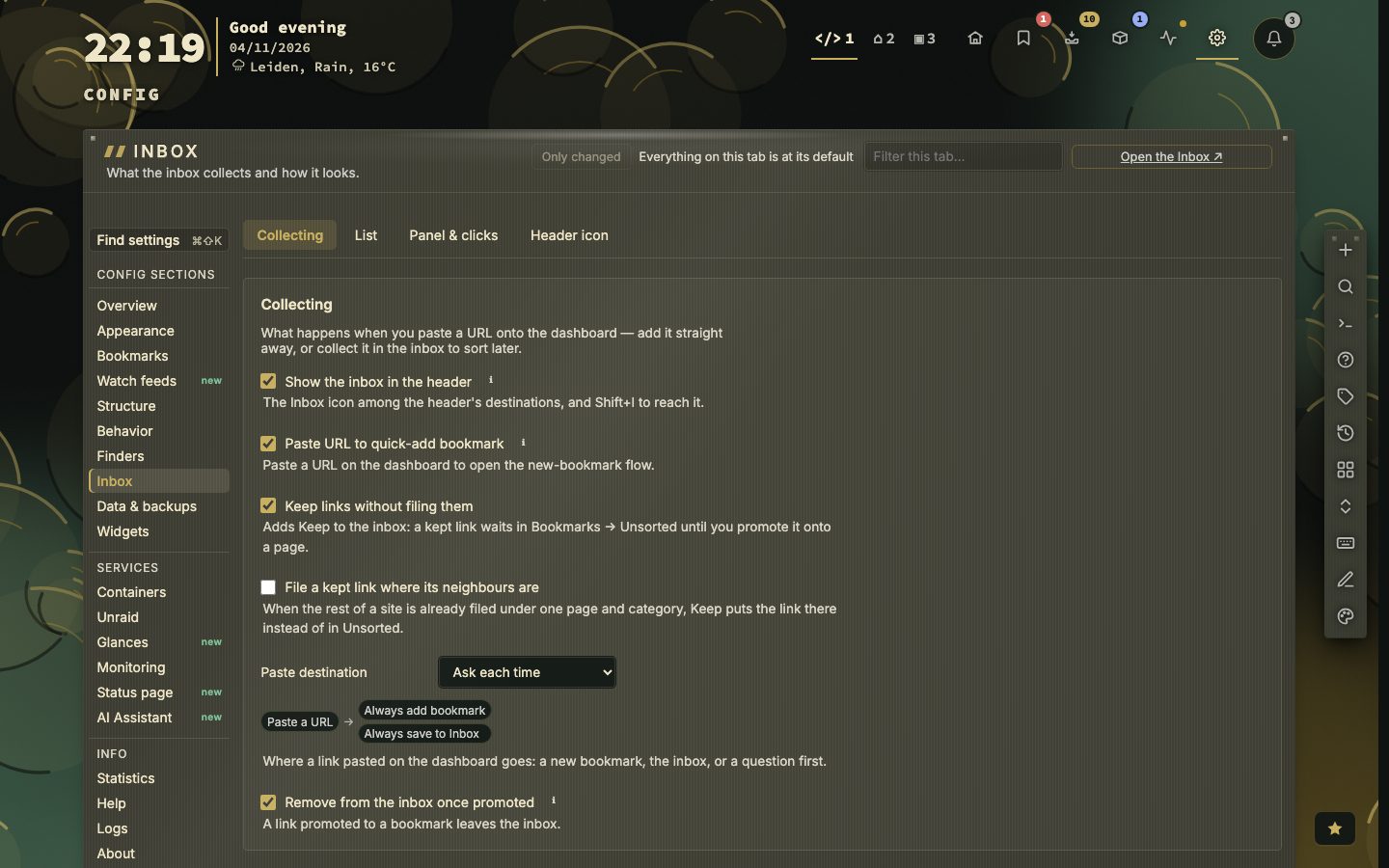
The inbox is always on; these tabs set how links reach it and how it looks.
| Tab | Settings |
|---|---|
| Collecting | Show the inbox in the header, quick-add a pasted URL, keep links without filing them, file a kept link where its neighbours are, paste destination (ask each time, always add bookmark, always save to inbox), remove from the inbox once promoted |
| List | Opens on a filter, sorted by, address in the row, mark unread rows, the key legend — with a live preview |
| Panel & clicks | The rail open or folded, side panel width, close on a click beside it, a click opens the panel or only selects, a double click opens the link or edits the note — with a live preview |
| Header icon | A count on the Inbox icon, and whether it shows what is unread or everything awake |
📷 Screenshot — Config → Inbox, full page
Config → Containers
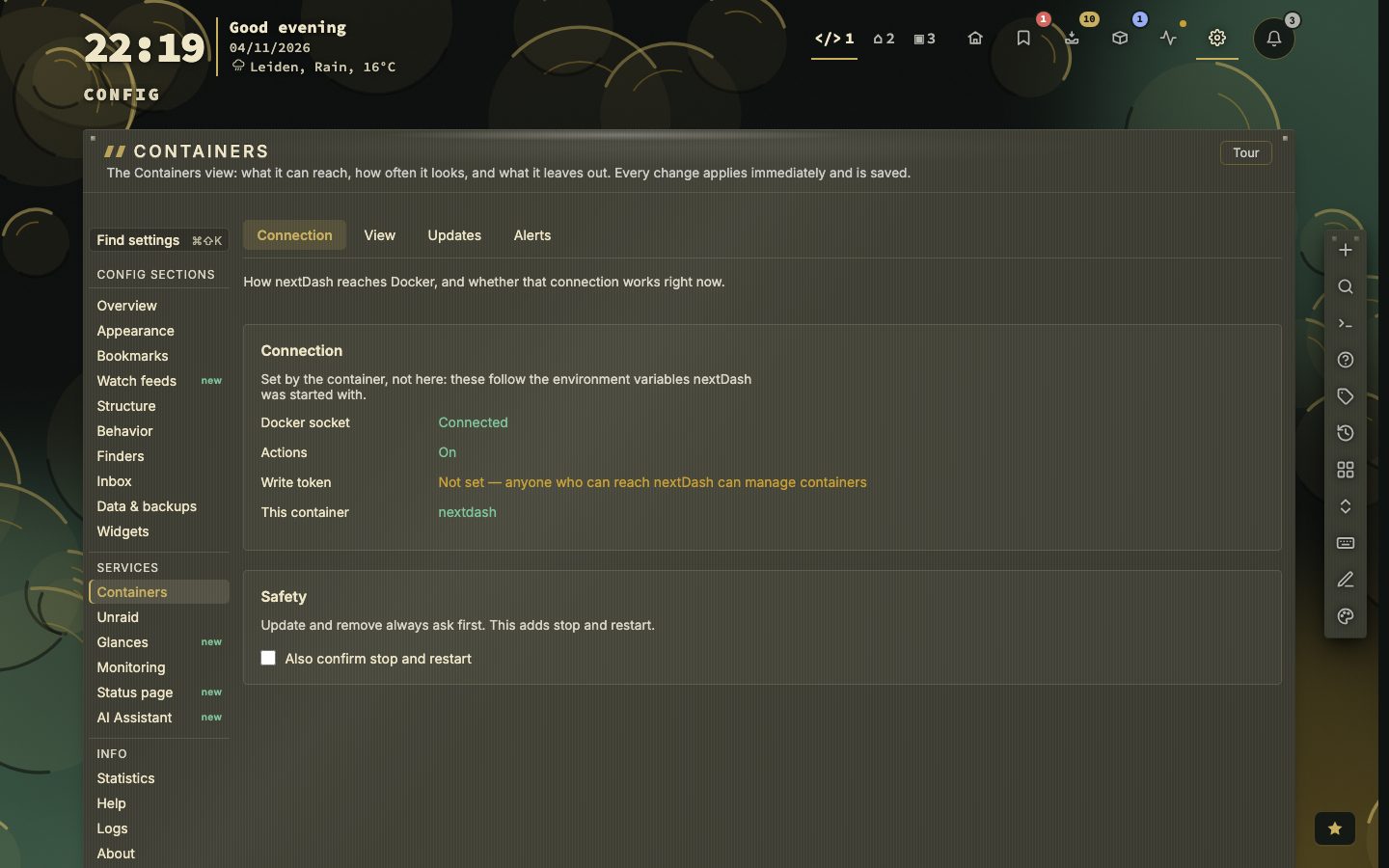
Four tabs, with the same strip, keys and memory as Config → Inbox. A Tour button beside the title plays the same walkthrough as in the Containers view (Containers › Opening it). It opens on the one you looked at last, #config/containers/<tab> opens a tab by address, and a setting found with search opens the tab it is on.
| Tab | Panels |
|---|---|
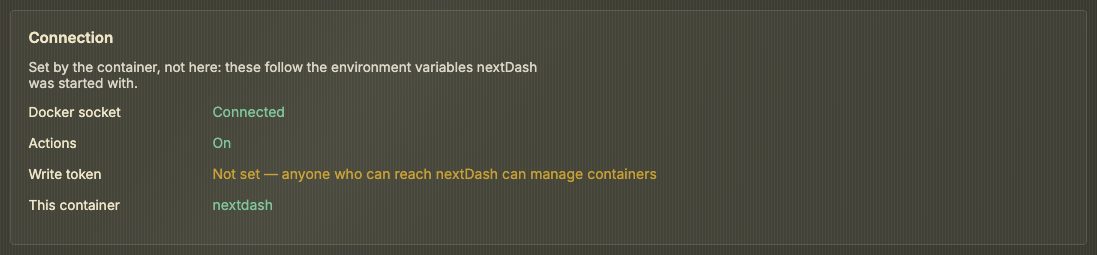
| Connection | Connection: the Docker socket, actions, the write token and whether this is the container nextDash itself runs in, as the environment set them — nothing here is editable. Safety: also confirm stop and restart (update and remove always ask first) |
| View | View: show the Containers view, refresh the list every 2, 5, 10 or 30 seconds, log lines to show (100, 200, 500 or 1000), keep the last hour of CPU and memory for the CPU and RAM columns and the charts, close the side panel on a click beside it, and the key legend: above the list, below it, or hidden. Links: the Docker host address that port and web UI links point at. New apps: suggest new apps, and what happens to a new one — ask first, add straight away or propose in the inbox (Containers › Apps it finds on its own). Ignored apps: the apps you turned down, each with Remove. Hidden containers: kept out of the view, search and the widget count — they keep running |
| Updates | Updates: check for image updates: off, every 6, 12 or 24 hours; the window automatic updates run in, from and until a full hour (03:00 to 05:00 at first) (Containers › Actions and updates). GitHub: a token that raises the rate limit for release notes, for images hosted on GHCR and for nextDash's own check for a new release (Troubleshooting › The update check fails) |
| Alerts | Notifications: notify about containers — on by default; also when one uses too much CPU or memory, with the CPU line (50–95 %), the memory line (70–95 %) and how long (5–30 minutes) (Containers › Notices). Muted containers: where notices go, or that nothing receives them yet, and the containers you muted — × lets one back in |
The Unraid server has a section of its own, Config → Unraid: the Containers view does not use it, only the Unraid widgets do (Widgets › Unraid widgets). Their Set up Unraid row opens it. It has two tabs and opens on Connection: the address and key, then Widgets — the seven kinds as chips, each with an Add that opens the Add widget picker on that kind. How it works draws nextDash and the server as two boxes with data running between them, with three steps (a Viewer key, the address and key tested and saved, a widget on a page) that are ticked off as they are done; it also says what a widget can do: refresh as often as you set, show as many rows as you choose, open that page in Unraid on a click, and show more when it is wide; with alerts switched on under Connection, a stopped array, disk or parity errors and Unraid's own notifications reach your alert channels.
📷 Screenshot — Config → Containers, full page
Overview, Help and About
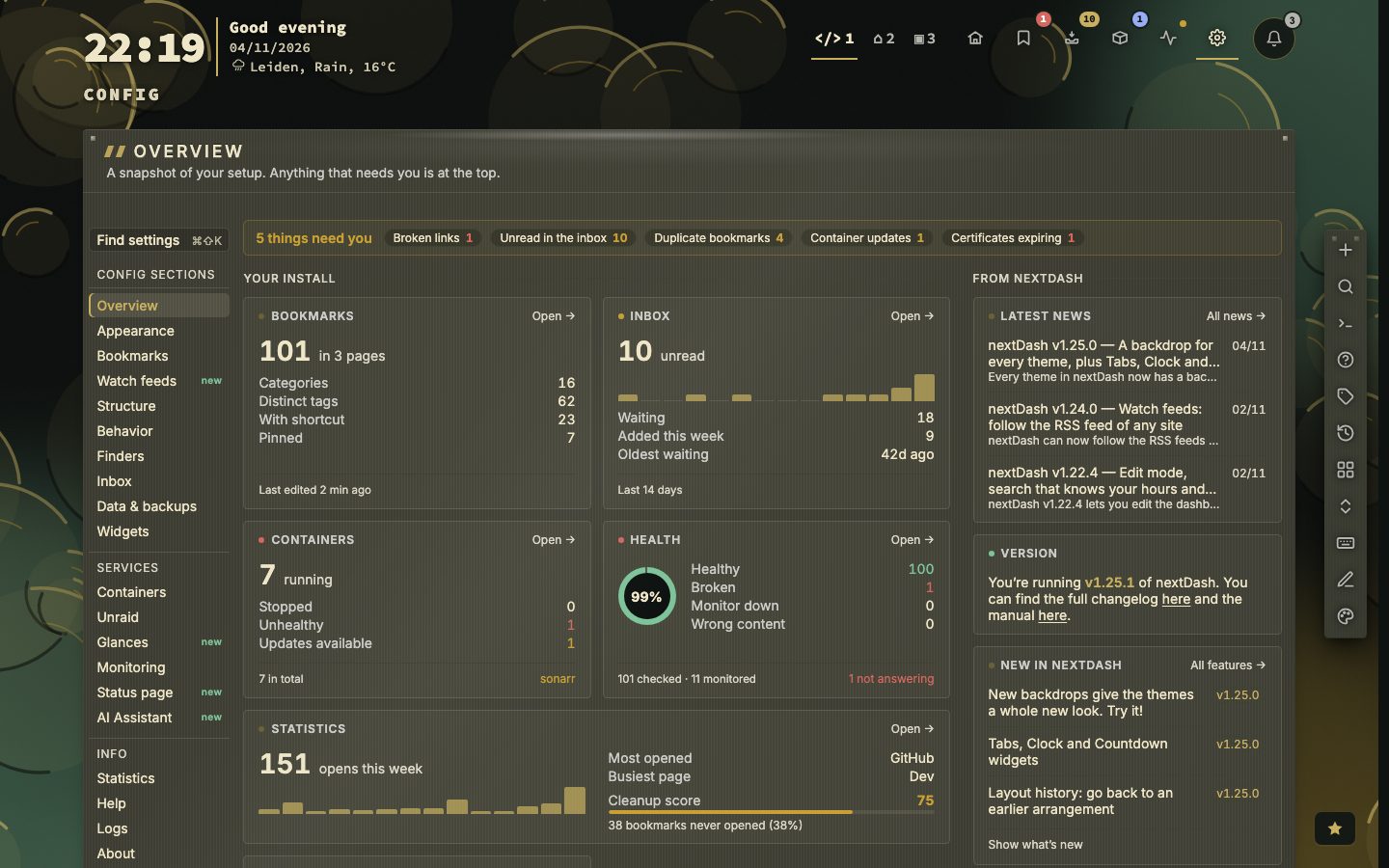
Overview is the page config opens on. A slim banner at the top links to the feature overview on nextdash.cc. At the top, one line says what needs you — broken links, monitors that are down, unread inbox items, duplicates, shortcut conflicts, links never checked, containers with an update, certificates that run out within two weeks, widgets that could not read what they show (counted on the page in view) and a failed automatic backup — as chips that each go where the problem is fixed; with nothing to do it says so. Below it, two columns:
- Your install — a panel per part of the app, each with a way in (Open →) and its own warning in the foot. Bookmarks: the count, pages, categories, tags, shortcuts, pins and when you last edited one. Inbox: unread, the links added per day over two weeks, how many wait and how long the oldest has. Containers: running, stopped, unhealthy and updates available, and which ones — shown only when nextDash can see Docker. Health: the healthy share as a ring and the four states (healthy, broken, monitor down, wrong content). Statistics: opens this week with two weeks of bars, the most-opened link, the busiest page and the cleanup score with what lowers it most. Settings: how many settings differ from the defaults, with the sections that hold most of them, and What changed, which opens the list (Finding a setting); with nothing changed it says Everything is as it came out of the box. The Containers panel is left out while it is switched off.
- From nextDash — four panels. Latest news: the three newest posts on nextdash.cc (off with Behavior → Privacy). Version: You're running v1.x.y of nextDash, with links to the full changelog and to this manual on GitHub. New in nextDash: the three newest features, each a way into what it changed, with Show what's new. Last, a tip of the day from Help → Tips, with ‹ › to step through the others.
- The Version panel shows up as soon as the update check knows which release you run, also when the posts are switched off. A dot before its title says where you stand: green on the newest release, red when a newer one is out — a second line then names it, its tag a link to the release on GitHub — and no dot when GitHub was not asked or could not be reached. When the check failed, the panel says why (Troubleshooting › The update check fails). The check is the one under Behavior → Privacy & sync → Check GitHub for new releases.
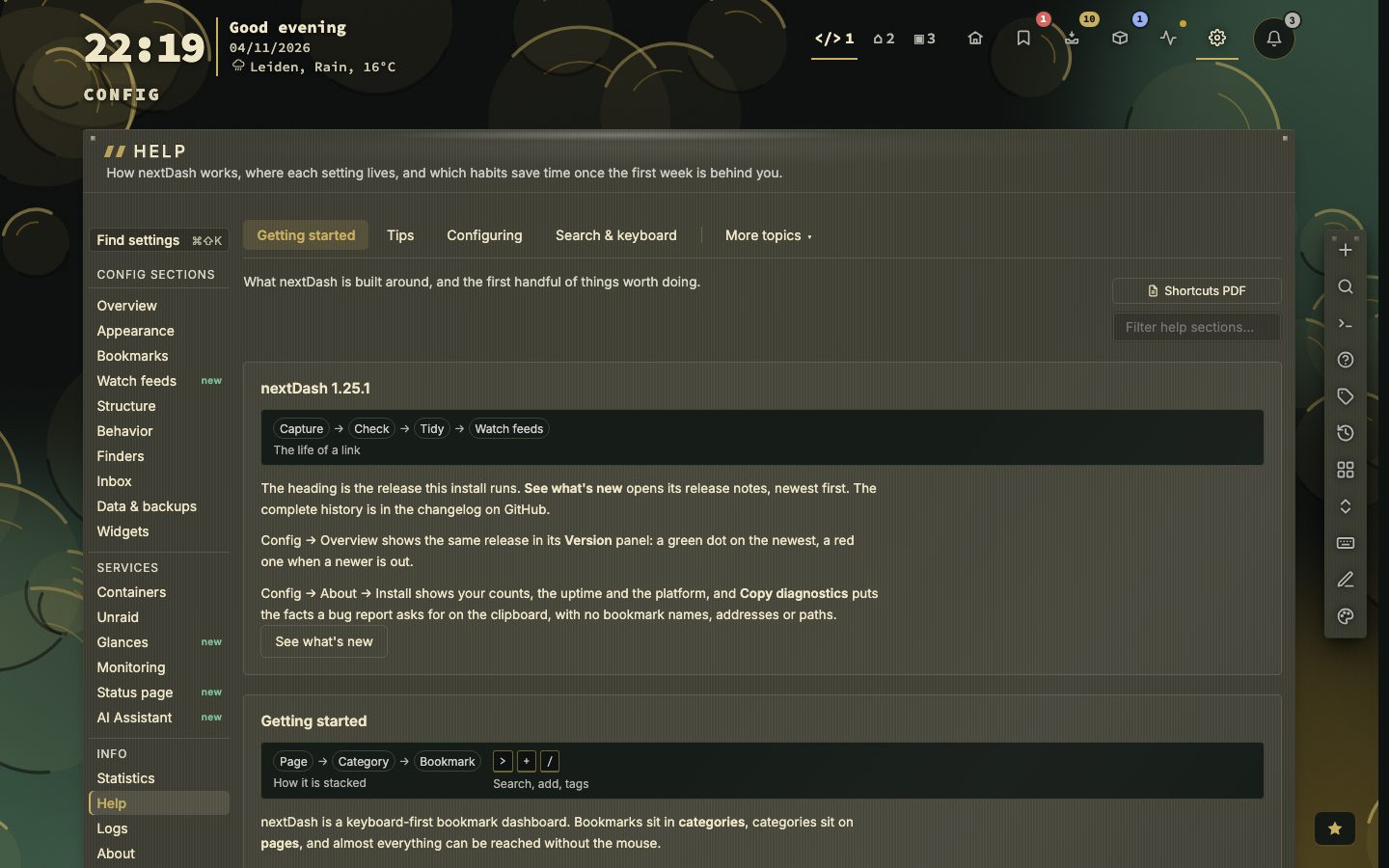
Help shows its Getting started, Tips, Configuring and Search tabs in one row and the rest under More topics, in groups (Dashboard, Status & checks, Data). It covers Getting started, Tips, Configuring, Appearance, Structure & bookmarks, the Bookmarks view, Widgets, Search & keyboard, Checks & health, Monitoring, Inbox, Containers, Statistics, Data & hosting and Logs. The search above the tabs covers every tab and About. Each topic has a 🔗 button that copies a link to it. A topic about something that can be switched off says whether it is on for you, with a button to the setting. Tips lists every keyboard tip, grouped, with its own filter. Saving a link from anywhere (Inbox tab) builds a bookmarklet for this install.
Guided tours. Eleven tours run over the real page rather than a picture of it: What has changed, First steps, The dashboard, The keyboard, Inbox, Bookmarks view, Containers, Glances, Widgets, Monitoring and Unraid. Each is short, four to nine steps, and covers the main things; the rest is in Help. Replay any of them from Behavior → Privacy & sync → Onboarding, or by name from the command palette — :changes opens the first. What has changed is the one offered by a card in the corner after an upgrade that moved things: its steps say where things now are, and where a default changed the step hands the old arrangement back in one click. The release notes stay separate — see What's new below.
The dashboard tour. Ten steps with moving drawings, offered once when the guide and any other first-run card are out of the way, and the first of the guide's next steps: the action bar (its buttons and keys, where it docks and how it comes back); pages, categories and bookmarks; the mouse, with the menus of the right button on a bookmark and on a category title; typing to search; two keys to open and Shift to act; edit mode; adding by paste, + or the extension; the tag cloud and a view per tag; the Bookmarks, Inbox and Containers views; and making it yours, with the cheat sheet and Help. Replay it from the same Onboarding list or with :tour.
📷 Screenshot — Config → Help, full page
The view tours. The Bookmarks view, Containers, the Inbox and Config → Widgets each have a tour of their own, drawn in a window and offered once, the first time you visit. A Tour button beside the ℹ at the top of the view plays it again whenever you want. The Bookmarks view tour has five steps: the list and its rail, the three ways to check a link, charts and collection health, alerts, and clearing the backlog. The Containers tour has six: the list, acting on containers, the side panel, updates with a way back, Disk, and settings and alerts. The Inbox tour has four and the Widgets tour four: your widgets in one list, the Add widget picker, Connect and Test, and the Custom widget. Behavior → Privacy & sync → Onboarding replays each of them.
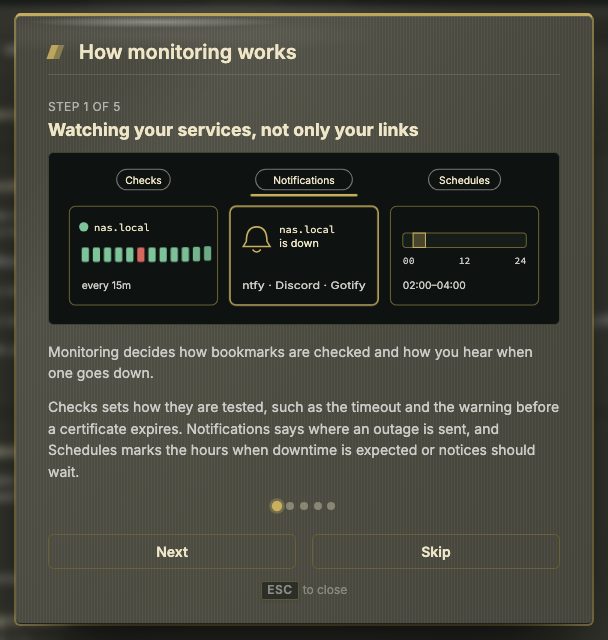
The Config tours. Monitoring and Unraid, two sections of Config, have the same kind of tour, opened the first time you visit the section and again from its Tour button above the tabs. The Monitoring tour has five steps: what Checks, Notifications and Schedules are for; Off, Periodic or Monitor per bookmark; what you see when something goes down; how an outage reaches you; and maintenance windows against quiet hours. The Unraid tour has five: one connection for every Unraid widget, the address and the Viewer key, the seven widgets, alerts and statistics, and staying safe. Both stay quiet on a first visit when Offer a tour the first time a section opens is off.
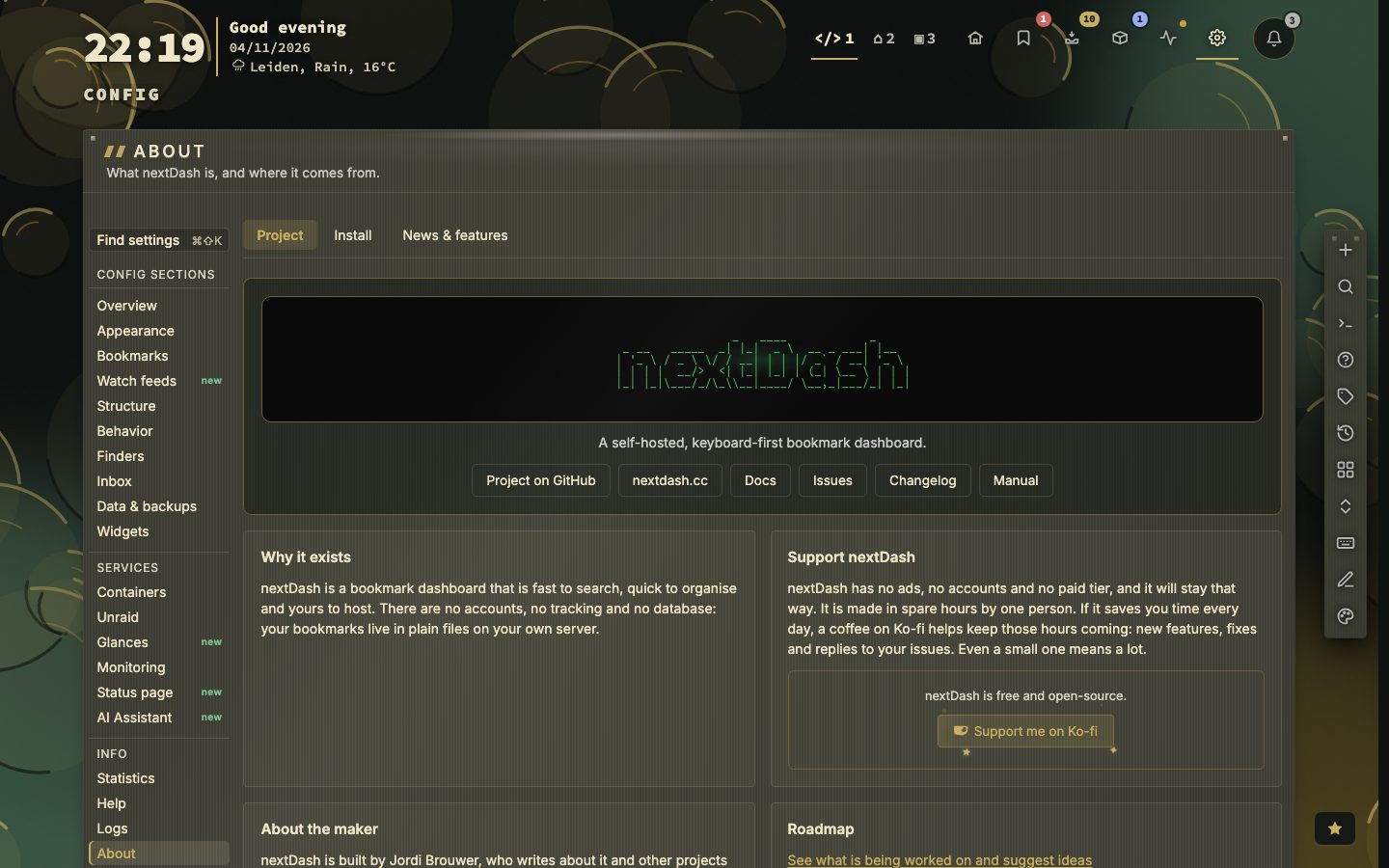
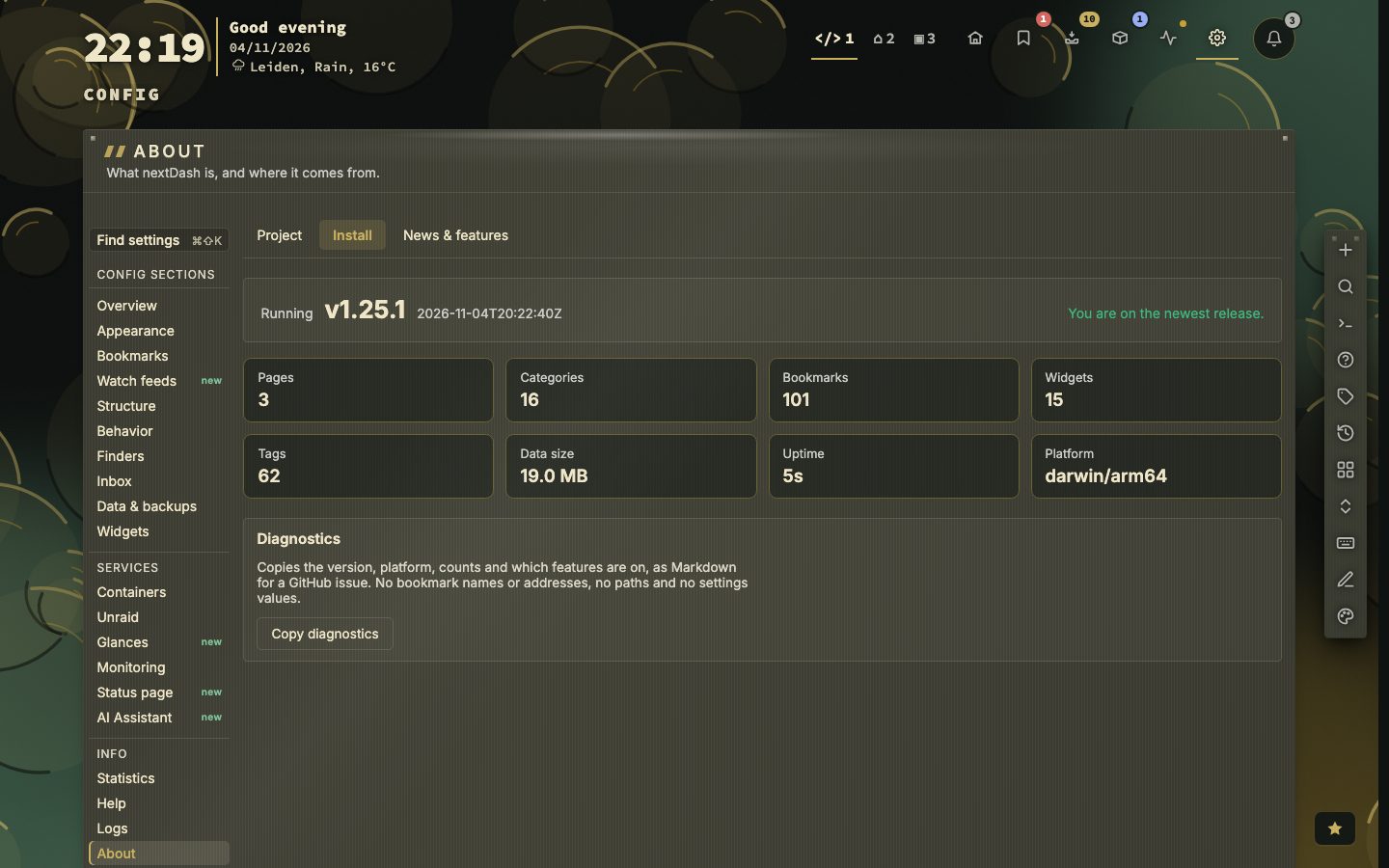
About has three tabs. Project says what nextDash is and why it exists, links to the docs, the issues, the changelog, the manual and the maker's site, has a Ko-fi card for those who want to chip in, and ends in a collapsed Credits and licences block. Install shows the release you run and whether a newer one is out, tiles for pages, categories, bookmarks, widgets, tags, data size, uptime and platform, and Copy diagnostics, which puts the facts a bug report asks for on the clipboard. News & features lists every post from nextdash.cc, every release and every setting worth switching on, with source filters.
📷 Screenshot — Config → About, Project tab
📷 Screenshot — Config → About, Install tab
What's new. After an upgrade the release notes open once. After that, the ★ button, :whatsnew, or See what's new under Help open them. Every release newer than the last one you saw opens in full, up to six: the newest with its version as the headline, the others under it marked unread, and a line that counts them — Since your last visit: 3 releases, 9 new and 4 fixed. Every older release is a row under Earlier, opened with a click. A small release can count towards the version number without appearing in this window; the changelog always has everything. With Check GitHub for new releases on (Behavior → Privacy & sync), a newer release adds a dot to ★ and a toast.
A release opens with a one-line summary, then its highlight in a spotlight: a picture or a short silent recording (a still when motion is turned down), a short title, the explanation and a button to where the change lives. When the release the window opens on marks no highlight, its first new change stands in. The other new changes follow, one row each with their section in front and the detail folded; shortcuts have a block of their own, each key on its own cap; fixes come last, one line each, with the explanation a click away. A row of chips — All, New only and one per section — narrows what is open. Beside the opening summary, a card says nextDash is made by one person and links to Ko-fi (a one-off gift, no account).
Config keys
| Keys | Action |
|---|---|
Shift + S or < | Toggle config |
0–9 | Leave for a page (0 is the tenth; the Inbox is Shift + I) |
j / k | Previous / next section |
g / End | First / last section |
Arrows, Home / End (section rail focused) | Move between sections |
Alt + ←/→ or [ / ] | Previous / next tab |
← / → (tab strip focused) | Move between tabs |
↑ / ↓, Enter, g / End (Structure lists, Bookmarks → Tags) | Move, edit, first / last |
/ | Search in Bookmarks; tag filter in Bookmarks → Tags |
← / →, Space (choice row) | Choose |
Home / End (slider) | Minimum / maximum |
Ctrl/Cmd + Shift + K | Find a setting |
Escape | Close a dialog → clear the selection → leave config |
Keys do not fire while you type in a field, except where a list says so. A legend under each tab shows the keys that apply there.