

Search, commands and finders
One panel with three modes: type to search your bookmarks, : for commands, ? for finders that search another site. Filters narrow it, and it can reach other pages and the web.
Search, commands and finders are three modes of one panel, which opens in the middle of the window like every other dashboard modal (only the theme studio stays docked at the side, so the page it previews stays in view). A rail on its left lists the modes; the one you are in is marked, and a mode your words do not reach is dimmed. Tab switches between them.
>  search     — your bookmarks, with filters
:  commands   — actions: :theme, :open last 5, …
?  finders    — ?g query → another site
=  assistant  — ask a question; your latest conversations at a lone =
@  everywhere — search all pages at once
⇧↵ the web    — the same words, asked of a search engine
Just type
The dashboard's search line is always listening. Letters narrow the list; Enter opens the top result, ↑/↓ pick another, Ctrl/Cmd + Enter opens in a new tab, Esc closes. Results are ranked by match and by how often you open them. The panel also searches notes and the description nextDash fetched from each page.
Results are grouped by why they matched. Best matches — a name, or a word in it, that starts with what you typed — stays open. Contains “…” (the letters sit in the middle of a word in the name) and In tags, note or url (the address, a tag, the note or the fetched description) fold behind a heading and a count; click a heading to open it. If only one kind matched there is no heading, and if every group is shut the strongest opens itself. An open group shows twelve rows and a N more row for the rest. The ranking also remembers which result you picked for the letters you typed, so a word you always type for one bookmark soon puts it first.
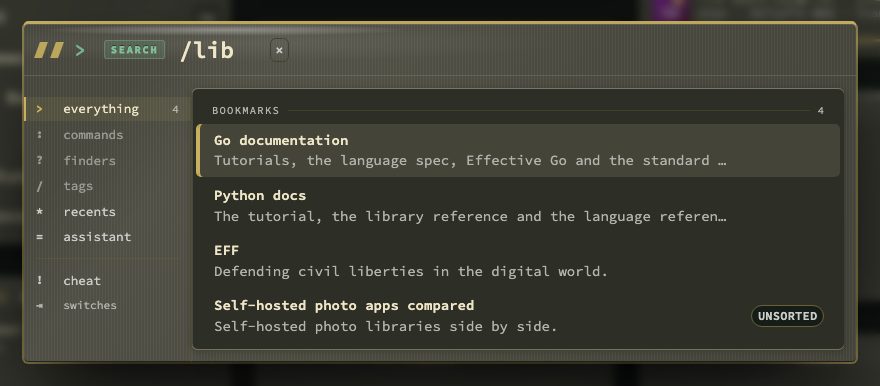
lib and then /, which turns the same letters into a name search, finds two bookmarks.Links still waiting in the inbox that match a name search appear in their own group at the end of the results; snoozed ones stay out, as they do in the inbox's own list.
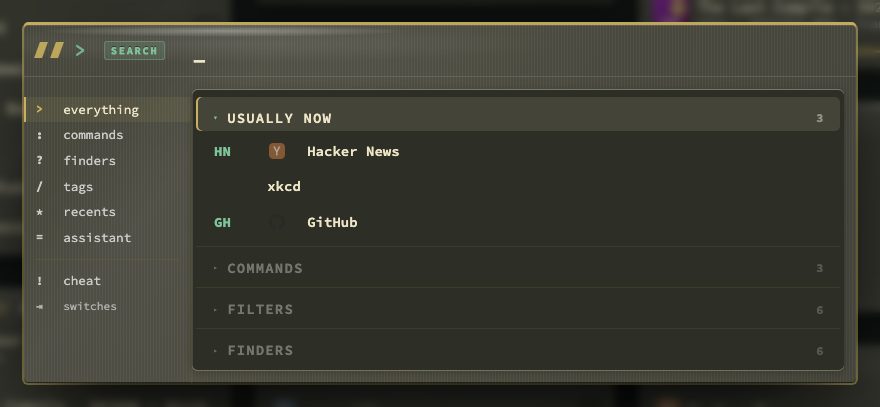
With the panel empty, the first group is Usually now: up to three bookmarks you tend to open around this time of day, on the same kind of day (weekday or weekend), going by the last eight weeks. It needs at least three opens in that window per bookmark, only appears when three qualify, is worked out in your browser from your own open history, and stays fixed while the panel is open. Under it, your recent and saved searches show as chips (←/→ and Enter).
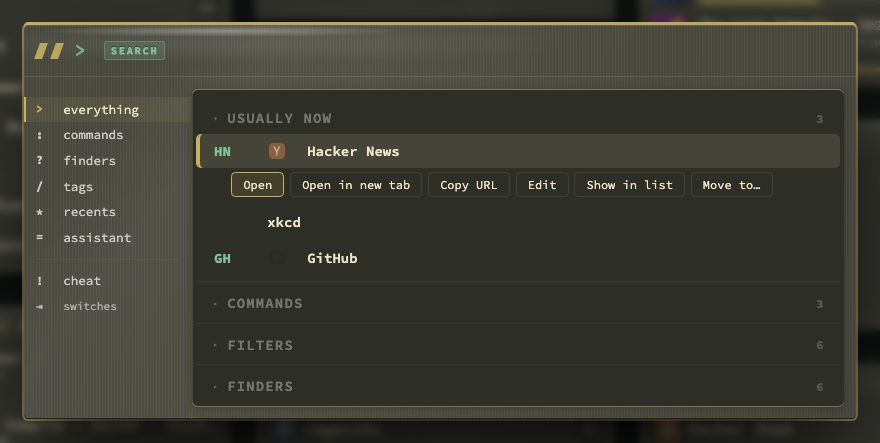
Actions on a result. → on a bookmark result unfolds its actions under the row: open, open in a new tab, edit, copy the address, show in the list and move to a page. ↑/↓ move through them, Enter runs one, ← or Esc folds them. On a web result → still shows its text beside the list.
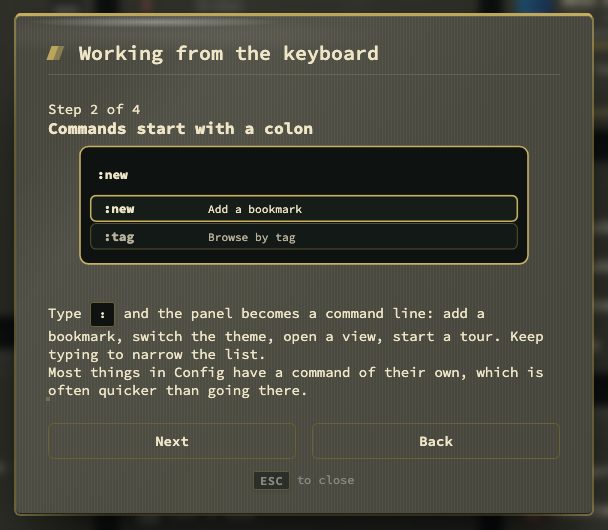
The keyboard tour. Until you have seen it, the empty panel also lists Take the keyboard tour under a Keyboard heading (open from the start in Hypr mode, a closed group otherwise). It never opens by itself. Four steps: just start typing, commands start with a colon, finders search the web for you, and three more single keys — /, * and !. :tour keyboard plays it any time, and so does the Tour list in Behavior → Privacy & sync → Onboarding.
Typing a bookmark shortcut (Behavior → Keyboard & search) has three answers:
| Setting | What happens |
|---|---|
| Open the moment it matches (default) | The bookmark opens as soon as what you typed equals its shortcut. Fastest; can cut off an ordinary word that starts with those letters. |
| Open after a short pause | The shortcut waits until you stop typing. |
| Press Enter to open | Typing only narrows the list; the shortcut leads it. |
Switch search mode (Behavior → Keyboard & search, or Shift + Q) decides whether bare letters look for a shortcut or a name. When one finds nothing and the other would, the panel adds a row that searches the other way. With letters already typed, / does the same by hand and switches this one search; the letters stay where they are.
A sum answers itself. Type 15% of 240, 2+2*3 or 5 km in mi and the answer is the top row of the list, written as expression = answer. Enter copies the answer and says Copied. Sums use + - * / ^ % and brackets. A conversion reads number unit in (or to) unit and covers length, weight, volume, time, data sizes, speed and temperature. It is worked out in your browser by a small parser of its own; nothing is sent anywhere and nothing is evaluated as code. Only what is plainly a sum is answered: a word or a shortcut never is, and neither is a phrase, range, phone number or date such as 24/7, 20-30, 06-12345678 or 03-11-2026. A - or / counts as an operator only with a space on both sides. The answer shows in the ordinary search, not after :, ?, @ or a leading =, and the row is not counted in your search history.
Behavior → Keyboard & search also holds fuzzy suggestions for near-misses, include finders in search, keep search open when empty and the search hint. Search unsorted bookmarks (on by default) lets search reach links kept on Bookmarks → Unsorted (The Bookmarks view › Unsorted and Promote); they stay out of every other list.
Filters
| Filter | Examples |
|---|---|
tag: | tag:work |
category: | category:dev |
page: | page:2, page:current, page:all |
status: | online, offline, broken, ok, checked, unchecked, pinned, unpinned, tagged, untagged, noted, unnoted, feed |
opened: | today, week, month, year, never |
added: | today, week, month, year |
- before any filter | -tag:archive, -status:pinned |
Filters combine with each other and with plain words: tag:dev -status:pinned api. They are offered as you type.
Beyond the current page
@at the start searches every page; each result names its page.Shift + Fis the opposite: a bar above the grid that hides non-matching rows on this page and keeps the layout and cursor. Widgets step aside while it filters, and the matching letters are marked in the names that are left. Several words narrow it further: every word must match, in any order. A collapsed category with a hit opens while you filter and folds again afterwards.↓orEnterputs the cursor on the first row left, soj/kwalk only what you can see;Enteron a filter that leaves one bookmark opens it.Escapeclears it, a secondEscapecloses it.:find textdoes the same from the command palette.
Searching the web
With an engine set, the search panel also searches the web. Nothing leaves the server while you type: the last row, Search the web: …, waits for Shift + Enter (or a click). Then the results appear under From the web, below your own bookmarks.
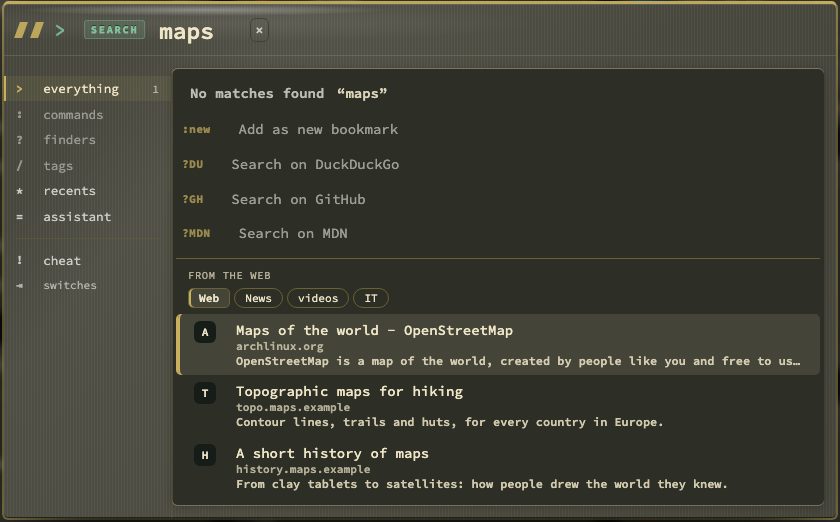
- The engine — Behavior → Keyboard & search → Web search: Off (the default), SearXNG with the address of your own instance, or the Brave Search API with a key from api.search.brave.com. SearXNG must have
jsonundersearch.formatsin itssettings.yml. Test connection runs a search for test and says how many results came back, or why not. - Private by design — the server asks the engine, so the engine sees your server and never your browser. A result loads nothing until you open it: no favicons, no thumbnails. Web searches are not written to the activity log, and the server keeps no record of them.
- Categories — Web, News, Video, and IT with SearXNG.
Shift + ←/→steps between them. - A site you already keep — a result from a host you have a bookmark for shows In your bookmarks: ‹name›.
Alt + Enteropens your bookmark instead of the result. - Reading before opening —
→on a result shows its title, address, date and text in a column beside the list;←closes it. Not on a phone. - Nothing found — the panel says why (no results, an engine that did not answer, a rejected key, SearXNG refusing JSON) and offers Open in ‹engine› to search on the engine's own page.
- Recent on the web — the last eight web searches, in this browser only, as a folded group in the empty panel, with a row to clear them.
- An answer is kept for a minute, so the same search again is instant; the engine has five seconds to answer. At most 20 results per search.
From the browser's address bar
nextDash describes itself to your browser as a search engine (/opensearch.xml).
- Firefox — Settings → Search → Search shortcuts; give it a keyword.
- Chrome, Edge, Brave — Settings → Search engine → Manage search engines → Site search; shorten the keyword, for example to
nd. - Safari — not supported.
Then type the keyword, Tab, a term and Enter. A search also has an address of its own, #search?q=your+terms, which can be bookmarked or opened from a script. Behind a reverse proxy, X-Forwarded-Proto and X-Forwarded-Host are honoured.
With web search on (Beyond the current page), nextDash offers a second engine, ‹title› Web (/opensearch-web.xml), which opens the dashboard with the web results already asked: #search?web=your+terms.
Commands (:)
A lone : lists every command in five groups — Bookmarks, Search & navigate, Look & layout, Smart collections, Settings & tools — with your recent commands on top. Commands with an argument complete as you type. A toggle keeps the palette open and shows its new state; a setting command such as :density, :columns or :theme lists its choices with the one in force tinted and marked current.
| Command | What it does |
|---|---|
:new / :add | Full form / quick add |
:edit · :move · :copy · :note · :pin · :unpin · :remove | On the selected bookmark |
:tag · :tag work · :tag +name · :tag -name | List tags, browse a tag, add or remove a tag on the selected bookmark |
:filter <tag> | The tag view for a tag |
:find <text> / :find clear | Filter this page |
:open all · :open pinned · :open tag <name> · :open category <name> · :open last [n] | Open several in tabs (at most 15 at once) |
:page <name or n> · :page new <name> | Switch page · create one |
:category <name or n> · :category new <name> | Jump to a category · create one |
:recent · :overview | Recent bookmarks · pages panel |
:news | The news window of the feeds you watch (:feeds does the same). With no feed watched it points to Watch feeds in Config |
:unsorted | The Bookmarks view on Unsorted, like Shift + U |
:cloud | The tag cloud, the window / opens |
:save · :saved · :history | Saved searches and search history (saved searches are kept in settings) |
:sort order|az|recent | Sort the focused category |
:stale [days] · :duplicates | Cleanup lists |
:goto <url> · :goto config|stats|docker | Go somewhere |
:inbox · :inbox triage | The inbox |
:health [broken|duplicate|stale|unused|unchecked|missing-preview|shortcut-conflict|healthy|all|refresh] | Opens the Bookmarks view on that filter, and re-scans on refresh |
:health page <name> | The Bookmarks view on one page |
:docker | The Containers view |
:docker <name> open · :docker <name> logs · :docker <name> start|stop|restart|pause|update|remove | One container: open goes to its web UI, or to the view when it has none; the actions need NEXTDASH_DOCKER_CONTROL=1 |
:monitor · :monitor off | How many bookmarks are checked · switch checking off everywhere (asks first) |
:config [section] | A config section, for example :config appearance |
:backup · :export · :trash | Backups · download a backup · the trash |
:share · :import | Share the page on screen as a template file (Pages, categories and collections › Page templates) · restore from a backup (.zip) or import a page from a template file |
:archive <bookmark> | Keep a local copy of that bookmark's page, or of the bookmark the cursor is on when you type no name (Checks & health › Keeping a copy of a page) |
:ask [question] · :tour [name] | Open the assistant, and ask a question straight away when one follows (Security and self-hosting › The assistant) · list the guided tours and replay one |
:favicons fetch · :favicons on|off | Download every icon again · show icons |
:metadata | Bookmarks without a preview |
:theme <name> · :dark | Theme · flip light and dark |
:studio | The theme studio, like Shift + A (:themes does the same) |
:depth · :surface · :effects · :widgetbg · :widgetopacity · :glow · :contrast · :backdrop · :pattern · :harmonize | Surfaces (Appearance) |
:layout <preset> · :density · :columns <1-6> · :spacing · :columngap · :margins · :width on|off|all · :rows · :packed · :fontsize | Grid |
:switcher · :buttonstyle · :maxtabs · :maxactions · :buttons · :header | Header and action buttons |
:action / :actionbar · :action on|off · :action keys [on|off] · :action hide [seconds] | Where the action bar stands (right, left, bottom, header or menu, one menu behind a button), switch it on or off, show the key on each button, and how long a docked bar waits before it slides away (0, 2, 5, 10 or 30 seconds) |
:clock · :time · :unit | Where the header clock stands (on its own line, beside the view name, or in a column of its own) · 24-hour or 12-hour time · weather in °C or °F |
:weather · :weather <town> | Which town the weather is read from, with Clear the town; a town after it sets that town and switches the weather line on |
:highlight subtle|strong · :items [n] | How strongly the row under the cursor is lit · how many bookmarks a category shows before +N more (0 shows every bookmark; 5, 8, 10, 15 or 20, or any number up to 200) |
:collapse on|off · :empty on|off · :tags on|off | Start every category folded or open · hide categories with nothing in them · show tags on the rows |
:preview · :title · :opacity · :animations · :status · :shortcuts · :lang | Display toggles |
:locklayout | Lock or unlock drag and drop |
:legend · :hypr | The key legend under the grid on or off · Hypr mode on or off (Opening and editing bookmarks › Hypr mode) |
:collections | Smart collections on or off |
:telemetry on|off | Analytics (reloads the page) |
:cheat · :help · :whatsnew · :digest · :reload | Cheat sheet · release notes · latest weekly digest · reload |
:checkup | One guided round through what is worth tidying up (Checks & health) |
:edit mode | Switches edit mode on or off (The dashboard › Edit mode) |
📷 Screenshot — the command palette (:)
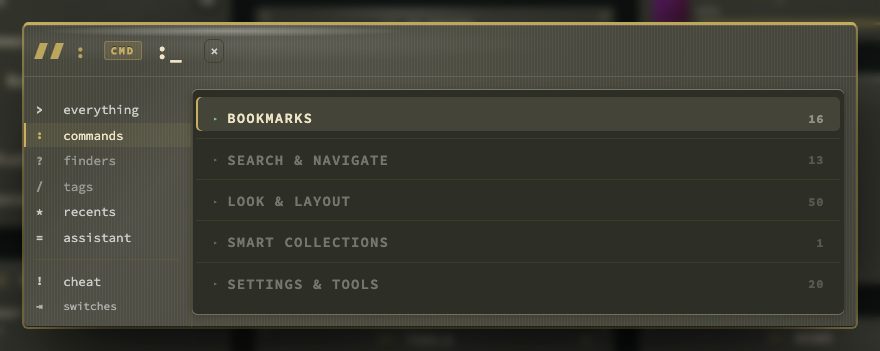
The palette is drawn like the dashboard: its fill follows how solid the categories are in your theme, it starts with the same skewed blocks as a column head, and its mode word is set as a column head is. Themes with their own fill (neon, terminal, ink, paper) keep it.
Finders (?)
?shortcut query sends the query to another site: ?g nextdash searches Google. A fresh install has DuckDuckGo on du and Brave Search on b (an install that already existed was given Brave Search once; delete it and it stays deleted). ?w without a query opens the site's own search page.
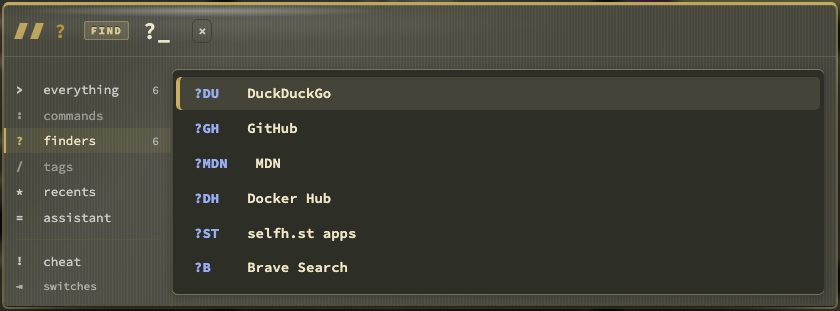
Config → Finders manages them: a name, a shortcut and a URL with %s where the query goes (for example https://github.com/search?q=%s). Names and shortcuts must be unique. Rows can be dragged or moved with ↑/↓, carry tags, and show how often each finder was used; the ones you use most are suggested first. Include finders in search (Behavior → Keyboard & search) shows them among ordinary results.
With that setting on (it is by default), a search that matches nothing lists your three most-used finders under the no matches line — Search on …, with what you typed already filled in. Click one, or reach it with ↓, to ask that site instead.