Behavior
How nextDash acts: shortcut typing, search, links, privacy and first-run tips.
- ShiftQ Switch the search mode
- ShiftEnter Search the web, when an engine is set
- Ctrl/CmdShiftK Find a setting
- ! Cheat sheet
Config, then Behavior, is where you decide how nextDash acts rather than how it looks: what a click does, what typing a shortcut does, which searches go where, and what the app tells the project. It has three tabs, and every setting has a short line under it that says what it does.
A search box, Find settings, sits at the top of the Config sidebar. Press Ctrl or Cmd + Shift + K and type a word to jump to any setting in the app.
Try it
- Open Config, then Behavior. On General, tick Lock layout and try to drag a bookmark. It stays put. Untick it again.
- Open Keyboard & search. Under Typing a bookmark shortcut, pick Press Enter to open, go back to the dashboard and type a shortcut: it leads the list, and Enter opens it.
- Press Shift + Q to switch the search mode between shortcut and name.
- Open Privacy & sync and read what each switch sends, before you decide.
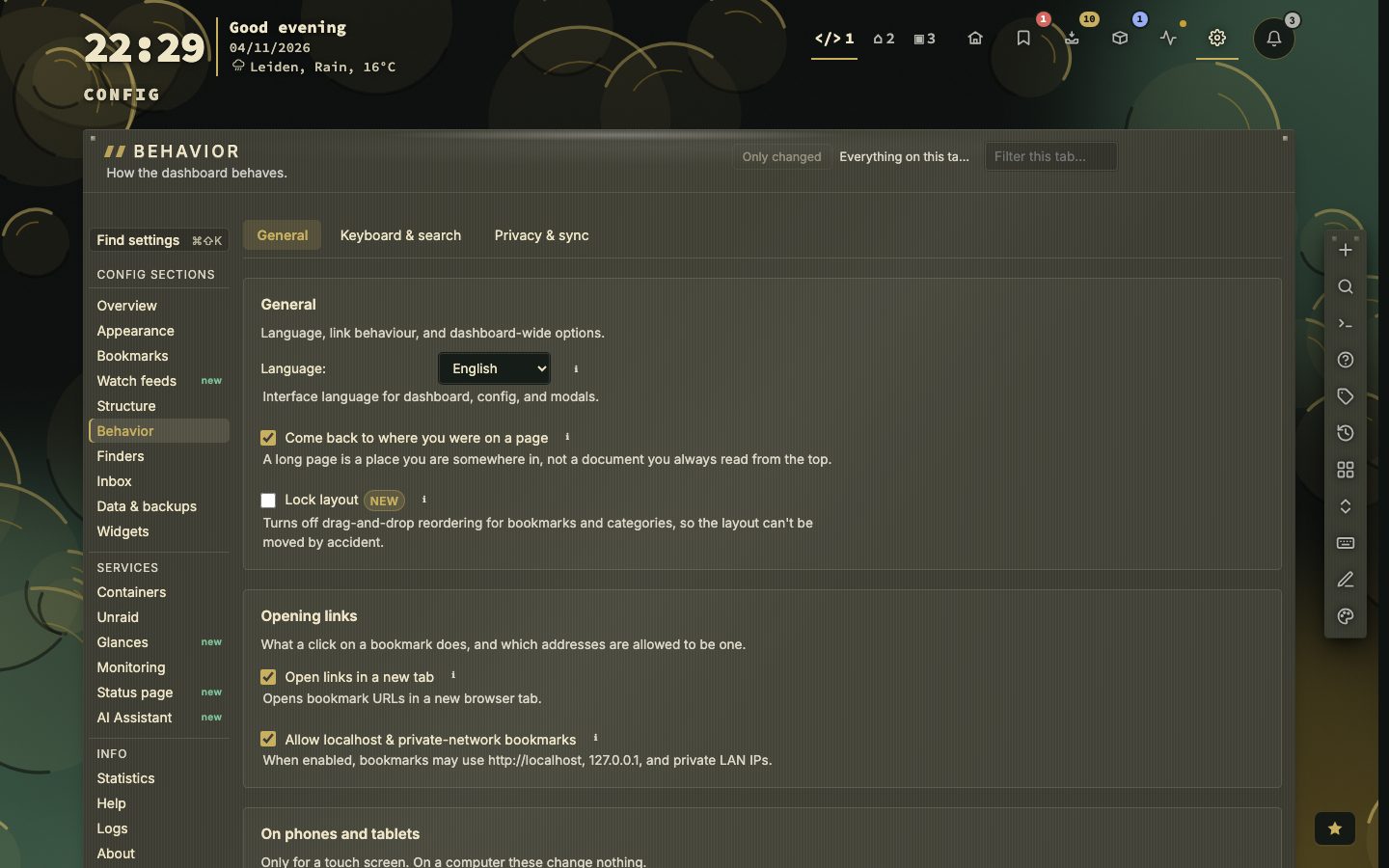
General
Language is set here (see Six languages and text size). Come back to where you were on a page returns you to your scroll position on a long page. Lock layout turns off drag-and-drop reordering of bookmarks and categories, so nothing moves by accident.
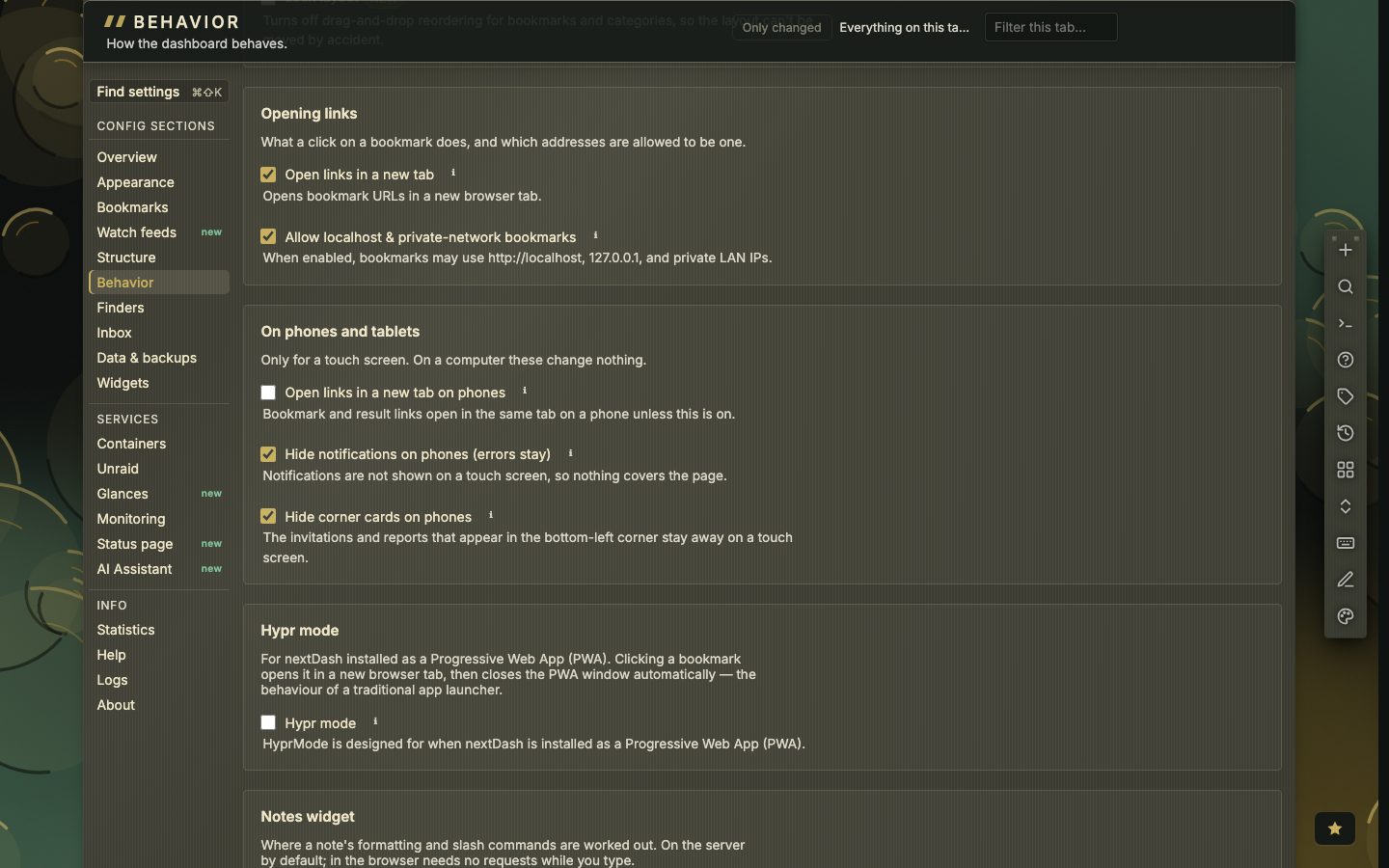
Opening links has Open links in a new tab and Allow localhost & private-network bookmarks, which lets bookmarks use http://localhost, 127.0.0.1 and private LAN addresses. A separate panel, On phones and tablets, has three switches that only matter on a touch screen: open links in a new tab, hide notifications (errors stay) and hide the corner cards.
Hypr mode is for nextDash installed as an app: a click opens the bookmark in a new browser tab and then closes the app window, the way a launcher does. The Notes widget panel chooses where a note’s formatting and slash commands are worked out: on the server (the default) or in the browser, which needs no requests while you type.
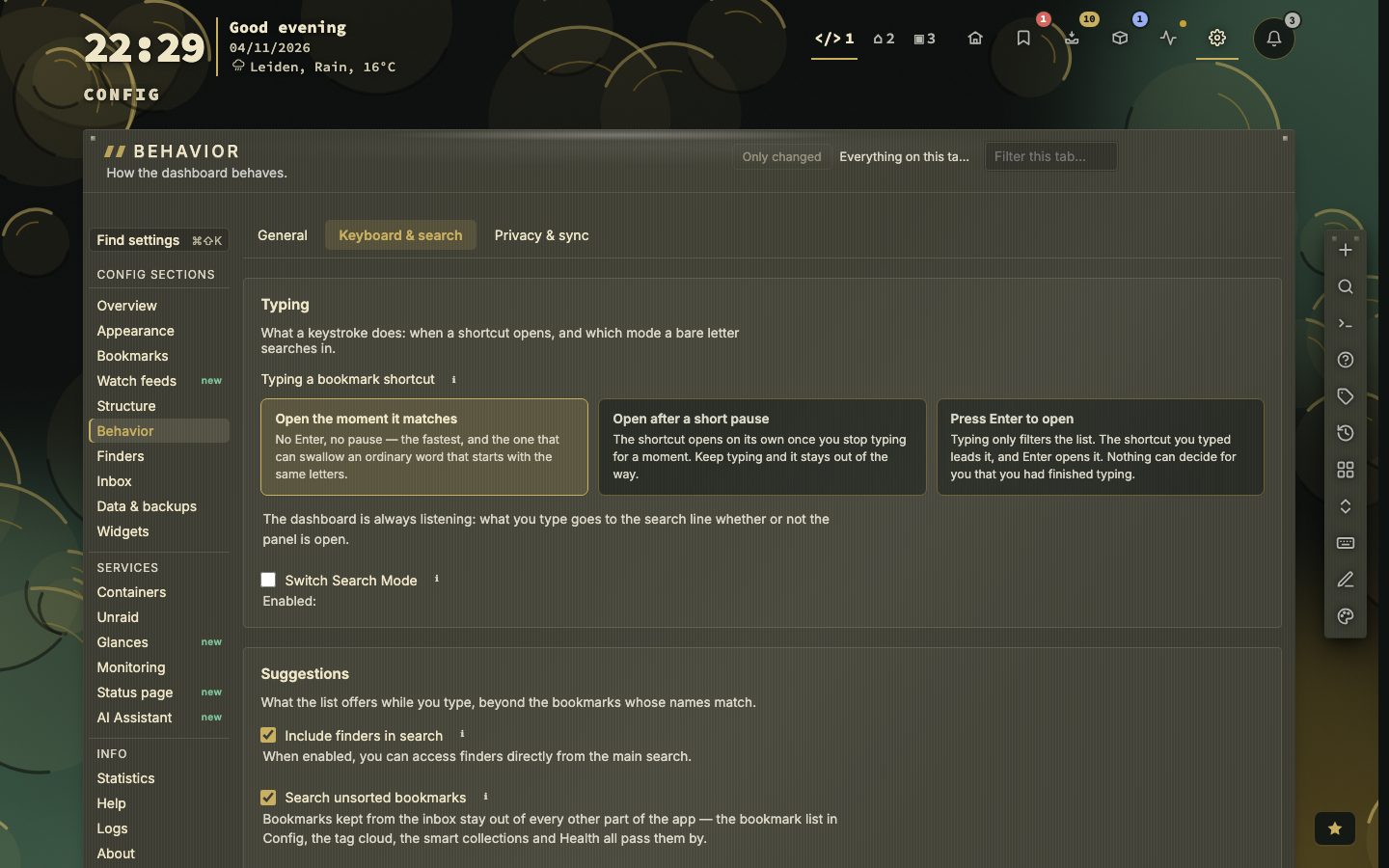
Keyboard and search
Typing a bookmark shortcut has three answers. Open the moment it matches needs no Enter and no pause, and is the fastest, but it can swallow an ordinary word that starts with the same letters. Open after a short pause opens the shortcut once you stop typing for a moment; keep typing and it stays out of the way. Press Enter to open only filters the list: the shortcut you typed leads it and Enter opens it.
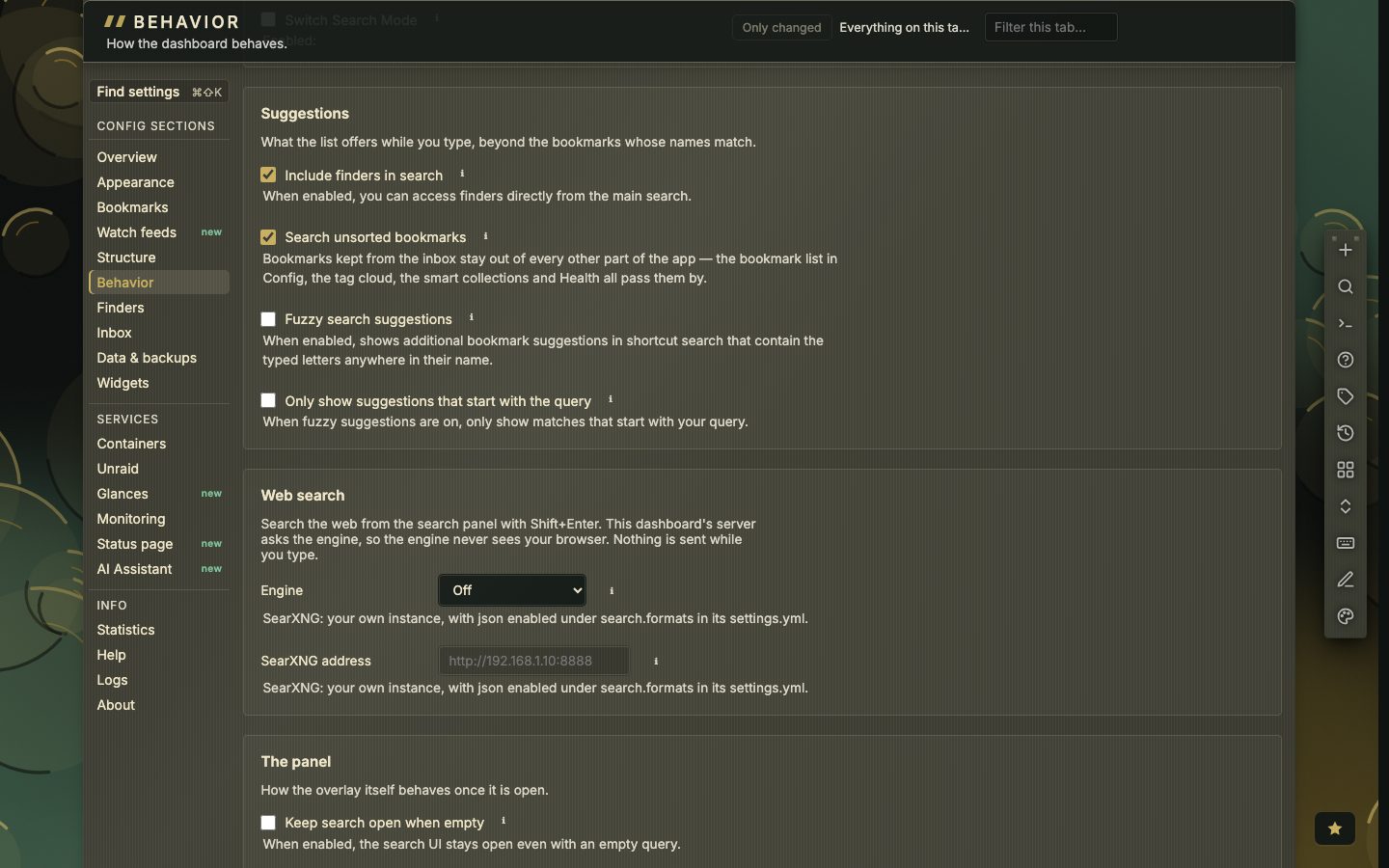
Under Suggestions you choose what the list offers beside names that match: Include finders in search, Search unsorted bookmarks (links you kept from the Inbox), Fuzzy search suggestions and Only show suggestions that start with the query. Web search adds a web search from the panel with Shift + Enter. Its engine is Off, SearXNG or the Brave Search API, and your server asks the engine, so the engine never sees your browser and nothing is sent while you type. Further down, Keep search open when empty and the search banner shape the panel, and Global keyboard shortcuts, hints on header links and the key legend under the bookmarks shape the keyboard.
Privacy and sync
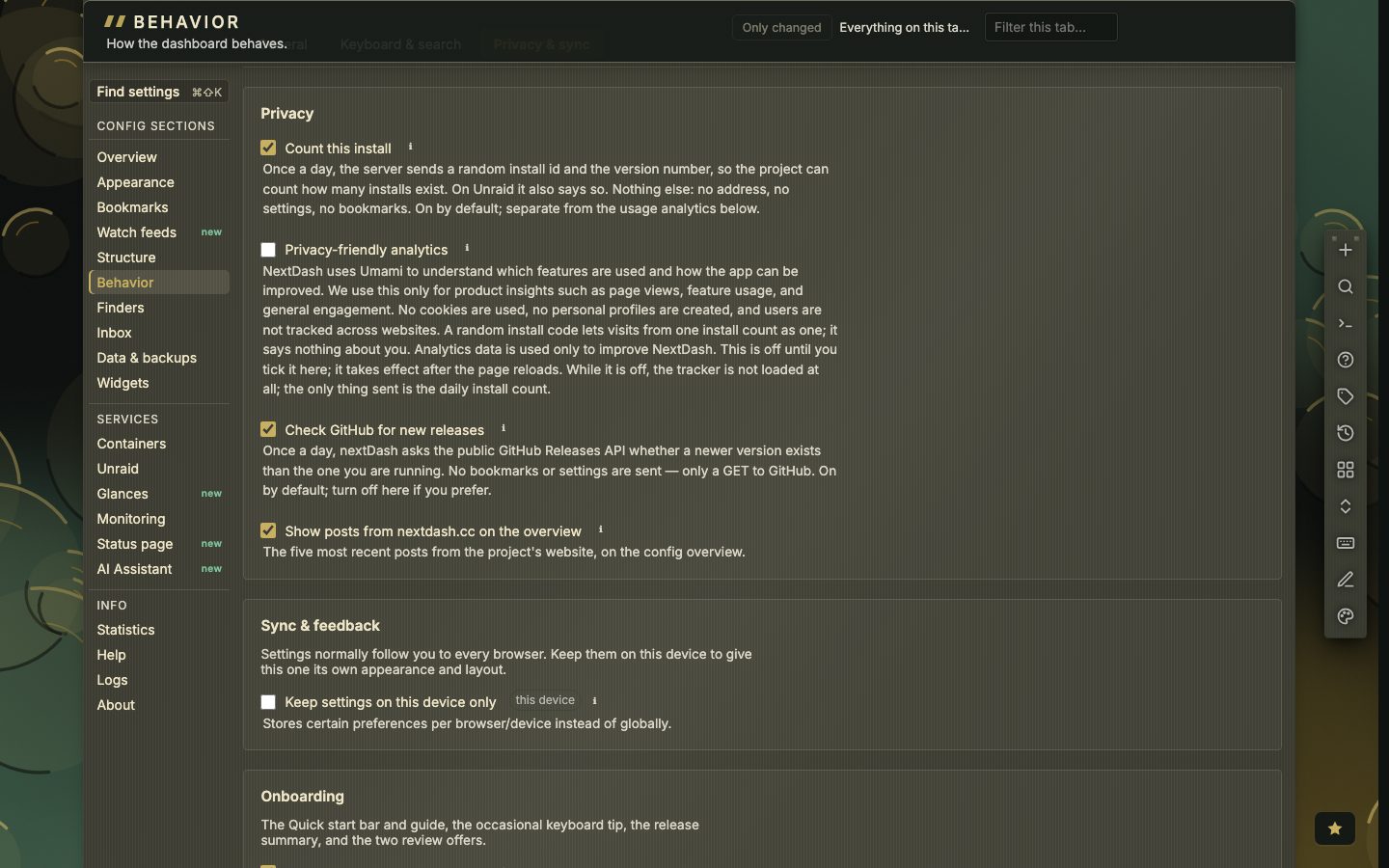
Four switches say what leaves your server. Count this install sends, once a day, a random install id and the version number, so the project can count installs; nothing else, no address, no settings, no bookmarks. Privacy-friendly analytics uses Umami for page views and feature usage, without cookies, and is off until you tick it. Check GitHub for new releases asks the public GitHub Releases API once a day whether a newer version exists. Show posts from nextdash.cc on the overview lists the five latest posts from the project’s site.
Keep settings on this device only gives one browser its own appearance and layout instead of following you everywhere. Onboarding holds the keyboard tips that wait in the notifications bell (two a day), the offer of a tour the first time a section opens, the review and offer cards, a button to show the Quick start again, every tour to replay, and the list of notices, each marked Answered or Not shown yet with Show again.
Next door
Watch feeds, which has its own settings for the news window, is a section of its own in the Config sidebar. How links are checked and how you hear about downtime are under Monitoring; see Health and Alerts. The manual covers all of this in the Config chapter.
Search settings in detail
Besides the shortcut behaviour, Keyboard & search holds a few smaller switches. Switch search mode decides whether bare letters look for a shortcut or for a name, and Shift + Q flips it from the keyboard. When one finds nothing and the other would, the panel adds a row that searches the other way. Fuzzy suggestions help with near-misses, and Prefer matches that start with the query ranks those first. Keep search open when empty and the search hint change what the box does when you clear it.
Search unsorted bookmarks is on by default and lets search reach the links kept on Bookmarks, Unsorted. They stay out of every other list. Include finders in search is covered on the Finders page. The same tab also has the keys: global shortcuts, shortcut hints on header links and the key legend under the grid.
Turn on web search
Web search is Off by default. The engine is your own SearXNG, which needs json under search.formats in its settings.yml, or the Brave Search API with a key from api.search.brave.com.
- 1Open Config, Behavior, Keyboard & search
- 2Under Web search pick SearXNG or Brave Search API
- 3Enter the address of your instance, or your Brave key
- 4Press Test connection: it searches for test and says how many results came back, or why not
- 5Type in search and press Shift + Enter
Notes, and what stays shared
On General, the Notes widget has a setting for where a note is processed: On the server, the default, or In the browser, which makes no requests while you type.
Settings live on the server, so every browser shows the same dashboard. A few settings stay shared even when you keep the rest on one device, such as the custom favicon and font, collections, the action bar position, web search and container icons. They carry an all devices mark.
Onboarding in one place
The Onboarding part of Privacy & sync also lists the notices, the small cards that wait in the notifications bell or appear at the bottom left. Bell sound for new notifications switches the tone off, and Bring back dismissed notifications puts every answered row back in the bell. Each one is marked Answered or Not shown yet, with a Show again button. Every tour has a button to replay it, and Show quick start again brings back the guide of a new install.