The notifications bell
Newsince v1.26 · 5 Nov
Questions, notices and two tips a day wait in one bell instead of popping up over your work.
Questions and notices used to appear over whatever you were doing: a privacy question, an outage, the note that an update was installed. Now they wait. The bell is the last button on the right of the navigation bar, and a badge counts what is unread. Everything nextDash wants to ask or tell you is one click away, and nothing comes over your work.
Try it
- Click the bell in the navigation bar. A panel opens under it, with the rows that are waiting.
- On a question such as 52 bookmarks could take a tag, press the coloured button (Start) to act on it, or No to put it away.
- On a tip, press its button (Open Widgets, Get the extension) to go to the place it is about, or Mark read to clear it.
- Press Mark all read at the top to clear the rest. Press the bell again, or click outside the panel, to close it.
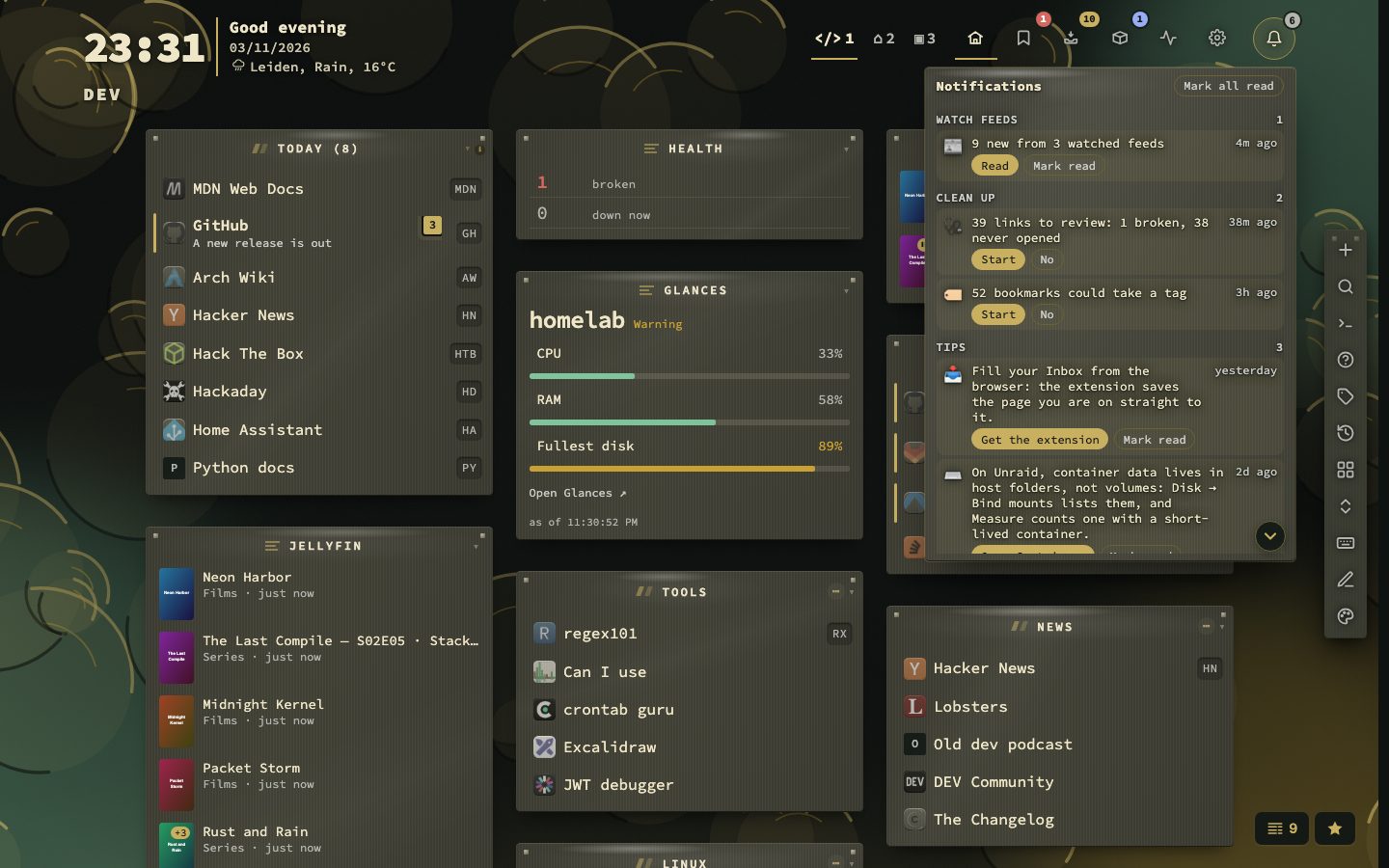
What waits there
Rows are grouped as Health, Watch feeds, Clean up, System, Privacy and Tips, and each carries the button that answers it. On the right of a row is how old it is (5 min ago, 2 days ago); the time starts over when the row gets worse, and a row that only shrinks keeps its age.
- Questions. A pile of links to review, a round of tag suggestions, links you kept and never filed, the install count, the extension offer. No answers a question for good and the row slides away; it comes back only when there is more to show.
- Notices. An update was installed, a new release is out, an outage. They no longer pop up as toasts.
- News from watched feeds. One row, 9 new from 3 watched feeds, updated in place as more arrives and gone once the news is read or has expired. It never stacks a second one.
- The weekly digest. A card, once per digest.
- Tips. Two a day, a new pair each calendar day whether or not yesterday’s were read, never one you have already read.
A few offers need an answer on the spot, such as the apps found on your Docker host. Those still appear as a card in the bottom-left corner, one at a time. The header of the panel and a More below arrow stay put while a long list scrolls.
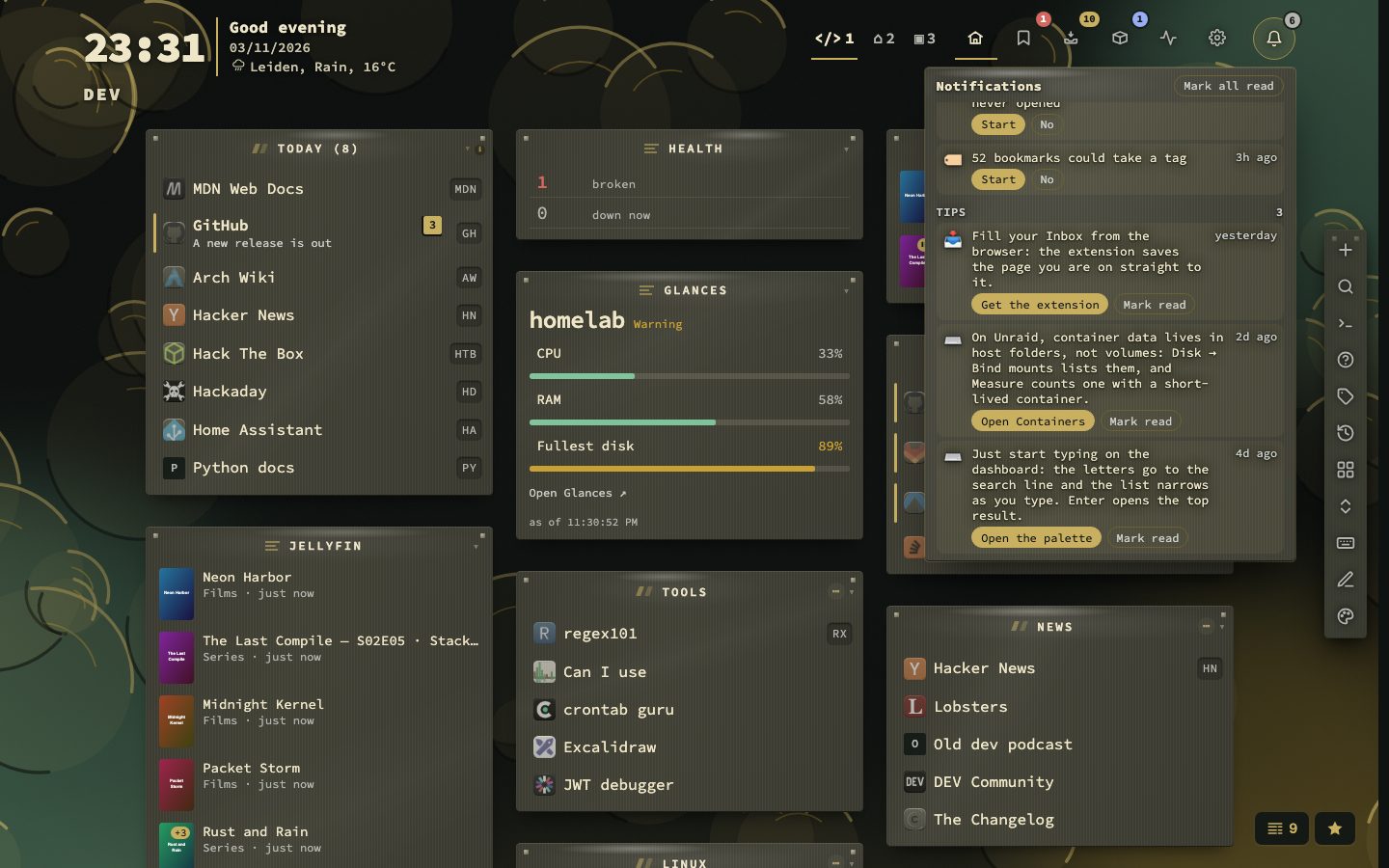
Tips that lead somewhere
Each tip has a button to the place it is about: Config, the Inbox, the Bookmarks view, Containers, the tag cloud or the palette. A tip is never repeated and never comes over a dialog. Mark read clears it for good.
It shakes, pulses and rings
When something new arrives the bell shakes and pulses, with a short tone. News from watched feeds moves differently: the bell nods once and a small paper slides in beside it, with a softer two-note chime of its own. A refresh that finds the same or fewer unread rows does nothing. While anything is still unread the badge pulses once a minute, and the bell shakes and pulses once an hour, without a tone. The tone is on by default; Bell sound for new notifications switches it off and the bell still moves. A first-time note explains the bell, once, and the bell keeps its place when the header folds on a narrow window.
Settings
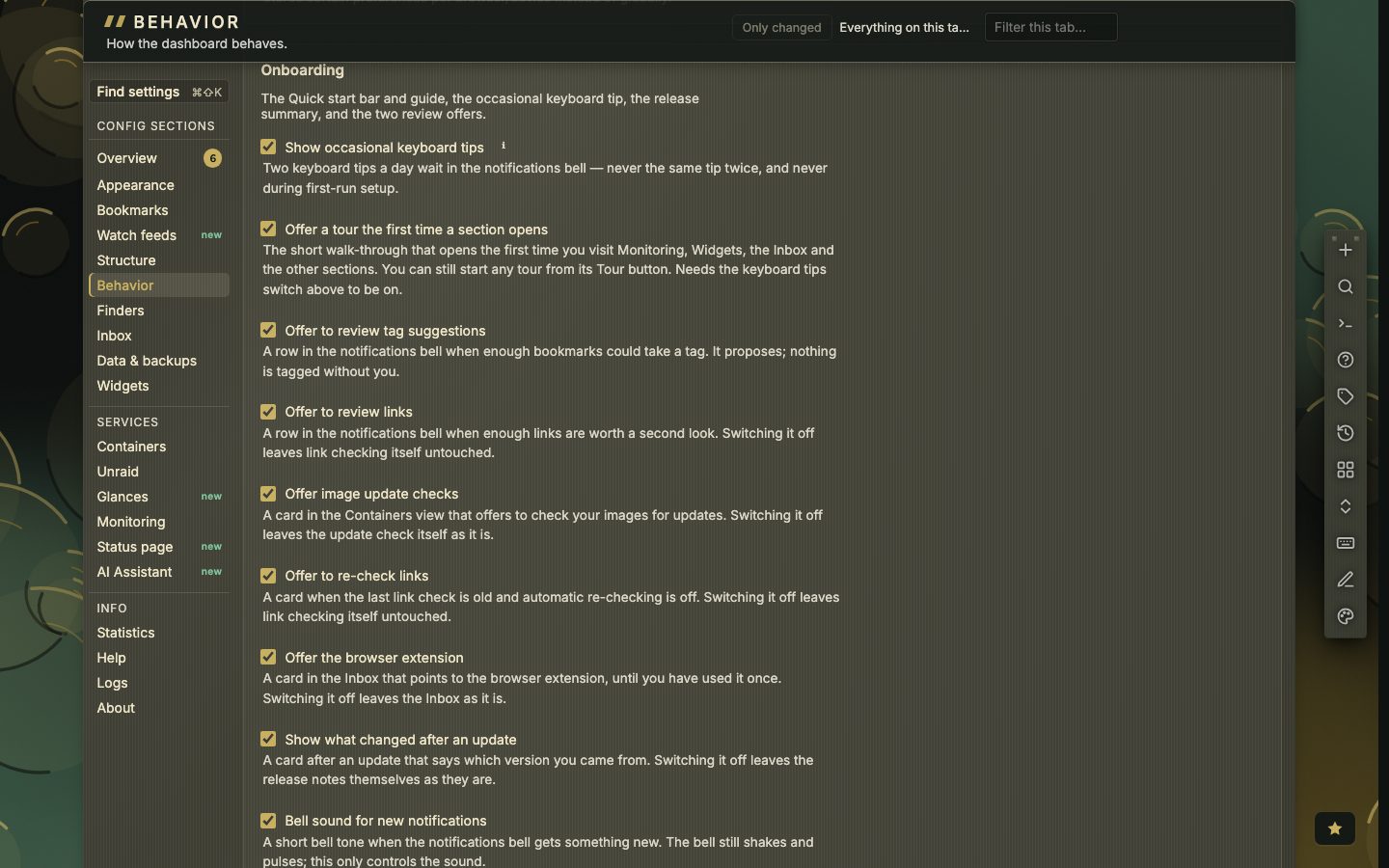
Config, then Behavior, then Privacy & sync, then Onboarding, is where everything that appears unasked is answered. Show occasional keyboard tips turns the two tips a day off. Each offer has its own switch: tag suggestions, link review, image update checks, the link re-check, the browser extension, and what changed after an update. Bell sound for new notifications is the last one. Bring back dismissed notifications puts every answered No and every read row back in the bell.
Something you took up stays away
Pressing the coloured button on a row (Start, Open the Inbox) slides the row out and closes the panel. The row is put aside until it gets worse, the way No does, without telling the source that anything was declined. In v1.26.0 and later it no longer comes back the next time the bell opens.
Elsewhere
The Watch feeds popover has a Mark read button of its own. Downtime alerts to Slack, Discord, ntfy and the others are separate: they are described on the Alerts and notices page. The manual covers the bell in chapter 4, and the settings in chapter 18.