Health
Find dead links before you need them.
- ShiftB The Bookmarks view
- h Collection health
- c Set checking for a bookmark
Health treats link rot as its own subject. Every bookmark can be checked in one of three ways: off, periodic in the background, or monitored on its own interval with 30 days of history.
It reports named causes such as DNS, timeout, refused, TLS or redirect. You can also tell it what text a page must contain, because a site that answers 200 while showing an error page is not up. Collection health shows the score over time, what is wrong, uptime, and the certificates and domain registrations that are running out. Every number opens the matching filter.
Try it
- Press Shift + B for the whole library at once.
- Type
:healthto see the broken ones. - Press c on a bookmark to start monitoring it.
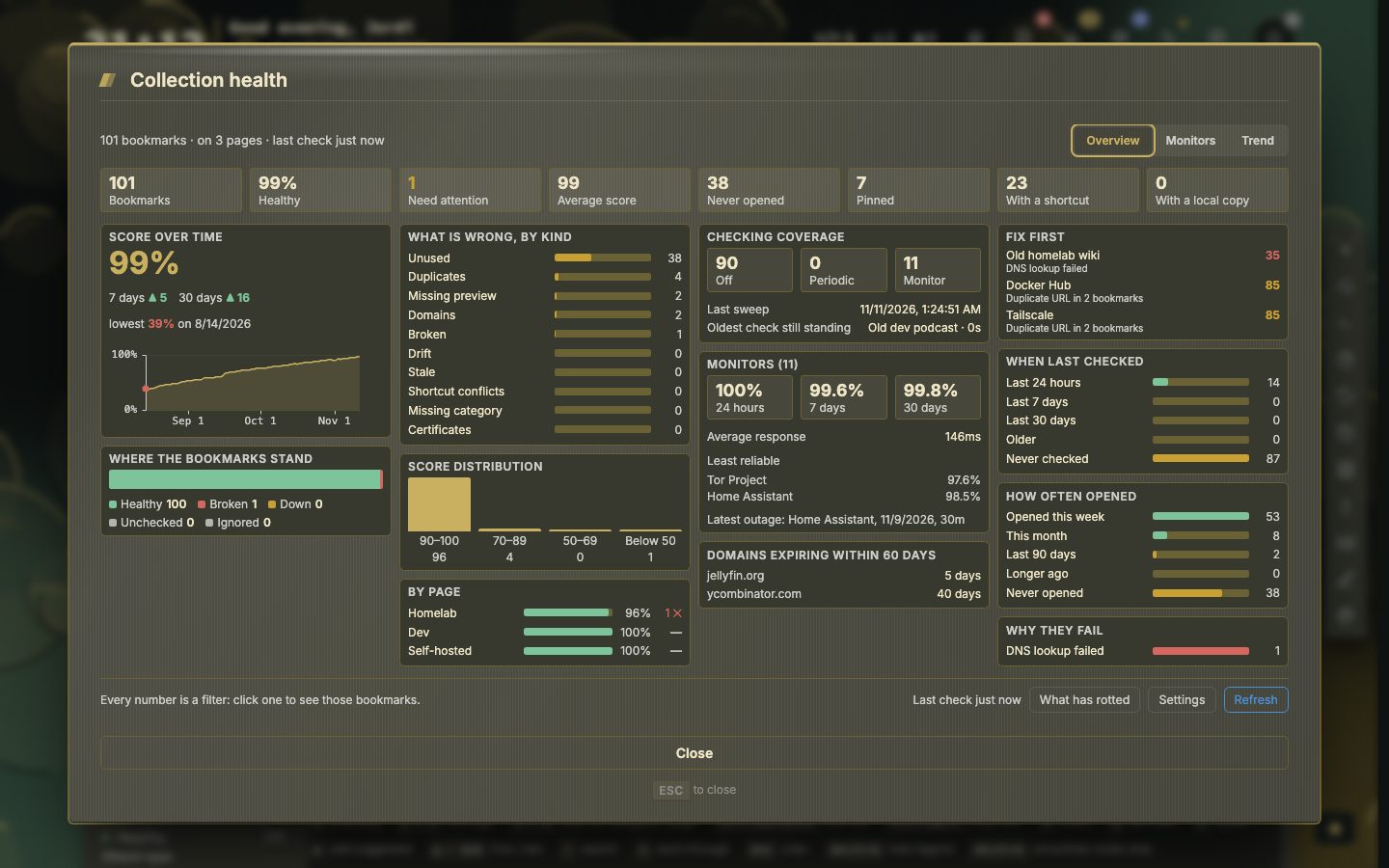
Collection health, in more detail
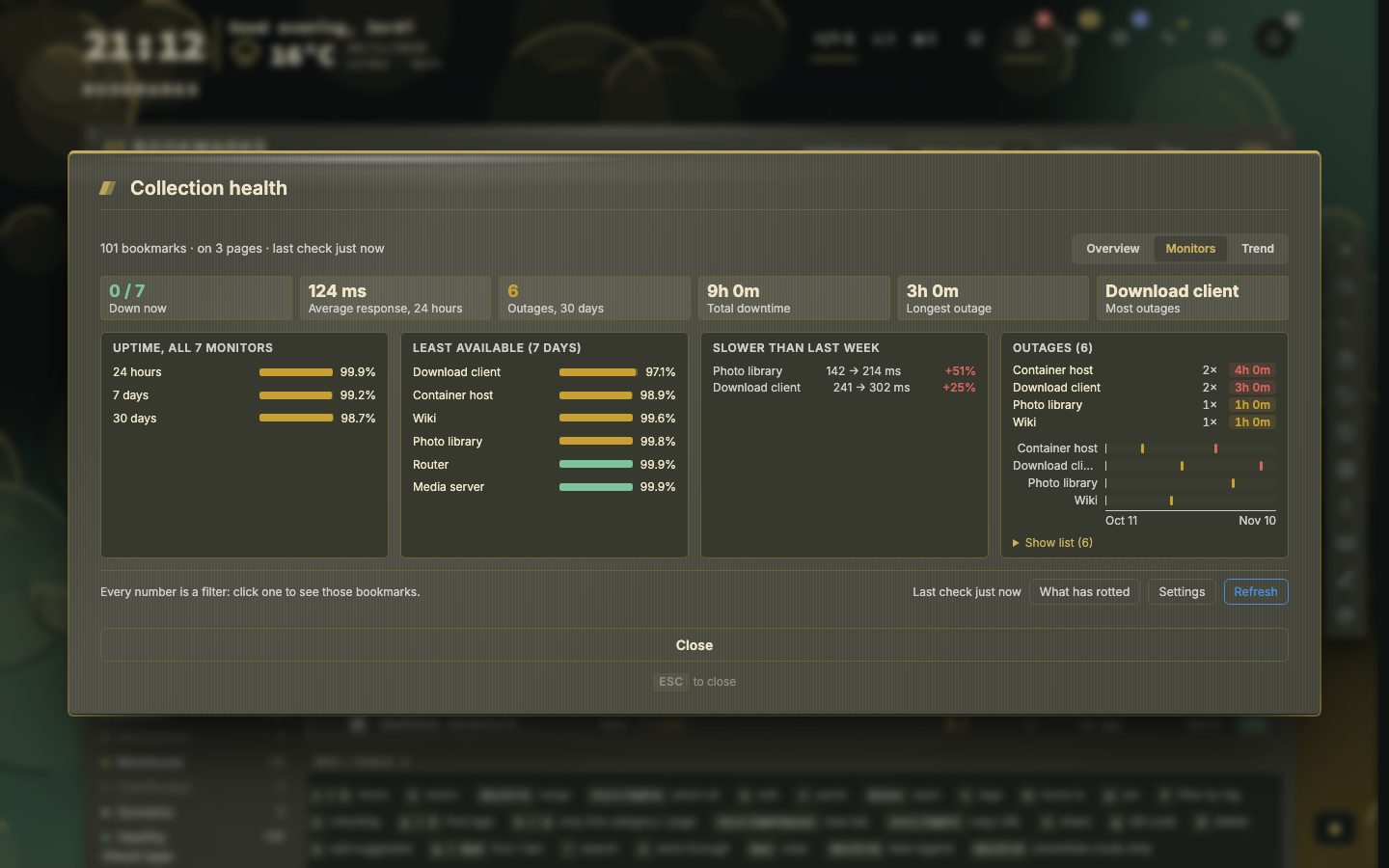
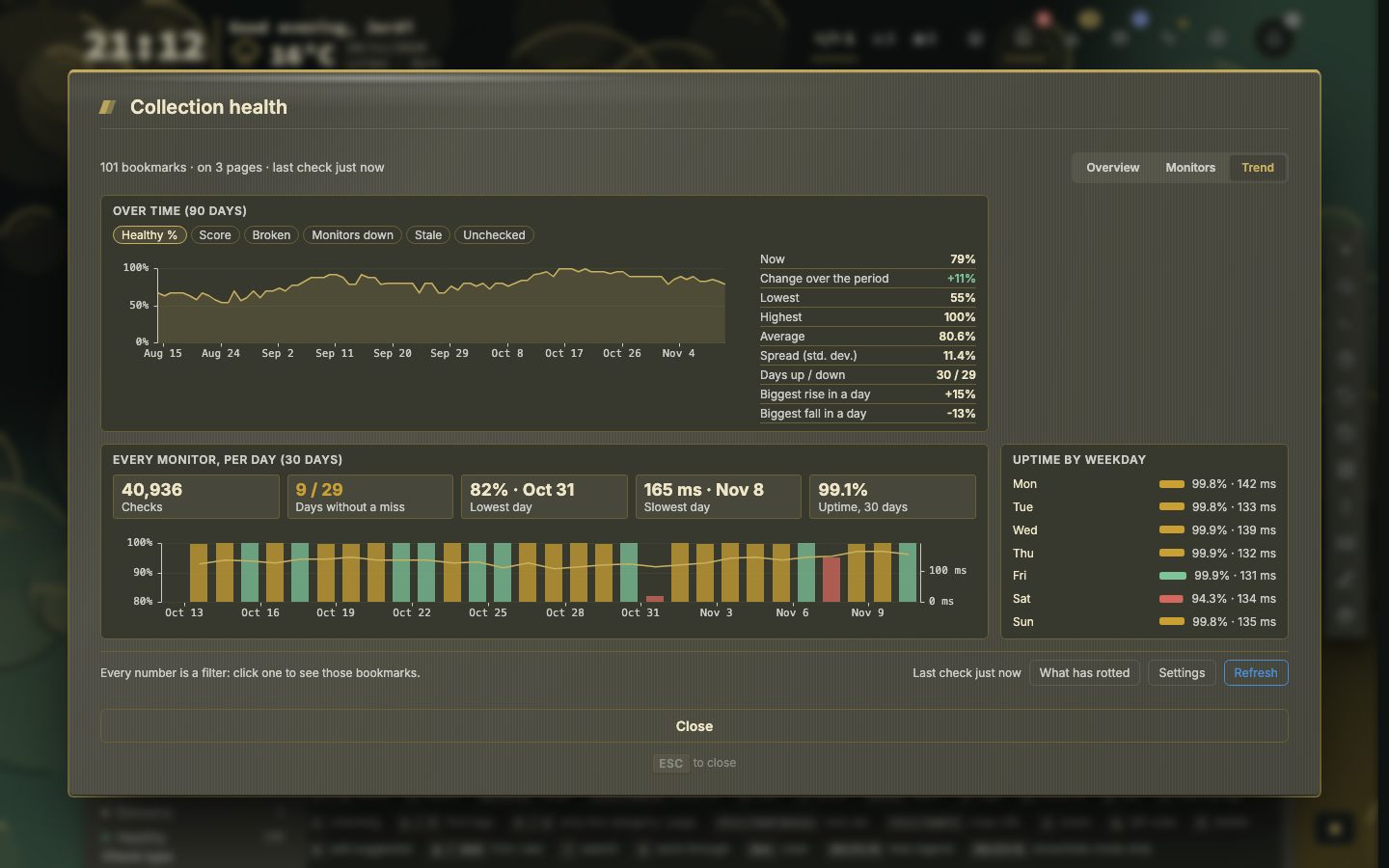
Collection health has tabs of its own. Monitors shows uptime per monitor, the least available and the outages. Trend shows 90 days, every monitor per day and uptime by weekday. Both sit beside the figures and the overview you already have.
Expected response, in detail
On a monitored bookmark, Expected response opens a panel. Text the page must contain is the phrase from above; Fail if present instead turns it around, for a page that shows a known error text when it breaks. Status codes that count as healthy takes a list such as 200, 200-299 or 200,301,401; with nothing filled in, anything below 500 counts. A code that cannot be read is ignored. Failures of these tests show under the Content filter, not under Broken, and clearing both fields clears the failure.
For a service behind a sign-in, the Health tab also has Address to check instead (a status endpoint, for example), Sign in with (a stored sign-in) and Accept a certificate this machine does not trust. A stored sign-in is never sent when a check is redirected to another host.
Drift: it answers, but it is not the page you saved
Tick Watch for redirects, retitling and rewrites on a monitored bookmark. The next check becomes the baseline and every later check is compared with it. Redirect drift means the link lands somewhere else (http to https, www., trailing slashes and tracking parameters are ignored). Title drift means the title changed; titles like Domain for sale or 404 are named outright. Content drift means the text became a different page.
The row badge reads Moved, Retitled or Changed, and the Drift filter lists them. A page that goes back to its baseline clears itself. Accept drift on the selected rows clears the finding and drops the baseline, so the next check records the page as it is now. Drift reads the page body, so it is opt-in and works for monitored bookmarks only.
Pages that say “not found” with a 200
Turn on Spot pages that answer 200 but say “not found” and a monitored check reads the title and the opening text for a not-found message in five languages. Once a day per site it also asks the host what it does with an address that cannot exist. A site that sends everything to a sign-in page is left alone.
One address on two pages
When the same address is saved on two pages, it is checked once per round. A copy with its own expected response, drift setting, check address or sign-in is checked with those as well and gets its own result. Uptime, history and alerts stay one per address, taken from the first copy.
How long it has been failing
The first failure of a run is kept, and the next check that passes clears it. A failing row says failing for 3 weeks, and hovering shows the day it first failed; a monitored bookmark says how long it has been down. When a site only refused our checks (a 403, a bot check), the row says not answering us for… instead of calling the page dead. A page that asks whether you are a robot reads as unknown, not broken.
The checkup
One guided round through what is worth tidying up: type :checkup in the search box, pick Checkup in the Bookmarks view’s menu, or press Start the checkup in the weekly digest. The steps are dead links, duplicates, bookmarks never opened or gone stale, empty categories and pages, and widgets that show an error. A step with nothing to do is skipped, every step uses the delete, merge, move and edit actions you know, with their confirmation and undo, and nothing is removed before you have seen it.
Domains that run out
nextDash also looks up when the domain names of your checked bookmarks expire, through the registries’ public RDAP service, and warns before they do: at 60, 7 and 3 days. A Domains tile lists them, and a badge marks the bookmark. One request per domain a day, and each name goes only to the registry of its extension. Some registries publish no date, and those domains are listed as having none. One switch under Config, then Monitoring, turns it off.
Three modes, one switch
Every bookmark has one of three modes. Off is never checked. Periodic is checked now and then and flagged when it is broken. Monitor is checked by the server on its own interval, from 5 minutes to 24 hours (15 minutes unless you change it), with 30 days of history, uptime, outages and alerts. Monitor includes everything Periodic does.
Set the mode in the bookmark form, in the Bookmarks view’s side panel, in the right-click menu, or with c on the selected bookmark, on the dashboard and in the Bookmarks view. On a monitored row the menu also offers the check interval: 5m, 15m, 30m, 1h, 6h or 24h. Nothing checked at all yet? In the Bookmarks view pick Unchecked under Health in the rail, tick every row with X, and set the checking to Periodic under Edit.
- 1Open the Bookmarks view
- 2Pick Unchecked under Health in the rail
- 3Tick every row with X
- 4Choose Edit and set the checking to Periodic
How a check reaches its verdict
A check passes through three gates. First the request: no answer from DNS, a timeout, a refused connection or a TLS error is a failure. Then the status code, which must be on your list of healthy codes (anything below 500 when you gave none). Then, if you set one, the page text. A failure of the third gate goes to the Content filter, not to Broken. A failed check is tried again five seconds later and only counts if that fails too.
- 3modes per bookmark
- 30days of history
- 5seconds before the retry
A page that asks whether you are a robot, a rate limit, or anything else unclear reads as unknown, not broken. Every failure keeps its cause: DNS, timeout, refused, TLS, redirect, content or an HTTP status. Certificates are read from every HTTPS check, which is where the certificate warnings come from.
When the problem is on this side
If a round of checks reaches at least ten different sites and nearly all of them fail at once with a lookup, timeout or refused-connection error, the fault is the server’s own connection, not ten dead sites. This happens when nextDash starts before the machine is online. nextDash then holds those failures back: nothing is marked broken, no alert or incident is opened, and every bookmark keeps its earlier status. The Bookmarks view says No connection from this server since and the round is tried again a minute later. Addresses on your own network (IP addresses, .lan, .local, single-word names) are never held back. If the outage lasts more than half an hour, failures are recorded as usual.
Right after a start your own services may not be up yet. During the first 15 minutes, a bookmark’s first failed check is not recorded. If the same bookmark fails again at least 45 seconds later, it is. Retest all records at once, and the variable NEXTDASH_HEALTH_STARTUP_GRACE changes the window (5m, for example) or switches it off with 0.
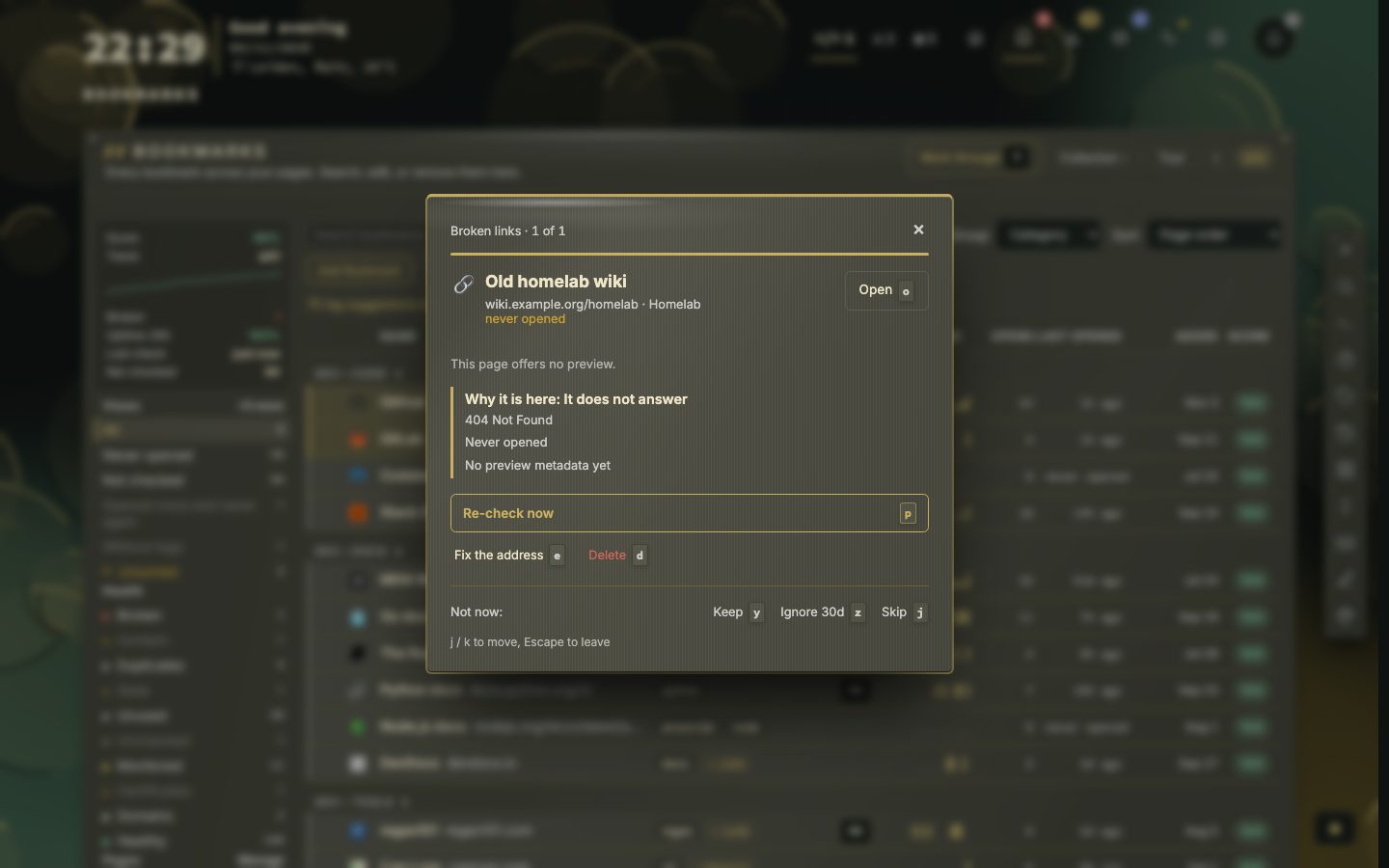
Deciding what to do with a broken bookmark
Work through takes one bookmark at a time and tells you why it is there: what the last check said, whether it was ever opened, and whether it has a preview. Each decision has a key. Re-check now tries again, Fix the address opens the edit form, Delete removes it with the usual undo, and Keep, Ignore 30d and Skip leave it for later.