Containers
since v1.15 · 28 Sep
See and follow your Docker containers next to your bookmarks, and read, edit and run their compose stacks.
- ShiftC Open the Containers view
- l Open live logs for the selected container
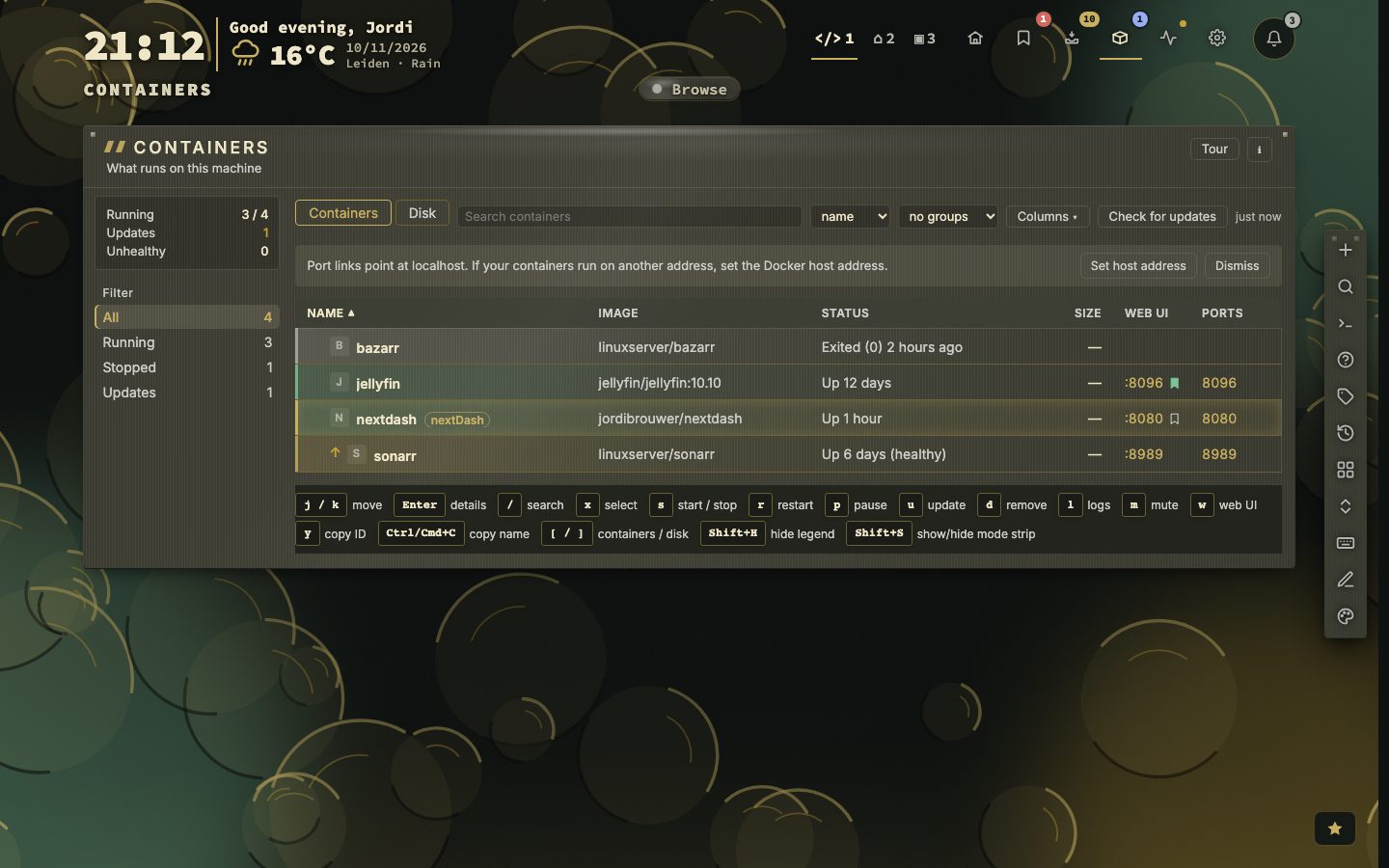
If you run nextDash next to your containers, the Containers view shows them in a table you can sort, group and trim. Choose columns for CPU, RAM, size and restarts, and group by project, status, network or image.
Each container has a timeline in its side panel: started, crashed with an exit code, turned unhealthy, updated, rolled back. The panel also shows the last five healthcheck results. nextDash follows the Docker event stream instead of polling, so a container that keeps restarting or turns unhealthy still sends you a notice, even when the restart policy brings it back each time.
Try it
- Press Shift + C on the dashboard.
- Click a column heading to sort, or pick a grouping.
- Open a container and press l for its live logs.
Updates you can watch
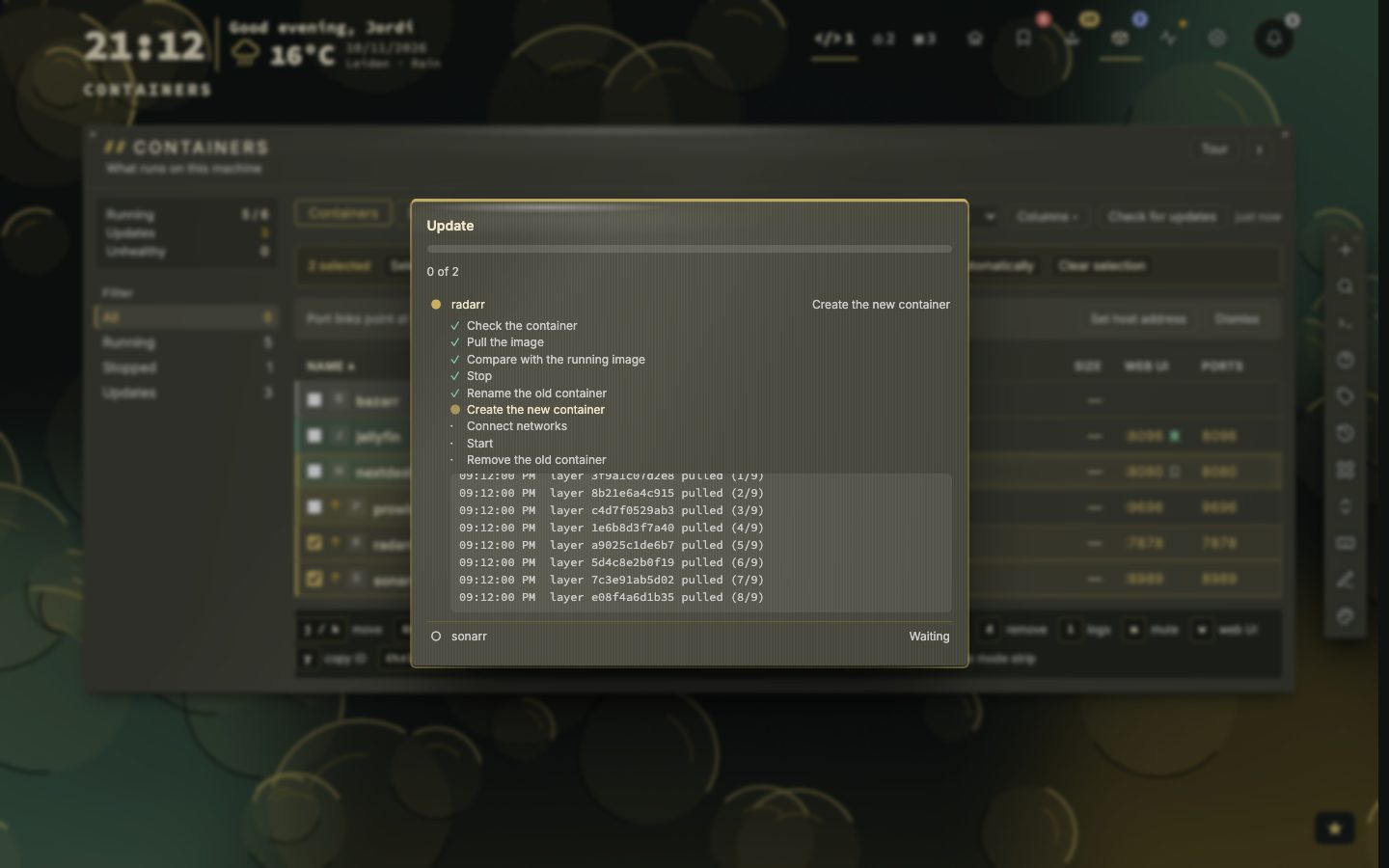
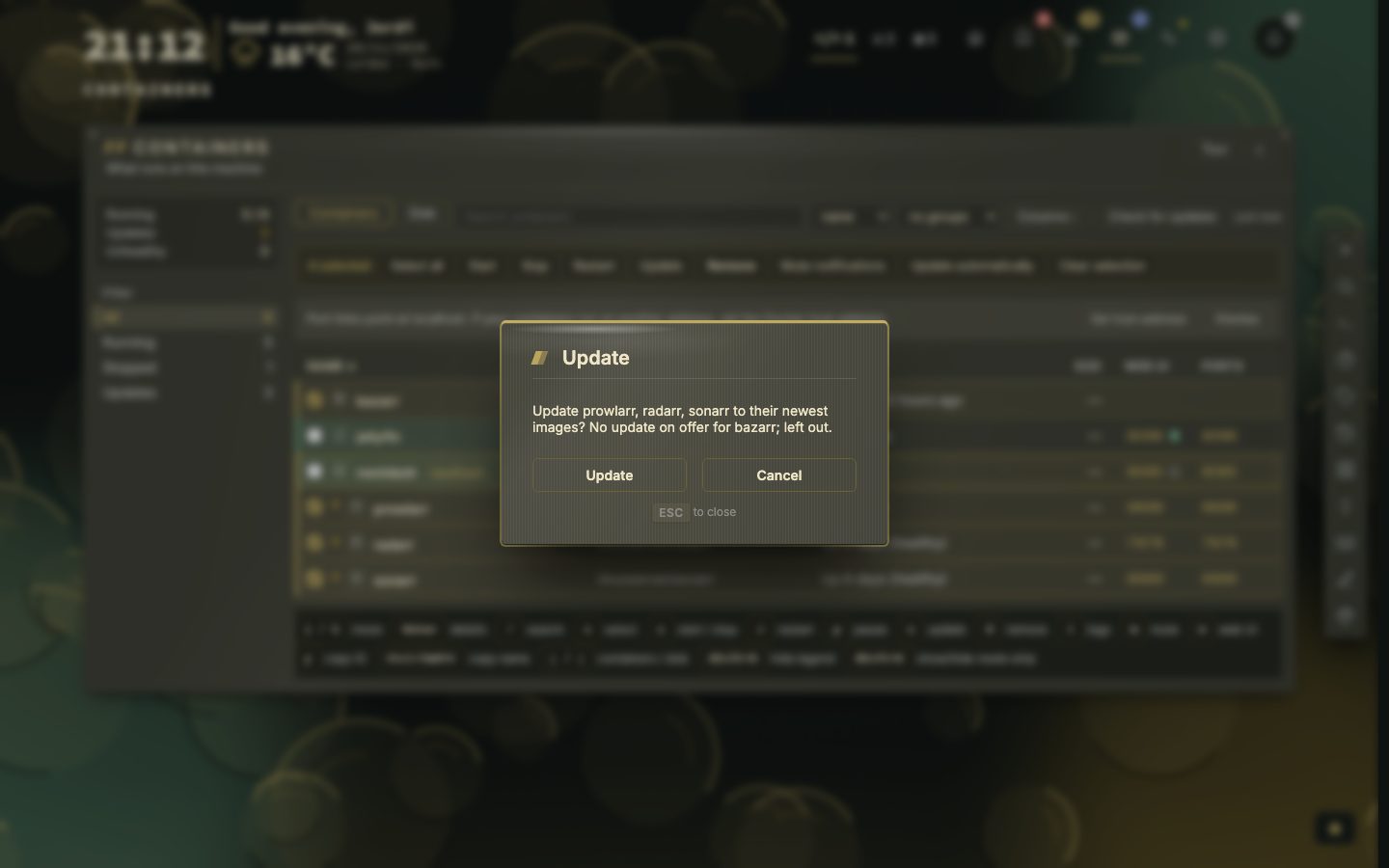
An update or rollback shows its steps and a log while it runs: check, pull, compare, tag, stop, rename, create, connect, start and remove, with a log line for each pulled layer, and a restore of the old container if something goes wrong. Update a selection and nextDash takes only the containers that have an update, and says why one was left out.
A container with a web page can become a bookmark on its own: nextDash notices it and offers it. See App discovery.
Colours and links
Red on a row means something is wrong: a container that stopped with an exit code, one that is dead, or one that reports unhealthy. A container that finished its job or was stopped on purpose is grey, and its port and web links are greyed too, since they go nowhere. When a Glances host runs on the same machine, the two views link to each other and the table can read processor, memory and network from Glances. See Glances.
Reading and trimming the list
The rail filters the list: All, Running, Stopped and Updates. Grouping folds it by status, network, image or compose project. A project row has Start, Stop and Restart for the whole stack, and Update for the containers in it that have an update waiting. Under Columns you can also turn on Restarts, which counts how often a container started again in the last 24 hours. The choice is kept in your browser, and Reset columns undoes it.
Tick several containers with x or Space, a run with Shift + X, or everything the filter shows with Ctrl/Cmd + A. A bar then offers Start, Stop, Restart, Update, Remove, Mute notifications and Update automatically for all of them, one container at a time, and ends with one notice such as 3 restarted, 1 failed, naming each failure and why. The container nextDash runs in is always left out.
The keys
With a row selected: Enter opens the side panel, / searches, s starts or stops, r restarts, p pauses, u updates, l opens the logs, m mutes its notices, d switches between the list and Disk, and Esc backs out one step at a time. Remove is Delete and asks first. The legend above the list names them; without actions switched on, it leaves out the keys that act on Docker.
The logs window follows the log as it is written. Scroll up and it pauses and counts what arrives; Jump to latest catches up. Search marks every match, Filter keeps only matching lines, stderr lines are red, and Copy and Download take what is loaded.
Skip, hold, roll back, or let it update itself
The side panel’s Updates part keeps your say over an image. Skip this version stops the version on offer from counting; a newer one counts again. Hold updates keeps an image from ever counting until you choose Resume updates. History lists what updates did, and Roll back puts the container back on the previous image, without a download, for as long as that image is still on the host.
With Update automatically on, nextDash updates the container by itself during a nightly window, 03:00 to 05:00 until you change it. It then watches the container for five minutes. If it stops, restarts on its own or turns unhealthy, nextDash rolls it back, starts it again and skips that version. Each update, rollback or failure sends a notice. Update checks are off until you switch them on, because they ask the image registries.
Notices, and when a container runs hot
A notice goes out when a container stops unexpectedly, keeps restarting (three crashes in ten minutes) or turns unhealthy, and another when it recovers. A stop you or nextDash asked for is not a notice, and neither is a crash that the restart policy fixes within 30 seconds. Four or more at once become one message. They use the same channels as downtime alerts.
Also when one uses too much CPU or memory is on by default. A notice goes out when a container stays above 90 % of every core, or above 90 % of its memory limit, for at least 10 minutes. All three numbers are adjustable. It reads the last hour of stats, so Keep the last hour of CPU and memory must be on.
Disk
The Disk tab (press d) shows what images, volumes and the build cache take up. It is measured when you open the tab and on Refresh. Tiles clear unused images, dangling images, build cache and stopped containers, each after asking and saying how much it frees. Unused volumes go one at a time, and you type delete to remove one. Bind mounts lists the host folders containers mount, which on Unraid is where container data lives.
Compose stacks
A container started by Docker Compose belongs to a stack, and a stack has a panel of its own: Files on its heading, or the Compose stack link in a container’s panel. It opens on the services, each with its state, health, ports and image and round Up, Pull and Restart buttons that act on that service alone. The stack has Up, Down, Pull, Restart and Pull and Up, with the output as it runs.
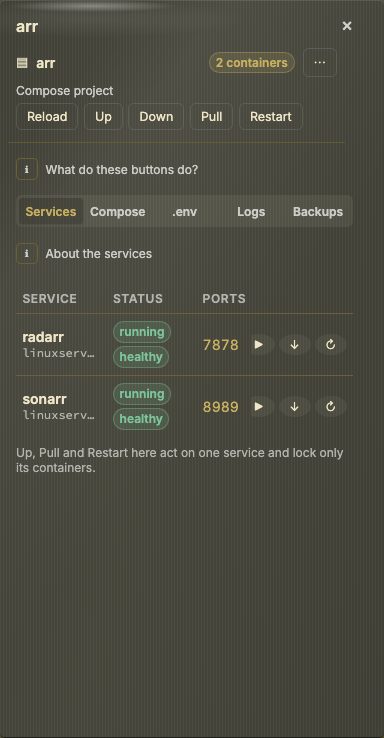
The Compose and .env tabs show the files with passwords, tokens and keys hidden; Reveal shows one value. Edit turns the text into a box: Check runs compose on it without writing anything and marks the line it names, Changes shows the difference with the file on disk, and Apply checks, saves and runs Up. Every save keeps a copy, the last twenty are listed under Backups, and a file that changed on disk in the meantime is never overwritten.
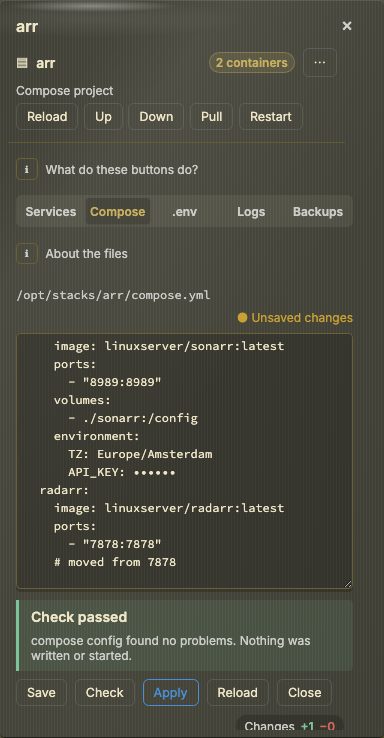
The Logs tab follows every service of the stack in one stream, each line tagged, with a chip per service. A stack whose file changed after its last Up shows Edited, not applied. nextDash sees the files where you map them: NEXTDASH_COMPOSE_MAP says where a stack folder appears inside its container, and editing and running need Docker control to be on. Compose runs in a short-lived helper container, and Down never removes volumes.
Other Docker hosts
Containers on other machines, a Pi or a second server, can join the view. Under Config, Containers, Connection, Other Docker hosts adds up to four more, each reached through a Docker socket proxy or the daemon’s own TLS with a certificate. Test says why a host does not answer. Each host gets a tab above the list, and the list, the side panel and the logs follow it. A host is read-only until you switch on Allow actions for it, and the update check works on every host. Updating, rolling back, the Disk tab, the timeline, notices and statistics stay with the machine nextDash runs on.
What it needs before it can act
- 1Mount /var/run/docker.sock into the nextDash container
- 2Set NEXTDASH_DOCKER_SOCKET to /var/run/docker.sock
- 3Add NEXTDASH_DOCKER_CONTROL=1 to allow start, stop, update and remove
- 4Set NEXTDASH_WRITE_TOKEN to a long random string
With only the socket mounted (read-only is enough), the view looks but does not touch. Only if the log says the socket is owned by gid 0, as on Docker Desktop and some NAS systems, add NEXTDASH_RUN_AS_ROOT=1. Config, then Containers shows the connection as the server sees it.