App discovery
Recentsince v1.19.9 · 17 Oct
nextDash finds the apps in your containers and offers them as bookmarks.
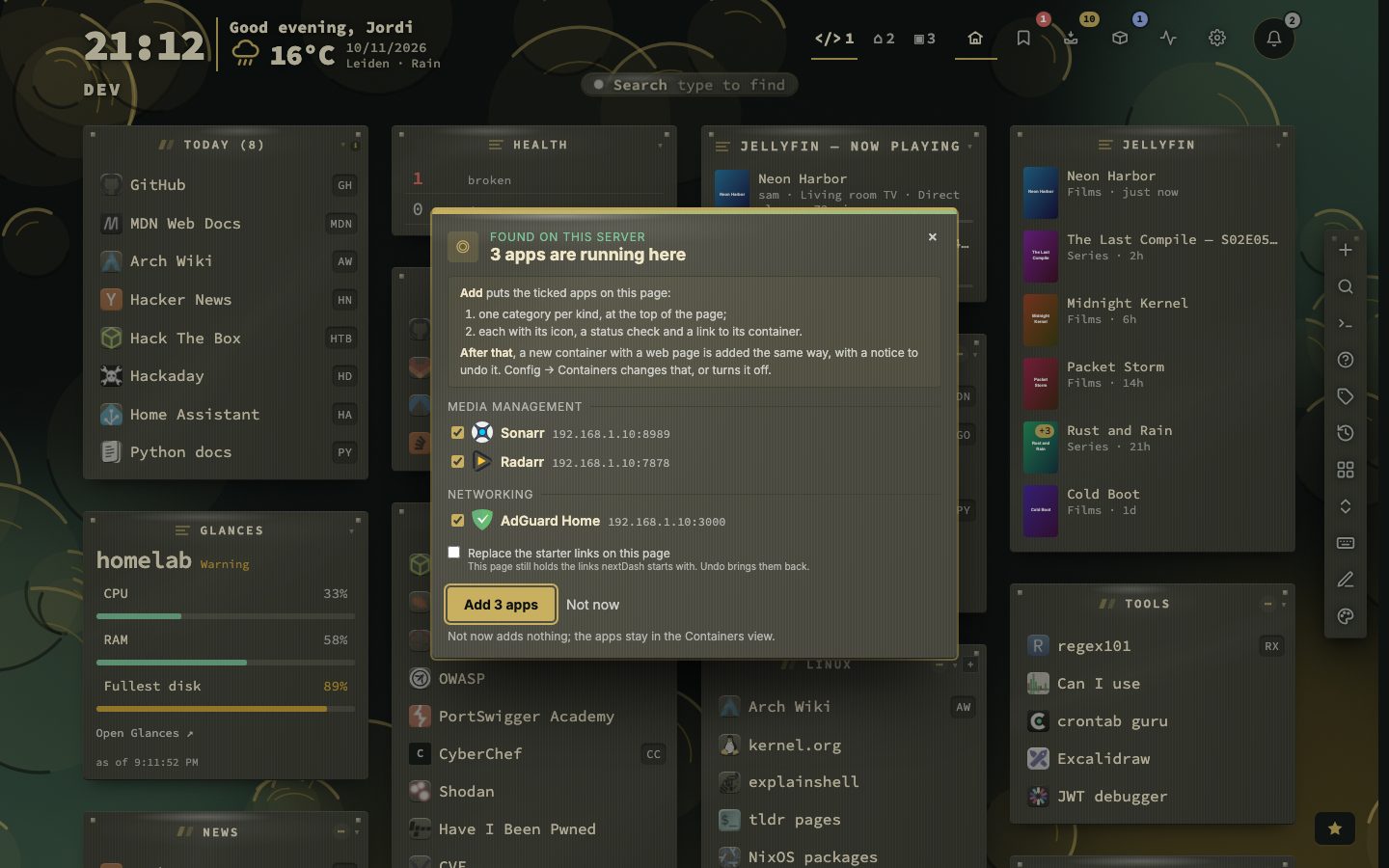
With the Docker socket connected, nextDash looks at the containers that run and notices which of them answer with a web page or a login. It offers those apps as bookmarks on a card in the middle of the dashboard, grouped by kind and all ticked. A row for it also waits in the notifications bell.
Add puts the ticked apps on the page: one category per kind, each app with its icon, a status check and a link to its container. On a page that still holds the starter links, they can be replaced in the same go, and Undo brings them back.
Try it
- Connect the Docker socket; Config, then Containers, says whether it answers.
- Open the dashboard. The card lists the apps nextDash found.
- Untick what you do not want and press Add.
A container that turns up later
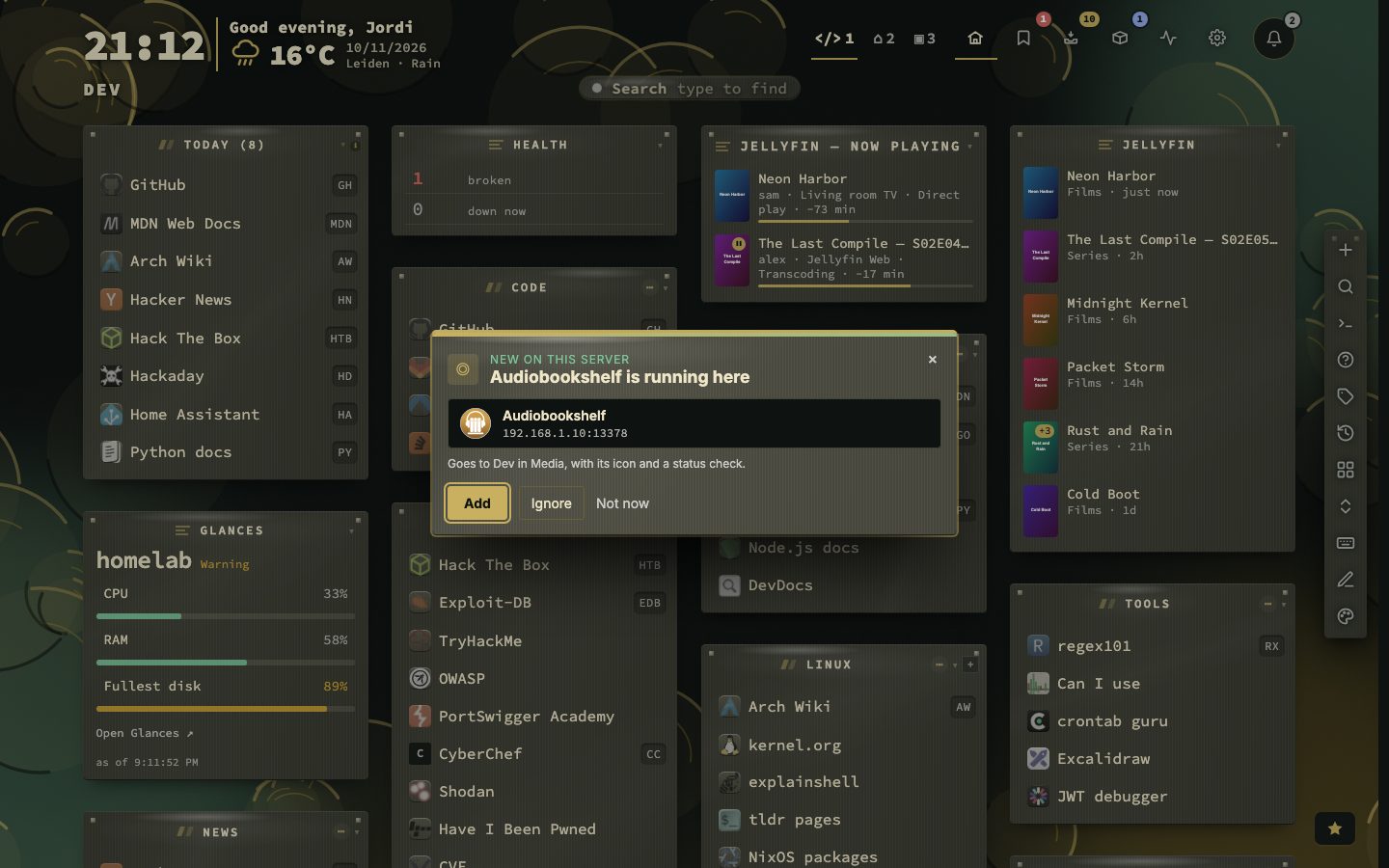
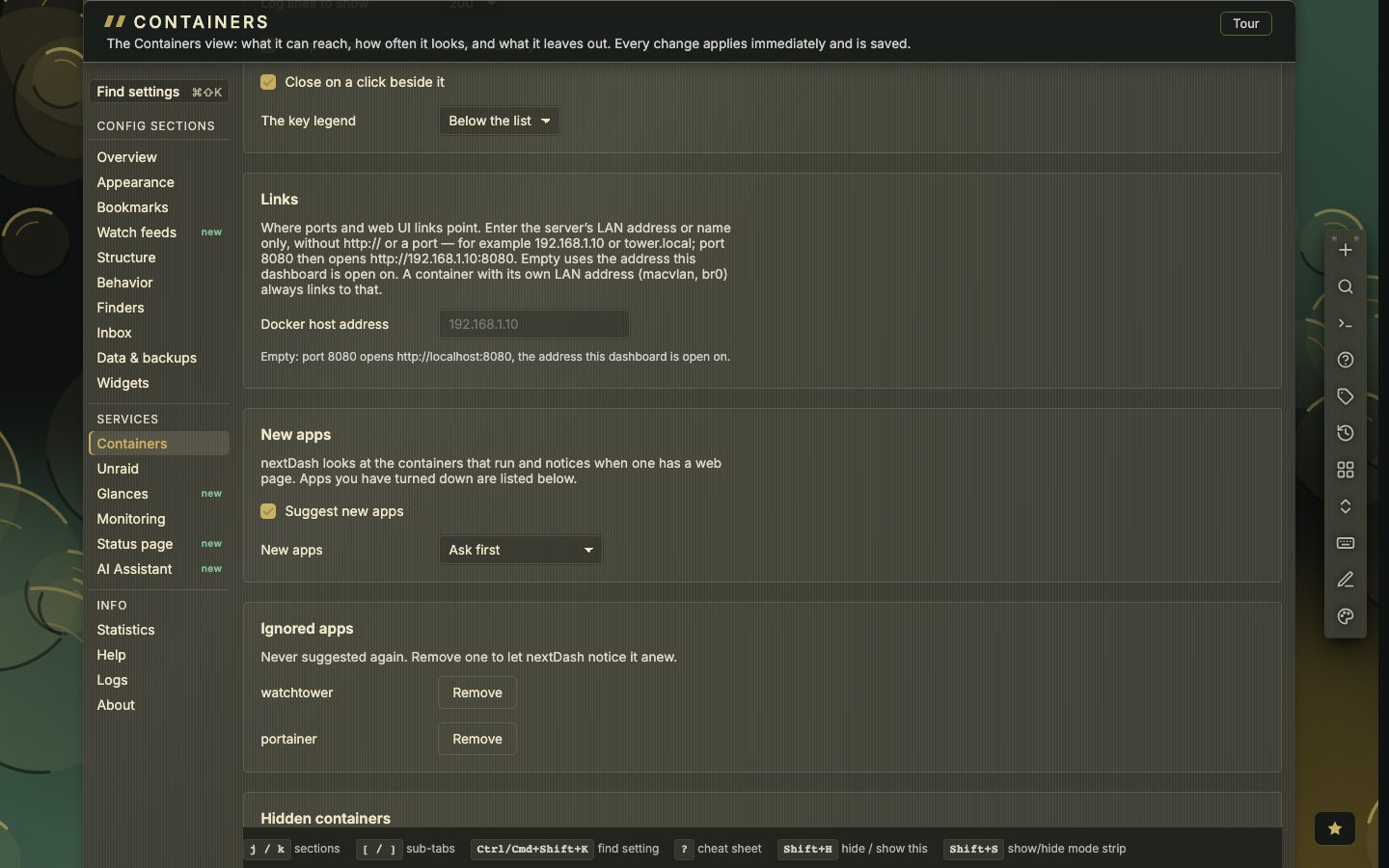
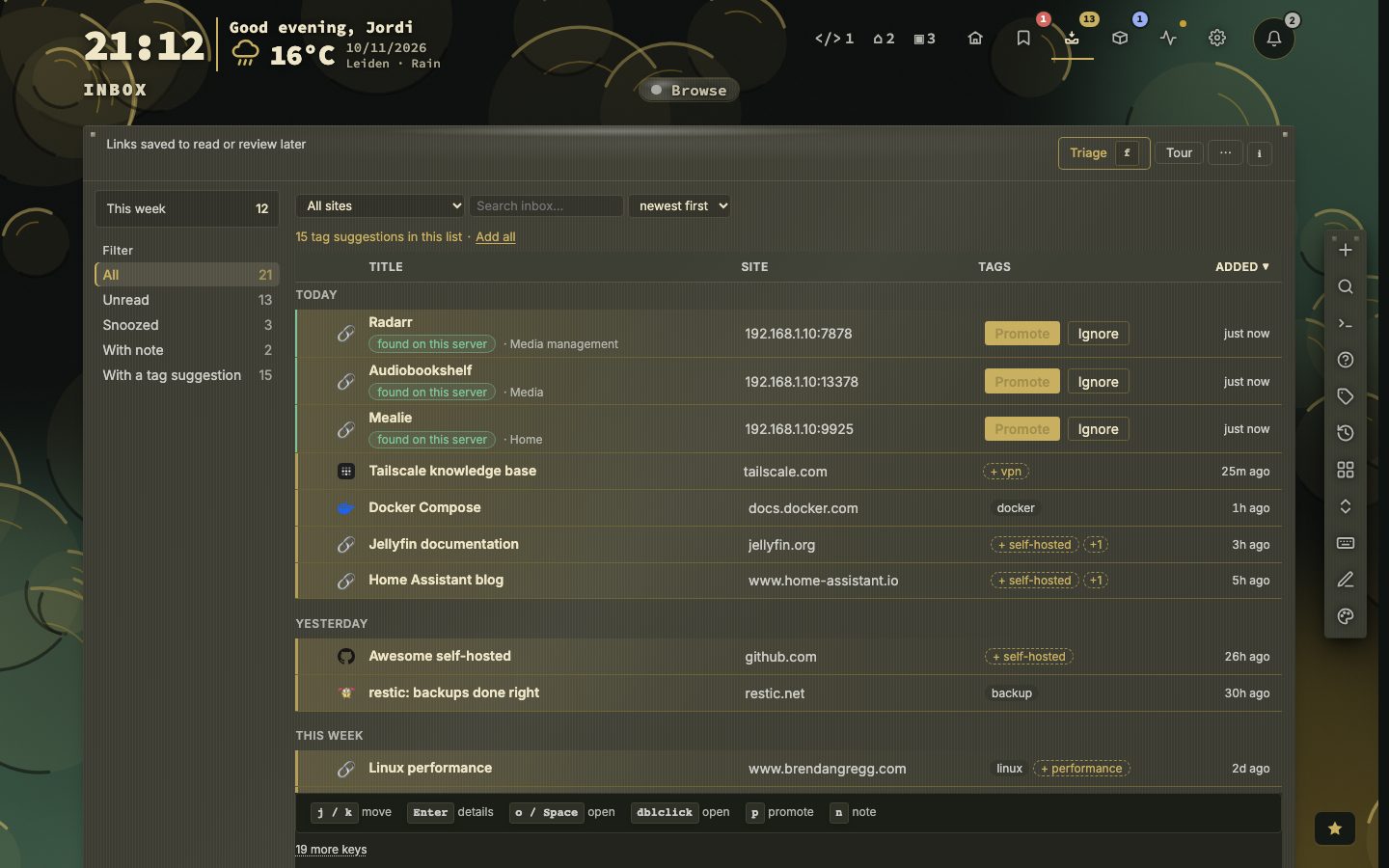
A new container is asked about first, with Add, Ignore and Not now. Config, then Containers, can also add new apps straight away, with an Undo, or propose them in the Inbox, where Promote fills in the bookmark form. The apps you turned down are listed there too, each with Remove, so nextDash notices it again.
Steer it with labels
Labels on a container decide the details. nextdash.url sets the address and wins over everything else, nextdash.name the name, nextdash.category the category and nextdash.icon the icon. nextdash.hide=true keeps a container out. Without a label, the address comes from a reverse-proxy label or a published port.
What counts as an app
A container counts when it answers with a web page or a sign-in page, checked from where the server itself reaches. Its address comes from, in this order, a nextdash.url label, a reverse-proxy label (Traefik’s Host(...) rule or a Caddy host), or a published port on the Docker host address. Nothing outside nextDash is asked: only the Docker socket and its own checks, never a proxy’s or another container’s API.
Databases, message brokers, socket proxies, updaters and nextDash itself are never proposed. Neither is a container that already has a bookmark, matched the same way the Containers view links one.
The first card, step by step
- 1Connect the Docker socket
- 2Let the Quick start guide, the tour and any corner card pass
- 3Read the apps-found card, grouped by kind
- 4Untick what you do not want
- 5Press Add
The kinds are Media, Media management, Downloads, Monitoring, Network, Home, Documents & photos, Development and Tools. After Add, a notice offers Show, Undo and Done. Not now adds nothing, and the apps stay in the Containers view. While the page still holds the starter links, Replace the starter links on this page clears them in the same go.
Three ways to handle a new container
Config, then Containers, then View, then New apps decides what happens to a container that turns up later.
- Ask first (the default) shows the same card for the new ones only, with Add, Ignore and Not now. Untick one and choose Add, and the unticked ones are ignored.
- Add straight away puts it on the dashboard at once, with a notice that offers Undo, Move and Done.
- Propose in the Inbox lets it wait in the Inbox, where Promote fills in the bookmark form and Ignore keeps it away.
A container that was already there when nextDash first looked is not new, so it is not asked about again. Suggest new apps turns all of this off. Ignored apps lists every app you turned down, and Remove lets nextDash notice it again.
The five labels
Put these on the container itself. nextdash.icon takes an icon-set name or an image address, and nextdash.hide=true keeps a container out for good. For example, a Grafana container that should land in Monitoring:
In a compose file that is a labels: list under the service, with one line per label, for example nextdash.url=https://grafana.lan and nextdash.category=Monitoring.