Notes and the weekly digest
Say why you kept a link, and get one message a week about what needs you.
- e Edit a bookmark and its note
- Ctrl/CmdEnter Save the edit form
- : Command palette: note, digest
Two small things that keep a dashboard honest. A note on a bookmark says why you kept it. The weekly digest says, once a week, what needs you: the links that broke, the certificates that run out, the bookmarks nobody opens.
Try it
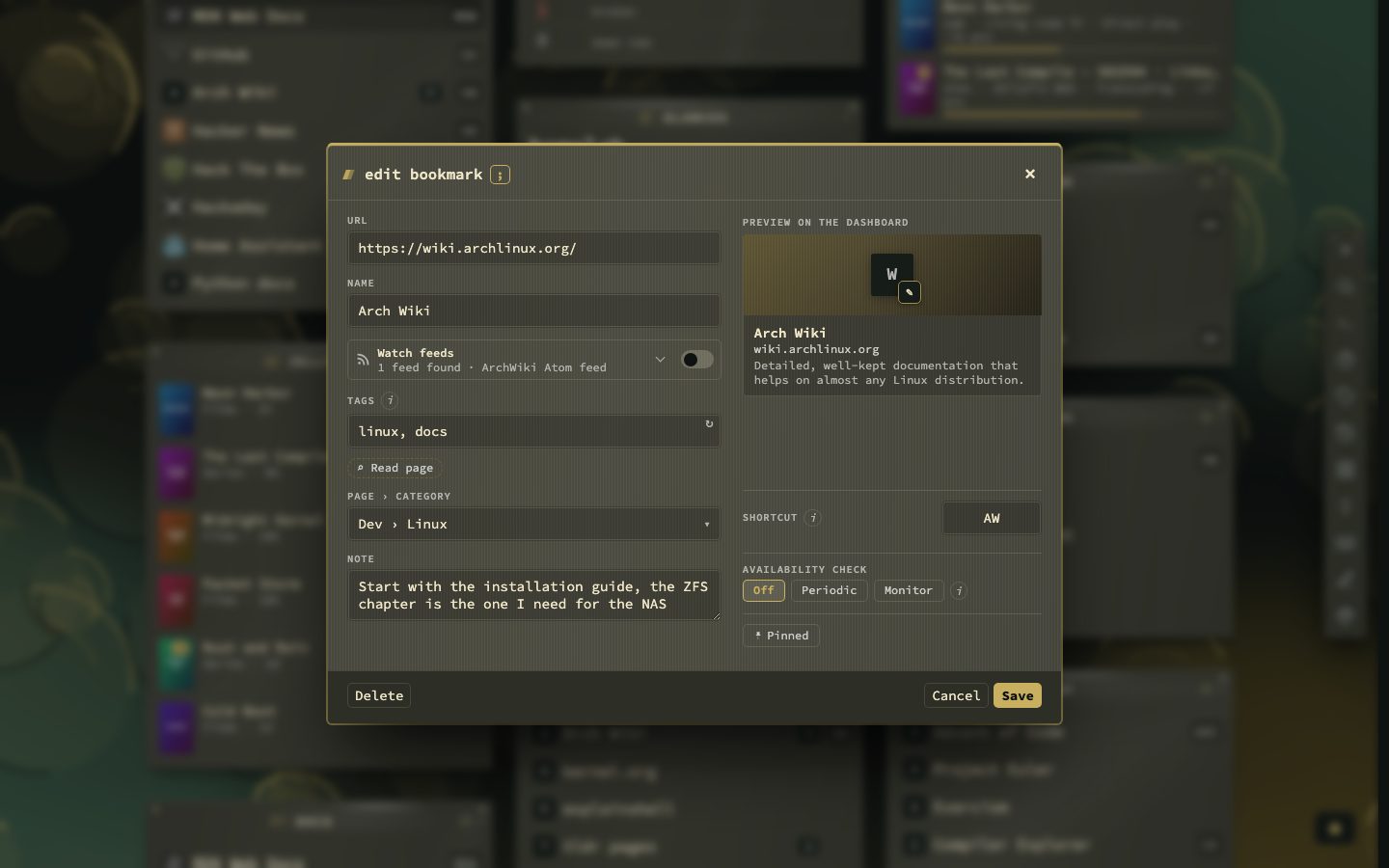
- Right-click a bookmark, pick Edit and write in the Note field. Save with Ctrl + Enter.
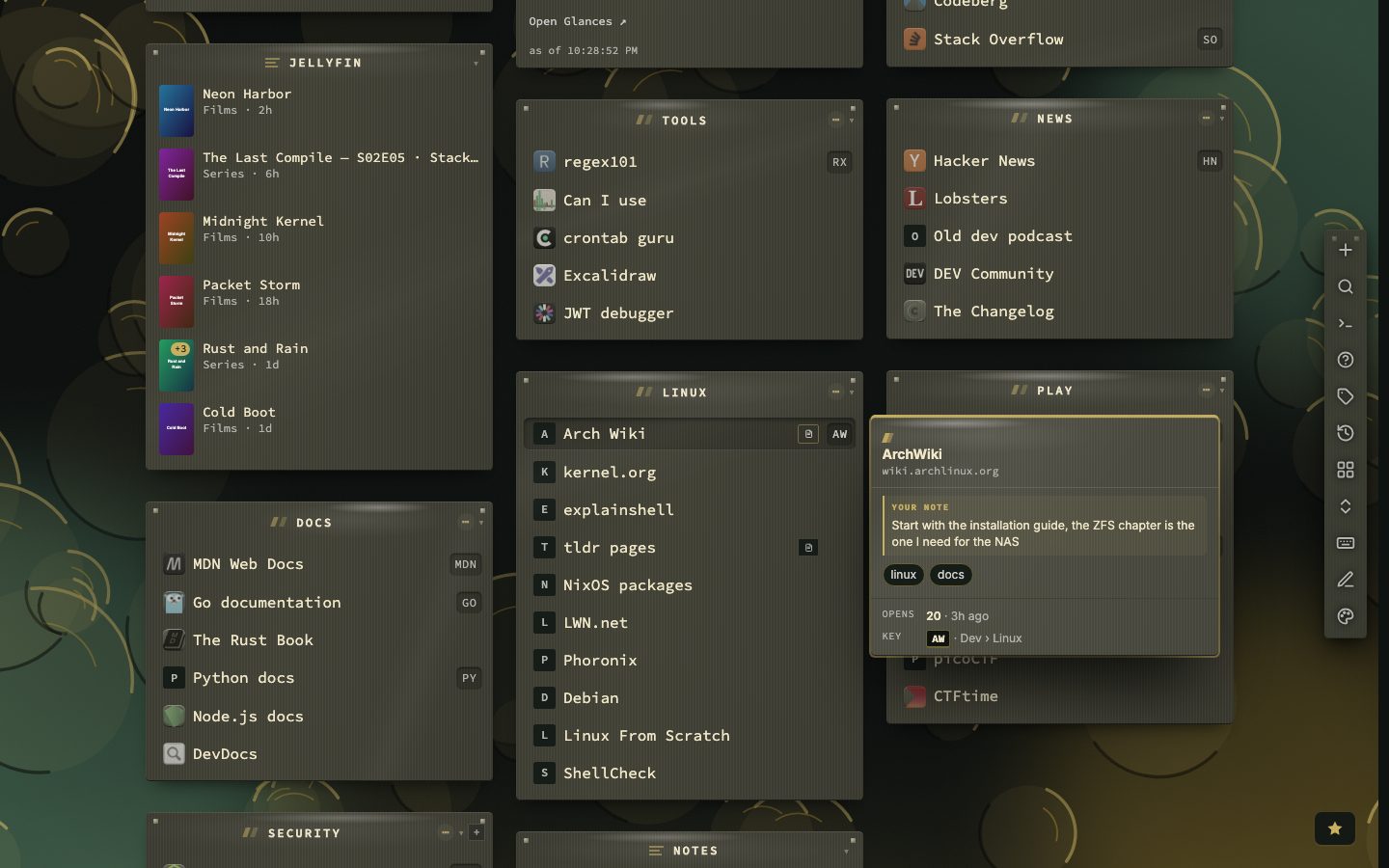
- Point at the bookmark. The preview card shows your note, and the row carries a small note icon.
- Type a word from the note in the search panel. Search looks through notes too.
- Open Config, then Monitoring, then Notifications, and press Send next to Send a proof digest now.
- Press : and type
digestto open the latest one.
Notes on a bookmark
A note is plain text you attach to one bookmark. Write it in the edit form, in the side panel, or with the :note command. Search matches notes, the preview card shows them under Your note, and the filters status:noted and status:unnoted separate the bookmarks that have one from those that do not.
A Notes widget for longer text
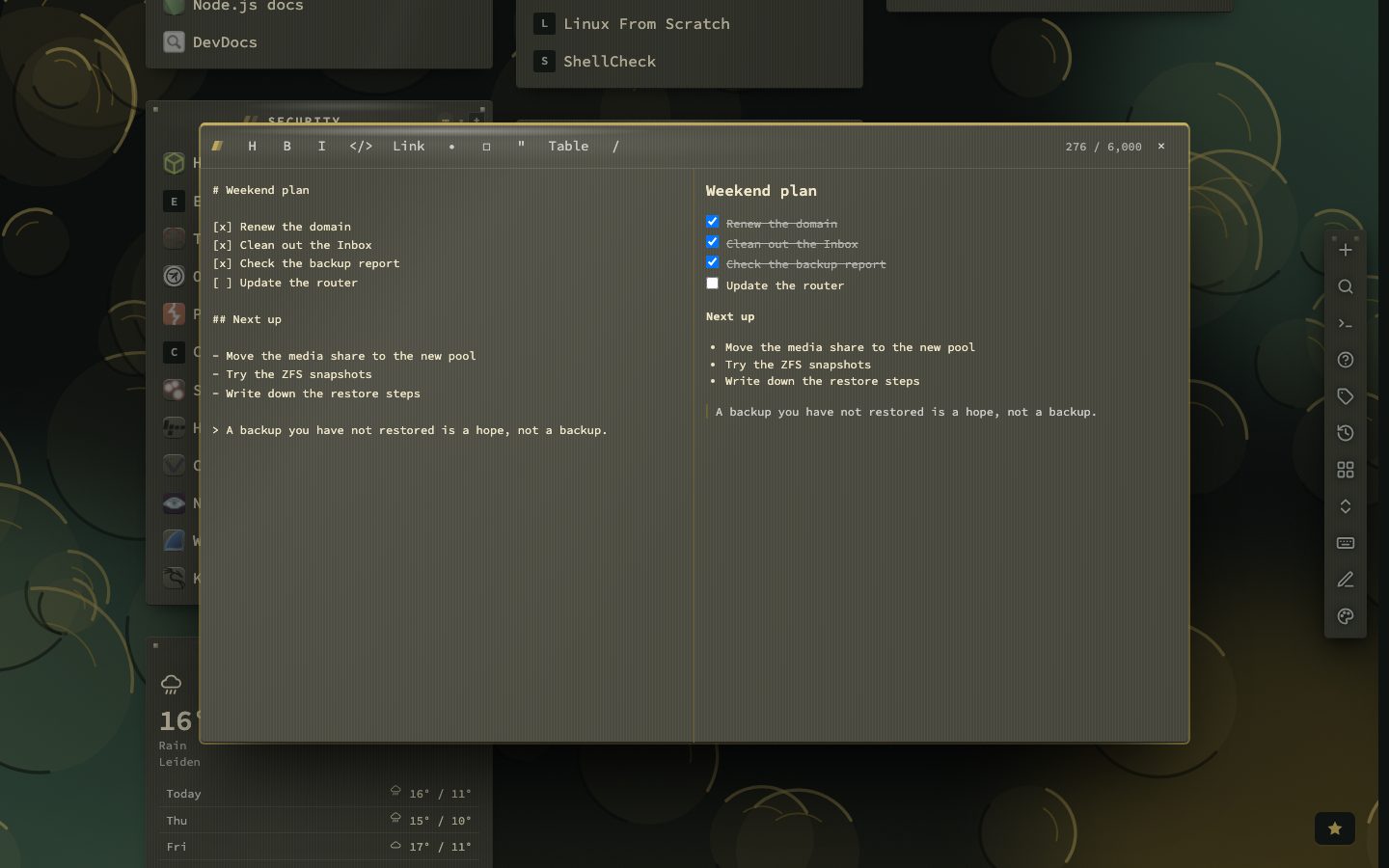
When a note outgrows a bookmark, put a Notes widget on a page. It holds one text of up to 6,000 characters, read as a small Markdown: headings, lists, quotes, tables, code, bold, italic and links. A line that starts with [ ] is a checkbox, and ticking it on the tile saves it. Edit opens a plain editor where typing / offers commands such as the date or a to-do, and Open large adds a toolbar and a live preview beside the text. Under Config, Behavior, General you can choose whether the formatting is worked out on the server (the default) or in the browser.
The weekly digest
Once a week nextDash sums up what needs you: links that broke, certificates and domains that run out soon, container updates, what is worth tidying up, bookmarks nobody opens, the Inbox, and what you opened most. It goes out on Monday at 08:00 unless you pick another day and hour, and nothing is sent in a week with nothing to say. A digest that falls in quiet hours waits until they end. A new install gets its first digest after at least a week.
It reaches you in two ways: as a push or through the alert service you set up for downtime alerts, and as a card, Your week in nextDash, that waits in the notifications bell and names the one or two things that matter most. The card has Read the digest, Snooze 1 day and Got it.
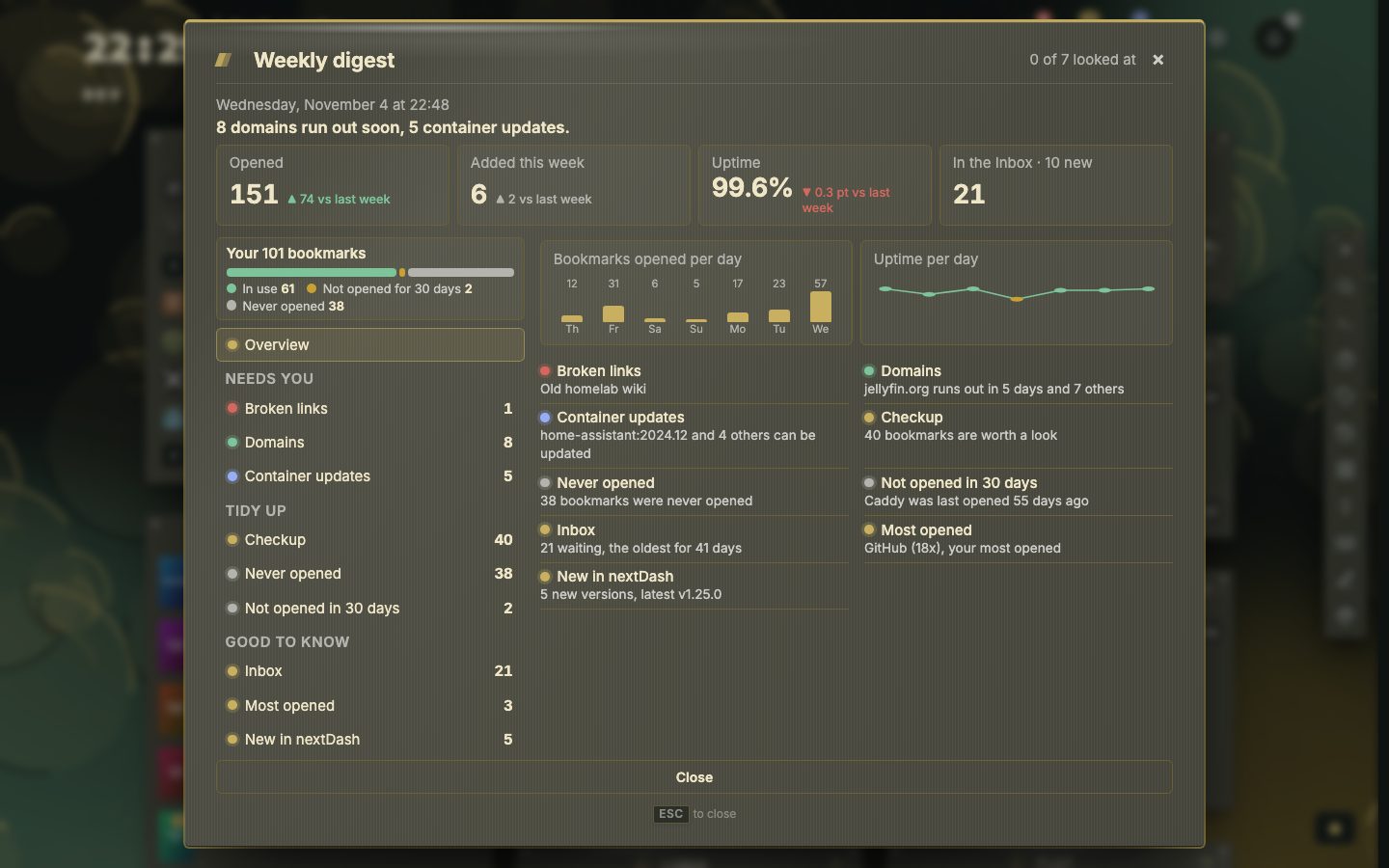
Read the digest opens a window. Along the top are the week in figures: bookmarks opened, bookmarks added, uptime and the links in the Inbox, each next to the week before. Below, the parts are listed in three groups: Needs you (broken links, certificates, domains, container updates), Tidy up (the checkup, never opened, not opened in 30 days) and Good to know (the Inbox, most opened). A part shows the names behind its count, and a button to the view where you deal with it.
Choose what goes in
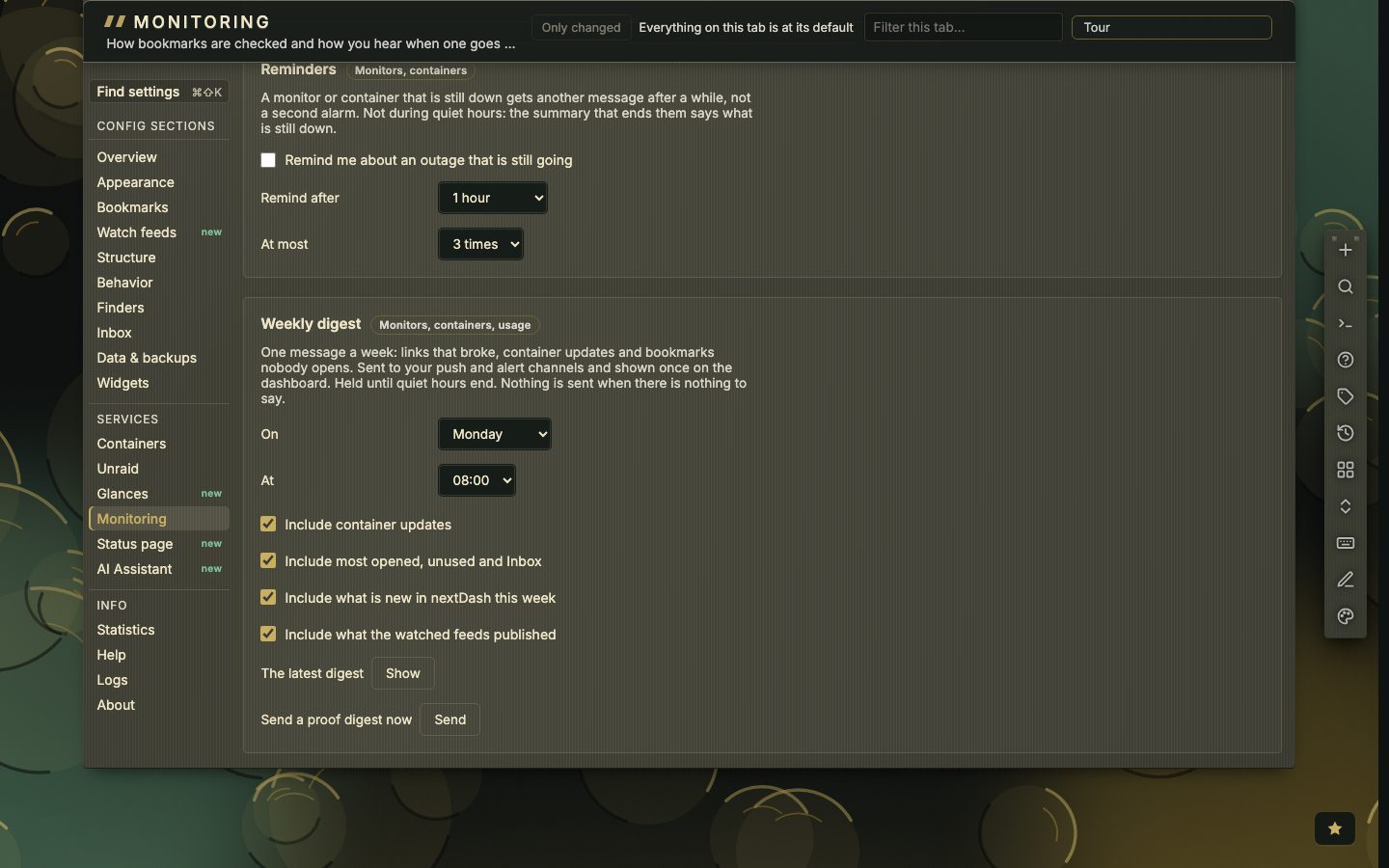
The settings are under Config, Monitoring, Notifications, in the Weekly digest panel. Pick the day and the hour, then switch on or off container updates, most opened, unused and Inbox, what is new in nextDash this week, and what the watched feeds published. Broken links and certificates always stay in. The latest digest opens the last one again, and Send a proof digest now builds one from today’s data and sends it, without moving the week’s own digest.
For how alerts and quiet hours work, see Alerts. The manual covers notes in chapter 10 and the digest in chapter 12.
The card in the bell
The card Your week in nextDash waits in the notifications bell, once per digest, and no longer pops up in the corner. The card has three buttons. Read the digest opens the window. Snooze 1 day hides the card until tomorrow. Got it marks it seen. Unless you opened the window, the card comes back once the next day and once the day after, and then stays away until the next digest. Progress, snooze and reminders are kept per browser. On the day a digest comes out it goes first, and the daily review card waits, because both offer the same broken and unopened links.
Reading the digest, part by part
The window opens on an Overview: one line per part, and a sentence on top that names what matters most. It has two charts, Bookmarks opened per day as seven bars and Uptime per day as a line. Each figure along the top sits next to the week before, with an arrow up or down, green when it went the better way. A figure with nothing behind it is left out, so a new install shows a short row.
Pick a part to see it in full. A broken link shows its page, since when it is down and what the last check said. Certificates and domains show as bars of days left. The most opened show how often, and the Inbox shows how long its oldest link has waited. Each part has a button to the view where you deal with it, such as Open in Bookmarks, Work through, Open Containers, Start the checkup or Open Inbox.
- 1Press Read the digest on the card
- 2Read the Overview and pick a part
- 3Press the button of that part
- 4Follow the small bar in the corner to the next part
- 5Close the digest when every part is done
After a part’s button the digest shrinks to a bar in the bottom-left corner that says, for example, Weekly digest, 1 of 4 done, with Next for the one after. It closes itself once every part is opened. Its cross asks first, because the digest may still hold something important: Keep it or Close until Monday.
The checkup
Start the checkup in the digest opens one guided round through what is worth tidying up. The steps are dead links, duplicates, bookmarks never opened or gone stale, categories and pages with nothing in them, and widgets that show an error or no data right now. A step with nothing to do is skipped. Each step uses the actions you already know, delete, merge, move and edit, with their confirmation and undo, and nothing is removed before you have seen it. You can also type :checkup.