Phone layout
Newsince v1.29 · 13 Nov
A tab bar, a Status screen with a pause for notifications, and a short menu on a long press.
- ? Cheat sheet; on a phone it opens What works on a phone
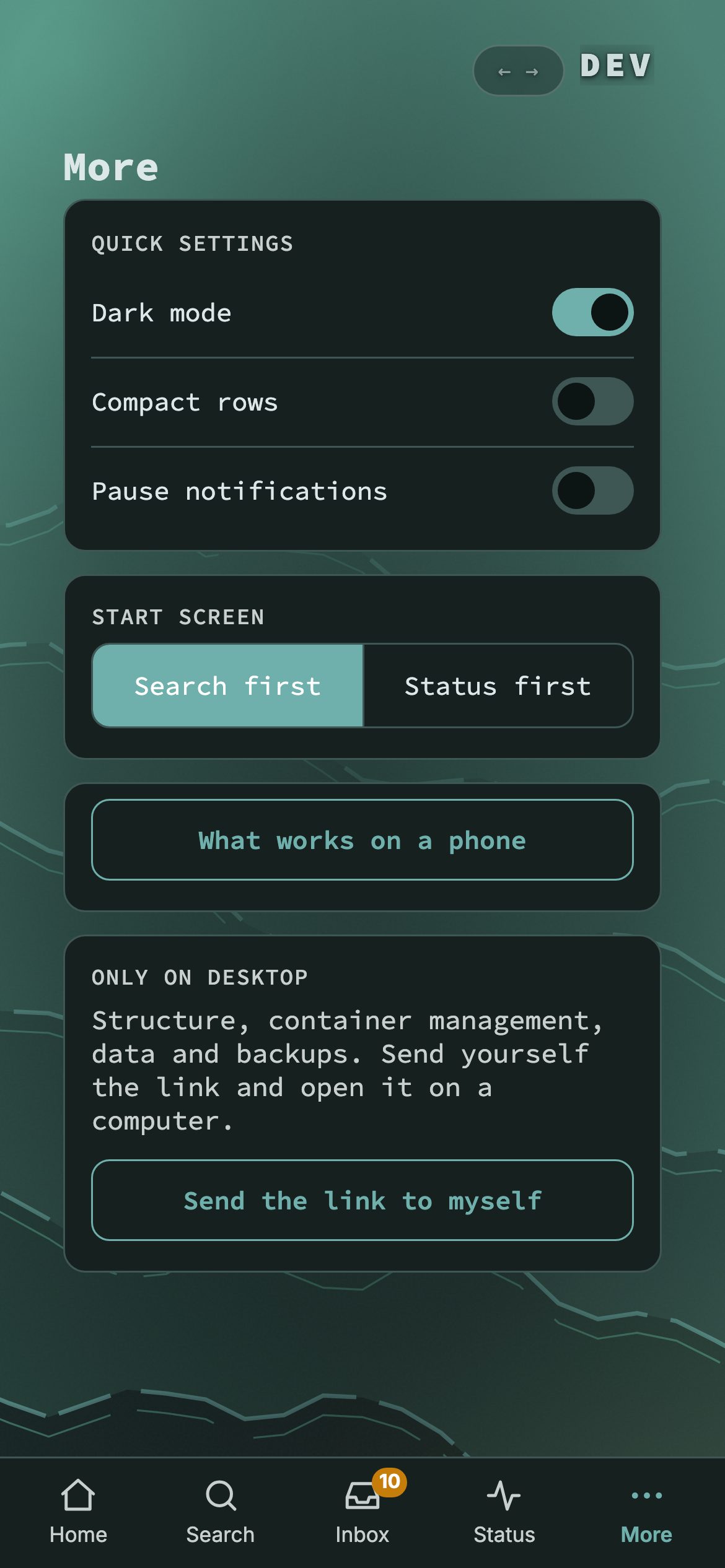
A phone gets a way around of its own: a tab bar with Home, Search, Inbox, Status and More, a Status screen that can pause notifications, and a short menu when you press and hold a bookmark. A tablet keeps the desktop layout; this is the layout for a phone.
Try it
- Open your nextDash address on the phone. The bar at the bottom has five tabs; Inbox and Status carry a counter.
- Tap More and pick the start screen: Search first or Status first.
- Open Status and tap Pause for 1 hour to hold notifications. Press and hold any bookmark for the short menu.
- On a computer, press ? for the cheat sheet. On a phone the same call opens What works on a phone.
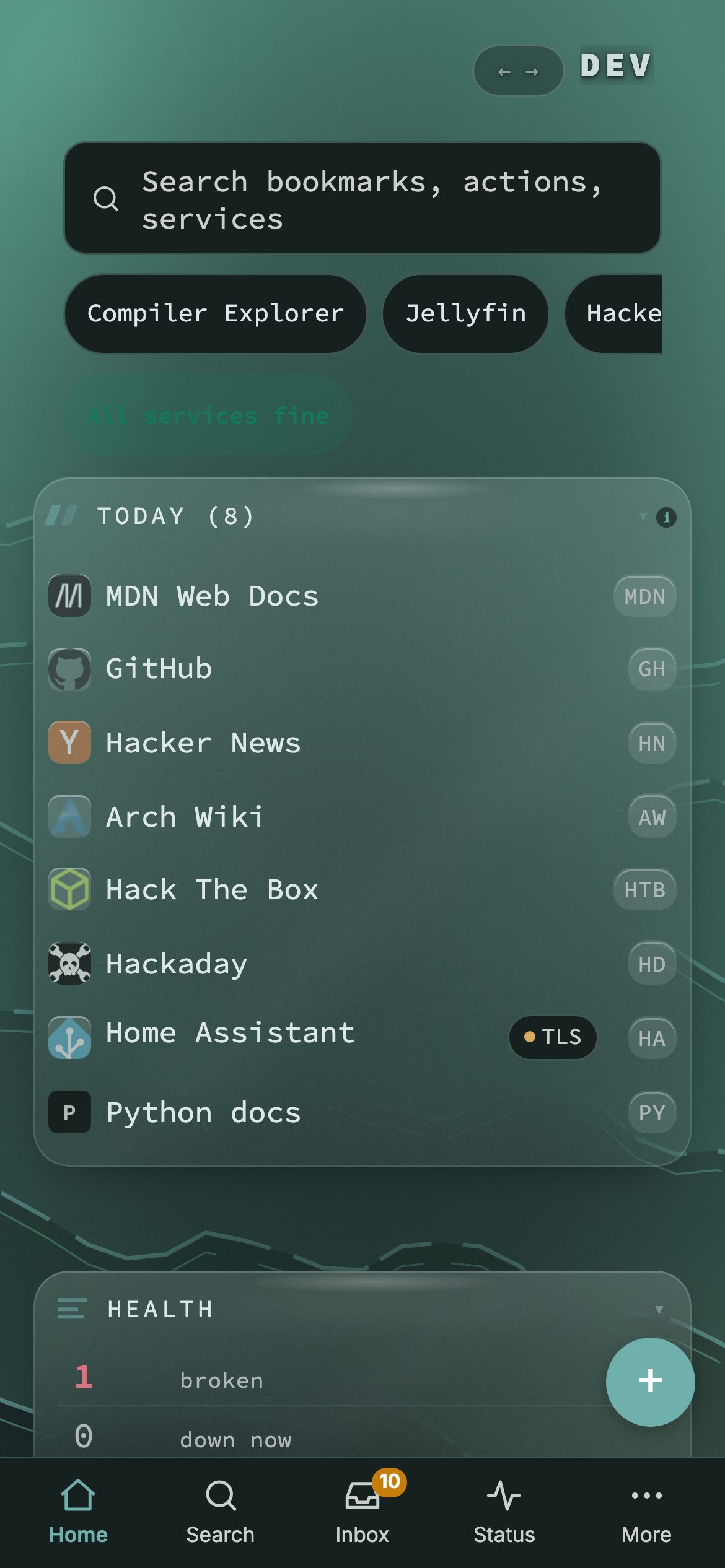
Two start screens
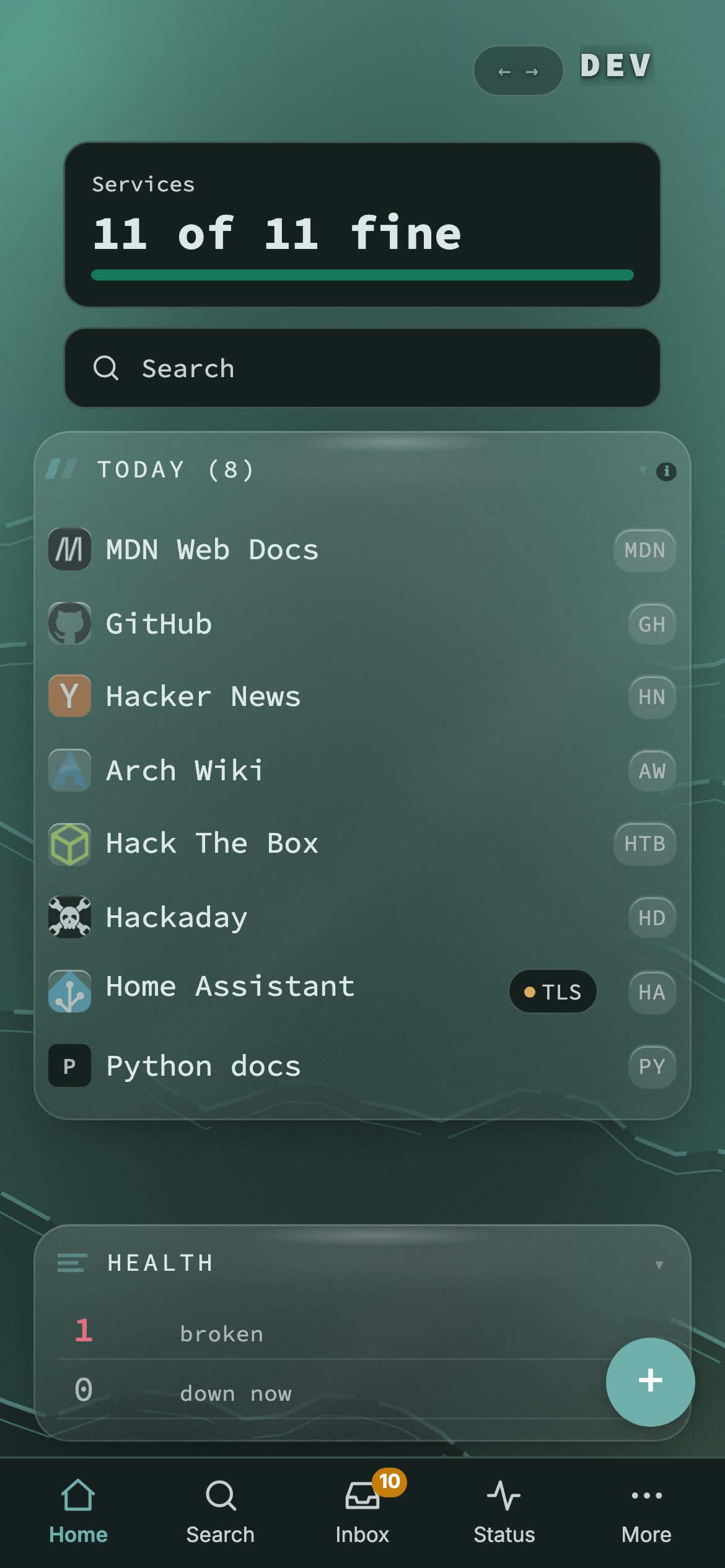
Home opens in one of two ways. Search first, the default, puts a large search field on top with one line about your services. Status first puts a card on top, 11 of 11 fine with a meter, and search below it. The choice is per device, so your phone and your computer need not agree.
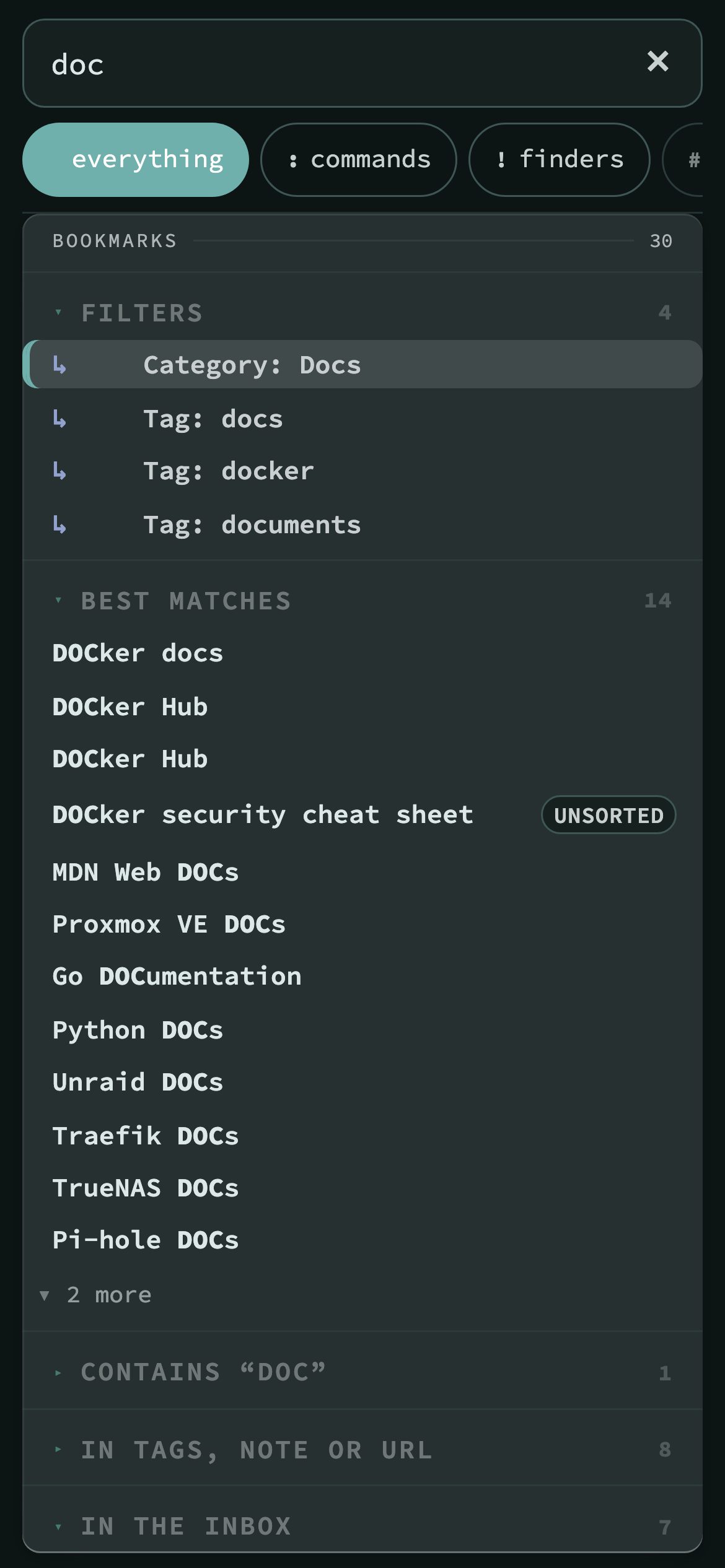
Search that fits a thumb
The Search tab opens a full-screen sheet with a real field that takes the keyboard and its Search key. The modes are a row of chips: everything, commands, finders and tags. Typing searches bookmark names, and there is a close button because a phone has no Escape.
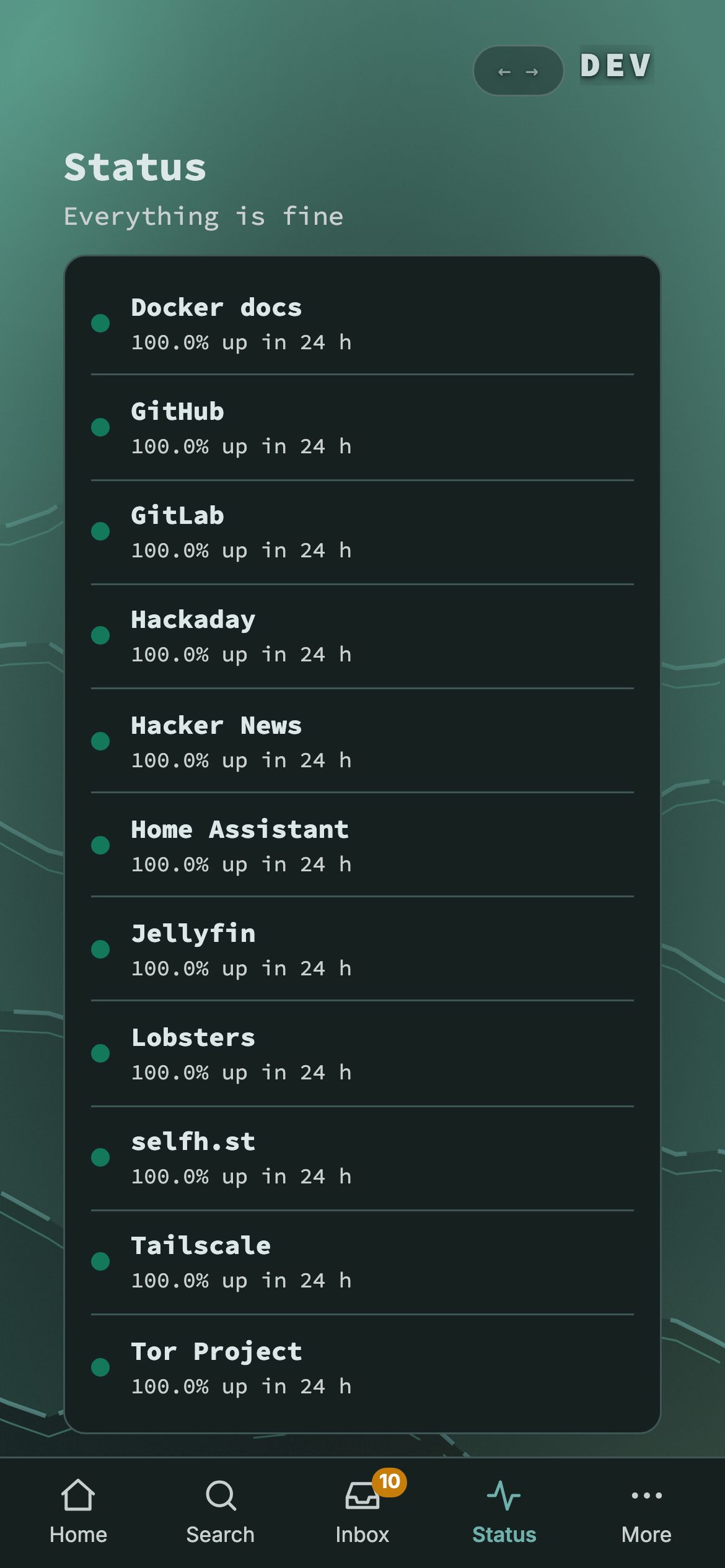
Status, and a pause for notifications
The Status tab lists every monitored bookmark with a colour: green when it is up, amber when its certificate runs out within 14 days, red when it is down. Under the list, Pause for 1 hour and Until tomorrow stop notifications at once; the alerts are held and summed up afterwards. While a pause runs, Status says when it ends and offers Resume notifications.
More
More holds the quick settings (dark mode, compact rows, pause notifications), the start screen choice and What works on a phone, one screen that lists what works here and what needs a desktop. Send the link to myself opens nextDash on a computer for the rest: structure, container management, data and backups.
The short menu and the Inbox
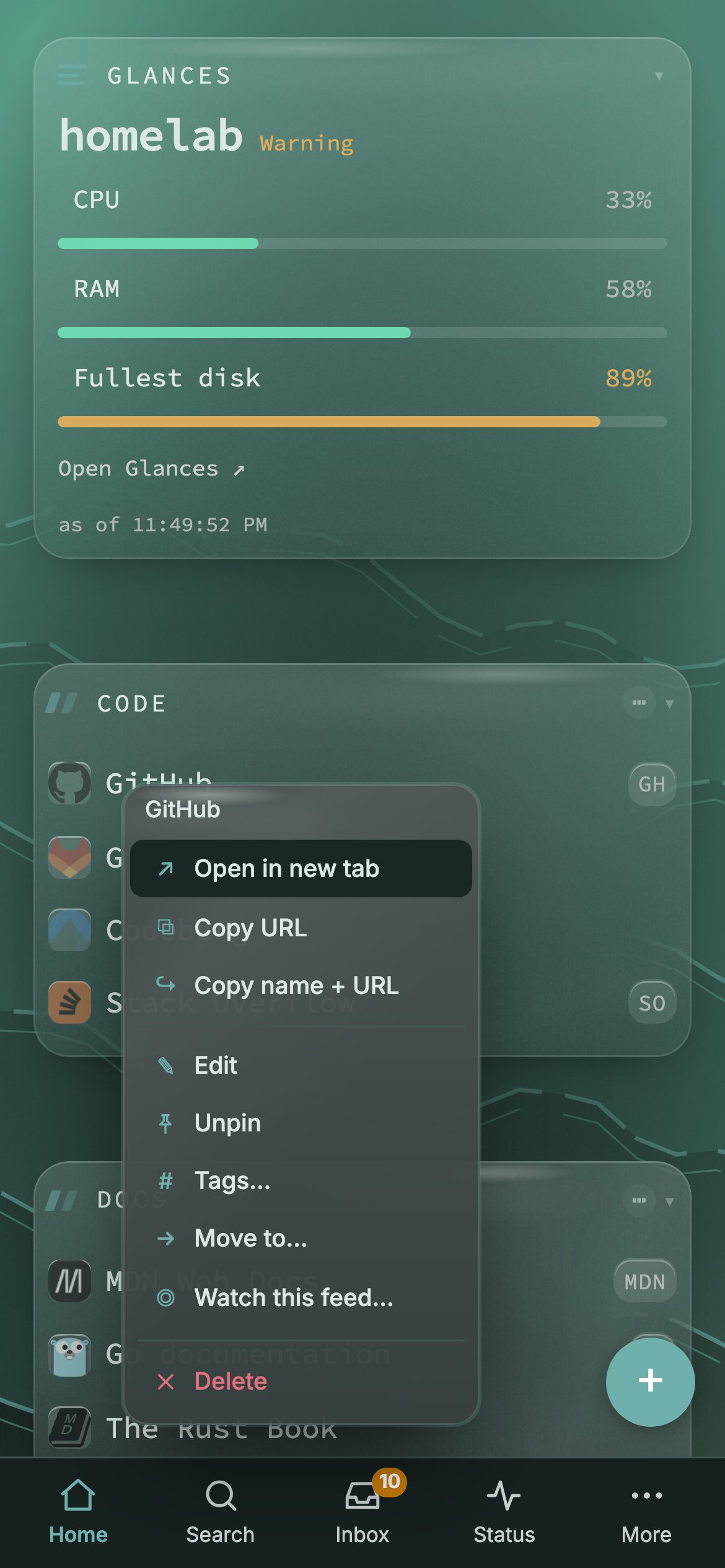
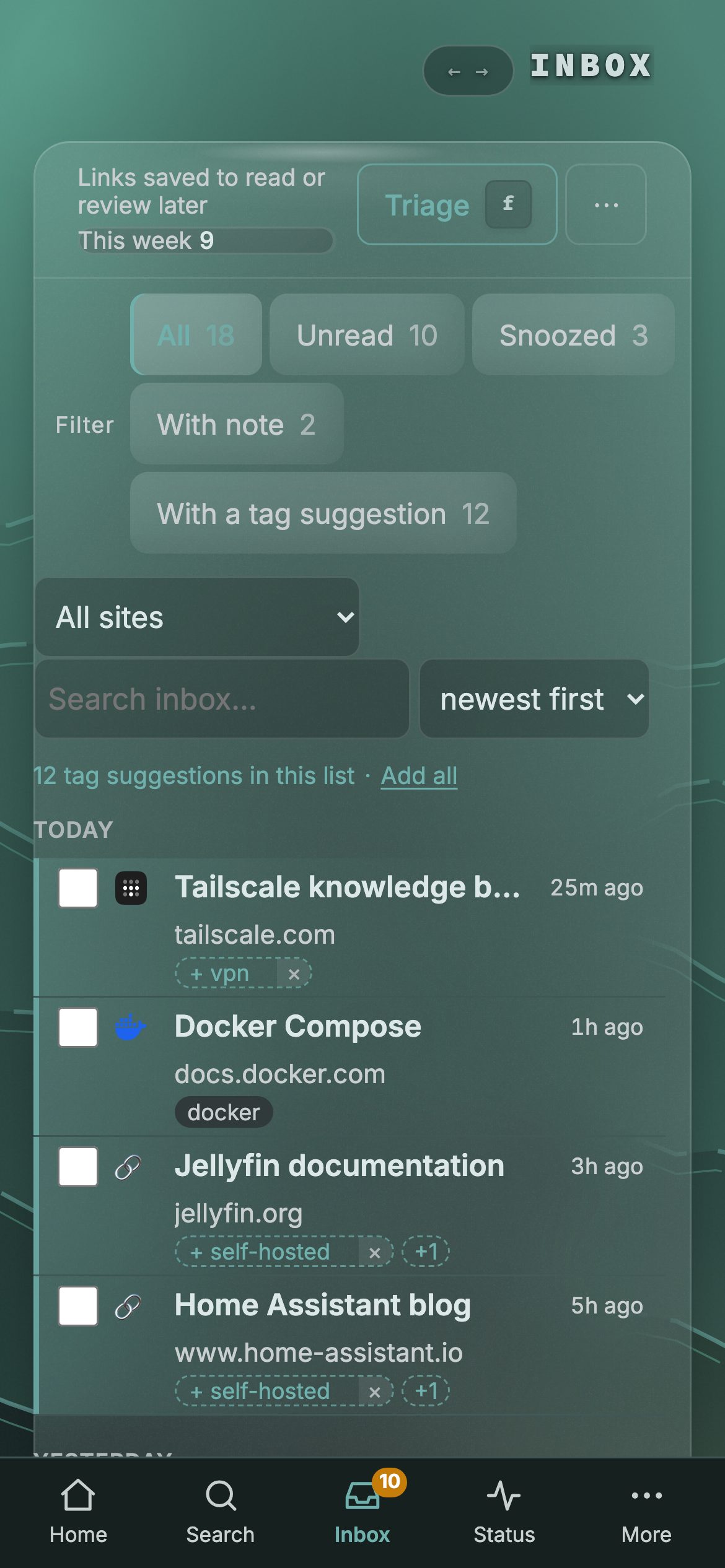
Press and hold a bookmark on the grid, in the Inbox or on Status for a short menu: open in a new tab, copy, edit, pin, tags, move, watch the feed and delete. The Inbox gets 44 px targets for a thumb, and its fields use 16 px text so iOS does not zoom on focus.
Show a block on desktop only, or on the phone only
A category, widget or collection has a Show on choice: Everywhere, Desktop only or Phone only. Set it in the edit panel, in the block’s menu, or under Config → Structure. In edit mode a block hidden on the screen you are on stays on the grid, dimmed and labelled, so nothing gets lost.
The manual covers all of this in chapter 23, Phones, tablets and the installed app.