Phones and the installed app
One column, swipes and long-press editing; install it and share links to it.
nextDash adapts to a touch screen rather than to the width of the window alone: a phone gets one column, a page filter that stays at the top, swipes between pages and long-press editing. Add it to the home screen and it is an app of its own, one that also shows up in the share sheet.
Try it
- Open your nextDash address on the phone. Swipe sideways to change page; the arrows next to the page name hint at it.
- Long-press a bookmark to edit it in place. To move one, drag the grip over its icon: the rest of the row scrolls the page.
- Tap search for the search panel. Its tabs switch between your bookmarks, commands, finders and tags.
- Use Add to Home Screen in the browser menu. Behavior, General shows the steps for your platform.
What changes on a phone
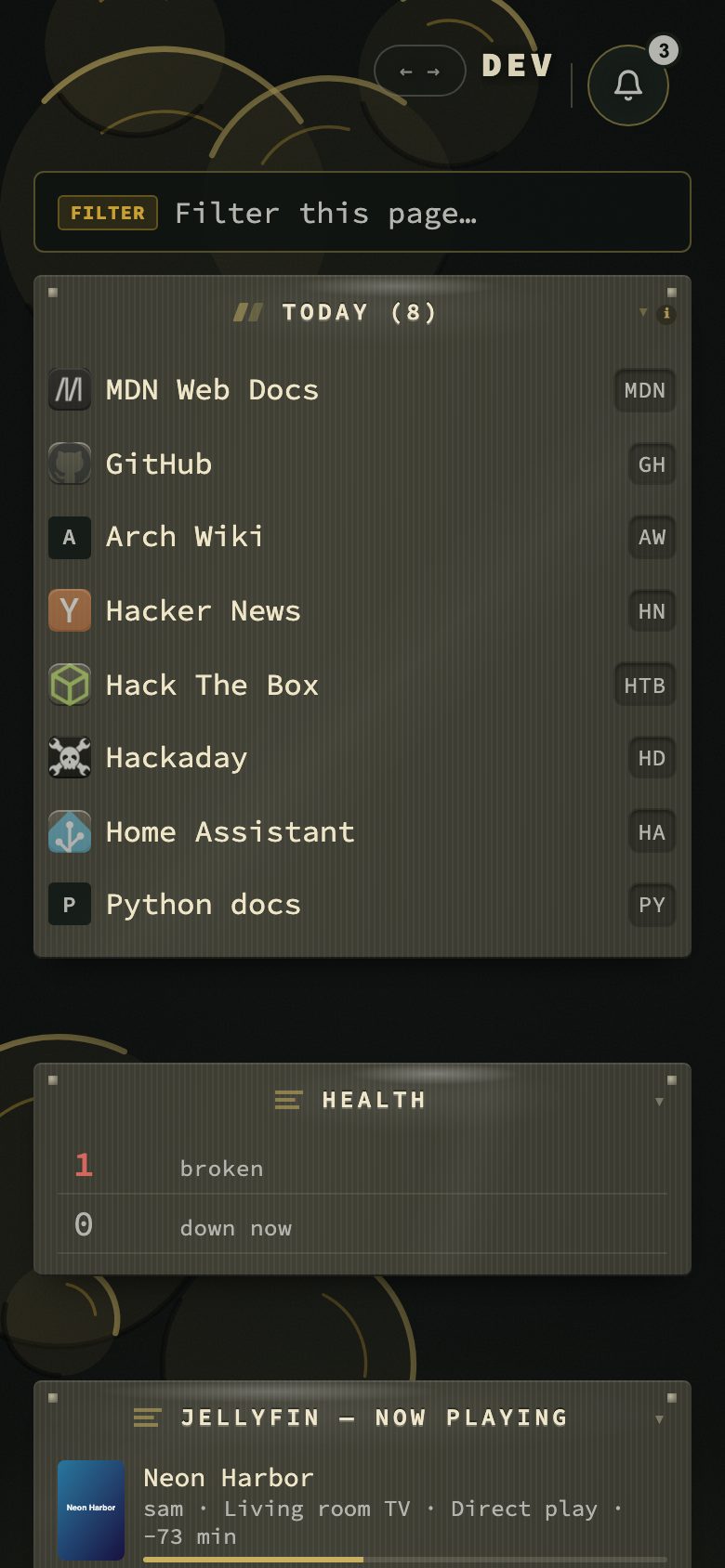
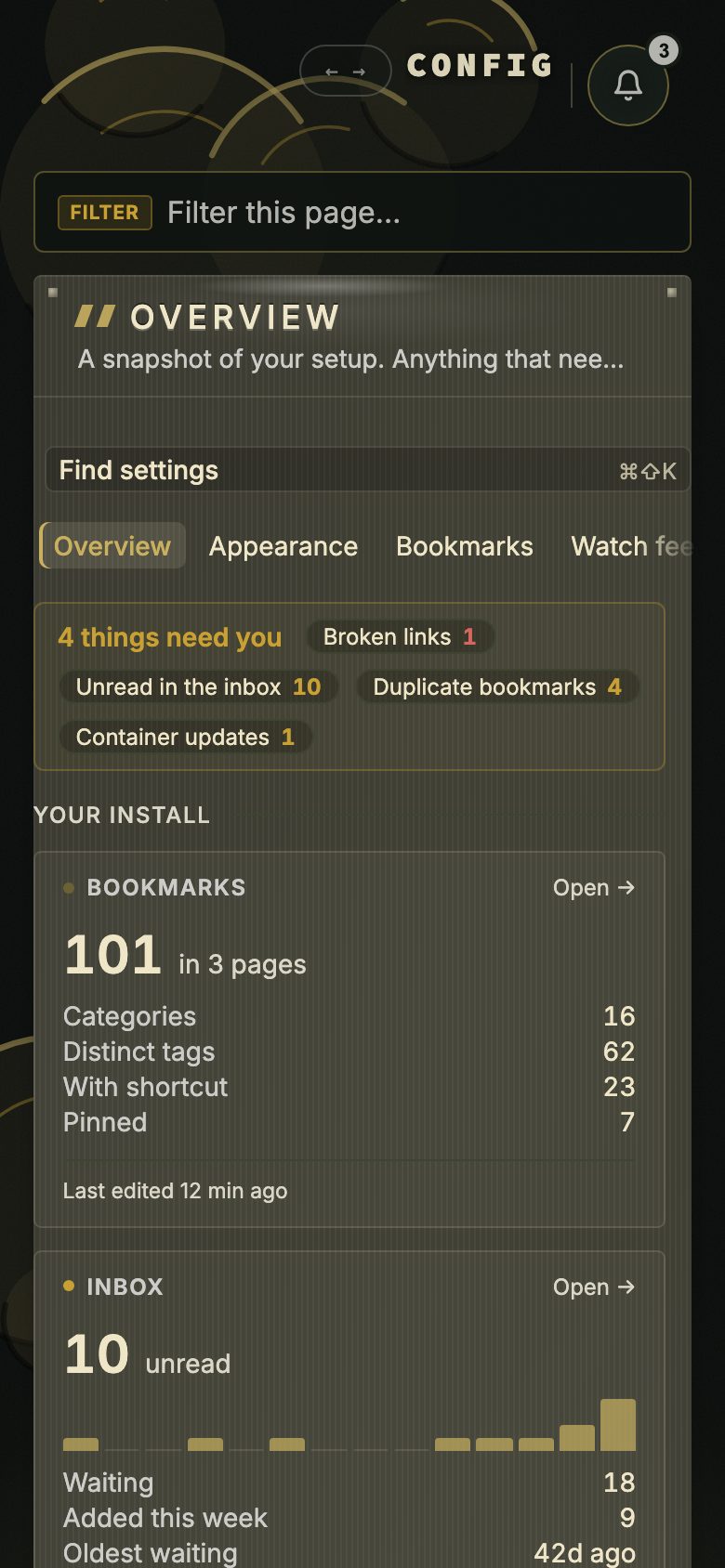
The header shrinks to the page name. The clock, the page tabs and the destinations drop away, and the action buttons are reduced to search. Preview cards are off, every category is one column, and the tag filter is tag: in search instead of the tag cloud. Config keeps all its sections; the section list scrolls sideways. The theme editor is read-only.
Search, with its tabs
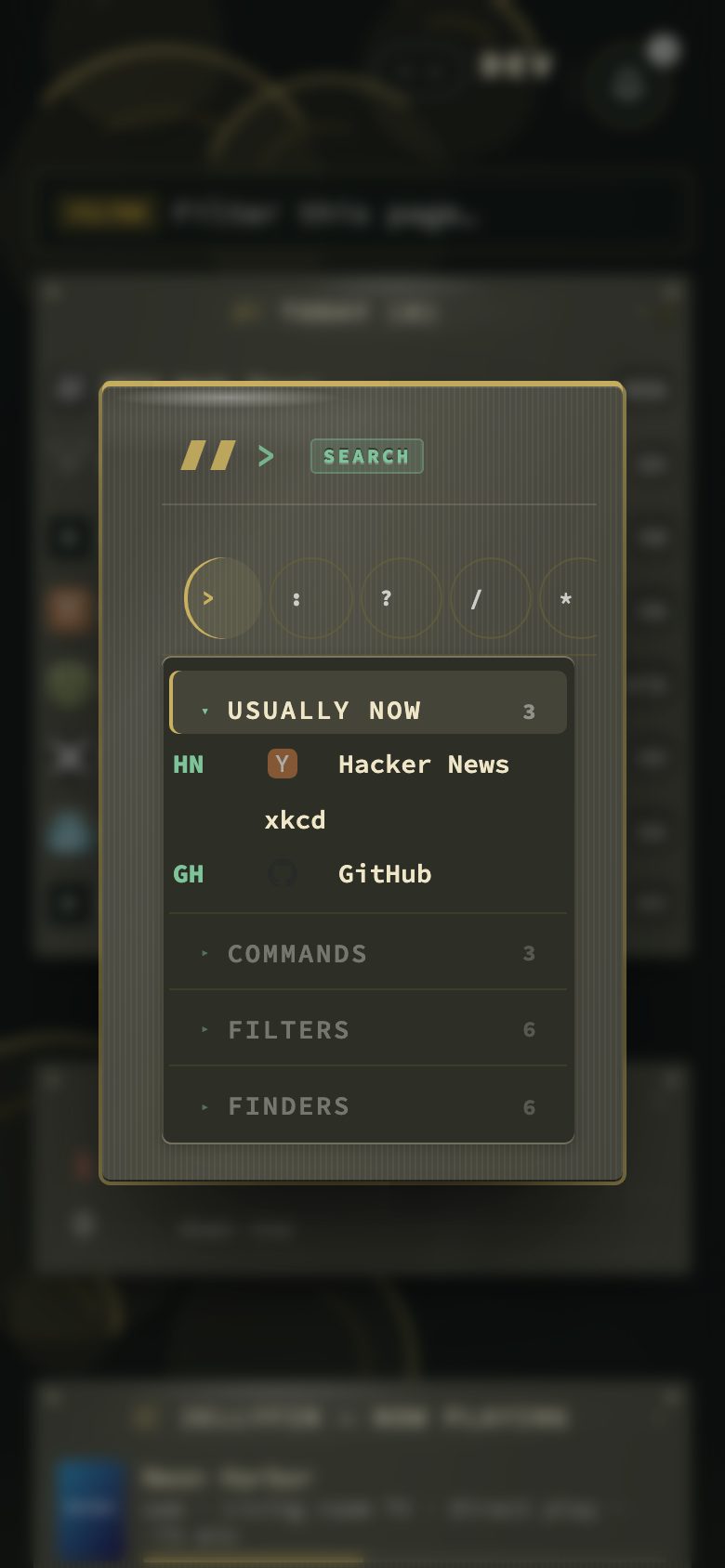
With no keyboard shortcuts, the search panel carries what the keys do on a desktop. Its row of tabs holds the commands, the finders for other sites and the tag search, next to your own bookmarks.
The Bookmarks view
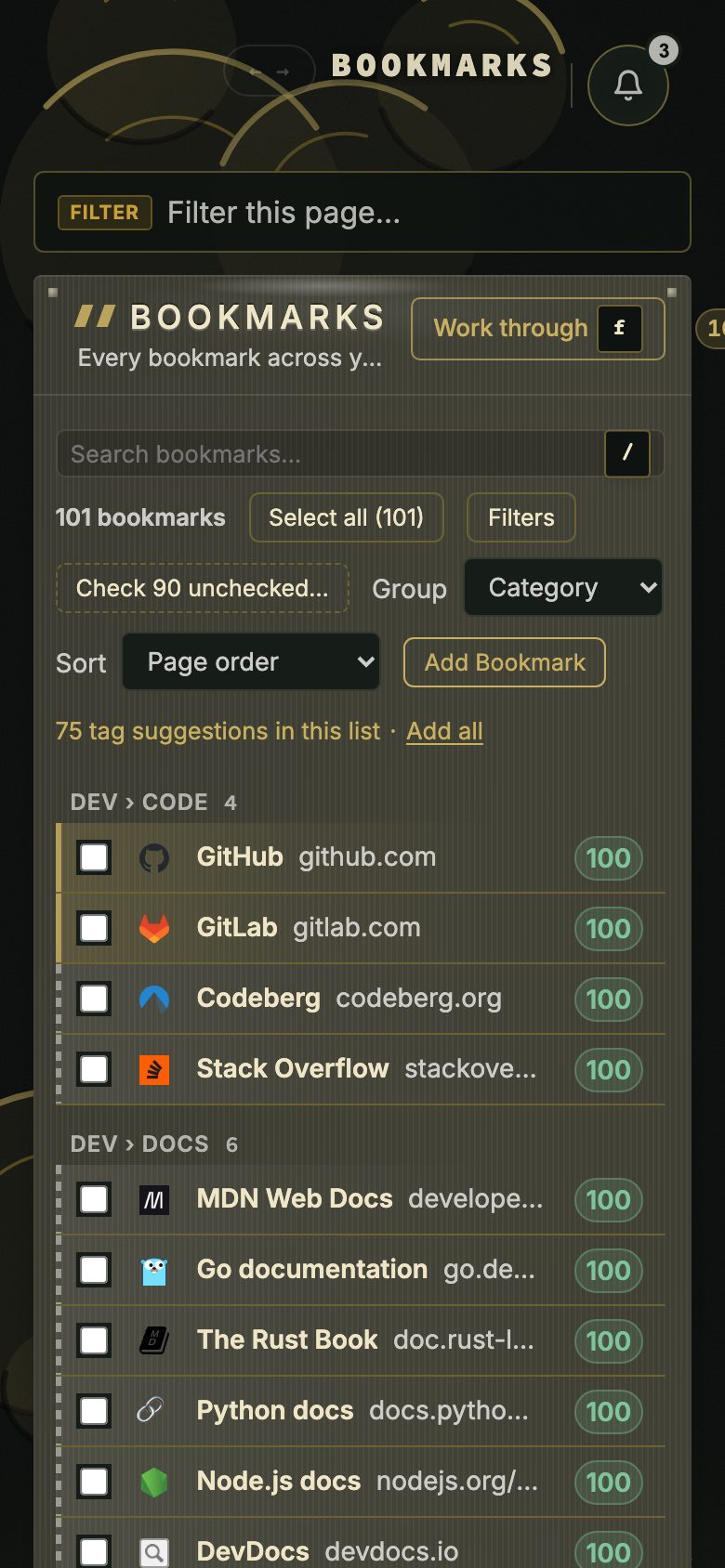
The Bookmarks view keeps its filter rail behind a Filters button, and the side panel of a bookmark opens as a sheet. Group and sort stay at hand, and each row carries its score.
News without a hover
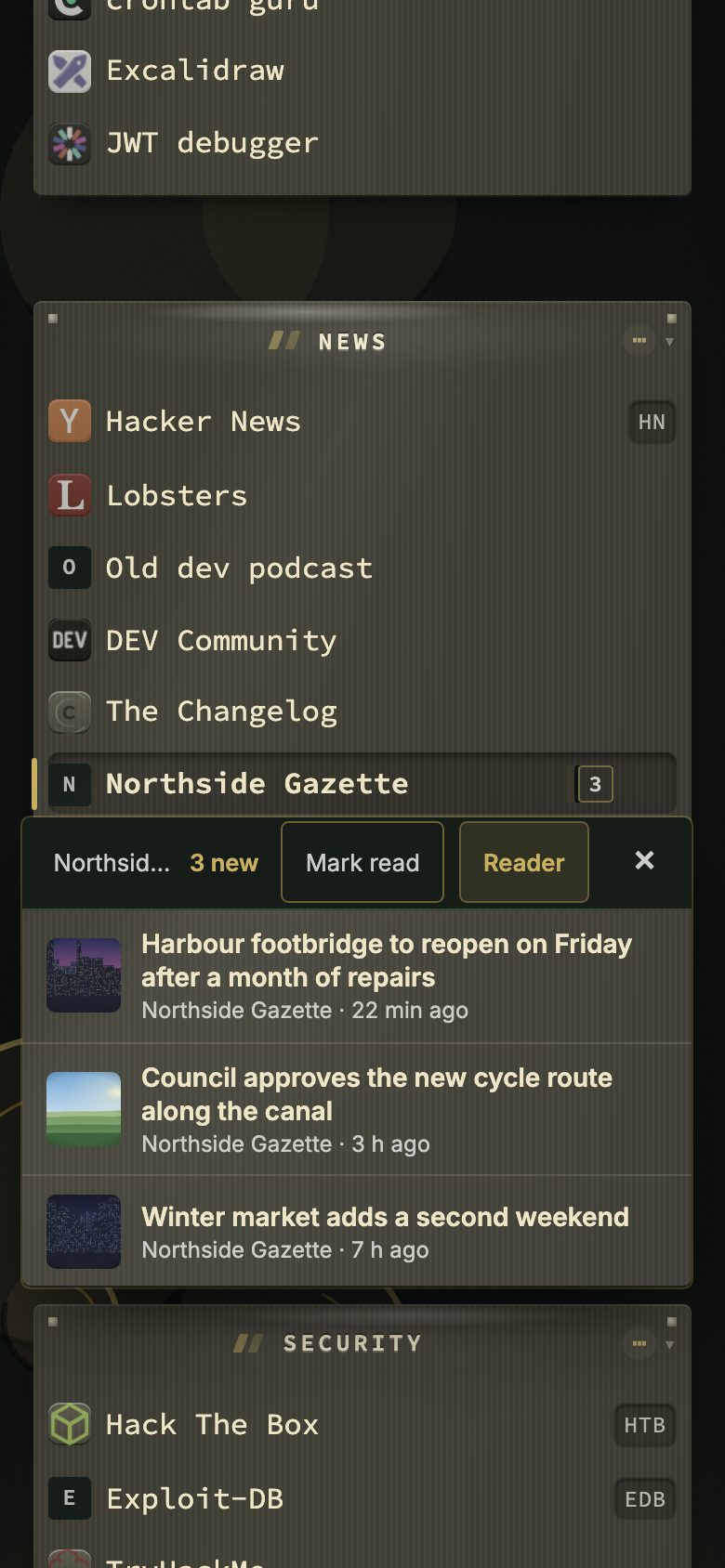
A phone has no hover, so a watched site shows its count and one tap on the badge opens a popover under it with the newest headlines (six, and more on request). A tap on a headline opens that article and clears the badge.
As an installed app
The installed app uses the title and icon you set under Branding. Long-press its icon for shortcuts to the Inbox (while the inbox is on), Health and Config. On Android the app appears in the share sheet: share a link to nextDash and it lands in the Inbox. On iPhone, Safari does not support the share target, so use the Apple Shortcut in the integrations folder. Hypr mode opens a bookmark in a browser tab and then closes the app window.
The manual covers all of this in chapter 23, Phones, tablets and the installed app.
Gestures on a touch screen
nextDash adapts to a touch device without a hover pointer, not to the width of the window alone. That is why a phone held upright always shows one column, whatever the setting for columns says.
- Long-press a bookmark to edit it in place.
- Drag the grip over a bookmark’s icon to move it. The rest of the row scrolls the page, so a swipe that starts on a row never grabs it.
- Long-press a category header to rename it.
- Swipe sideways to change page.
- Tap search for the search panel with its mode tabs.
Filtering a page
A page filter bar stays above the bookmarks, full width. It does not take focus until you tap it. The cross and Esc empty it. On a computer the same job is Shift + F. For tags, type tag: in search, or :tag, instead of using the tag cloud.
What else is different
Preview cards are off and every category is one column. The Quick start bar is skipped. Config keeps all its sections, and the list of sections scrolls sideways. The Bookmarks view shows its filter rail as a drawer and the side panel of a bookmark as a sheet. The theme editor is read-only.
Install it in four steps
- 1Open your nextDash address in the phone browser
- 2Open the browser menu
- 3Choose Add to Home Screen, or the install button if the browser has one
- 4Open nextDash from the home screen
The installed app takes its title and icon from Branding. Long-press the icon for shortcuts to the Inbox (only while the inbox is on), Health, which is the Bookmarks view on the broken ones, and Config. Behavior, General shows the install steps for your platform.