nextDash v1.27.0 — one set of keys, a mode strip and holiday themes
nextDash v1.27.0 gives every view the same keyboard rules. Plain letters act on the row under the cursor, Shift plus a letter opens a view, and a strip beside the page name says what your keys do right now. Tags in the search panel and three holiday themes come along.
One set of keys for every view
Put the cursor on a bookmark with an arrow key and plain letters work on that row: e edits, m moves, t tags, p pins, v opens the preview card, q shows a QR code, f filters the grid by its tag and d deletes after asking. With no cursor on the grid, the same letters start a search, so typing to find a bookmark works as before. The tag view, the Inbox, the Bookmarks view, Containers, Glances and Config use the same letters.
Shift plus a letter now always goes somewhere: Shift+B opens the Bookmarks view, Shift+C Containers, Shift+E edit mode, Shift+N the notifications bell, Shift+W the news of watched feeds and Shift+P the Pages panel. Config moved to ,, and a new bookmark is +.
Many keys moved. For a couple of releases the old ones keep working and put one line on screen naming the new key. An existing install also gets a window, shown once, with the main moves; it closes only after you tick that you have read it. A fresh install never sees it.
A strip that says what your keys do
The new mode strip sits on the page-name line and says Search, Cursor, Edit mode or how many bookmarks are ticked. It fades after two quiet seconds and is not drawn below 900 pixels.
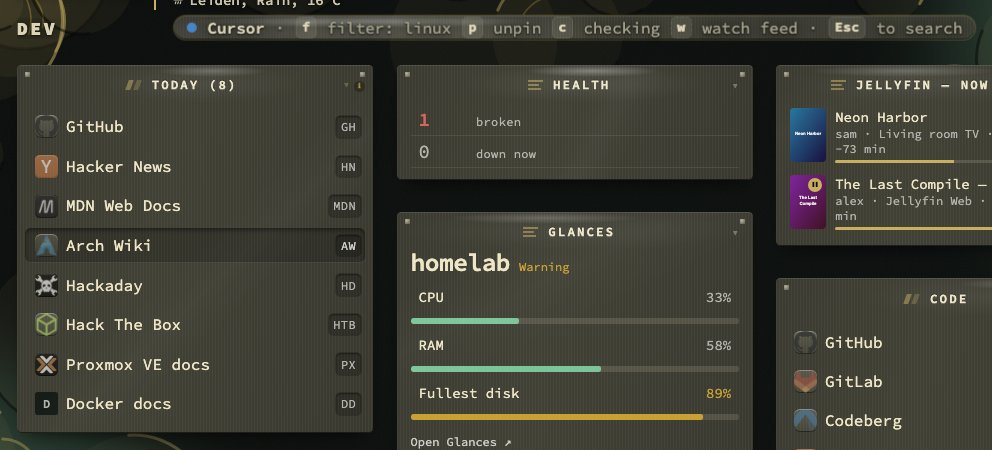
With the cursor on a row, the strip suggests up to four keys that fit it: unpin for a pinned bookmark, a tag filter for a tagged one, plus a letter you have used less than the rest. Right after a pin or a move, undo comes first. Shift+S switches the strip off and on, as does its switch under Config → Behavior. It takes the theme’s material, like the bell does.
Key legends and Keys and help
Every view now has a key legend, toggled with Shift+H, and a setting to put it below, above or off.
? opens Keys and help, which replaces the cheat sheet. Its This page tab says where you are and which keys to start with, with a Try it button on the safe steps. All keys, Search modes and Learn hold the full list, the palette modes and the guided tours, and one filter searches all four, Help text included. Keys you have not used yet come first.
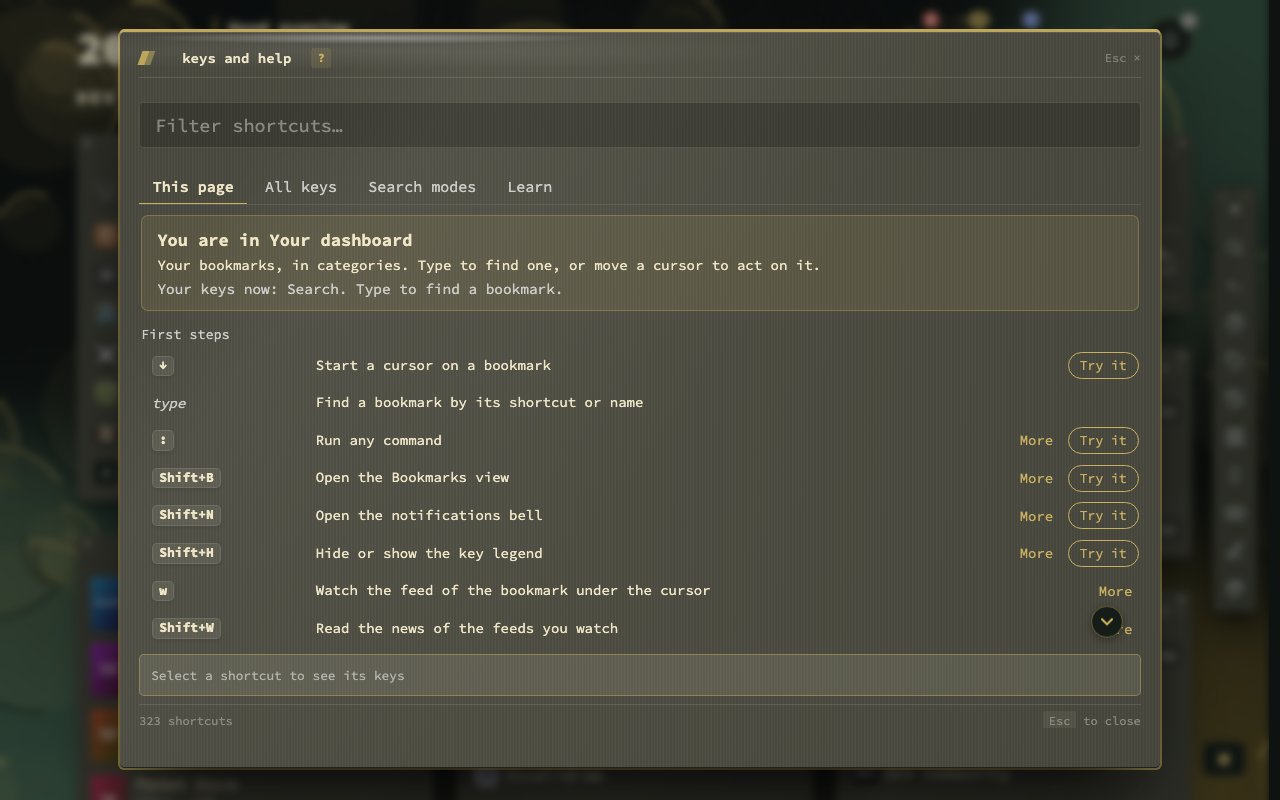
To make room, finders moved to !: ! g nextdash.
Tags and commands in the search panel
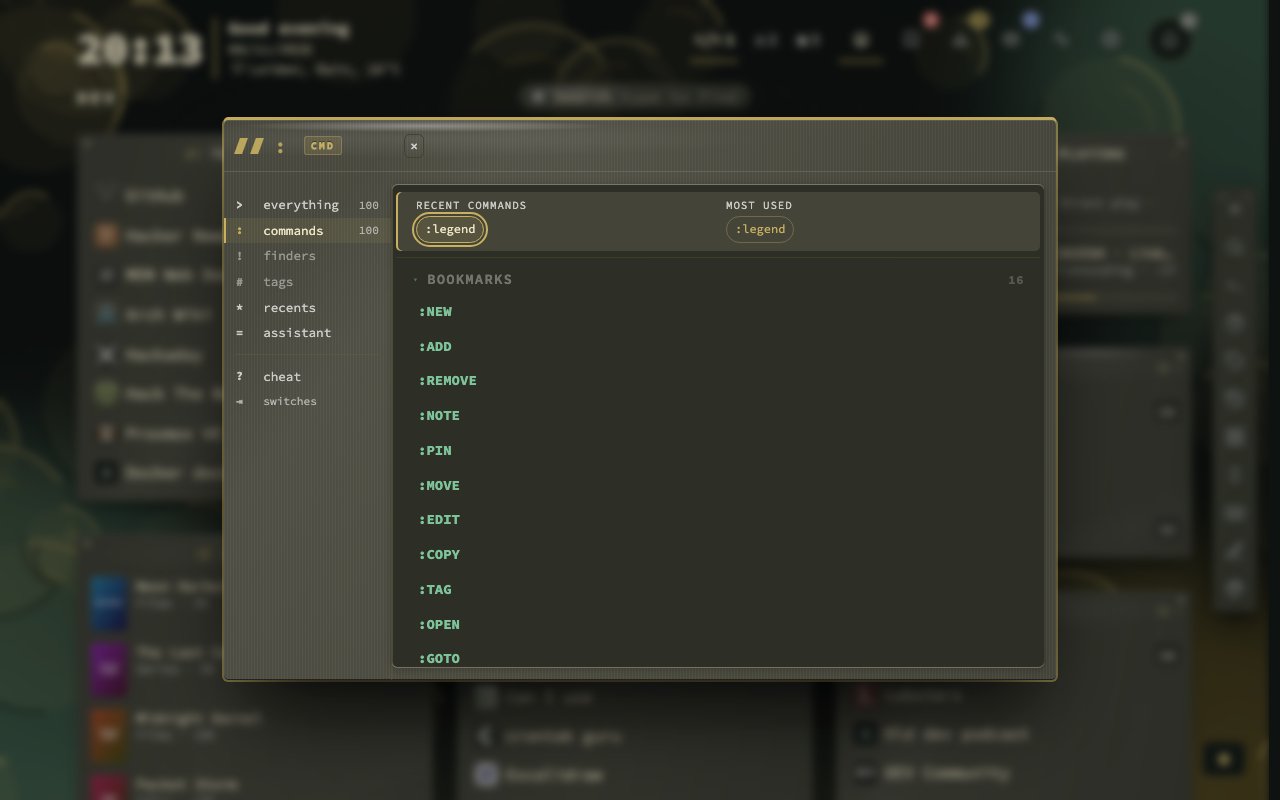
# opens the search panel on your tags. AND and OR join them, as in docker AND linux OR network, and the panel offers tags that complete the word you are typing. : opens on the commands, with Recent commands and Most used side by side at the top. The mode key you typed now shows as a badge in front of the field, and Backspace on an empty field goes back to plain search.
Three holiday themes
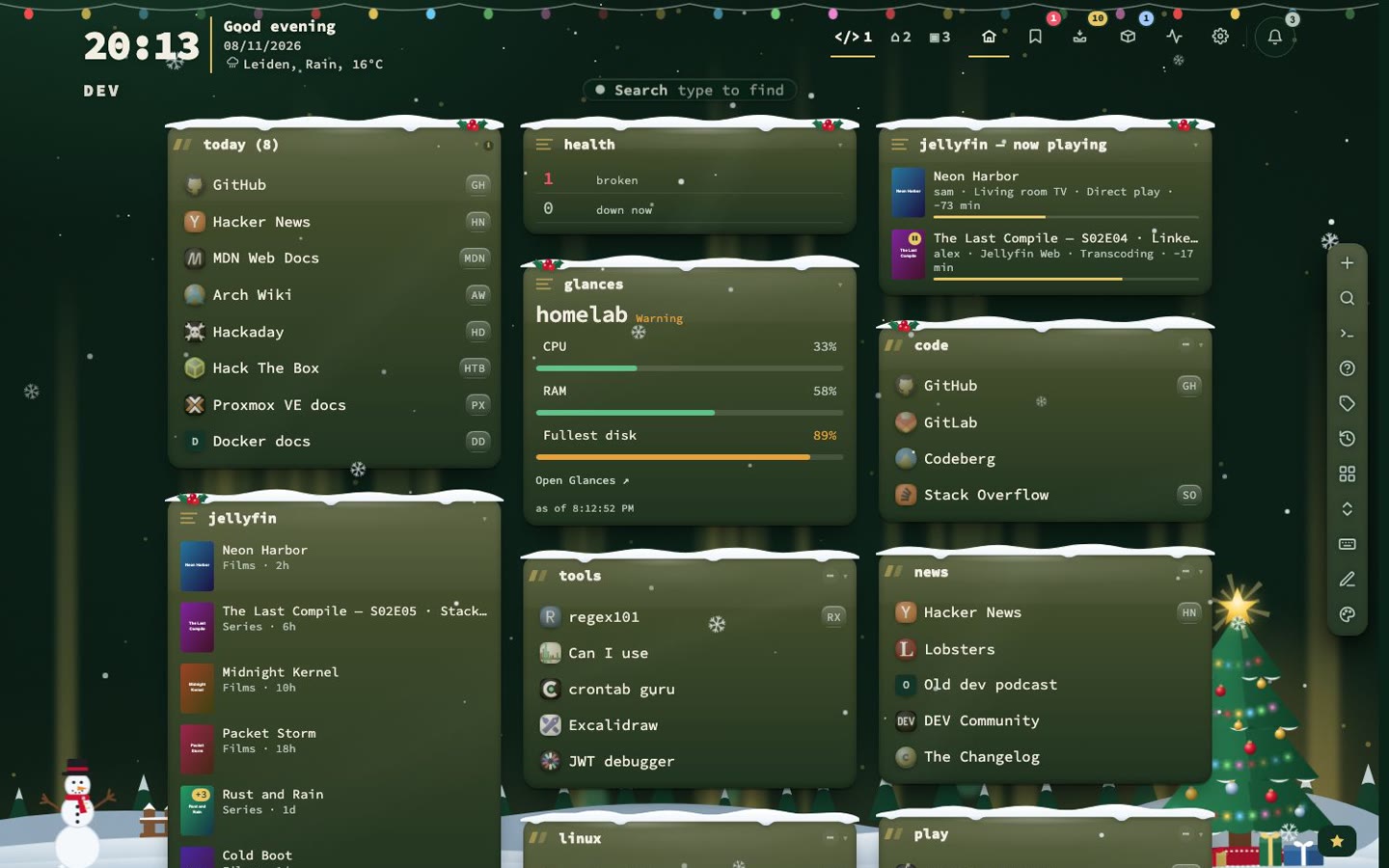
Christmas Classic, Northern Lights and Gingerbread Village arrive in light and dark. They draw a tree, a forest or a village behind your cards, with snow or sprinkles falling in front and snow caps on the category headers. With reduced motion or Effects off, the picture stands still. Find them under Holidays in the theme browser.
Smaller changes and fixes
- Config → Overview has a Support nextDash card with a Ko-fi button.
- Add Bookmark sits in the Bookmarks view’s band, left of Work through.
- Reading one feed item no longer rings the bell as news.
- A bell row that comes back rings again, even with a lower count than before.
- A screen reader reads the plain key of a row action in menus, not Shift plus that key.
Upgrading
Pull the new image:
docker pull ghcr.io/jordibrouwer/nextdash:latest
# or
docker pull foobar1452/nextdash:latest
On Unraid, update the container from the Docker tab. No settings change is needed, but expect the window about the moved keys on first load. The full list is in the changelog, and every key is in the manual.