Settings and search
Find any setting by what it does, see what you changed, and move around Config by keyboard.
- , Open config
- CtrlShiftK Find a setting
- j / k Next or previous section
- Alt←/→ Previous or next tab
- Esc Close, clear, leave config
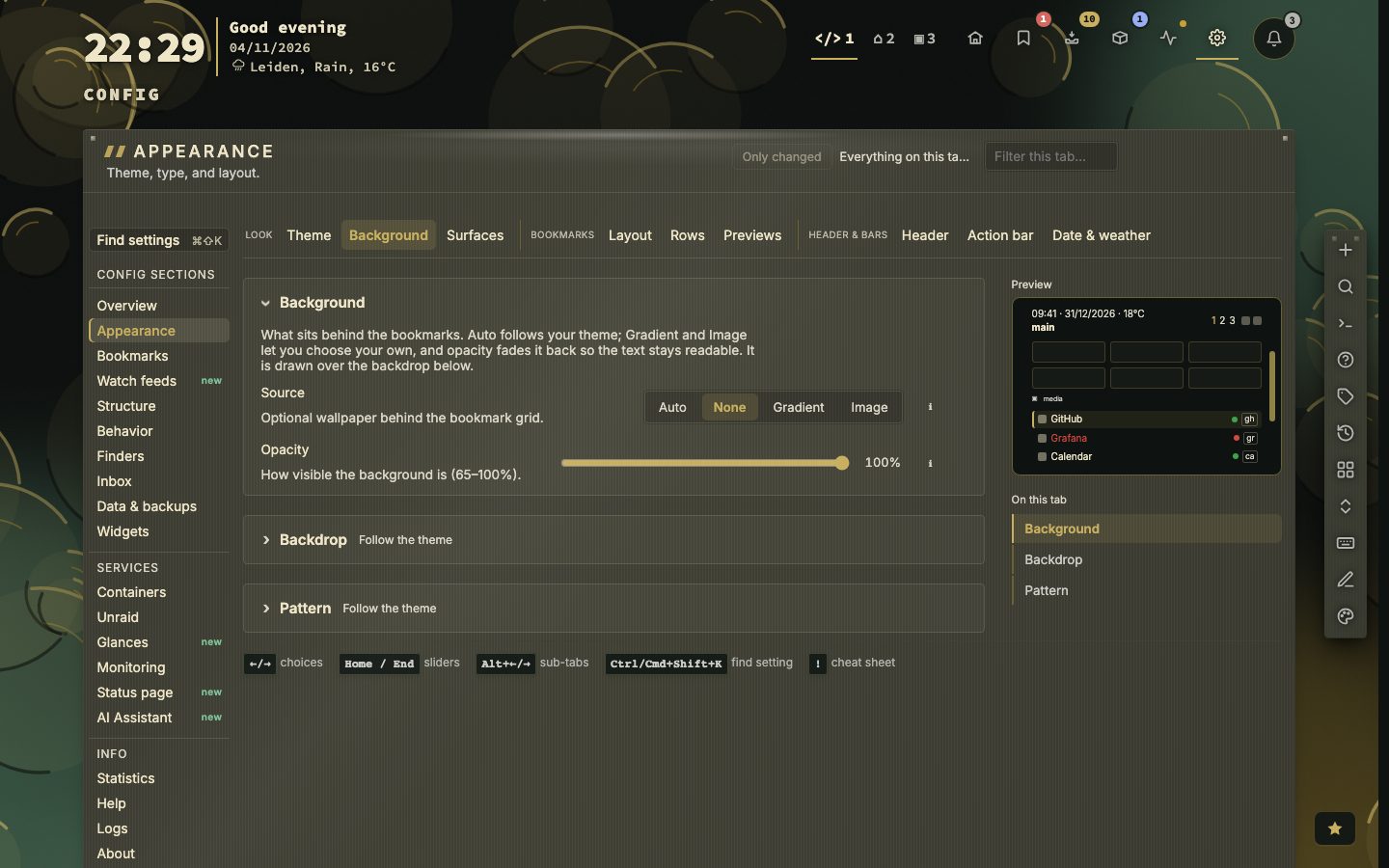
Config is a view inside the dashboard, in the same tab, with a section for each part of nextDash and a place to look up any setting. Nearly everything saves the moment you change it. This page is about how Config works: finding your way around it, finding a setting by what it does, seeing what you have changed, and doing all of that from the keyboard.
What belongs in Config and what has to be set before nextDash starts is a different question, and the Config page answers it.
Try it
- Press ,. Config opens on its Overview.
- Press Ctrl + Shift + K (Cmd + Shift + K on a Mac) and type
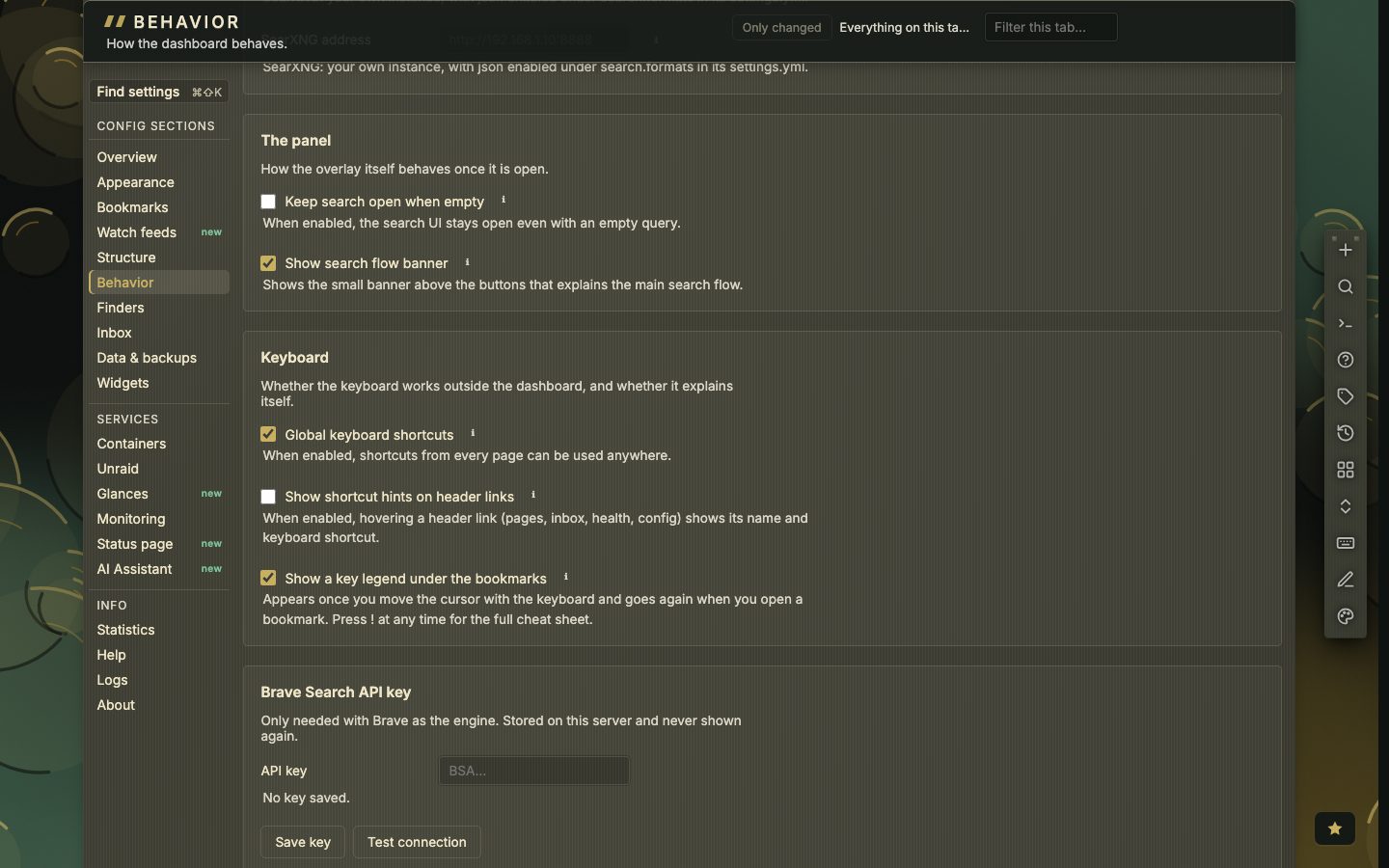
hotkey. The setting for global keyboard shortcuts is the answer. - Press Enter and Config jumps straight to it.
- Press j to go one section down the list and Alt + → for the next tab.
- On a tab with changed settings, click Only changed.
Sections, and a home page
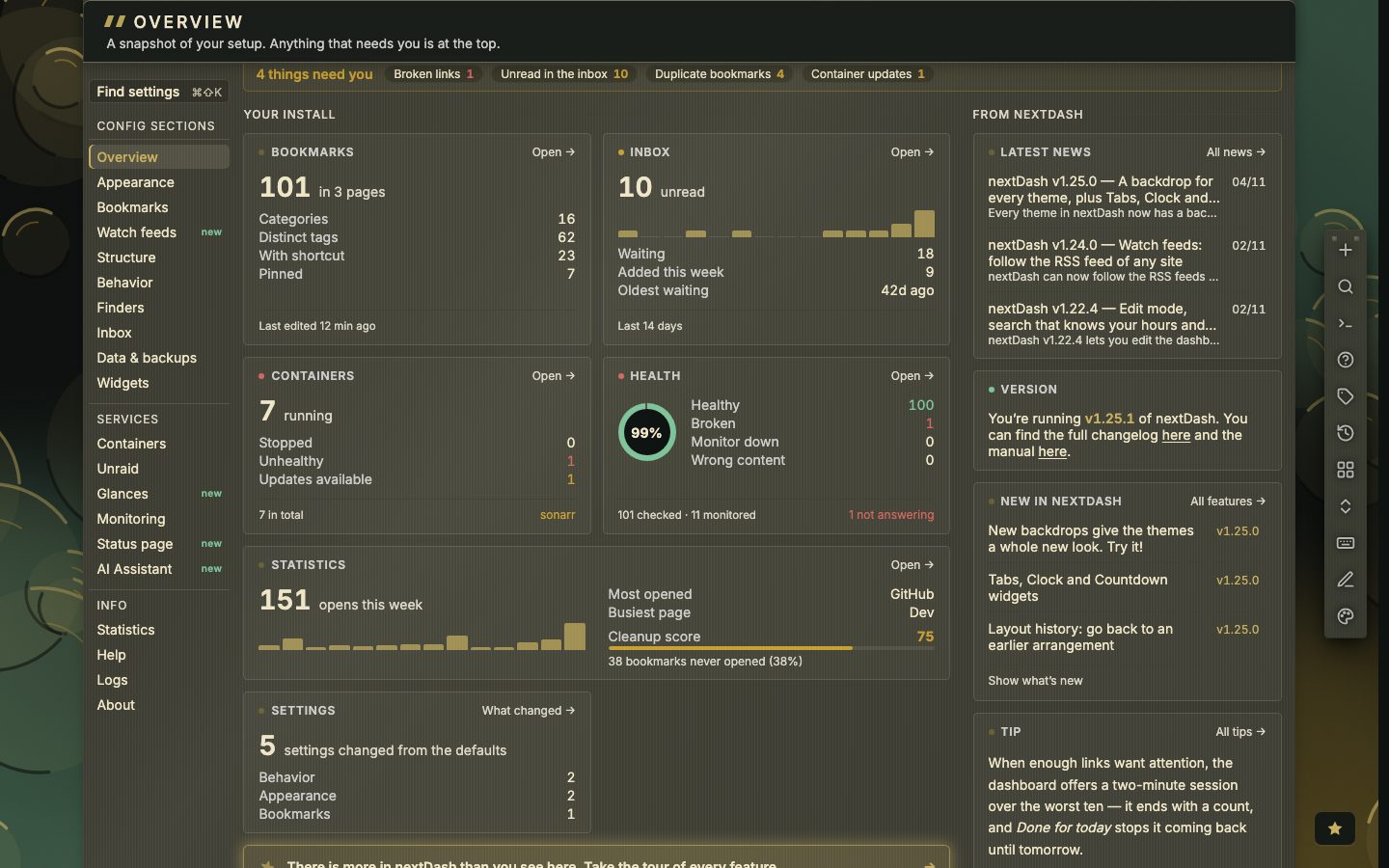
The list on the left has twenty sections in three groups. The first holds Overview, Appearance, Bookmarks, Watch feeds, Structure, Behavior, Finders, Inbox, Data and backups, and Widgets. Services holds Containers, Unraid, Glances, Monitoring, Status page and the AI Assistant, and Info holds Statistics, Help, Logs and About. A section that has several parts shows them as tabs. Config reopens on the section and tab you left for five minutes, and a link such as /#config/appearance/layout opens a tab directly.
Overview is the home page. One line at the top says what needs you, with a chip for each thing: broken links, unread inbox items, duplicate bookmarks, a container with an update. A chip goes to where the problem is fixed, and with nothing to do the line says so. Below it come panels for bookmarks, inbox, containers, health and statistics, each with an Open link and its own warning at the foot, and on the right the latest news from nextdash.cc, what is new and a tip of the day.
Changes save at once
A setting takes effect and saves as you change it, and a short Saved message confirms it. Forms with their own Save button are the exception: the bookmark form and a widget’s settings. A line under each setting says what it does, and the i beside it opens the longer explanation where there is one. The small arrow beside a setting puts that one back to its default, and Reset panel does the same for a whole group, after asking.
Find a setting
Ctrl + Shift + K, or Find settings above the list of sections, opens a search over every section, tab, setting and help topic. It does not matter whether you have been to that tab before: every setting can be found from the moment Config opens. It answers to more than the label. uptime, wallpaper and hotkey each find the right setting although those words are nowhere on the screen, and the current value of a setting counts too, so you can search for what a setting is set to as well as for what it is called.
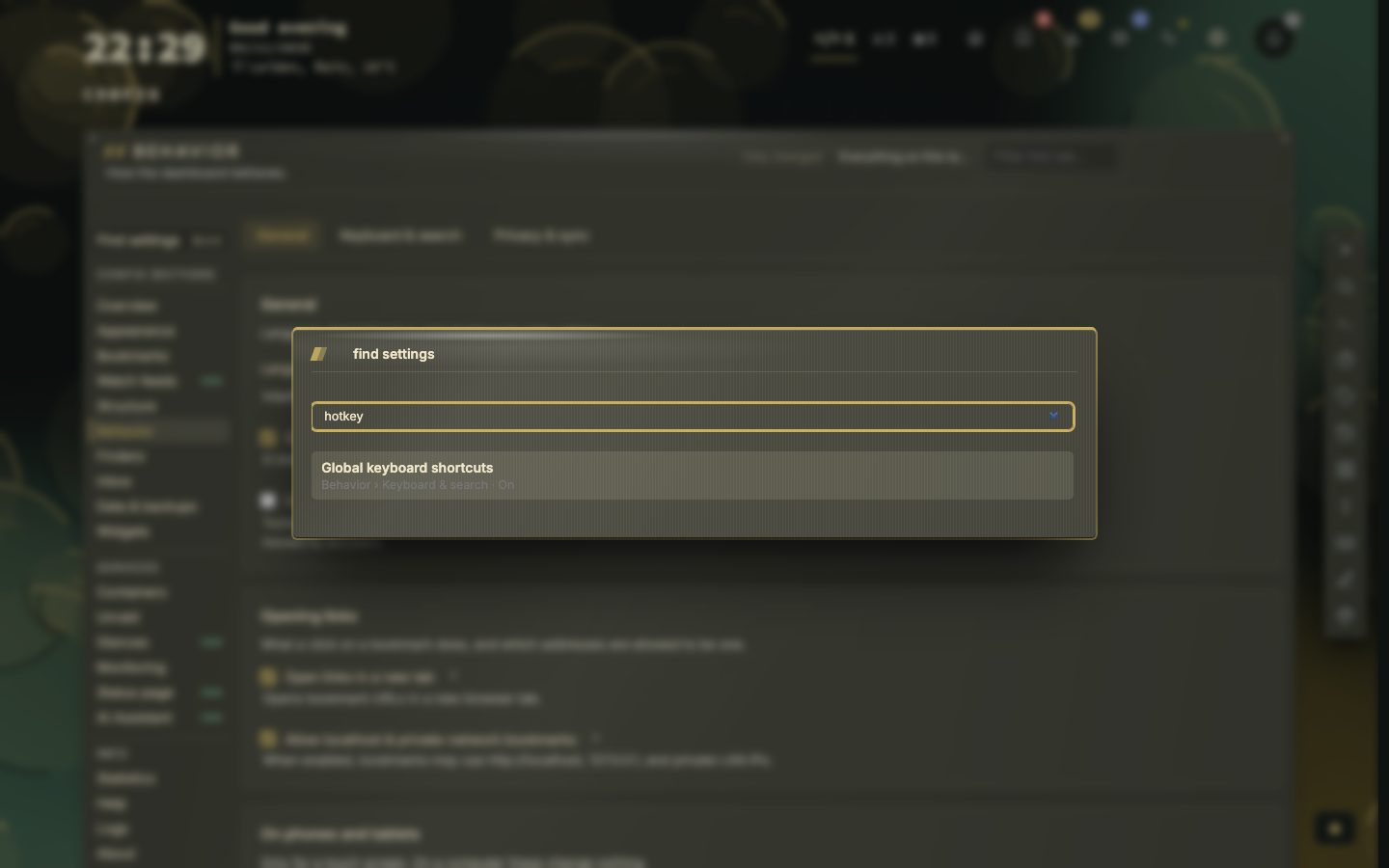
Each result says where the setting lives and what it is set to now. Before you type, the list starts with Recent: the last eight settings you opened from here or changed, newest first, kept in this browser only.
See what you have changed
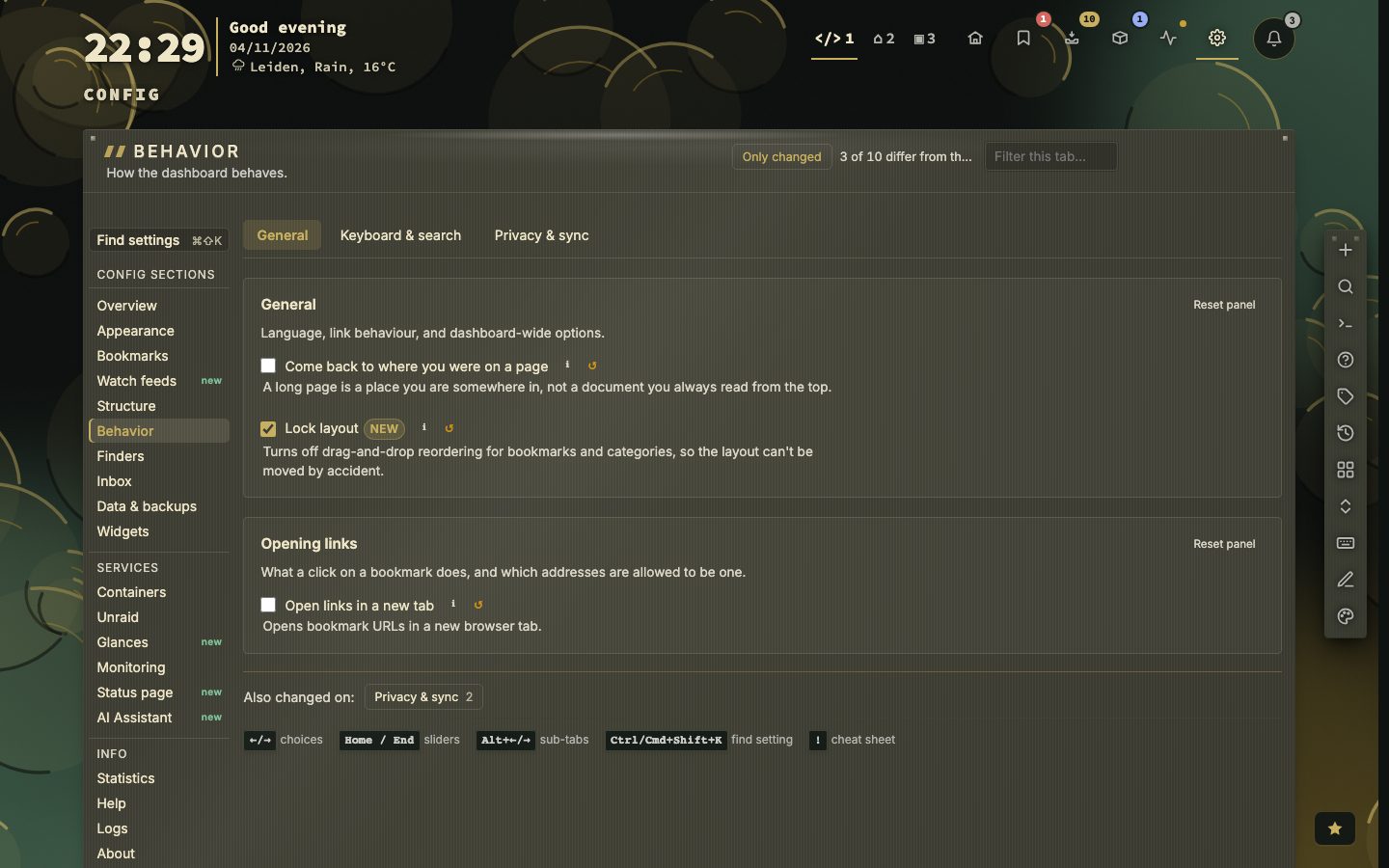
Working out why your dashboard behaves differently from the guide used to mean opening every tab to look for a reset arrow. Now each tab of settings has Only changed, which hides everything that is still at its default, and says how many settings differ. Under the list it names the other tabs of the section that hold changes too, and a click goes there. Next to it a filter narrows a tab by label, hint or option. When nothing on a tab differs from the standard, the button is switched off and the tab says so.
Config from the keyboard
Config answers to the keyboard like the dashboard does. j and k move down and up the list of sections, g and End go to the first and the last, Alt + ← or → (or [ and ]) move between tabs, 0 to 9 leave for a page, and Esc closes a dialog, then clears a selection, then leaves Config. In a list such as Finders the arrow keys move from row to row and Enter edits one. Keys do not fire while you type in a field. A legend under each tab shows the keys that apply there.
Help and About
Help is the in-app guide, with its own search above its tabs, a link button on every topic that copies a link to it, and a list of every keyboard tip. About says which release you run and whether a newer one is out, and its Install tab has a Copy diagnostics button for bug reports. The Config page tells more about About.
The details are in the manual, chapter 18.
Actions in the settings search
Find settings also holds a few things to do, marked Action. Choosing one goes to where it lives and never changes anything by itself. The list is: Add a widget, Open the theme studio, Show what’s new, Check for an update, Make or restore a backup, Import bookmarks, Restore an earlier layout of this page and Show what I changed from the defaults.
What you changed, as a list
Show what I changed from the defaults opens a list titled What you changed, with a count. Each row is a setting that differs from the default, with its section, what it is now and what the default is. A click on a row goes to the setting. Copy as text puts the list on the clipboard, which is handy for a bug report or to compare two installs. The list is read-only. The Overview has the same thing as What changed on its Settings panel.
Earlier layouts of a page
nextDash keeps earlier arrangements of each page: its widgets, their settings and the order of its blocks, but not the links. They are kept when widgets are added, moved, closed or changed. Each line in the list says what restoring it would do: bring something back, take something away, put the blocks in another order or change widget settings. The layout a restore replaces is kept too, so a restore can be undone the same way, and the history travels in the backup.
- 1Press Ctrl or Cmd + Shift + K to open Find settings
- 2Choose Restore an earlier layout of this page
- 3Read what each earlier layout would change
- 4Press Restore on the one you want
One server, or one device
Settings are saved on the server, so every browser shows the same dashboard. If you want one browser to keep its own look, tick Keep settings on this device only under Behavior, Privacy & sync. A few settings stay shared either way and carry an all devices mark.