Finders
Search any other site from the keyboard: a question mark, a short code, your words.
- ? Open the finders
- Enter Search the other site
- ↓ Reach a finder under no matches
- Esc Close the panel
A finder is a shortcut to another site’s search. Type ?, the finder’s short code and your words, and nextDash opens that site’s results for them, so you never visit the site first to find its search box. A new install comes with DuckDuckGo on du and Brave Search on b, and you add your own with a name, a shortcut and a web address.
Searching your own bookmarks is a different job, and the Find page covers it. Finders are for everything that is not in nextDash.
Try it
- Press ? on the dashboard. The search panel opens on its finders tab and lists every finder with its shortcut.
- Type a shortcut and your words, for instance
du nextdash. The line turns into?DU nextdash. - Press Enter. DuckDuckGo’s results for nextdash open, in a new tab unless you turned that off under Behavior.
- Type only the shortcut and press Enter and the site’s own search page opens.
- Press Esc to close the panel.
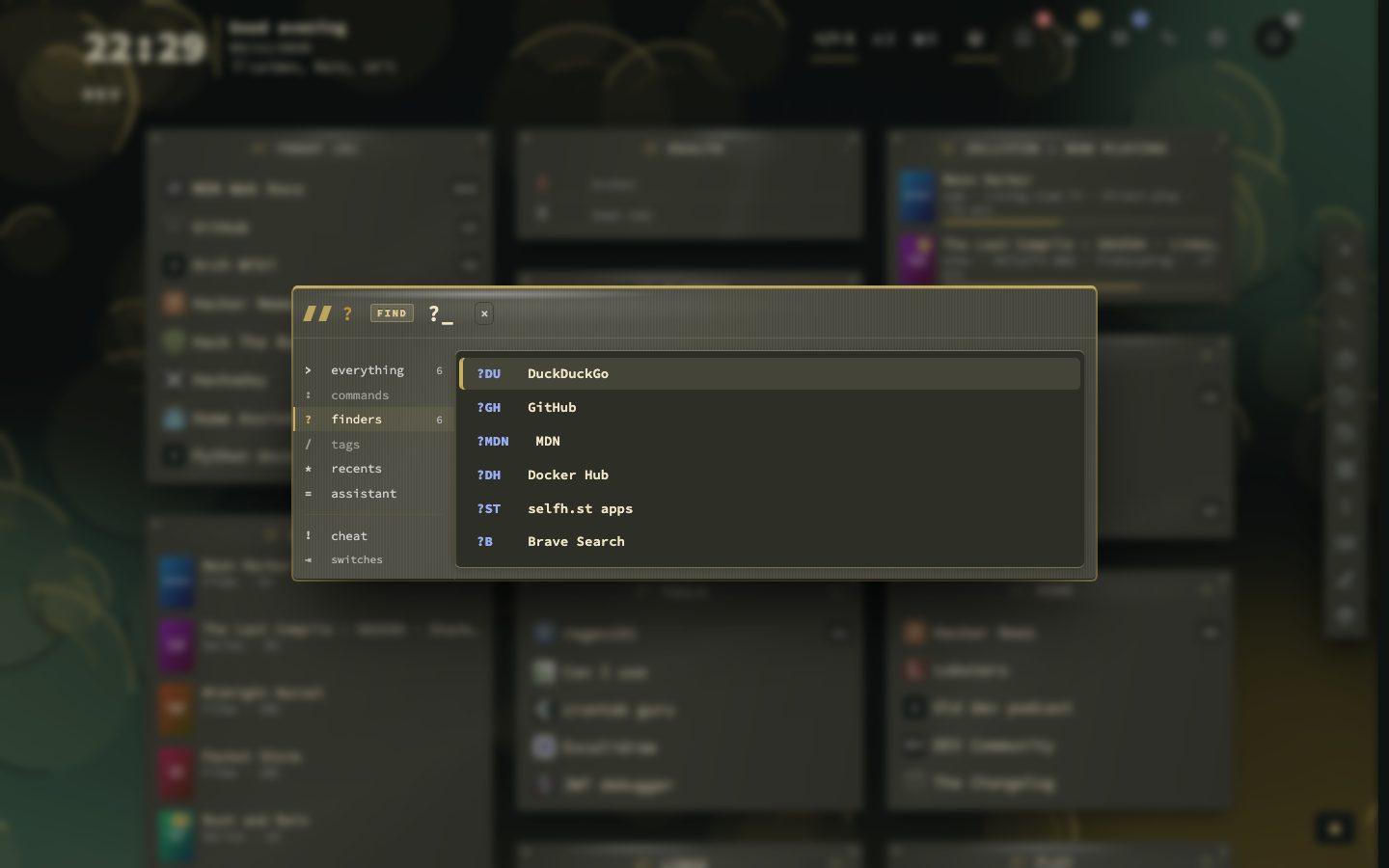
Add your own
Config has a section called Finders. Press Add finder and fill in three things: a name, a shortcut of a few letters, and the search address of the site with %s where your words should go. For Wikipedia that is https://en.wikipedia.org/w/index.php?search=%s. The easy way to get the address is to search the site once yourself, copy the address from the browser and put %s in place of what you searched for.
Names and shortcuts have to be unique. Config saves a finder as soon as you fill it in. Rows can be dragged or moved with the arrow keys, and the ones you use most are suggested first.
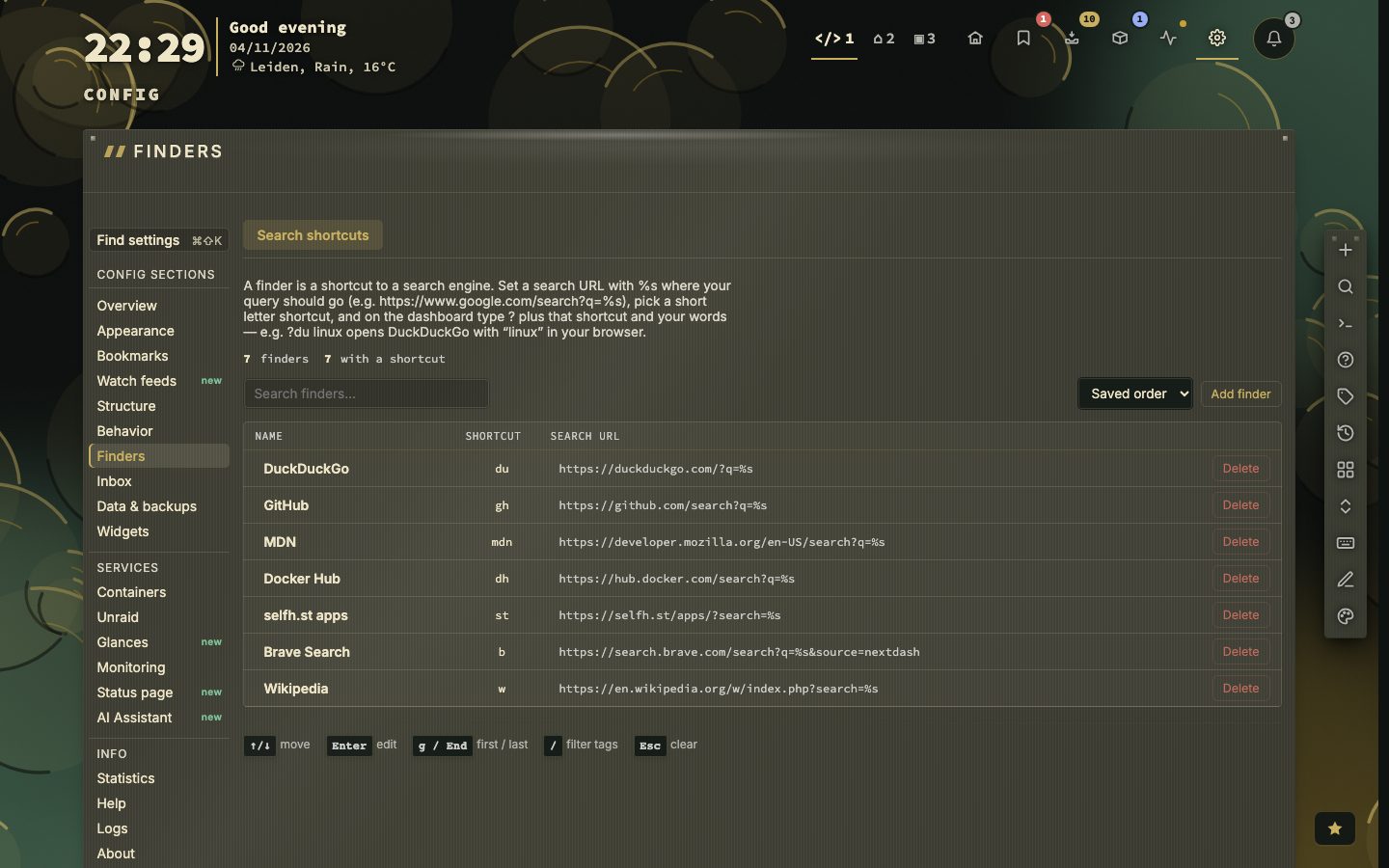
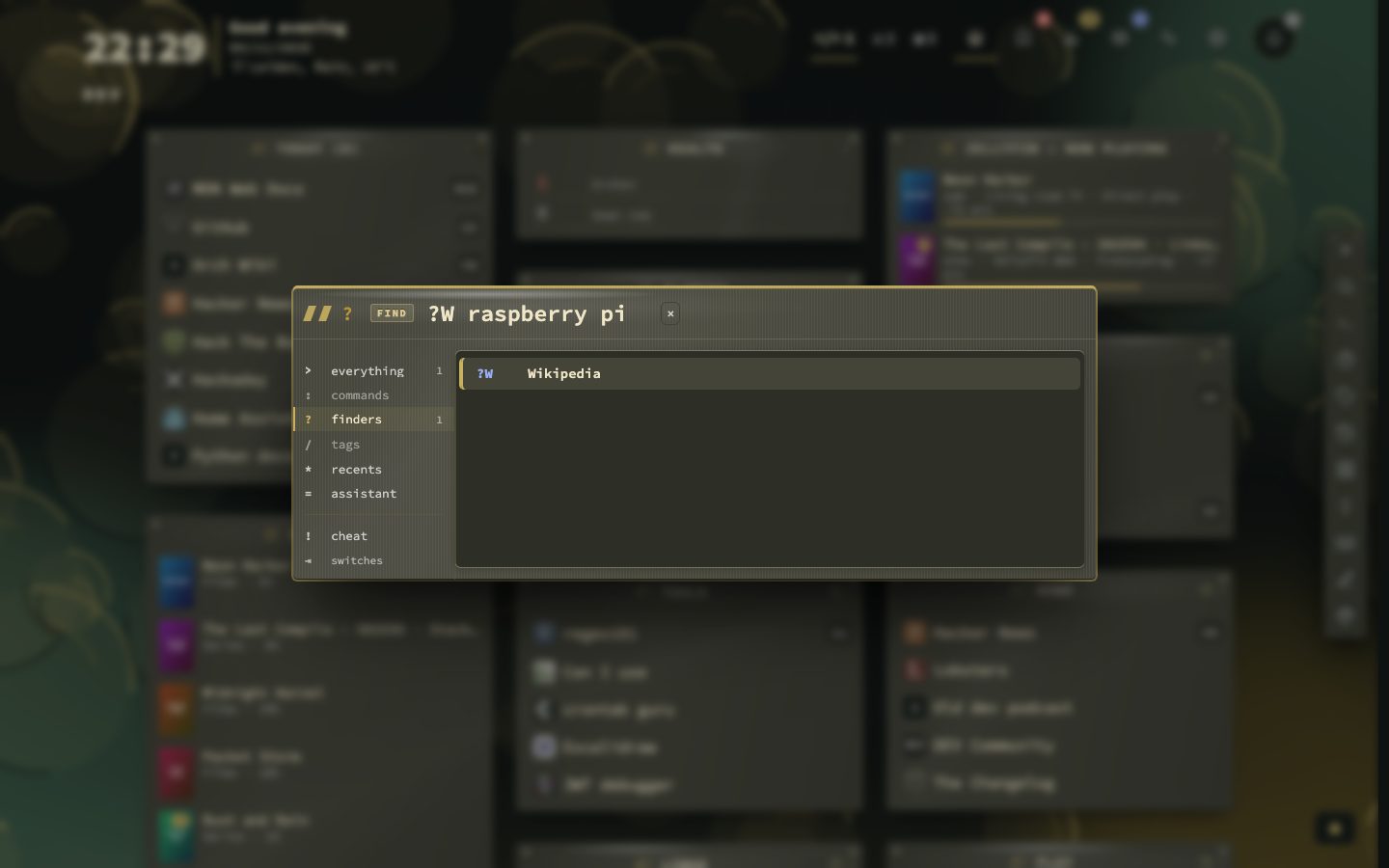
Using one
Open finders with ?, type the shortcut, then a space and your words. The list narrows to the finder you typed. In the ordinary search box you can skip the question mark: with Include finders in search switched on, which it is by default, a finder’s shortcut followed by a space turns the line into a finder line, so gh becomes ?GH .
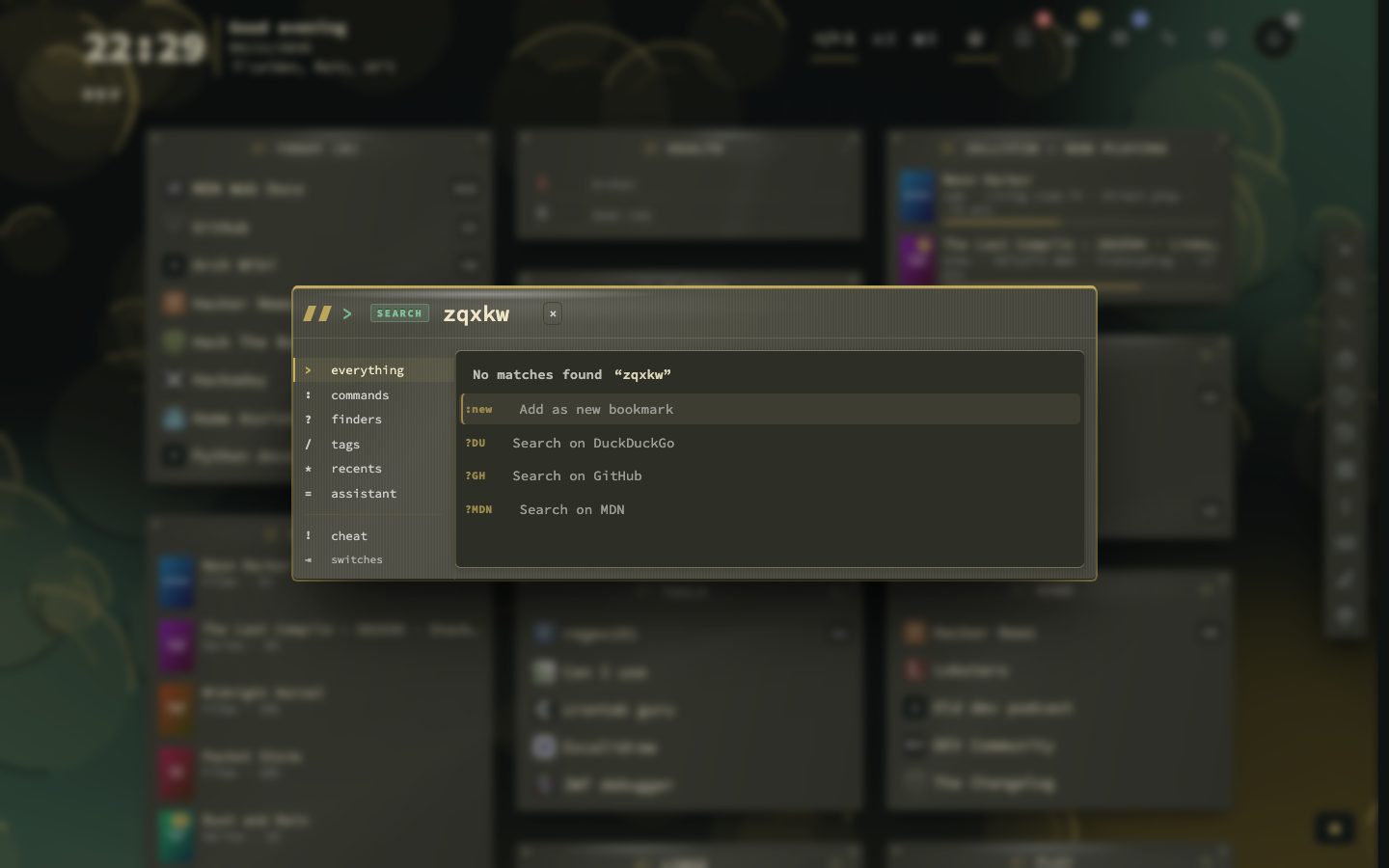
When search finds nothing
Type something that is not on your dashboard and the panel says so. Under that line it offers your three most-used finders as Search on rows, with the words you already typed filled in. Click one, or reach it with ↓ and press Enter, and that site answers instead. Include finders in search sits under Config, Behavior, Keyboard and search, and switches this offer, and the shortcut trick above, on or off.
Finders and web search
A finder hands you over to the other site: nextDash builds the address and your browser opens it. Web search in the panel is another feature. There you point nextDash at your own SearXNG or a Brave Search API key, and the results come back into the panel. A line that starts with a finder never goes out as a web search.
The details are in the manual, chapter 8.
Keeping the list in order
Under Config, Finders, rows can be dragged, or moved with ↑ and ↓ from the keyboard. A finder can carry tags, and its row shows how often you have used it. The ones you use most are suggested first.
A fresh install has DuckDuckGo on du and Brave Search on b. An install that already existed was given Brave Search once. Delete it and it stays deleted.
One address, one line
The address is whatever the site uses for its own search, with %s where your words go. GitHub, for example, is https://github.com/search?q=%s. With a finder for it on gh, the line below turns into a GitHub search.
A finder with a shortcut and no words opens the site’s own search page. Type ?w and press Enter and that site’s search opens, if w points at it.
- 1Search the site once yourself
- 2Copy the address from the browser bar
- 3Put %s where your words were in that address
- 4In Config, Finders, press Add finder and fill in the name, shortcut and address
- 5Press ? and type the shortcut to try it