Pages and categories
Shape your collection: pages as tabs, categories as blocks, sorting, folding, spreading, and deleted pages that come back.
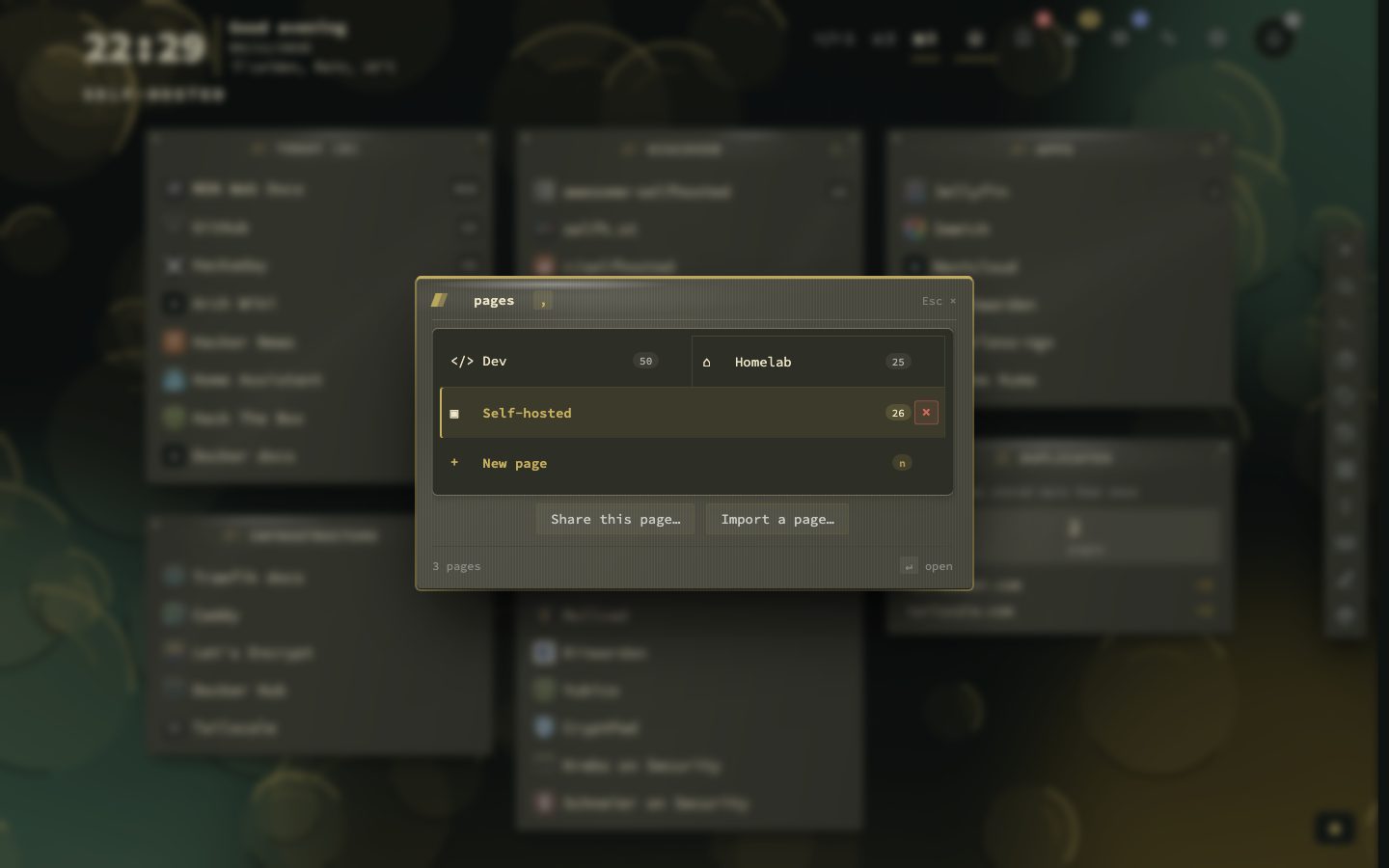
- ShiftP Open the pages panel
- . Fold or unfold every block on the page
- F2 Rename a category
- w On a category title: spread it across columns
- AltLeft/Right Move a category one place
- m Move the selected bookmark to any category or page
A page is a whole screen of your dashboard, with its own bookmarks and widgets, and a tab for it in the header. A category is a block of bookmarks on a page. Together they are how a collection gets its shape. This page covers making, sorting, folding, spreading and bringing back both. Smart and custom collections, page templates and moving blocks have pages of their own: Collections, Page templates and Move blocks.
Try it
- Press Shift + P for the pages panel, and n in it for a new page.
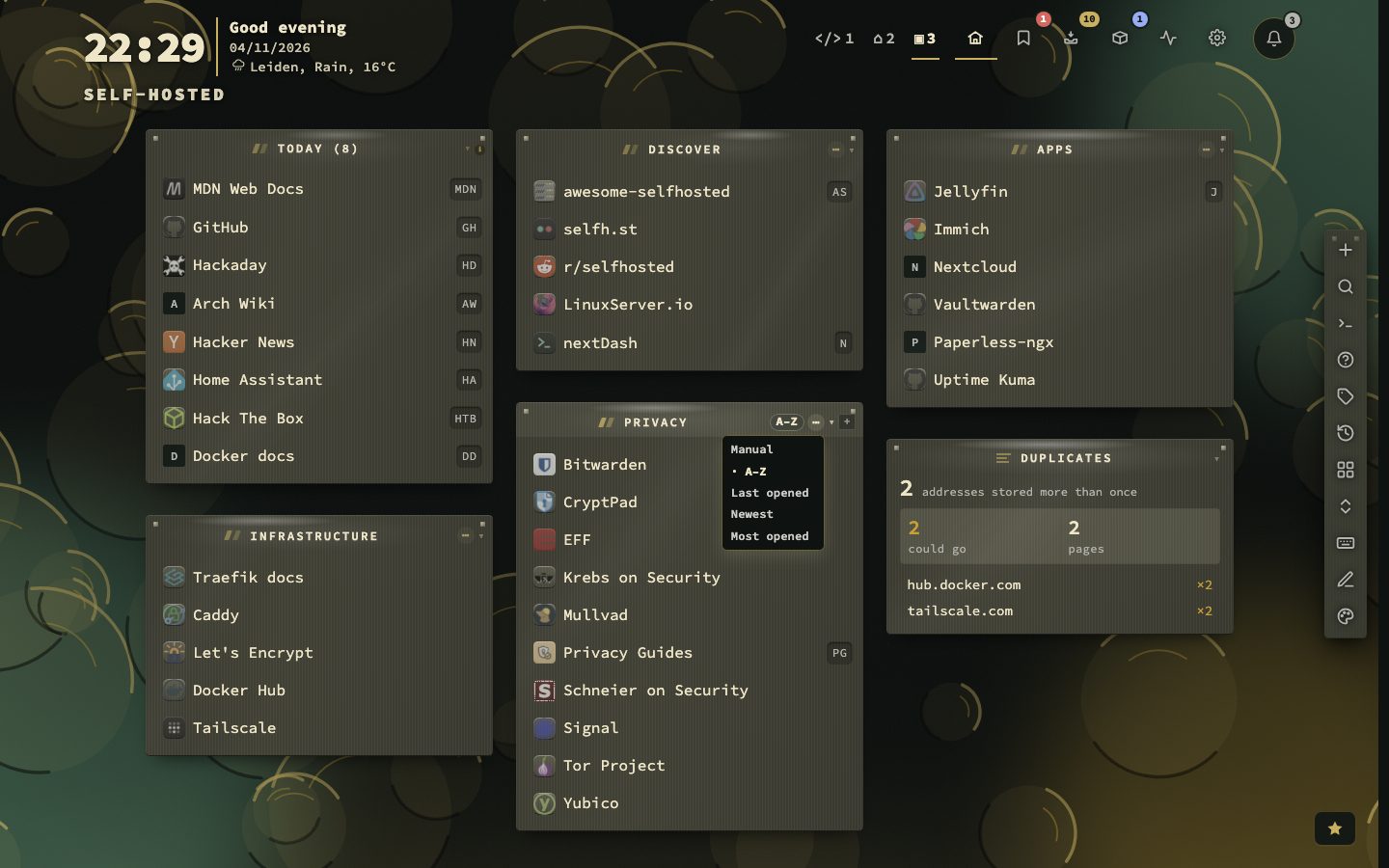
- Click the … in a category header and pick a sort. The choice shows as a short chip in front of it.
- Click a category header to fold it, or press . to fold the whole page.
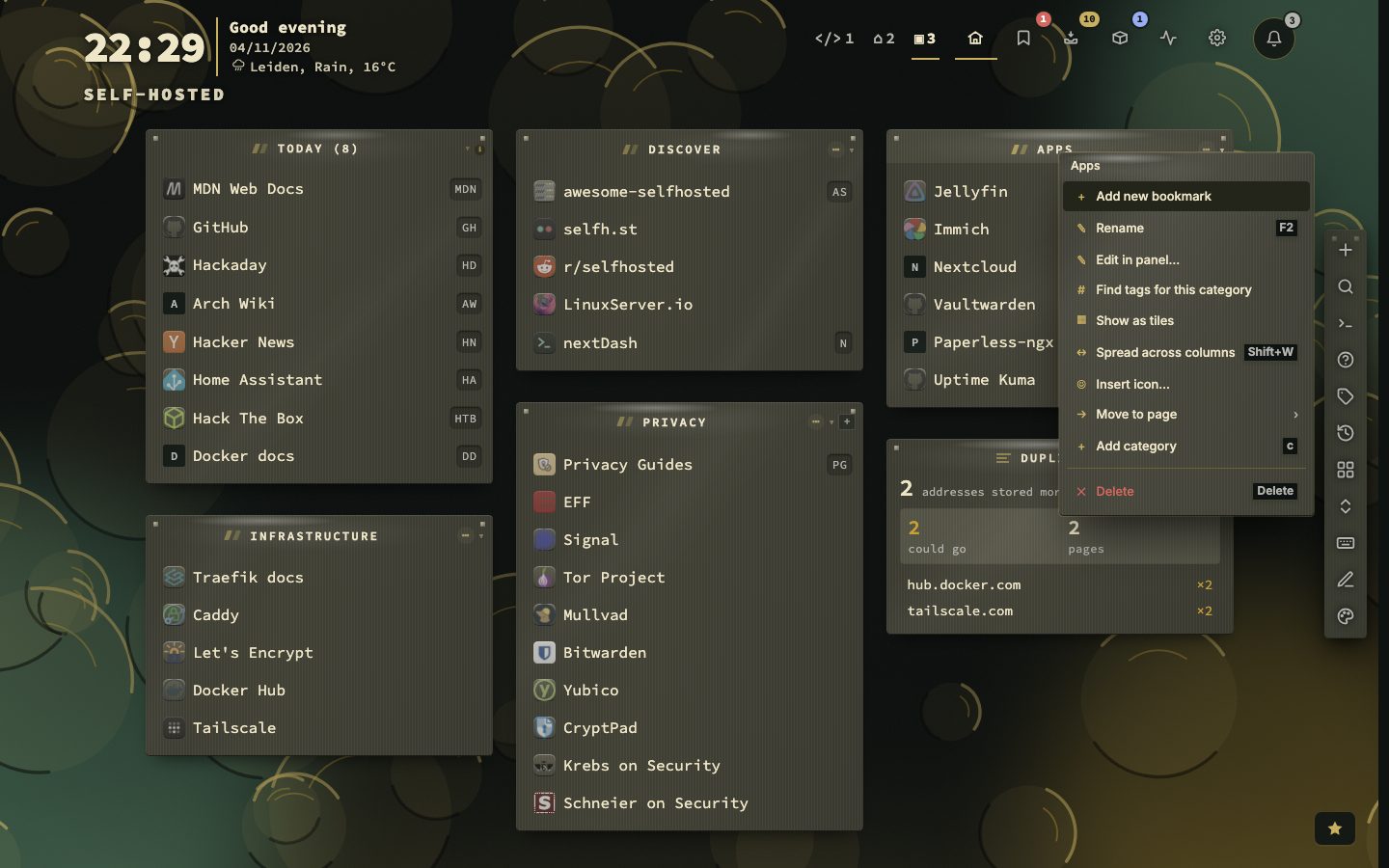
- Right-click a header for its menu, and pick Spread across columns.
Pages
A page is made in the pages panel (Shift + P, then n), with :page new, in Config under Structure, or from New page… in the bookmark form. Double-click a tab to rename the page and give it an emoji and a colour dot. Rows in Config, under Structure, then Pages, can be dragged into a new order, duplicated (it asks whether the bookmarks come too) or saved as a template. Page names are unique, and every row shows how many bookmarks the page holds.
The pages panel shows every page with its count. The cross deletes a page, and asks twice. A page that is deleted goes to the trash with its categories and bookmarks.
Categories
A category is made with the plus in a header or the button under the last category, with :category new, or in Config under Structure. F2, a double-click or a long press on the header renames it. An emoji in the name is its icon, and Insert icon… in the menu puts an app icon in it. Show as tiles draws the bookmarks as a grid of large icons, and Show as rows goes back; the choice belongs to that category. Deleting a category keeps its bookmarks and only takes away their category.
Right-click a header for the whole menu: add a bookmark with this category already chosen, rename, edit in the panel, find tags for the category, tiles, spread, insert an icon, move to a page, add a category and delete.
Sorting and folding
The menu button in each header offers Manual, A–Z, Last opened, Newest and Most opened. Pinned bookmarks stay on top, and bookmarks that were never opened go last. Sorting is only a view: the order you dragged is kept, and a sorted category cannot be dragged until you go back to Manual. Click a header, or press Enter on it, to fold the category. . folds or unfolds everything on the page, widgets included, and the state is remembered per page.
Moving and reordering
Drag a bookmark within its category or onto another. Alt + ↑ or ↓ moves the selected bookmark inside its category, m moves it to any category or page, and a toast offers an Undo for eight seconds. Categories move by their // handle, or on the header with Alt + ← or →; Move blocks shows how. Lock layout in Config turns dragging and moving off.
Spreading a category across columns
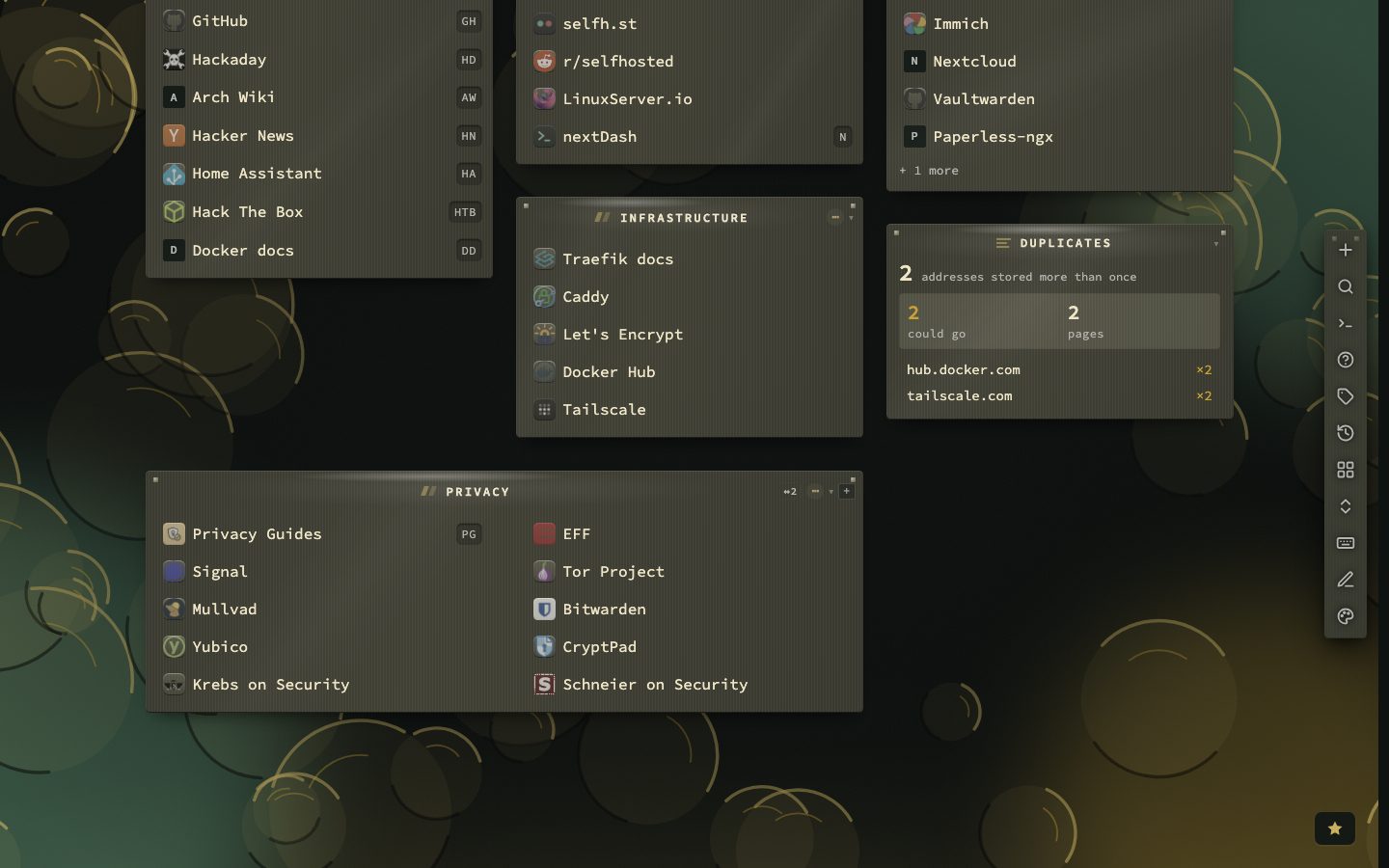
A long list of short entries can flow across several columns instead of down. Right-click the header and pick Spread across columns, press w on its header, or use :width on and :width off. The number of columns is not a setting. It follows from the limit of items per category: with a limit of fifteen, 1 to 15 bookmarks take one column, 16 to 30 take two and 31 to 45 take three. The columns of the grid are the ceiling, and on a phone held upright every category is one column wide.
Deleted pages come back
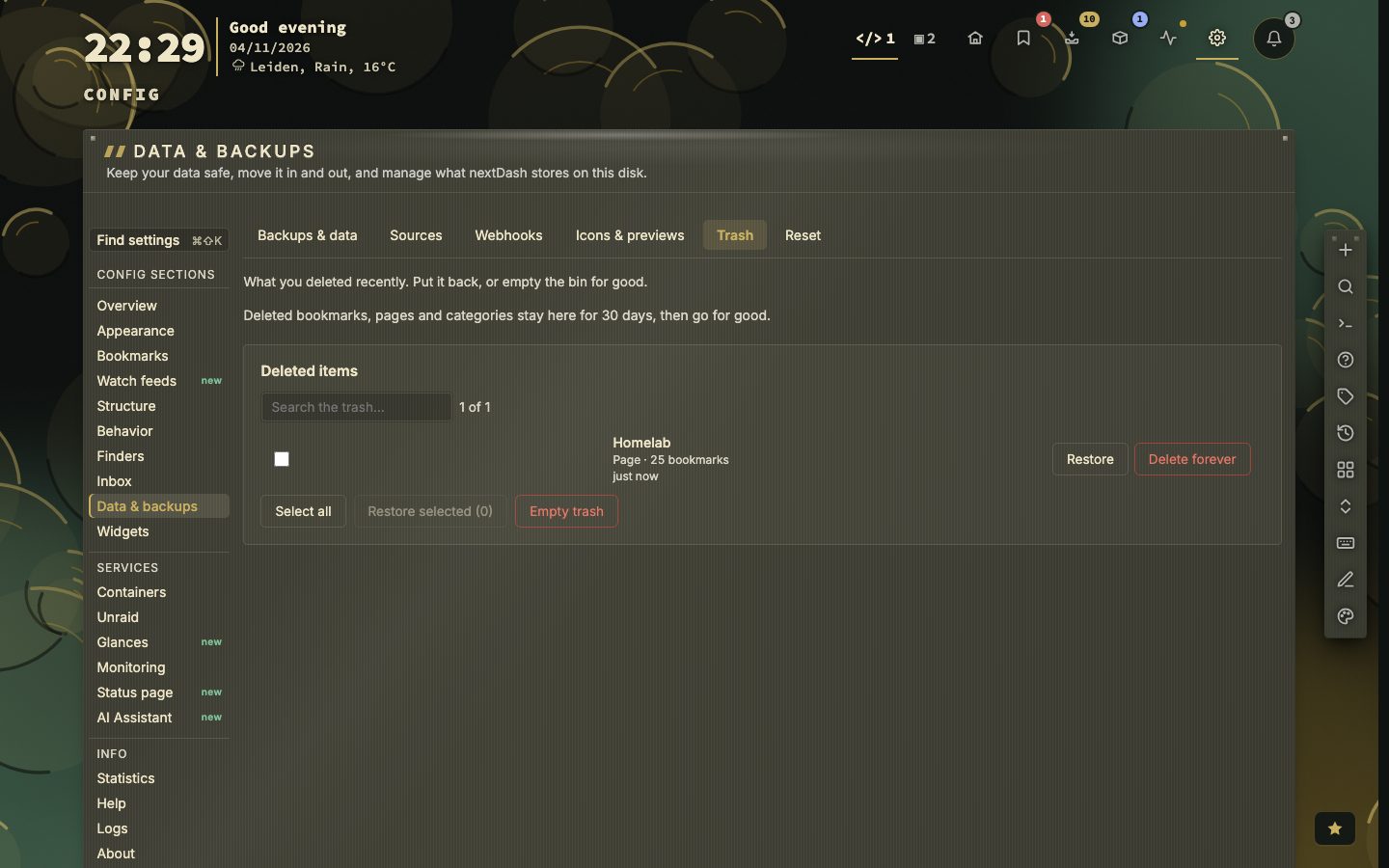
Deleted bookmarks, pages and categories stay in the trash for 30 days. Type :trash to open it, or find it in Config under Data & backups. A deleted page is one entry, such as Page · 25 bookmarks, and Restore brings it back with its categories and bookmarks in its old place. A deleted category comes back at its old position, and its bookmarks were never removed. A restore that cannot go ahead is refused and the entry stays: a category whose page is gone needs that page first, and a page whose place was taken by another page cannot replace it.
The structure in Config
Config, then Structure, shows the same pages and categories as one overview. Pages lists every page with its bookmark count; its rows are dragged into order, duplicated or saved as a template. Categories is one table for every page, grouped by page, and a page’s row folds its categories away. Chips narrow it to some pages or to a view: Spread, With broken links or Empty. Columns show each category’s bookmarks, its broken links and whether it spreads. A duplicate keeps the width, icon and sort, and can bring the bookmarks along. The order of categories is not set here but on the dashboard.
Four ways to spread a category
- With the mouse: right-click the header and choose Spread across columns.
- With the keyboard: w on the header.
- With a command:
:width onand:width off, or:width allto switch every category back. - In Config: the arrow button on the row in Structure, then Categories.
Spreading needs a limit on items per category and at least two columns. Under Appearance, then Layout, you set the limit, whether new categories start spread (they do) and whether turning spreading off covers this page or all pages. With Pack columns tightly on, the categories after a spread one fill in beside and below it.
Small things worth knowing
- The chosen sort shows as a short chip in front of the menu button: A–Z, Rec, New or Top. Click the chip to go back to manual order.
- Last opened and Most opened put bookmarks that were never opened last, and pinned bookmarks always stay on top.
- A page can start with every category folded: Start with categories collapsed is under Appearance, then Layout.
- Drag a bookmark within its category or onto another. A click still opens it, and a long press still edits it.
- An emoji typed into a name is its icon, for categories and for widgets alike.
- 5sort orders
- 8 sto undo a move
- 30days in the trash
The manual has all of this in chapter 9.