Widgets
since v1.4 · 27 Aug
A block on your page can hold more than links.
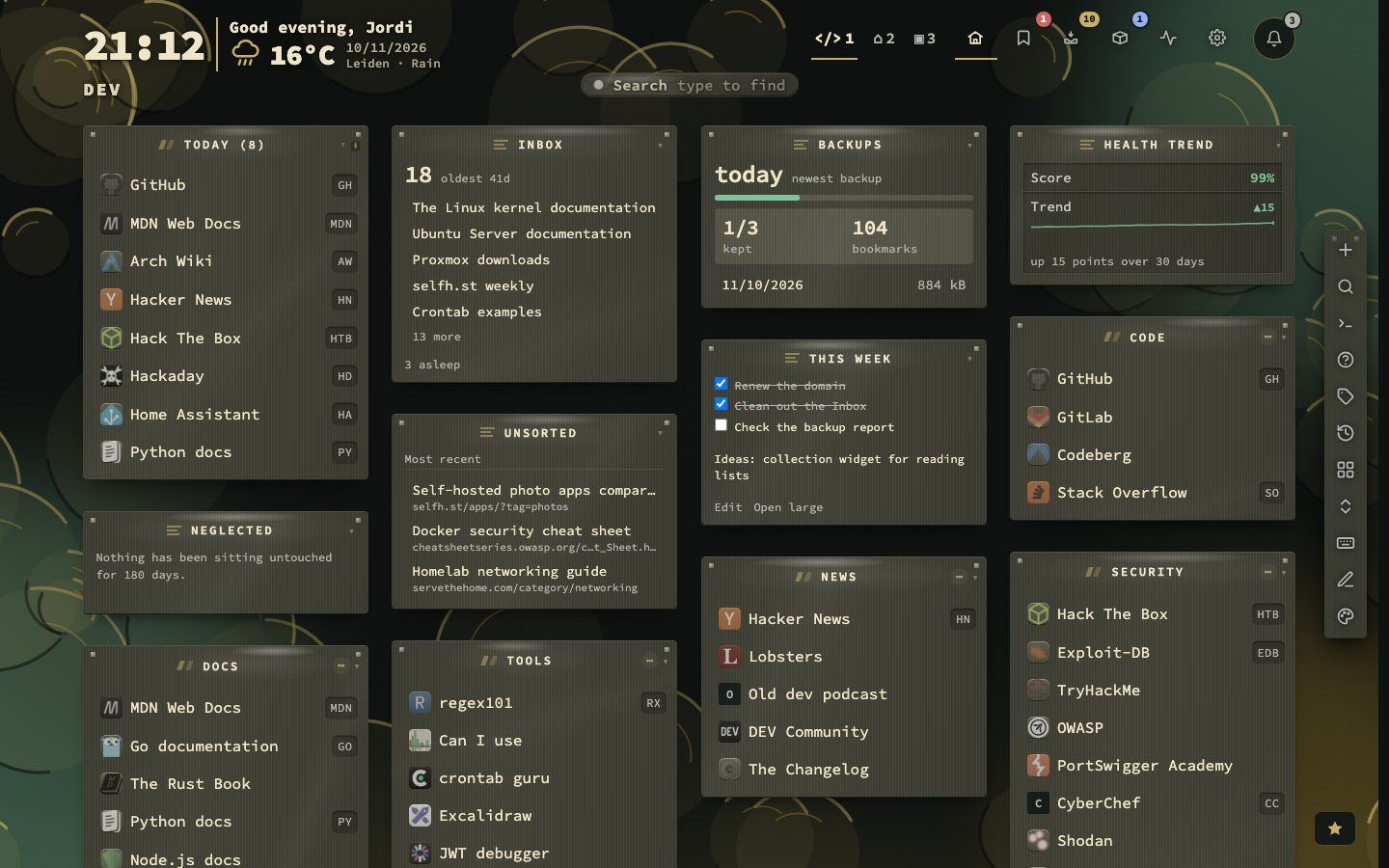
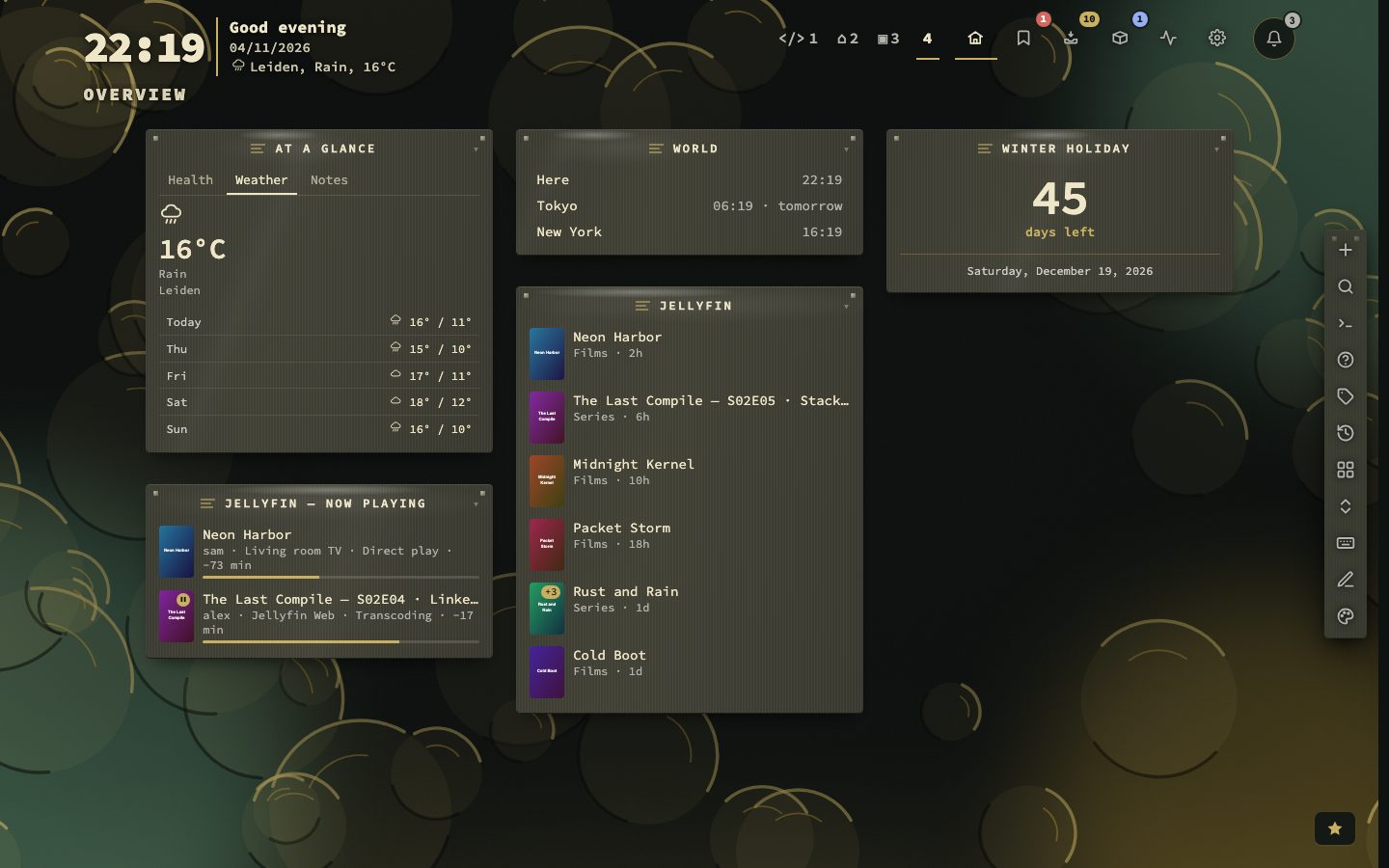
A block on a page can hold something other than links. A widget sits among your categories, is dragged into place like one and can be one or two columns wide. There are sixty-three kinds of tile, grouped by the question each one answers, plus one you build yourself.
The health widgets show the figures from collection health, your monitored bookmarks with a heartbeat bar, certificates about to expire and the trend of broken links over time. Others show what is waiting in the inbox. Others read other machines: four Beszel tiles, and a Glances tile for one host. The Domains tile lists the domain registrations that are about to run out.
Try it
- Open Config, go to Appearance, then Grid, and pick the Widgets layout preset.
- See a page mostly made of tiles.
- Add, name and rearrange your own under Config, then Widgets.
Tabs, clocks and countdowns
The Tabs widget puts several widgets of one page in a single tile, one tab each. Add it from Add a widget, then tick the widgets of that page that should become its tabs. Clock shows the time in any time zone, and Countdown counts the days to a date.
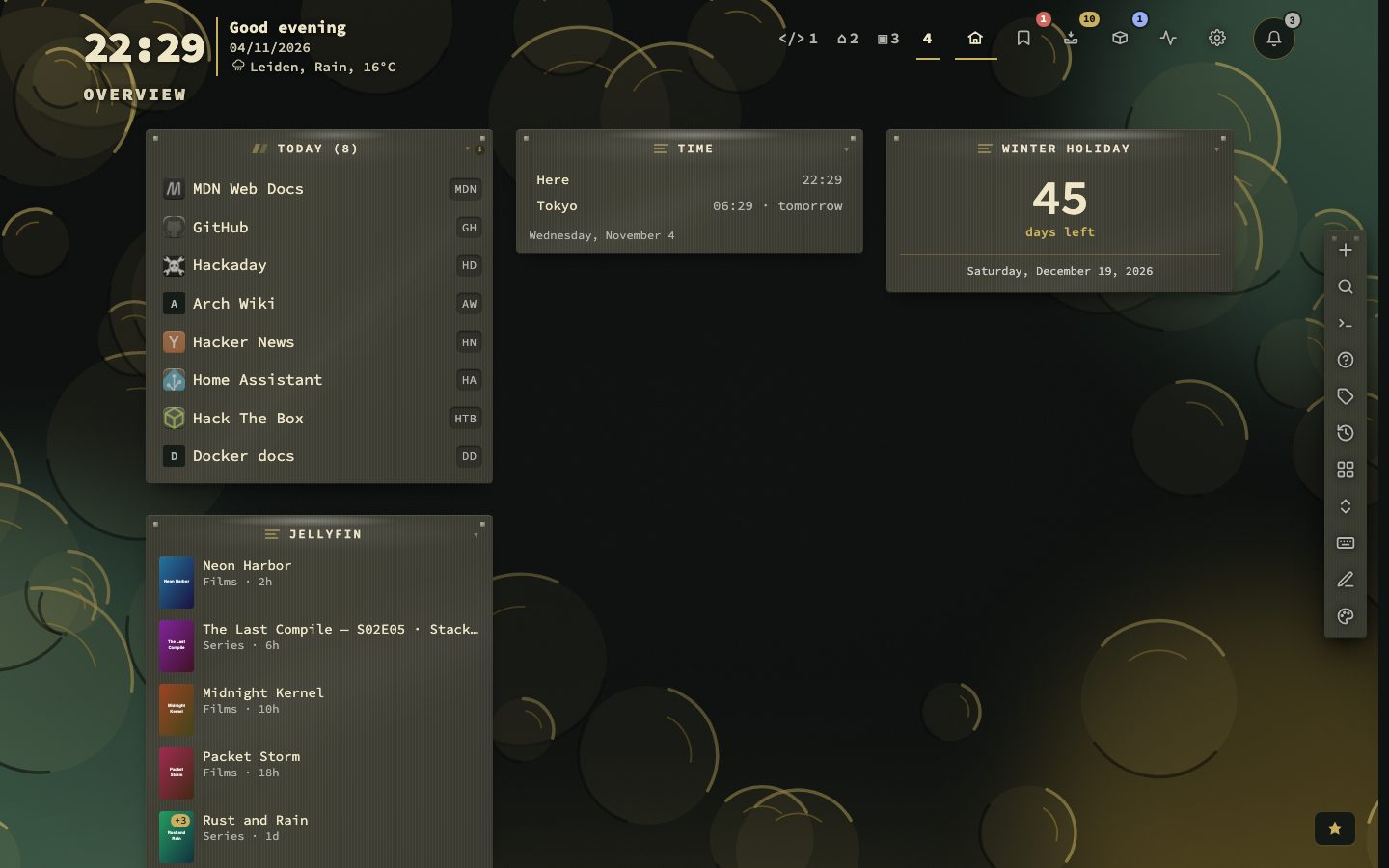
Duplicate, refresh and set times
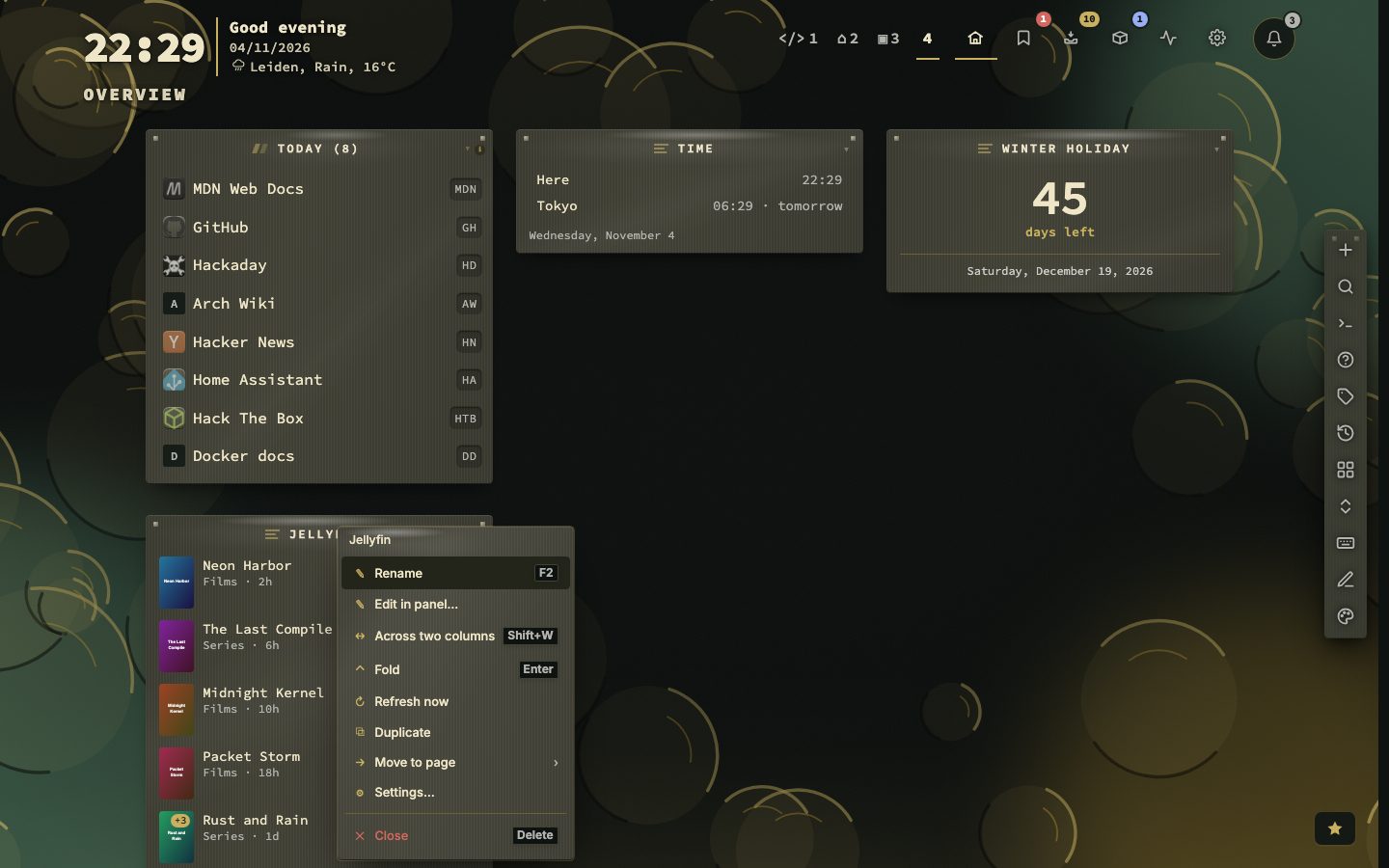
Right-click a widget to Duplicate it with the same settings. The media widgets, Beszel, Home Assistant and the Custom widget also have Refresh now. In a widget’s settings, every kind can be shown only between two times of the day and on chosen days of the week, and the disk and memory widgets take their own amber and red limits.
On every page
Weather, what is playing or the status of a server is something you want to see wherever you are. In edit mode, a widget’s panel has Show on pages: This page or Every page. On Every page each other page gets its own copy, which you move, resize, hide or limit to a screen on that page like any other. The name and the settings are shared, so a change on one page shows on all of them. Deleting a copy takes it off that page only; setting it back to This page removes the other copies, and a page you add later starts with them.
Adding a widget
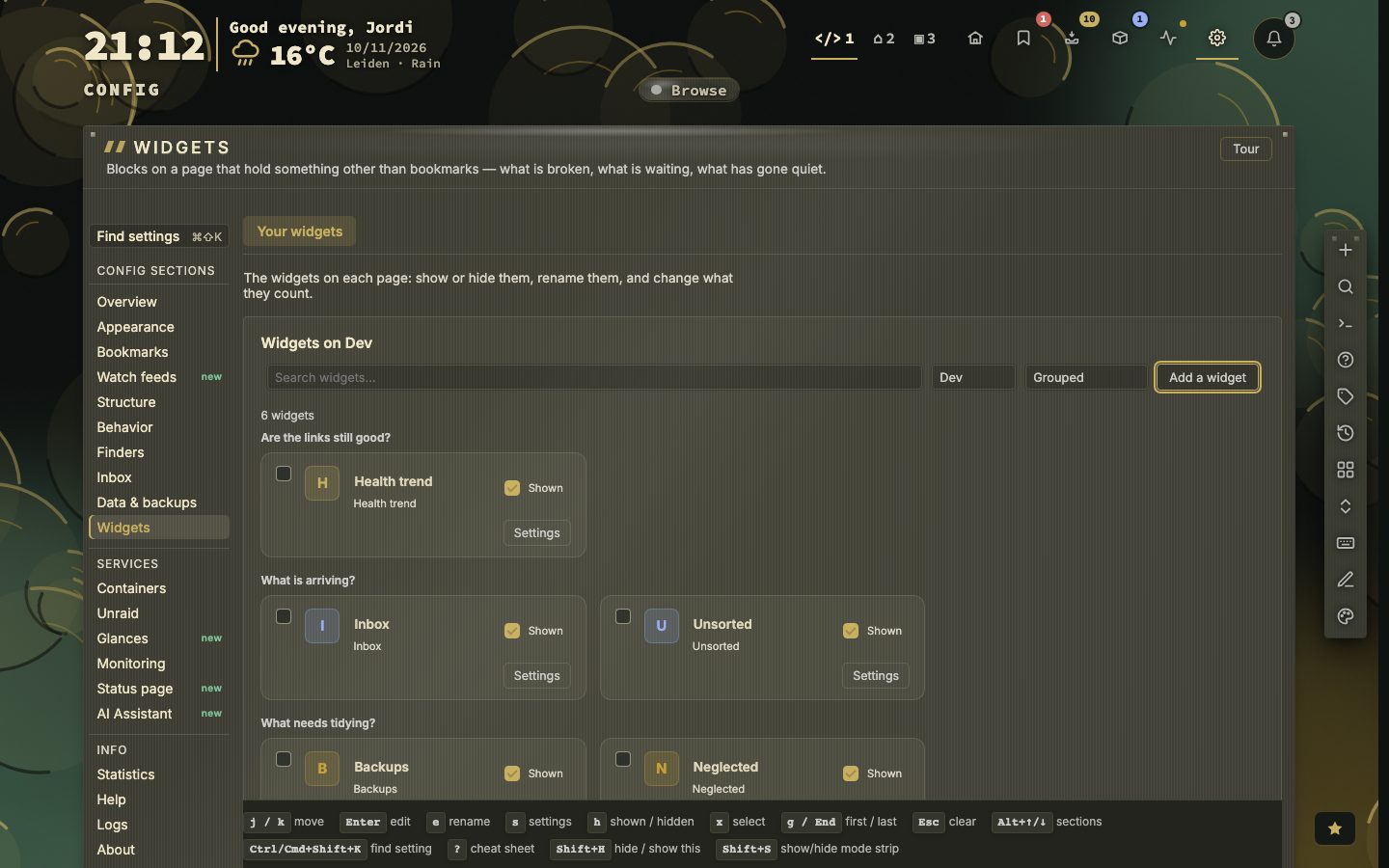
Everything starts in Config, under Widgets. The picker groups the kinds by the question each answers, and the pane beside the list shows the kind you are on with a small drawing of what it shows. Type to search by name or by what a kind shows.
If the page has more than one page to choose from, a page select in the picker says where the widget lands. A kind that needs nothing, such as Notes, is added at once. A kind that talks to a service, the media kinds for example, opens a Connect screen for the address and the key. Test says what it found or what to fix, and a failed test never blocks you: Add anyway adds the widget as it is, to correct later in its settings. Beszel, Home Assistant, Unraid and Glances are added straight away and filled in under their settings.
- 1Open Config, then Widgets
- 2Press Add widget and type to search
- 3Choose with the arrow keys and press Enter
- 4Fill in the connection, if the kind has one
- 5Press Save
What a widget’s settings hold
Every widget’s settings come in the same three folding sections, and a section with nothing in it is left out. Connection is how it reaches what it shows: an address, a host, feed addresses, a key. Display is what you see: the width, what to show, the order, how many rows. Advanced is how often it refreshes, how long an answer is kept, where a click goes and when the widget shows. The title and the Shown switch save at once. The rest waits for Save, and opening another card with unsaved edits asks first.
Under Advanced every kind has Show from, Show until and Show on for the days of the week. Outside them the widget is off the dashboard and its settings are kept. Set both times or neither. An end time before the start runs past midnight. With no day ticked, the widget shows every day.
Two columns say more
A wide tile is not the same tile larger. It adds the readings a narrow one leaves out: the load average behind the processor, the failing container by name, used and total beside free space, what the weather feels like, the date a certificate expires. Lists of rows run in two files. It follows the width the tile actually gets, so narrowing the dashboard takes it back at once. On a one-column dashboard a wide widget narrows itself and keeps the important half.
On the dashboard
A widget’s header sits on a lighter strip with a line under it, and its handle is a small panel where a category has //. Click the title, or press Enter on it, to fold the widget; . folds everything on the page. Right-click the title to rename it, change its width, fold it, open its settings, move it to another page, duplicate it or close it. Closing hides it and keeps its settings, and Config switches it back on.
A widget that reads something outside refreshes on its own interval and not at all while the tab is hidden. A tile with a row limit says what it left out, such as 5 of 12, and a figure on a tile is a link to the rows behind it.
A few tiles in detail
- Notes reads Markdown: headings, lists, quotes, tables and code. A line that starts with
[ ]is a checkbox, and ticking it on the tile saves at once. Edit opens a plain editor, and typing/there offers commands such as/date,/todoand/table. A note holds up to 6,000 characters. - Calendar reads the private ICS address of your calendar app. Your server fetches it, shares one copy between widgets and refreshes it every 15 minutes. A repeat pattern the widget cannot read shows only its first occurrence.
- RSS merges up to ten feed addresses, newest first. Your server caches each feed for 15 minutes, and a feed that fails does not empty the tile. Its settings can cut a pattern out of every title, such as a number in front.
- Tabs takes up to six widgets of the page. A widget sits in one Tabs widget at most, and only the tab in view is drawn.
Clean titles in the RSS widget
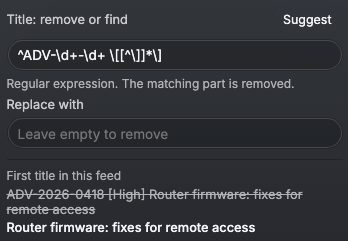
Some feeds put the same number or tag in front of every title. In the widget’s settings, Title: remove or find takes a pattern to cut out of every title and Replace with says what goes in its place. Suggest reads the feed’s own titles and proposes a pattern when most of them share a beginning or a | Site name ending, and a before and after shows what it does to the first title it changes. Nothing is applied until you save, and the feed’s own titles stay as they are.
A clock with a face
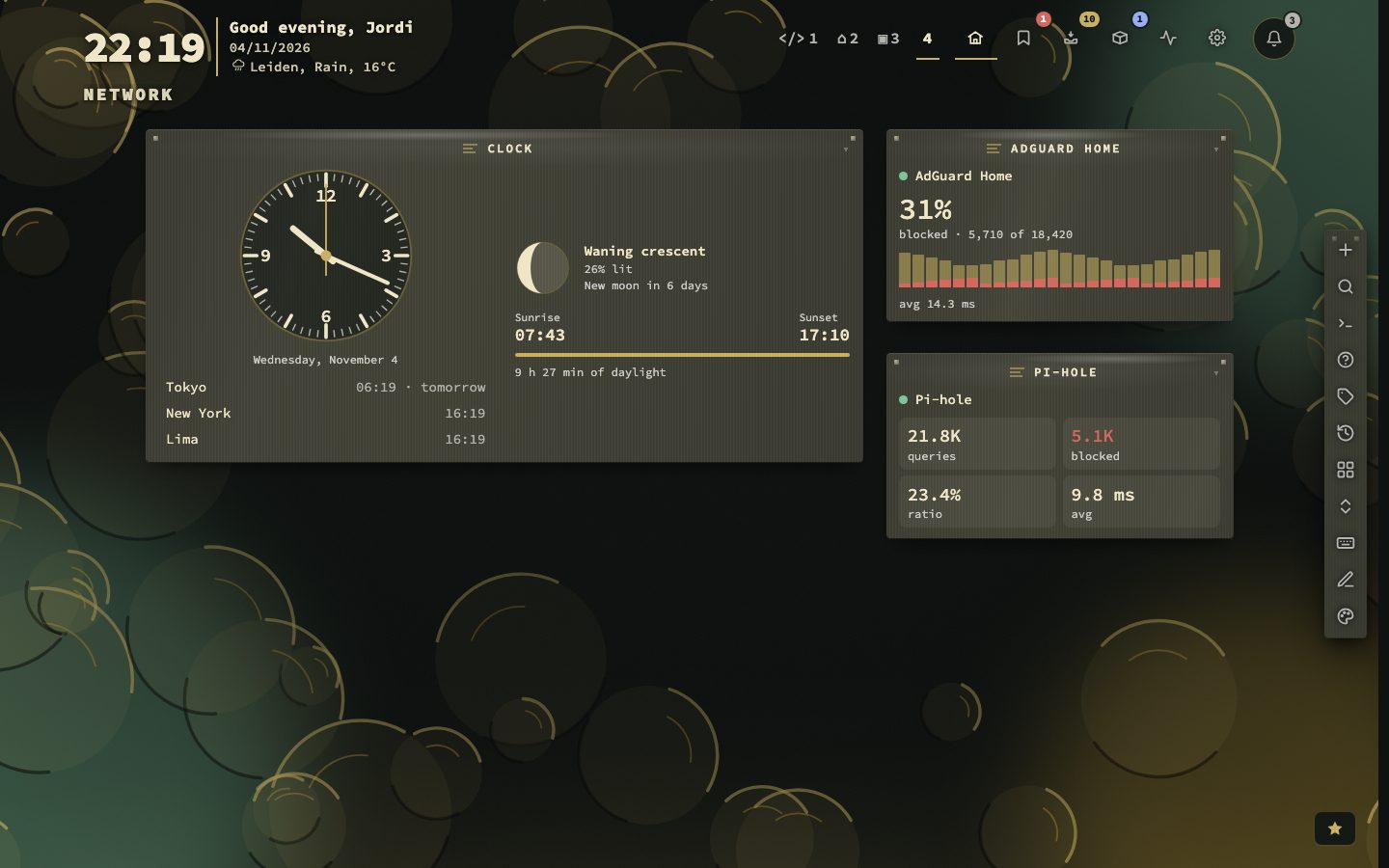
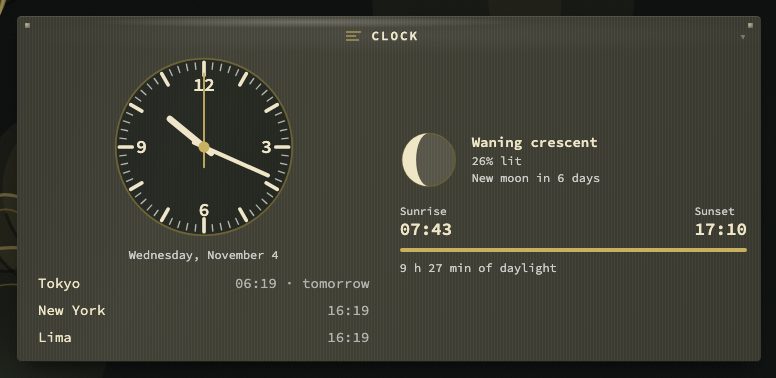
The Clock widget now draws a large analogue face, with the other places you add listed under it (the first three) and an optional seconds hand. Drawn two columns wide it adds the moon with its phase, and sunrise, sunset and the hours of daylight for the weather location set in Config. Plain lines of time keeps the old look. The Countdown puts its figure large in the middle, with the date under it.
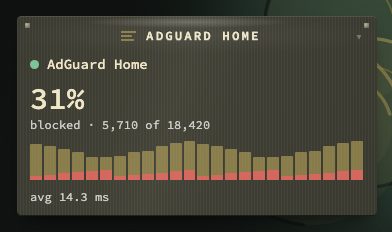
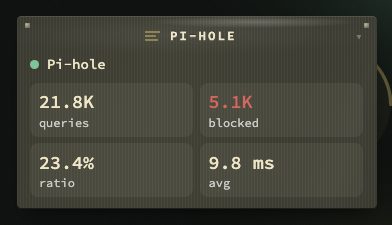
AdGuard Home and Pi-hole
One tile for each, built the same way: the queries, how many were blocked, the last day by the hour, and the top blocked domains and clients. Four looks in the settings: Pulse (one large percentage and the last day, the default), Leaderboard, Tiles and Mix. A click opens the top ten with a button to the service. Fill in the address and the sign-in the service wants and press Connect; the sign-in stays on the server.