Tag view
Recentsince v1.19.6 · 14 Oct
Every bookmark with a tag, from every page, in one table: any tag or every tag, a tag for a whole selection.
- / Open the tag cloud
- ShiftEnter In the cloud: stack a tag
- ShiftT Tag view of every bookmark
- t Tags of the selected row
- ShiftH Show or hide the key legend
- x Tick a row
- i Side panel of the row
- a Add the row's suggested tags
- Esc Step back
A tag is a free label. Tags covers putting them on a bookmark and the suggestions that wait for your click. This page is about where a tag leads: the tag view, one table with every bookmark that carries the tag, from every page, with figures, related tags and rows you can act on. It replaces the old grid filter, which only read the page you were on.
Try it
- Press / for the tag cloud, pick a tag and press Enter.
- In the cloud, press Shift + Enter on a tag, then on a second one, and Esc. Both are in the view.
- Click the word between the two tags to switch between or and and.
- Press Shift + T for the tag view of every bookmark.
What the view shows
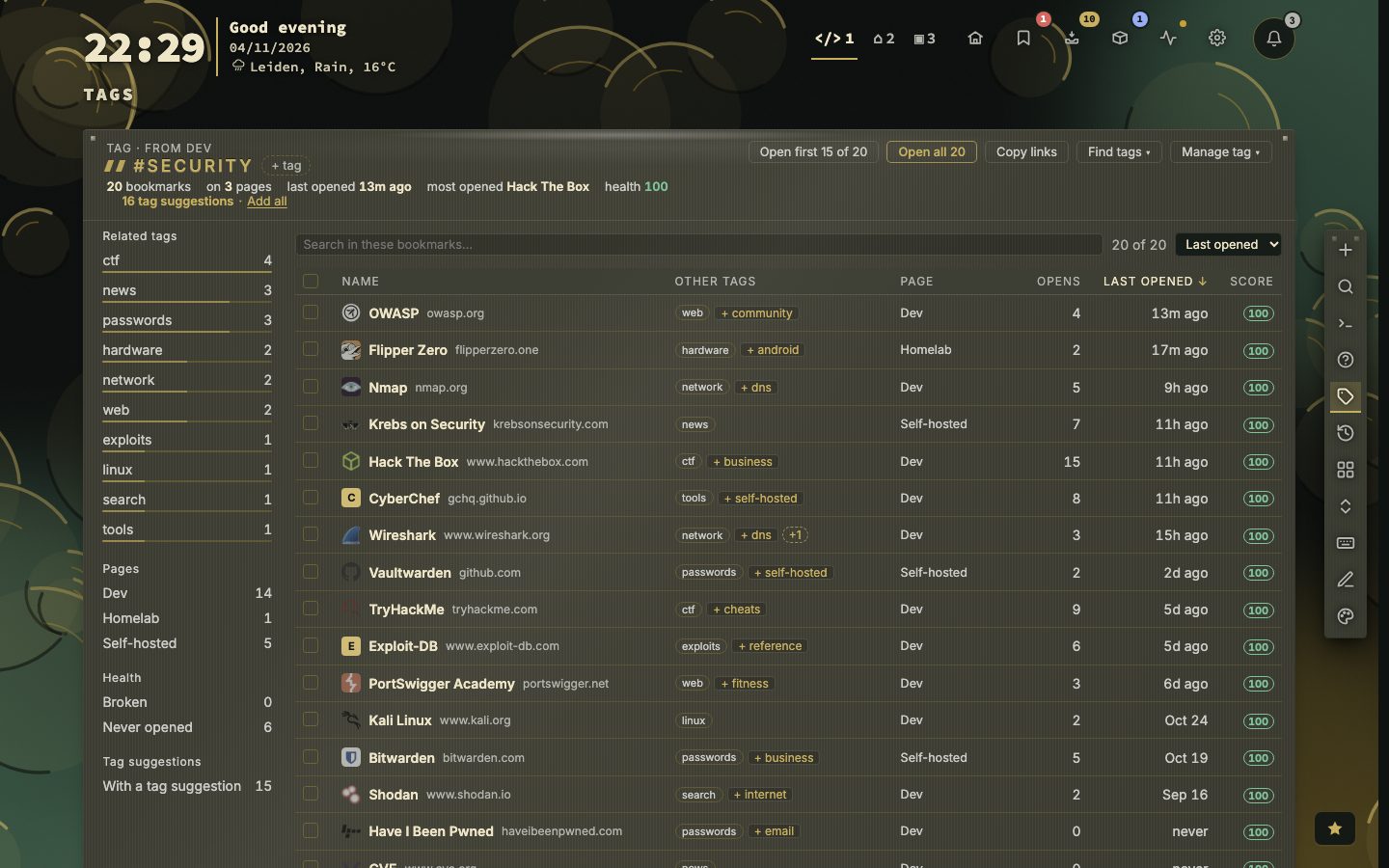
The header says where you came from, the tag, and a line of figures: how many bookmarks, on how many pages, what was opened last and most, and how many are broken. Open all opens every bookmark shown, Copy links copies their addresses and Find tags asks for tags for the rows on screen. The rail lists the related tags, the pages the bookmarks live on and a health filter; click a related tag to switch to it, or Shift-click to add it.
The toolbar has a search box, a count and a sort menu. The table shows each bookmark with its site, its other tags, its page, how often and when it was opened, and its score. A click on a column heading sorts by it, and the view remembers the sort you picked last, on this device. Move with the arrows, Enter opens the bookmark, i opens its side panel, e its form and a adds the tags suggested for the row. Esc steps back one thing at a time, and then back to the page you came from.
Any tag or every tag
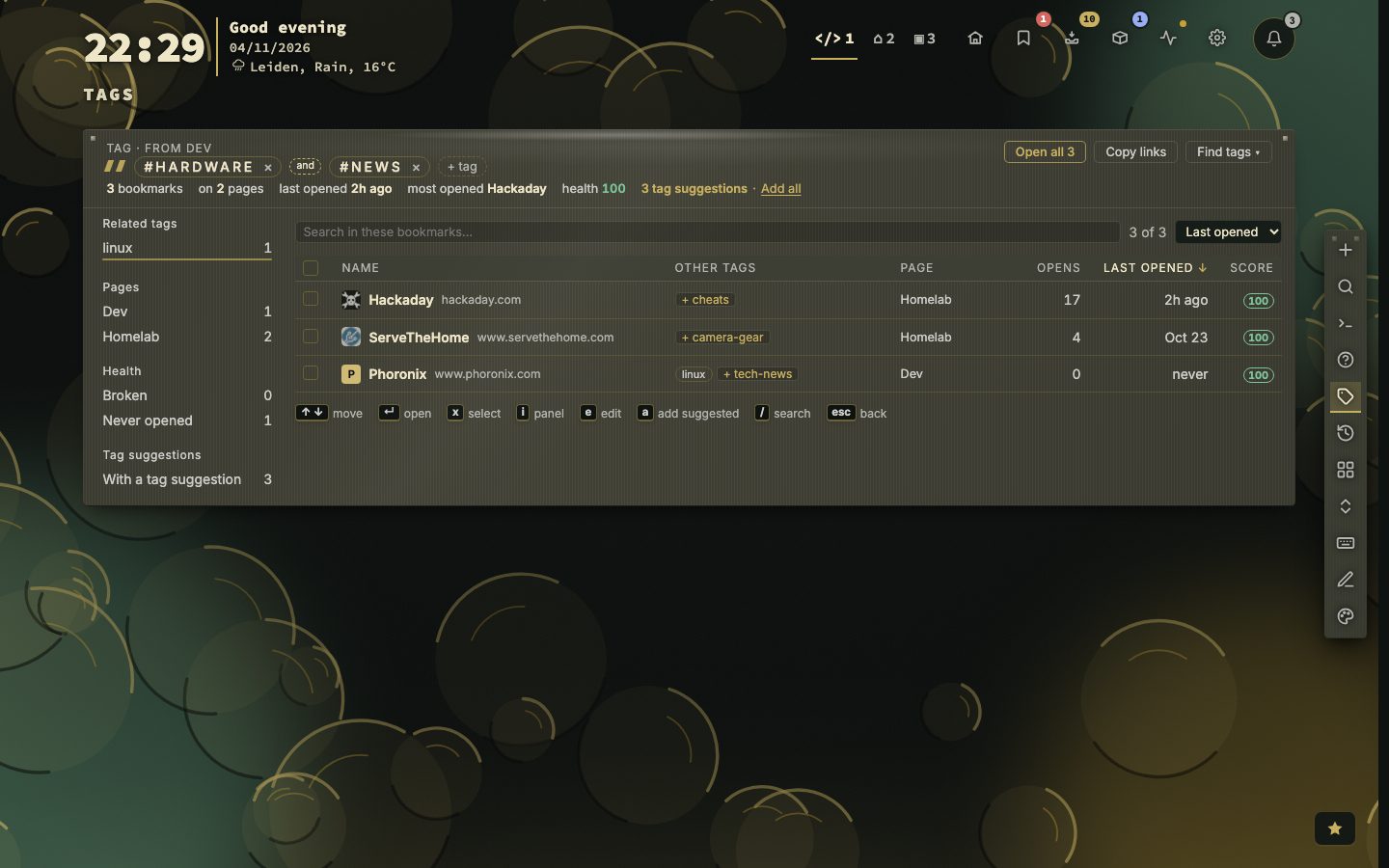
Put two or more tags in the view and the word between the pills is a switch. or shows the bookmarks with any of the tags, and only those that carry every one. + tag adds another tag, and the cross on a pill takes one out. An and view that finds nothing offers to show any of them. The address keeps the choice, for instance #tag/news+hardware?all, so a bookmarked or shared link opens the same view.
Every bookmark in one view
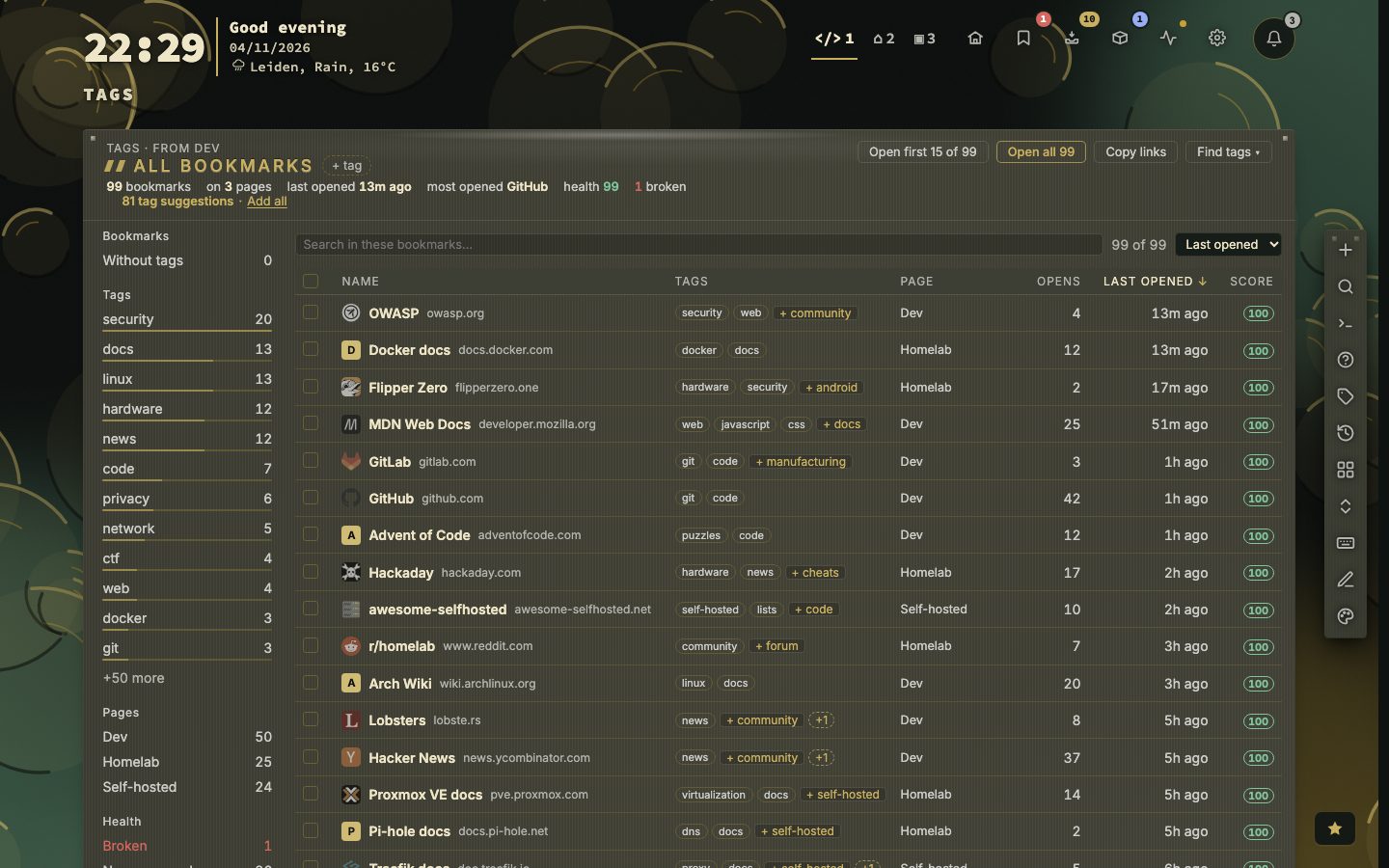
Shift + T opens the tag view with no tag picked: every bookmark from every page in one table. The header says how many have no tags, and the rail starts with a Without tags filter, followed by the tags in use. Click a tag there to open its own view, and Back returns here. The address is #tags. With a bookmark selected, t opens that bookmark’s tag popover. In the view itself the row letters are the dashboard’s: e edits, t tags, m moves, p pins and w watches the site’s feed, with a small legend under the list.
A tag for a selection
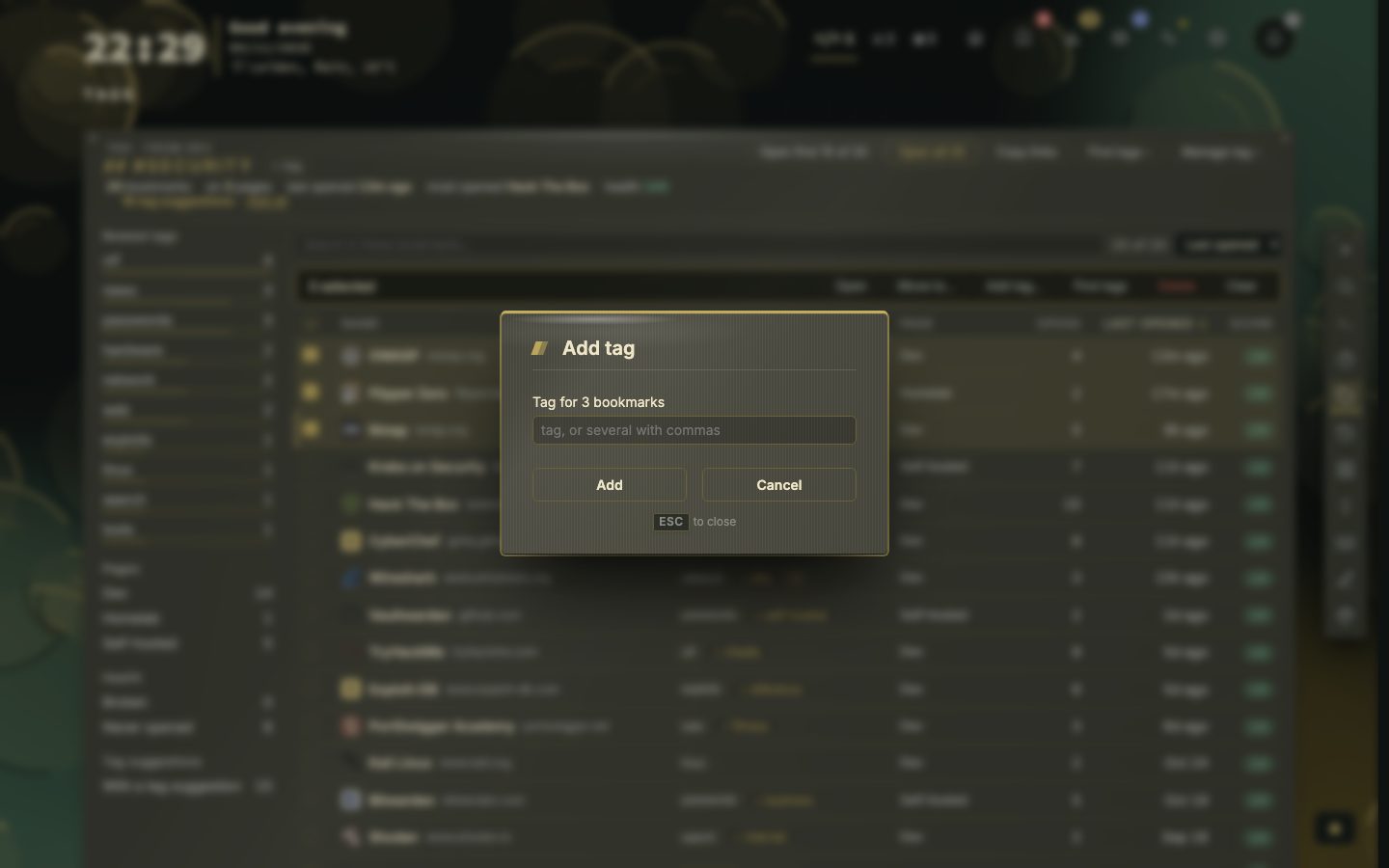
Tick a row with x. Alt + click ticks one, Shift + click ticks a range, and the tick in the header ticks everything shown. A bar offers Open, Add tag…, Move to…, Delete and Clear. Add tag… puts one or more tags, separated by commas, on every ticked bookmark, and an Undo takes them off again. Move to… sends them to a page; categories are offered only when they all live on the same page.
Managing a tag
Manage tag in the header can rename the tag, merge it into another tag or remove it from all bookmarks. Each of them can be undone. Config, then Bookmarks, then Tags, lists every tag with how many bookmarks carry it, to rename or delete everywhere at once. Renaming onto a tag that exists is refused.
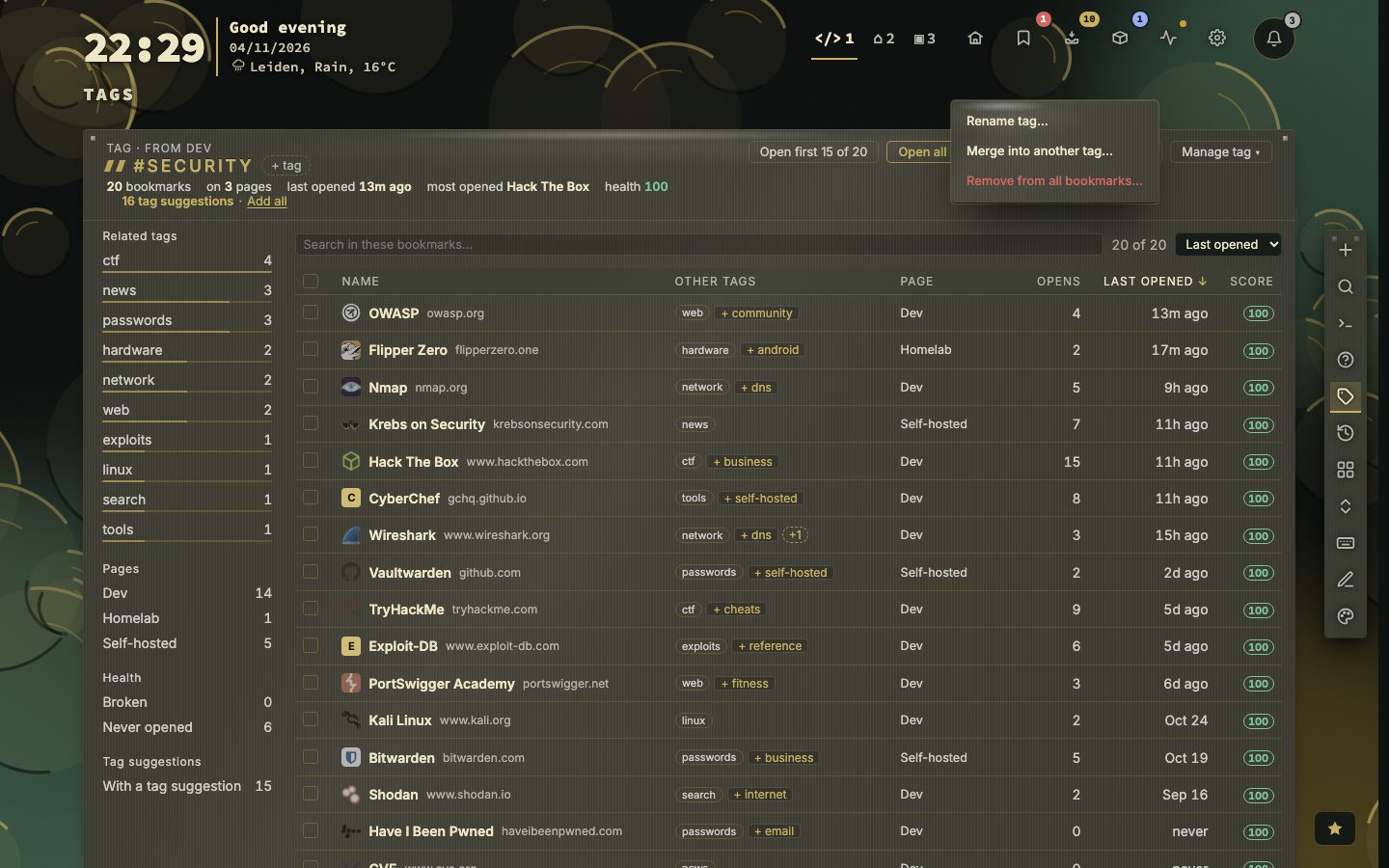
Suggestions in the rows
A dashed chip after a row’s tags is a suggestion. Click it to add the tag, or the cross to turn it down. A line over the table counts them, with Add all, and the rail offers a With a tag suggestion filter. Find tags asks further, for the bookmarks without tags or the rows on screen. Nothing is tagged until you click, unless you switch on adding what it finds straight away. Tags explains where the suggestions come from.
The manual covers the tag view in chapter 10.
Moving around the table
↑ and ↓ move, and g and End jump to the first and last row. On a focused row, Shift plus E, P, T, M, D, C, R, L or J does what it does on the dashboard: edit, pin, tags, move, delete, checking mode, health, share link and QR code. Delete deletes, Ctrl or Cmd + C copies the address, and the row menu is the one from the dashboard. The cheat sheet has a Tag view section with all of it.
The search box (/ jumps to it) reads names, addresses, sites and tags. With several words, every word must match somewhere, in any order. Sorting by Score puts the highest health score first, with bookmarks not checked yet last. Page follows the order of your page tabs.
Stacking tags from the cloud
In the cloud, Shift + click or Shift + Enter stacks tags instead of opening one. Every other tag then shows +N, how many bookmarks it would add, and a tag that adds nothing is dimmed. A tag with a colour is tinted in the cloud, on the rows and in the preview card.

Links to a tag view
The address of the view carries the tags. One tag is #tag/<tag>, several are joined with +, and ?all marks an and view. The view of every bookmark is #tags. Bookmark an address or share it, and it opens on the same tags.
Leaving the view
Esc lets go of one thing at a time: the side panel, then the selection, and after that it leaves the view and takes you back to the page you opened it from. In the search box, Esc first clears what you typed. The home icon and the Back button of your browser do the same. A view can also be reached with t on a selected bookmark, or with the command :filter and a tag.