Bookmarks view
since v1.15 · 28 Sep
Every bookmark from every page in one list: filter, select several, edit in a side panel and work through what needs a decision.
- ShiftB Open the Bookmarks view
- j / k Move through the list
- i Open or close the side panel
- 1 2 3 Details, Health, Usage
- x Tick a row
- u Work through
- l Health of the bookmark, in large
- ShiftU Unsorted
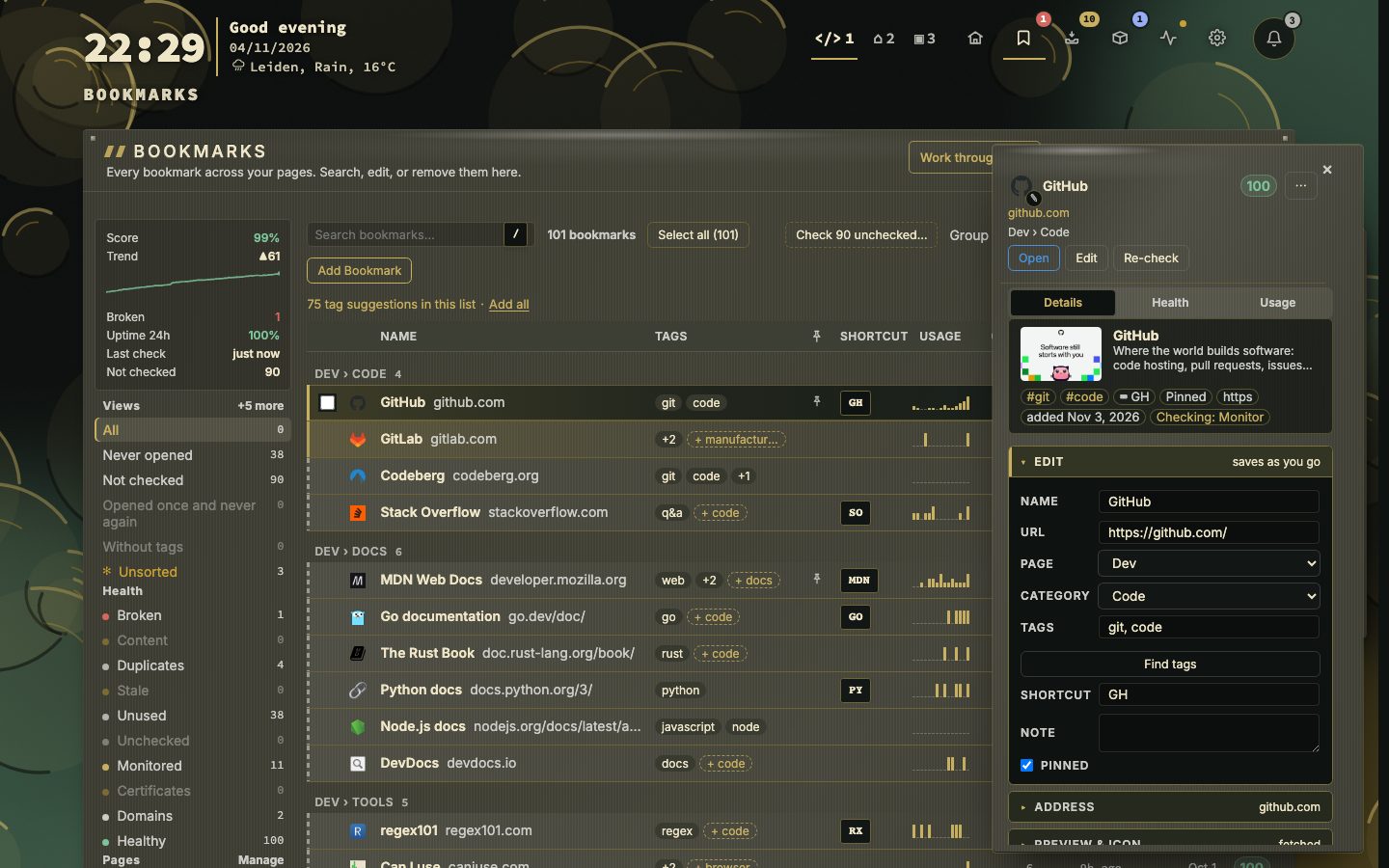
The Bookmarks view is the library: every bookmark from every page in one workbench. A rail of filters stands on the left, the list in the middle and a side panel for the bookmark you are on. It is where you search, sort, edit and tidy a collection that has grown, one bookmark or a hundred at a time. Checking, uptime and drift are watched from the same place, and Health has a page of its own.
Try it
- Press Shift + B, or click the Bookmarks icon in the header.
- Move with j and k. i opens the side panel, and 1, 2 and 3 switch it between Details, Health and Usage.
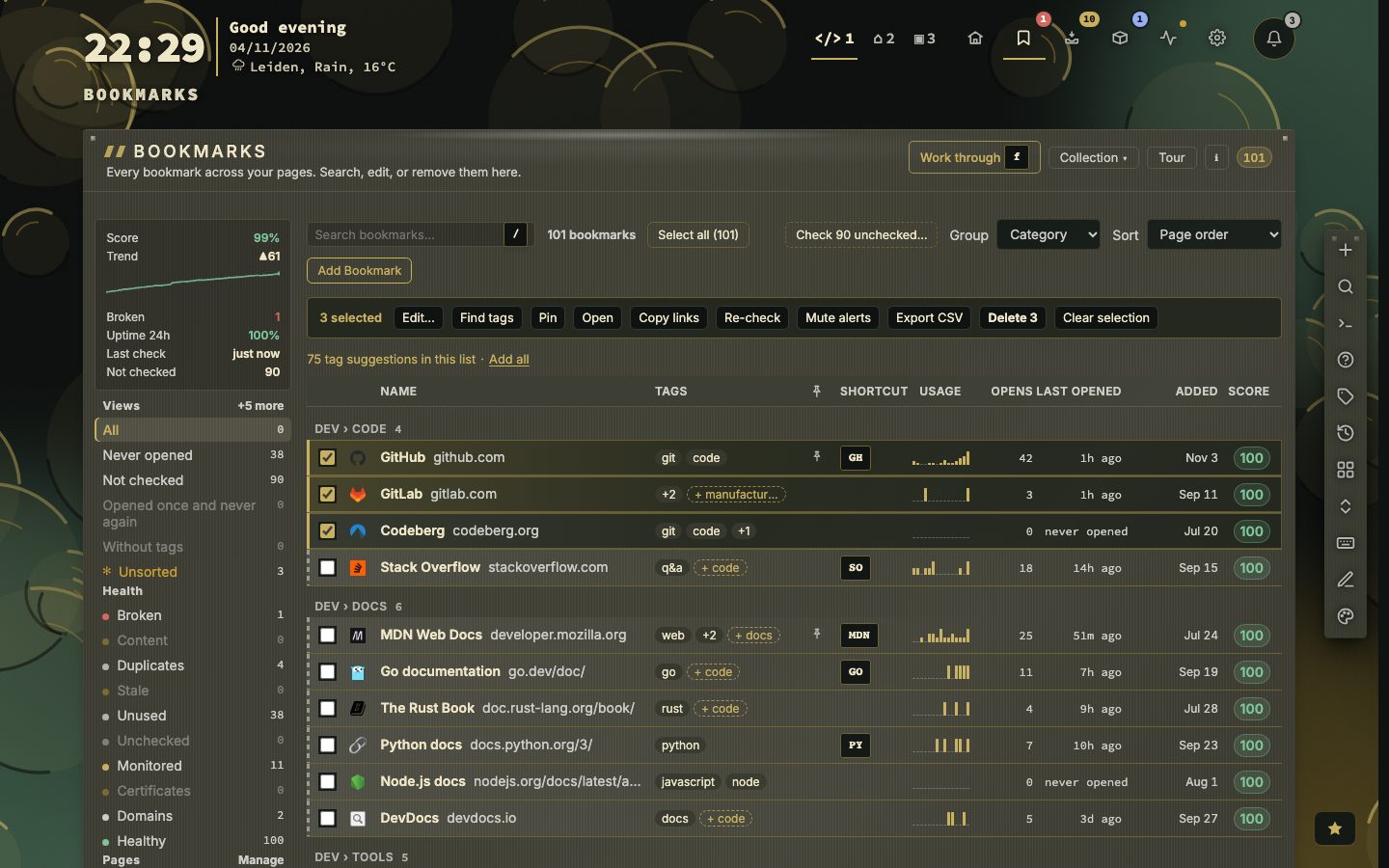
- Tick a row with x, move on with j and tick again. A bar for the selection appears above the list.
- Press f to work through the bookmarks that need a decision.
The rail
A summary at the top shows the score, its trend, how many links are broken, uptime over 24 hours and how many bookmarks nothing checks yet. Under it come the filter groups: Views (all, never opened, not checked, untagged, not on HTTPS, no icon, duplicates, changed recently), Health (broken, content, duplicates, stale, unused, unchecked, monitored, certificates, healthy), Pages with a Manage link, Categories and Tags. Active filters show as tokens above the groups, with Clear filters to drop them all. What you filtered to is kept in the address, so a filtered list is a link.
The toolbar and the list
The search field (/) matches name, address, category, note, shortcut and tags. Group groups the list by page, category, site, status or tag, and Sort orders it by page order, name, last opened, most opened, health score and more. Add bookmark opens the full form on the page the list is filtered to. A row shows the icon, name, host, tags, shortcut, a small activity chart, how often it was opened, when it was last opened, when it was added and its score. A click on a column heading sorts by it, and a second click turns it round. Only the rows near the screen are drawn, so thousands of bookmarks stay quick.
The side panel
Focusing a row opens its panel. Details edits the bookmark in place: name, address, page, category, tags with suggestions, shortcut, note, pin, and whether and how often it is checked. Lists save when you change them and text fields when you leave them, and Esc puts the old value back. Health shows the checking mode and the reasons a bookmark is flagged, each with the score it costs. Usage shows how often and when it was opened. The pencil on the icon chooses an app icon or a letter, and the menu beside the score holds the rest: refresh the title or icon, open or save a copy, share, show on the dashboard, delete.
Selecting several
Tick rows with x, or the whole list shown with X. A bar counts the selection and offers Edit…, Find tags, Pin, Open, Copy links, Re-check, Mute alerts, Export CSV, Delete and Clear selection. Edit… opens one form for all of them in the side panel: page, category, tags (add, replace or remove), pin, checking and interval. Fields that differ read mixed. The slow actions run one page at a time behind a progress bar and can be stopped.
The row menu
Right-click a row, or press m or Shift + F10, for open, copy URL, share, edit, checking, health details, the health charts of that bookmark, merge on a duplicate, filters (only this category, page or tag) and delete. On an Unsorted bookmark it also offers Promote.
Work through
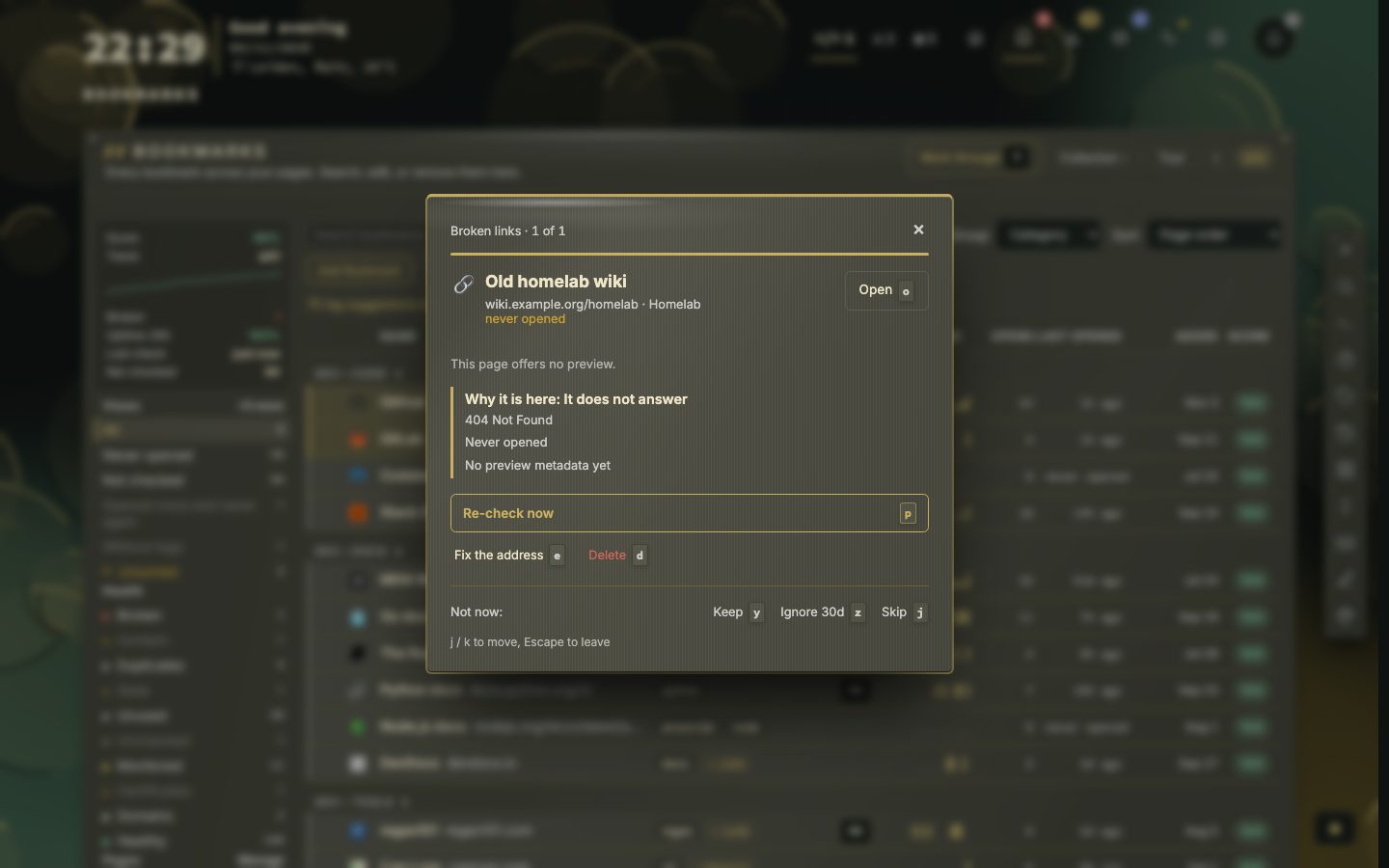
Over the list stands Work through. It opens on a list of piles, the one that needs you most first: broken links, changed or wrong content, stale links, never opened, and the list as it is filtered now. Pick one and nextDash shows the bookmarks of that pile one at a time, with the reason it is there. p re-checks it, o opens it, e fixes the address, d deletes it after asking, y keeps it, z ignores the reason for 30 days and j skips to the next. At the end it counts what you dealt with and offers the next pile.
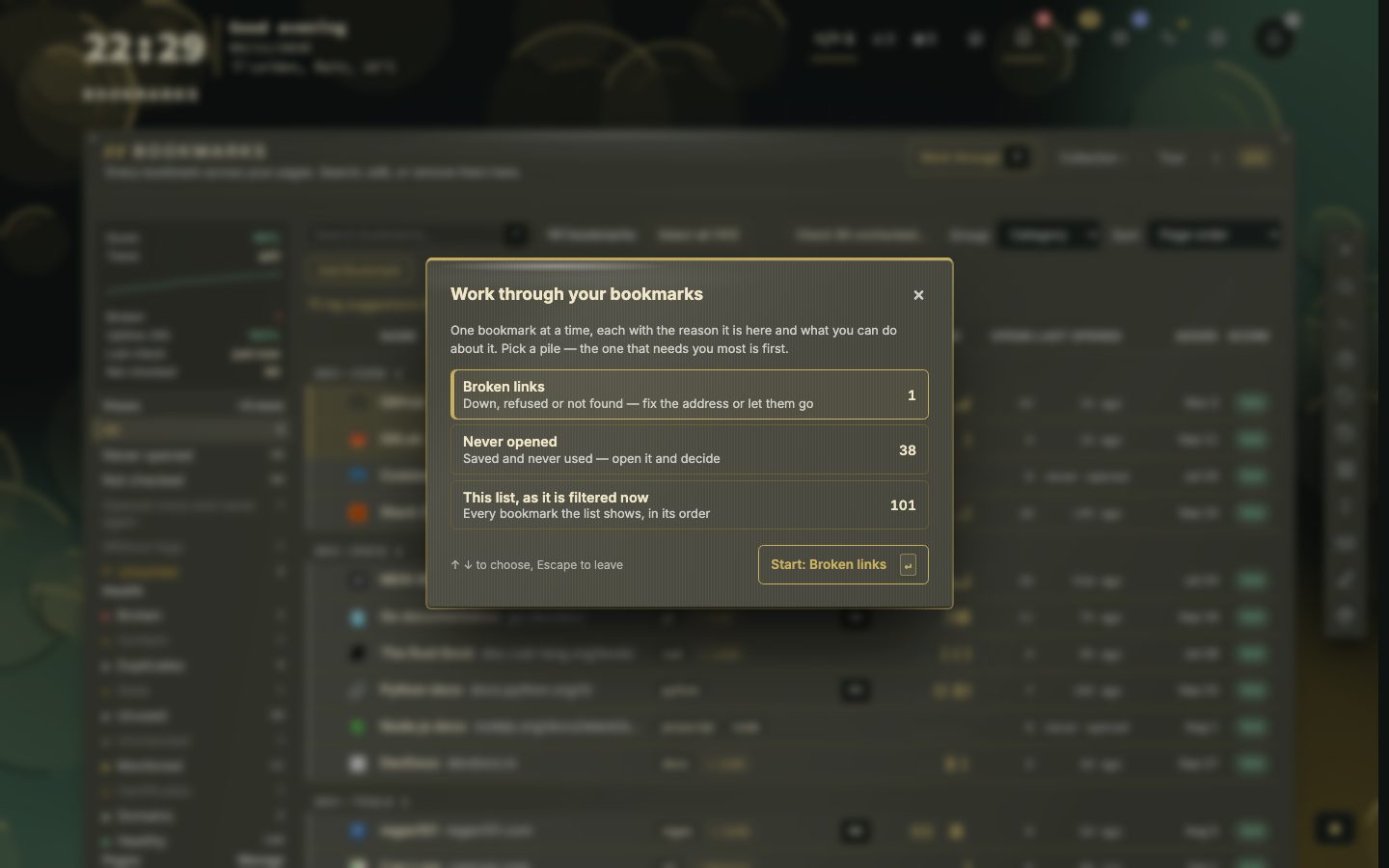
When five or more bookmarks need a decision, a row in the notifications bell offers a session over the worst ten (Start), and No puts it away. The Collection menu next to Work through holds Collection health, the rot report, Pages & categories and the checks that cover the whole collection, and Tour plays a five-step walkthrough of the view.
Pages and categories, without leaving
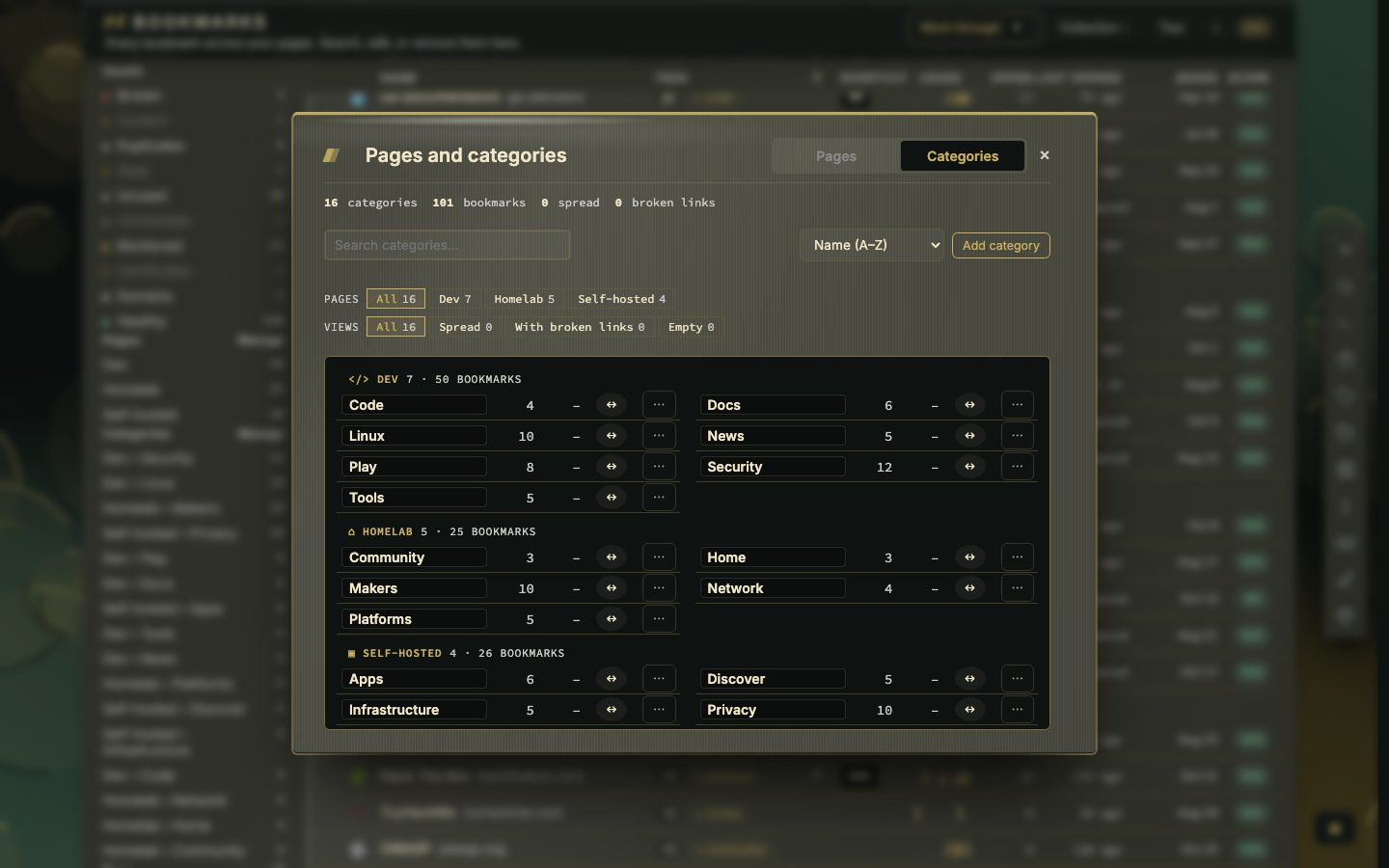
The Manage link beside Pages or Categories in the rail, or the Collection menu, opens the pages and categories over the list: drag to reorder, rename, move or merge them without going back to the dashboard. Pages and categories tells what each of them is.
Unsorted and Promote
Links you kept from the inbox without choosing a page wait in Unsorted. They stay off the dashboard, the tag cloud and the health summary, but the rail always shows their count, and Shift + U opens the view on them. Filters, search and bulk actions work there as on the filed library. Promote, in the side panel or the row menu, opens the bookmark form on the last page: pick a page and a category and save to file it.
The manual describes the view in chapter 11.
Sorting by column
- 9health filters in the rail
- 12ways to sort
- 3tabs in the side panel
The column headings stay in place while the list scrolls (not at phone width). Every heading that has a value under it sorts. The first click uses the natural order of that column: Name and Tags from A to Z (Tags by the first tag, untagged last), Shortcut with the keyed ones first, Opens, Last opened and Added with the highest or newest first, Pinned with the pinned ones first, and Score with the worst first. A second click turns the list round, and an arrow on the heading shows which way it runs. Sort in the toolbar follows, and picking from it starts again in the natural order.
A bookmark that is the web page of a container carries a small cube after its name, in the colour of the container: green running, amber paused or restarting, grey stopped. A click opens that container in the Containers view. The cubes stay away when the Docker socket is not set up or the Containers view is switched off.
Work through, step by step
- 1Press f or click Work through
- 2Pick a pile and press Enter
- 3Read why the bookmark is here
- 4Decide with one key
- 5Move on until the pile is done
The card shows the pile and your place in it, for instance Broken links, 3 of 12, the bookmark with its page and category, when you last opened it, its preview and Why it is here: the reasons from the health report. The main button follows from the reason. For a broken or changed link it is Re-check now (p), and when the problem is gone the bookmark counts as fixed and leaves the pile. For a stale or never opened link it is Open it and decide (o). Fix the address (e) opens the bookmark form over the card, and a save checks the new address.
Keep (y) says the bookmark is fine as it is, and that reason will not come up again for it. You can undo that from the Health tab of the side panel. Ignore 30d (z) silences a reason for 30 days. j and k skip without deciding, and Esc leaves with the list as it was. At the end of a pile, nextDash counts what the run did (fixed, deleted, kept, snoozed) and offers the next pile that still has bookmarks, or Back to the list.
Collection health and the Collection menu
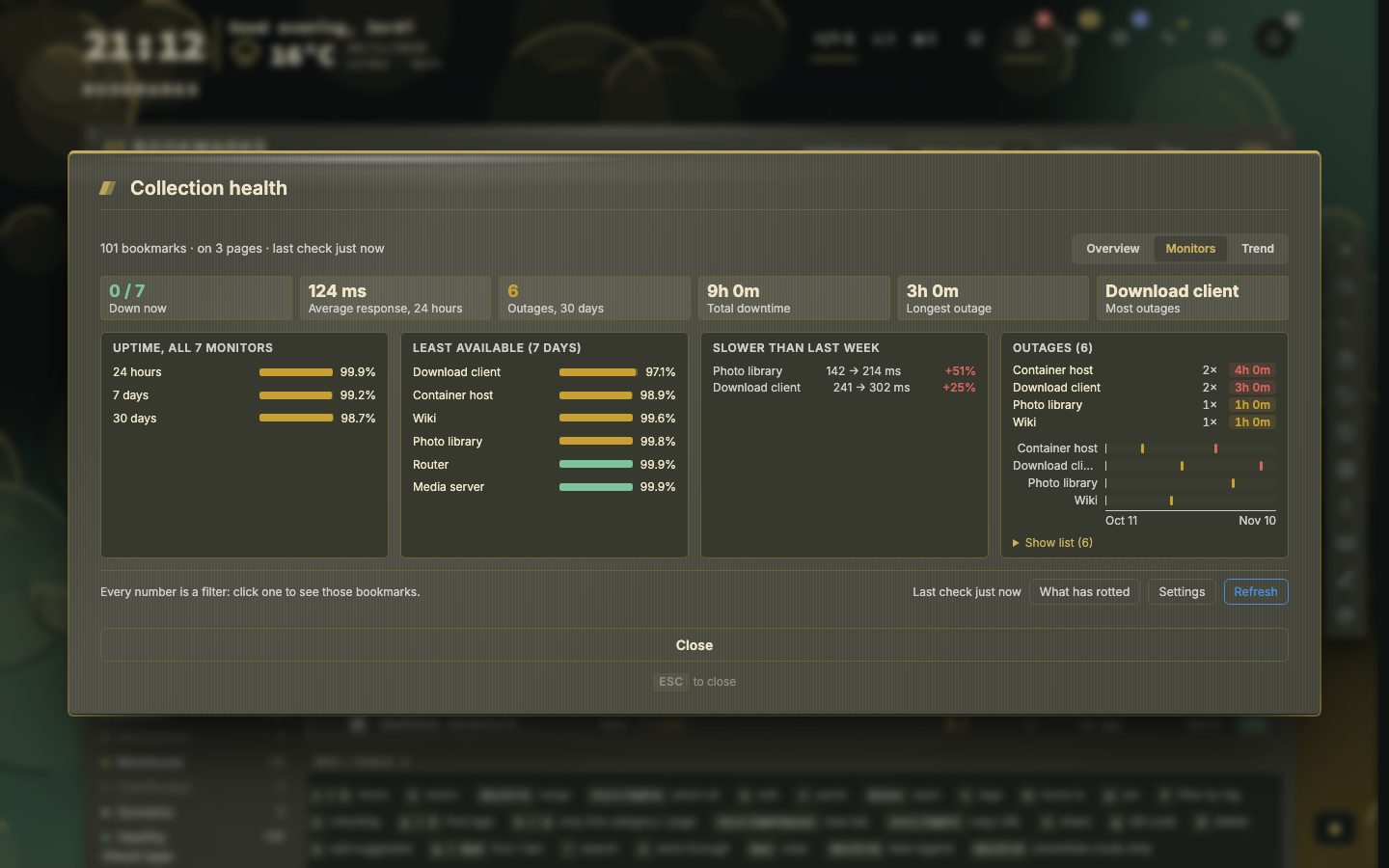
Press h for Collection health, a window that reads the whole library at once. The Collection menu next to Work through gathers the rest in groups. Look at holds Collection health and the Rot report. Organise holds Pages & categories, merging a duplicate group and turning checking on for everything still off. Checks holds Retest all, Open broken links, Fetch previews and Checking off. Below those come Export CSV, Refresh report and Health settings.
Keys at a glance
- j and k or the arrows move, g and End jump to the first and last row, and Enter or o opens the bookmark.
- i opens the side panel and e edits in the full dialog. d deletes, with undo.
- x ticks a row, Shift + X a range, and Ctrl or Cmd + A every bookmark the filter and search show, drawn or not. Press it again to clear.
- r re-checks, l on a row shows that bookmark’s health in large, and h opens the health of the whole collection.
- m, p and t move, pin and tag, as on the dashboard, and u starts Work through.
- Shift + H hides or shows the key legend under the list.