Config
What you set at startup, and what lives in the app.
- , Open config
- < Open config
Everything that has to be decided before startup is an environment variable: the port, the data folder, tokens, rate limits, the activity log, how many automatic backups to keep and two switches to turn off analytics and the news feed. Sources, widgets, webhooks and the assistant endpoint live entirely in the app.
For a LAN or VPS, set a write token, an explicit list of allowed origins and the activity log, and keep nextDash behind a private network or a proxy with authentication.
Try it
- Press , to open config.
- Pick a section from the rail.
- See the field guide on the home page for the full variable list.
Version at a glance
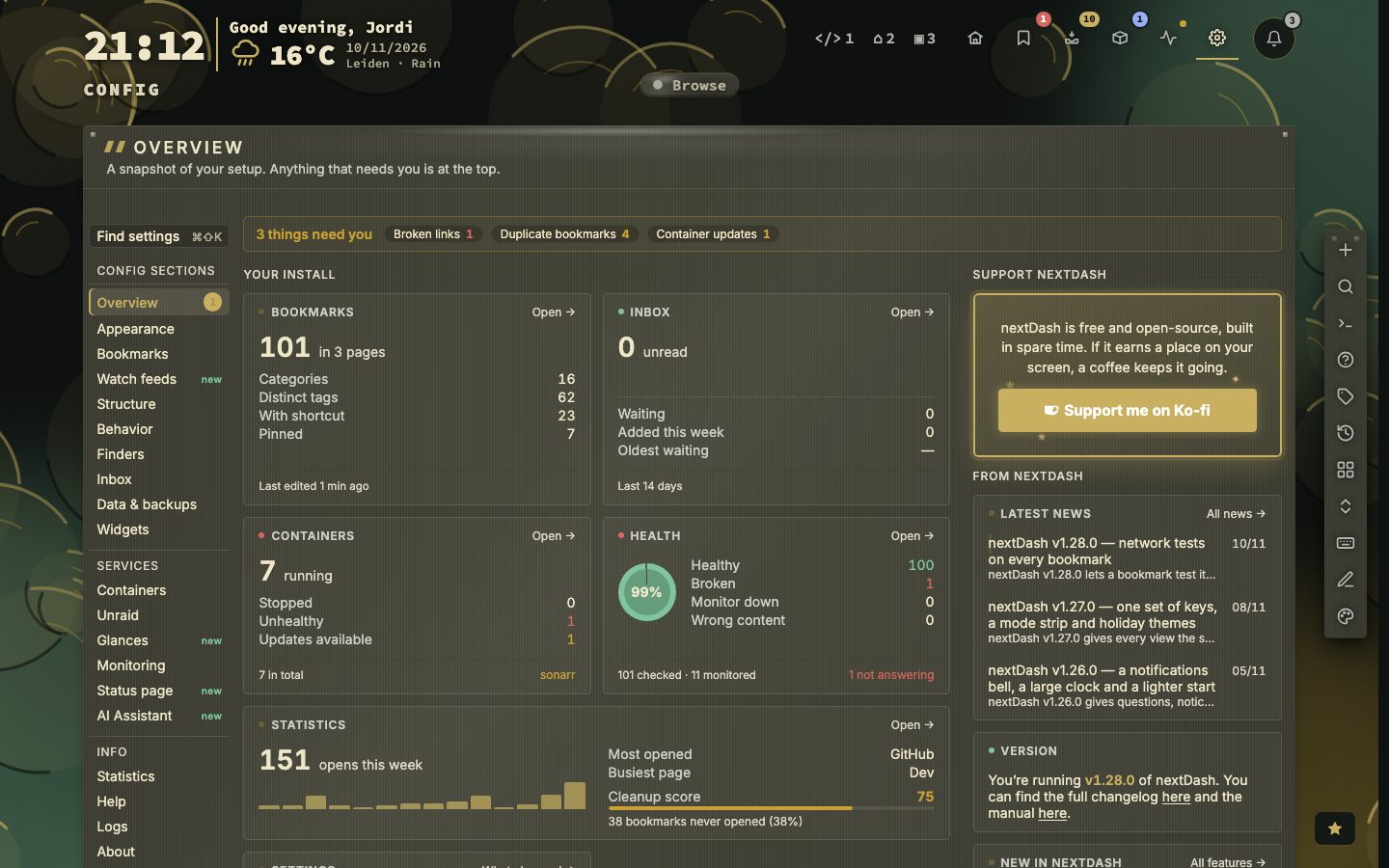
The overview names the version you are running, with a dot that says whether it is the newest release, and links to the full changelog and the manual.
About, and your install
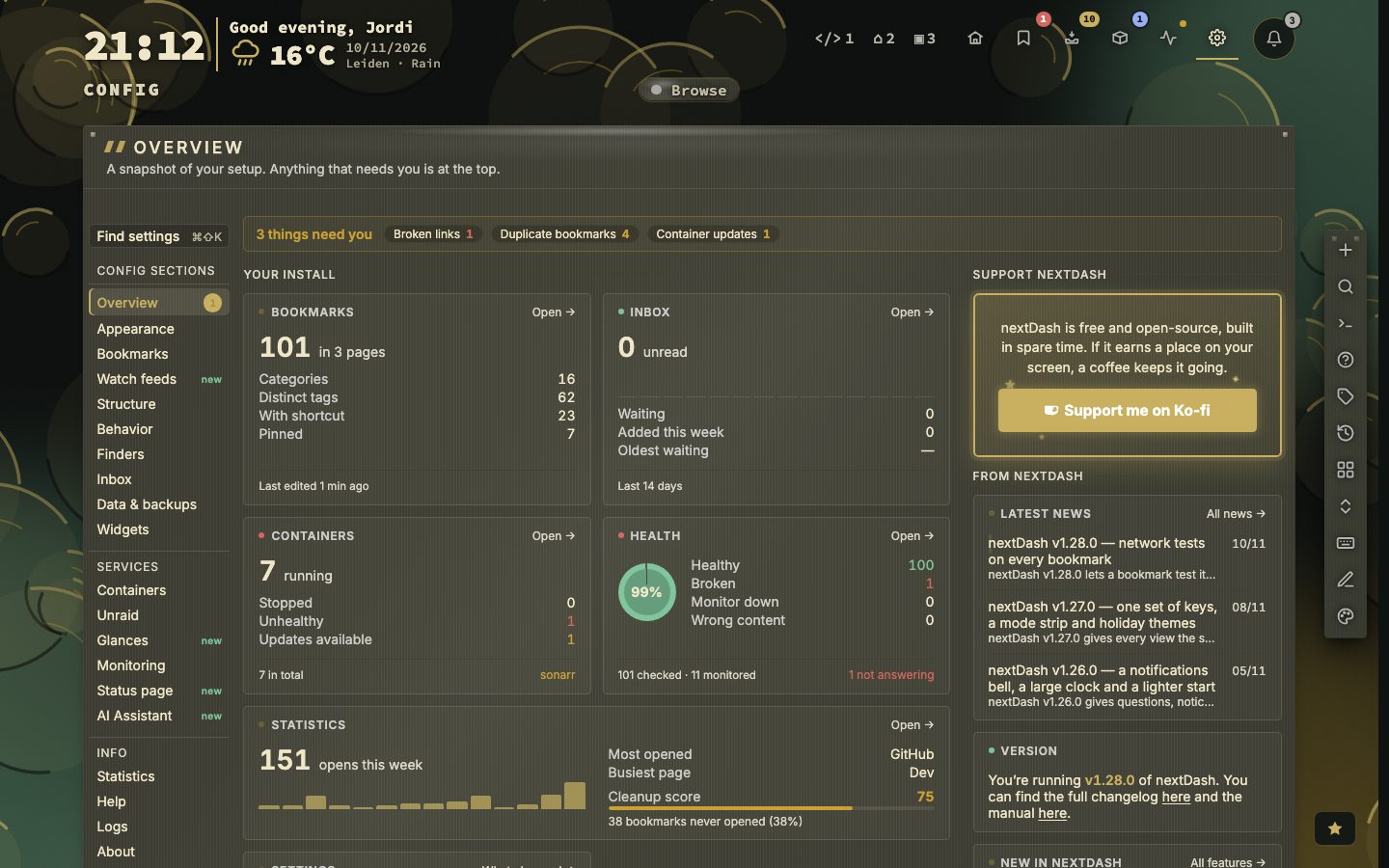
About has three tabs. Project says what nextDash is and who makes it, with links to the docs, the issues and the changelog, and a list of the licences it ships with. Install shows the release you run and whether a newer one is out, the size of what you keep, and a block of facts about the install, with no paths in it, that Copy diagnostics puts on the clipboard for a bug report. News and features lists what changed.
What you changed from the defaults
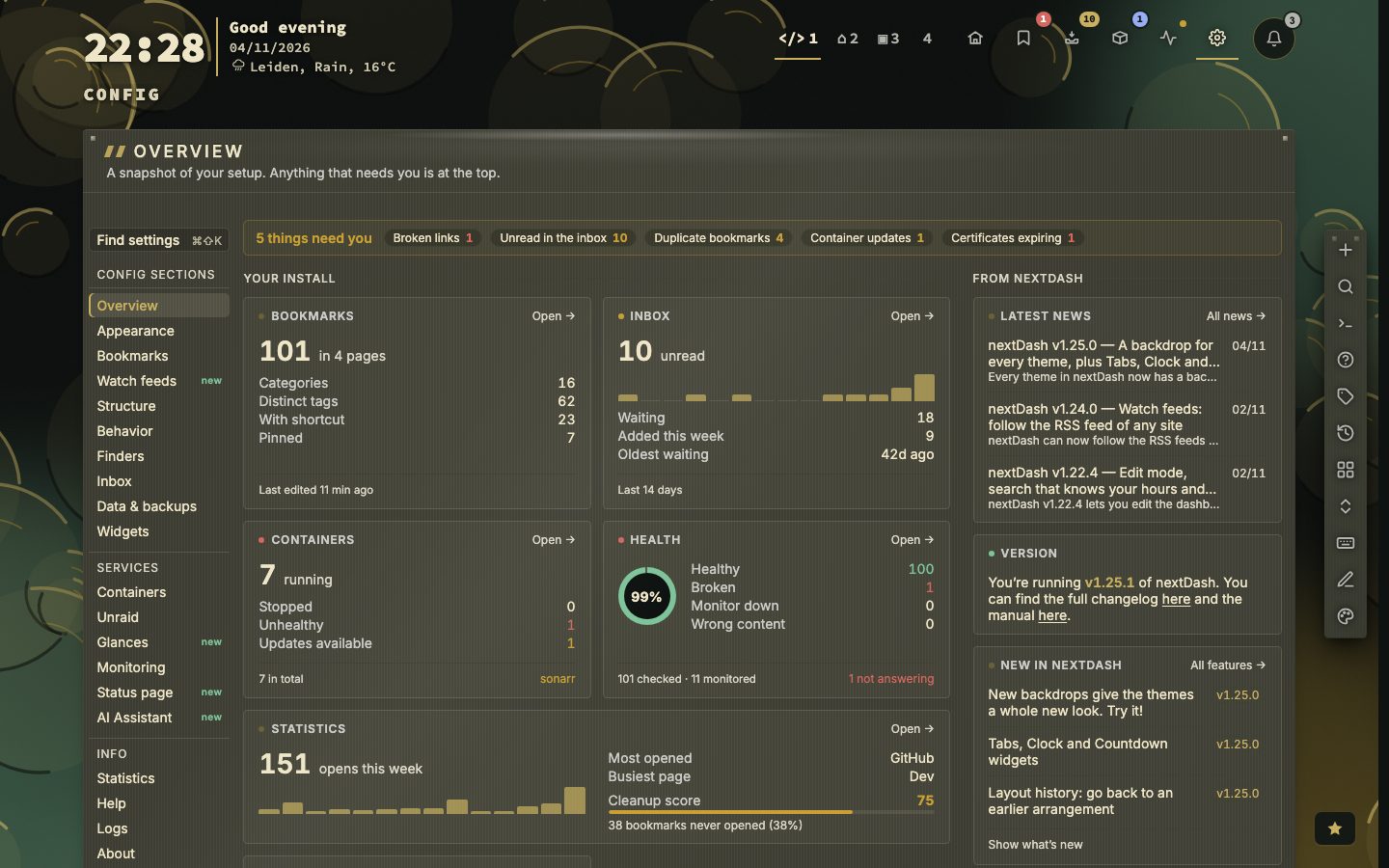
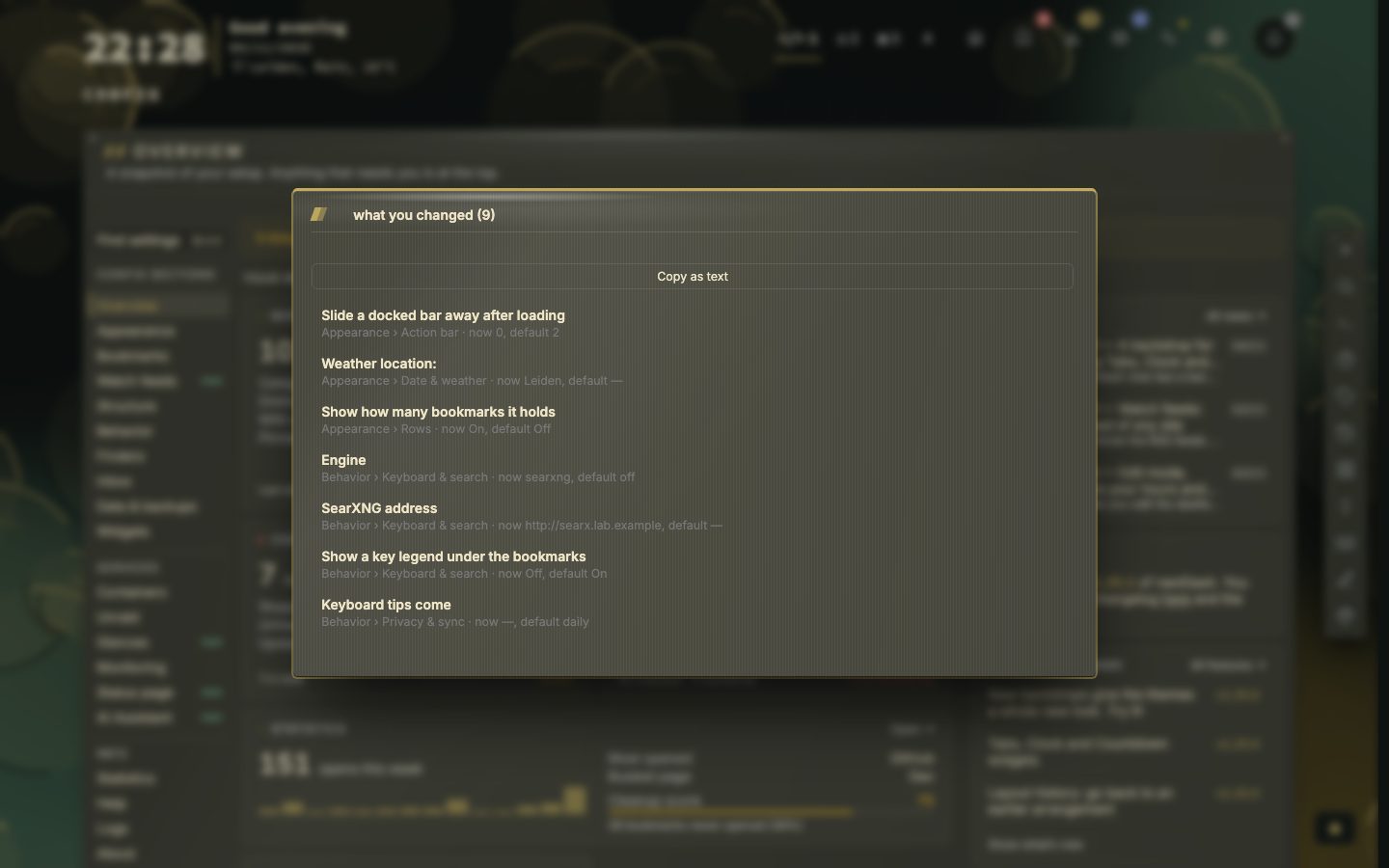
The Overview has a Settings panel that counts the settings you moved away from their default. What changed lists them, each with its value now and the default, and Copy as text puts the list on the clipboard. Chips on the Overview point at expiring certificates, widgets that cannot read and a failed backup.
Earlier layouts of a page
nextDash keeps earlier arrangements of each page when widgets are added, moved, closed or changed. Open the history, see what restoring an entry would bring back or take away, and restore it. A restore keeps the layout it replaces, so it can be undone.
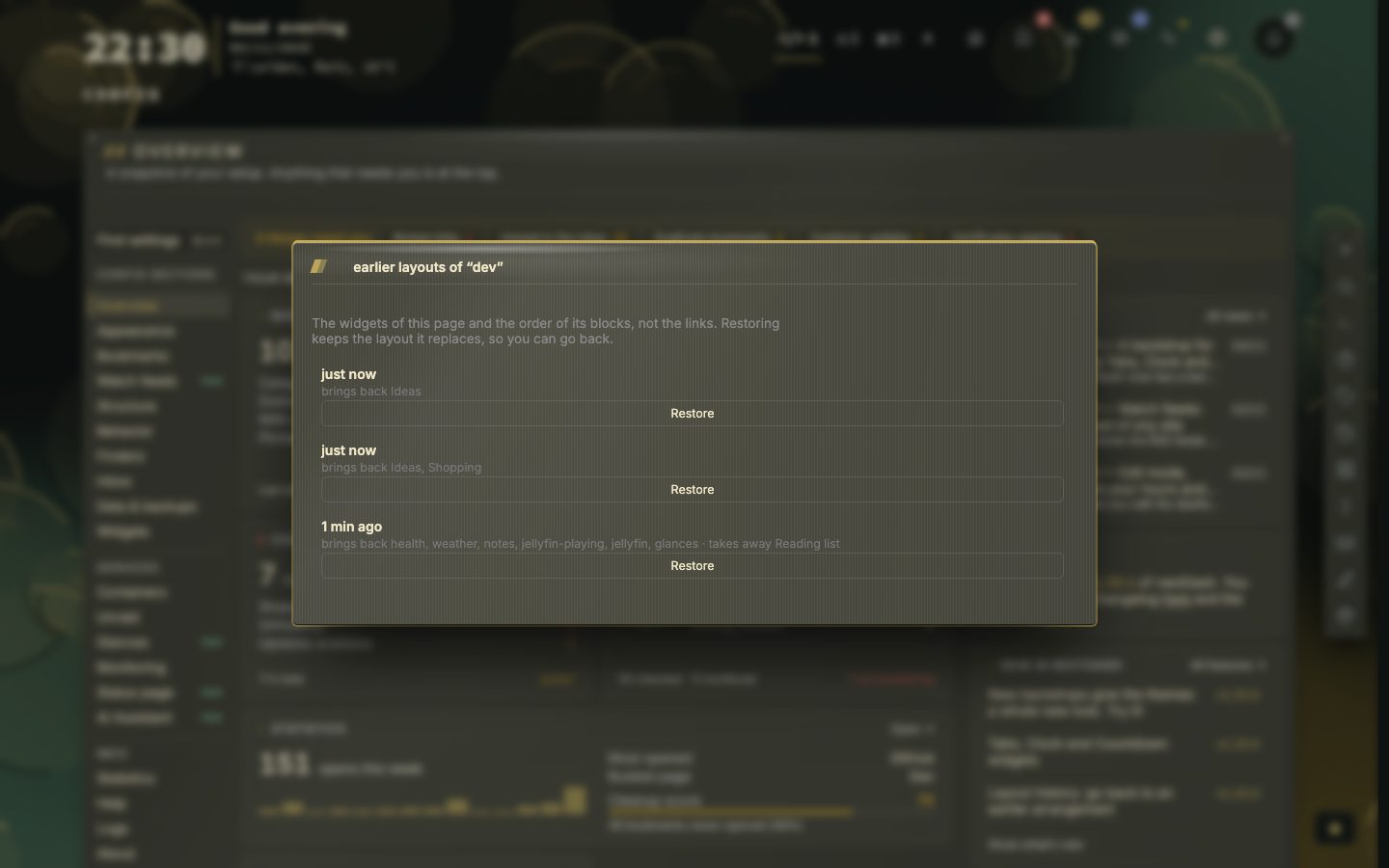
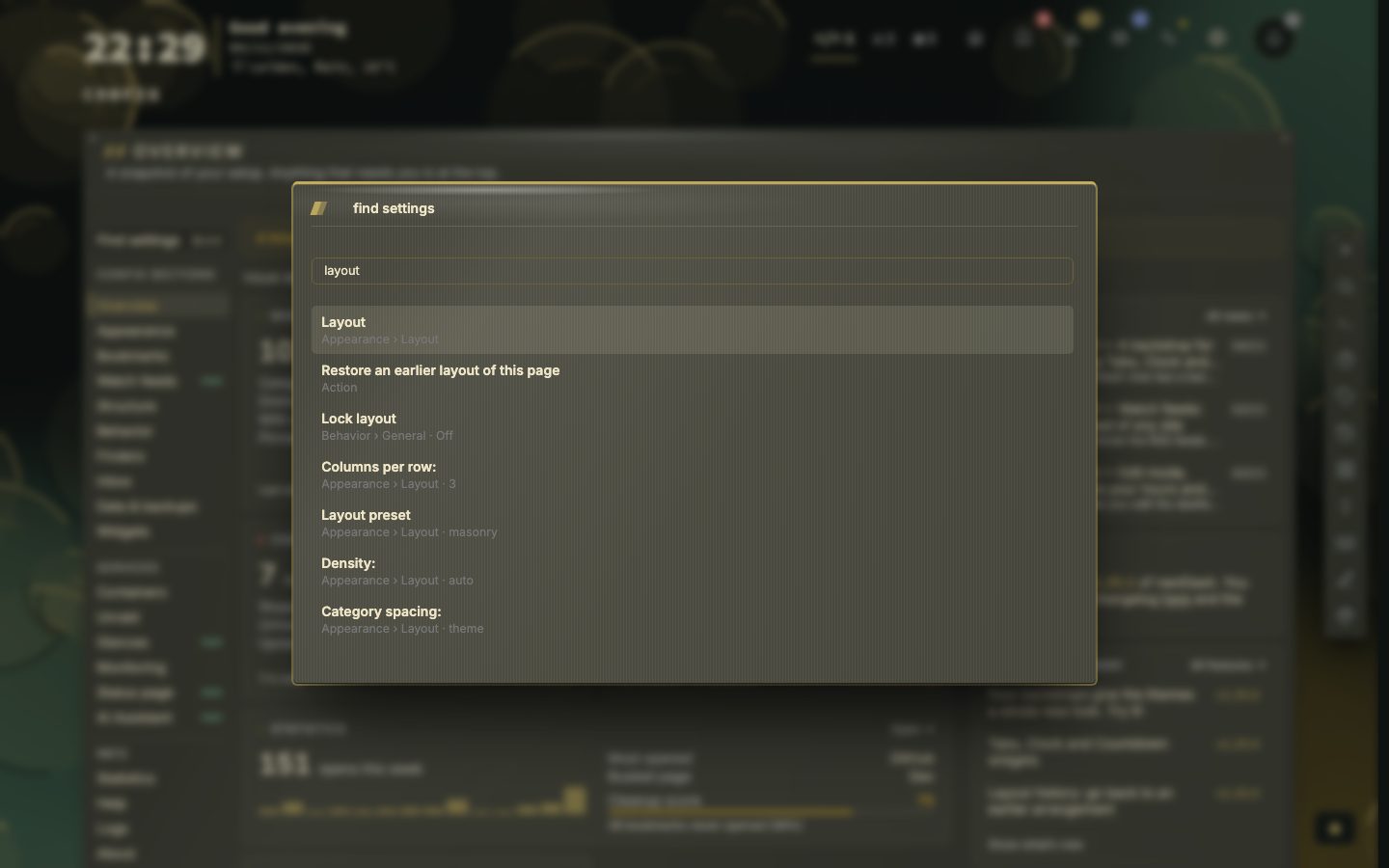
Find settings now lists actions next to settings, such as restoring an earlier layout.
Twenty sections, one place
- 20sections
- 5minutes Config remembers your place
- 3tabs in About
Config is a view inside the dashboard, in the same tab, so opening it is not a page load. The list on the left has three groups. The first holds Overview, Appearance, Bookmarks, Watch feeds, Structure, Behavior, Finders, Inbox, Data and backups and Widgets. Services holds Containers, Unraid, Glances, Monitoring, Status page and the AI Assistant. Info holds Statistics, Help, Logs and About.
Leave Config and come back within five minutes and it opens on the section and tab you left. A link such as /#config/appearance/layout opens a tab directly and wins over the remembered place. Old addresses still land in the right place.
Every change saves at once
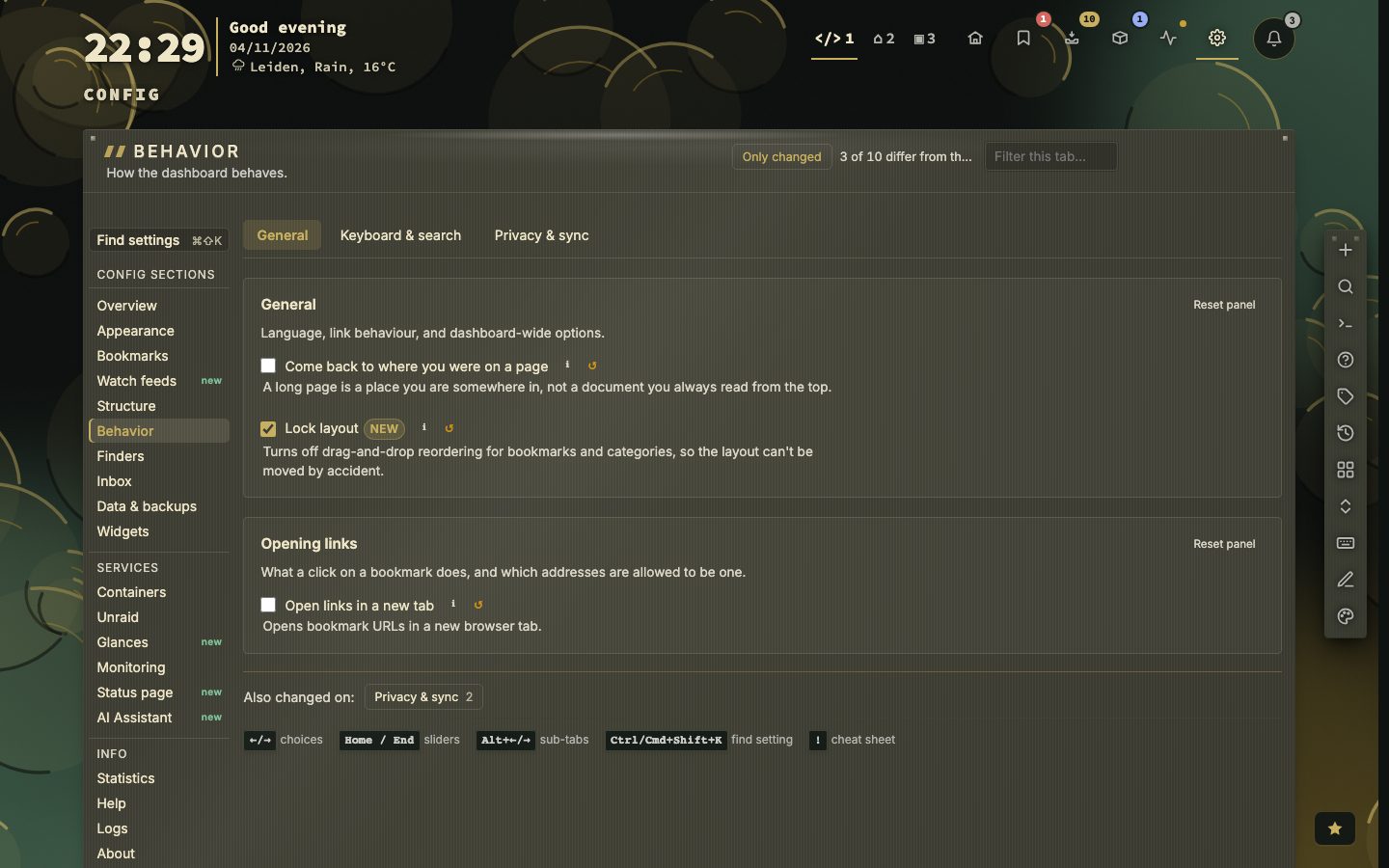
Most settings take effect and save the moment you change them, and a short message confirms it. The exceptions are forms with their own Save button: the bookmark form and a widget’s settings. Config only writes what changed. A line under each setting says what it does, and the i beside it opens a longer explanation where there is more to say. The small arrow puts one setting back to its default, and Reset panel puts a whole group back after asking.
Find settings searches every section, tab, setting and help topic. It also finds settings by related words, such as uptime, wallpaper or hotkey, and by their current value. Besides settings it lists a few actions, such as making a backup, importing bookmarks, adding a widget or showing what you changed. An action only goes to where it lives and never changes anything by itself.
Settings that stay on one device
Settings live on the server, so every browser shows the same dashboard. If you want one browser to have its own look, tick Keep settings on this device only under Behavior, then Privacy and sync. Appearance and layout are then kept in that browser. A few settings stay shared whatever you choose, such as the custom favicon and font, collections, the action bar position, web search and container icons, and they carry an all devices mark.
What the environment decides, and what the app decides
Config can only change what can change while nextDash runs. Under Containers, the Connection tab shows the Docker socket, whether actions are on and whether a write token is set, exactly as the environment set them, and nothing there can be edited. Some environment variables the manual names:
NEXTDASH_WRITE_TOKENprotects every destructive request. At start the server logs a warning when it, orNEXTDASH_CAPTURE_TOKEN, is shorter than 16 characters or still an example value. It still starts.NEXTDASH_CORS_ORIGINSlists pages of your own that may read the API, andNEXTDASH_ALLOWED_HOSTSlists the public names that may open nextDash when a write token is set.NEXTDASH_DATA_DIRsets the data folder, andNEXTDASH_AUTO_BACKUP_KEEPhow many backups are kept.DISABLE_UPDATE_CHECK=trueandDISABLE_NEWS_FEED=truestop the daily release check and the posts from nextdash.cc for the whole server.DISABLE_TELEMETRY=trueturns off the analytics and the install count for everyone, and greys out the switch in Config.NEXTDASH_ACTIVITY_LOGandNEXTDASH_LOG_LEVELset what the activity log and the server log record. A choice made in the app wins over them.
Config from the keyboard
, or < opens Config, and Esc leaves it. j and k move between sections, Alt + ← and → (or [ and ]) between tabs, and Ctrl or Cmd + Shift + K finds a setting. Esc closes a dialog, then clears a selection, then leaves Config. Keys do not fire while you type in a field, and a legend under each tab shows the keys that apply there.