Data
A folder of JSON files you can read and take with you.
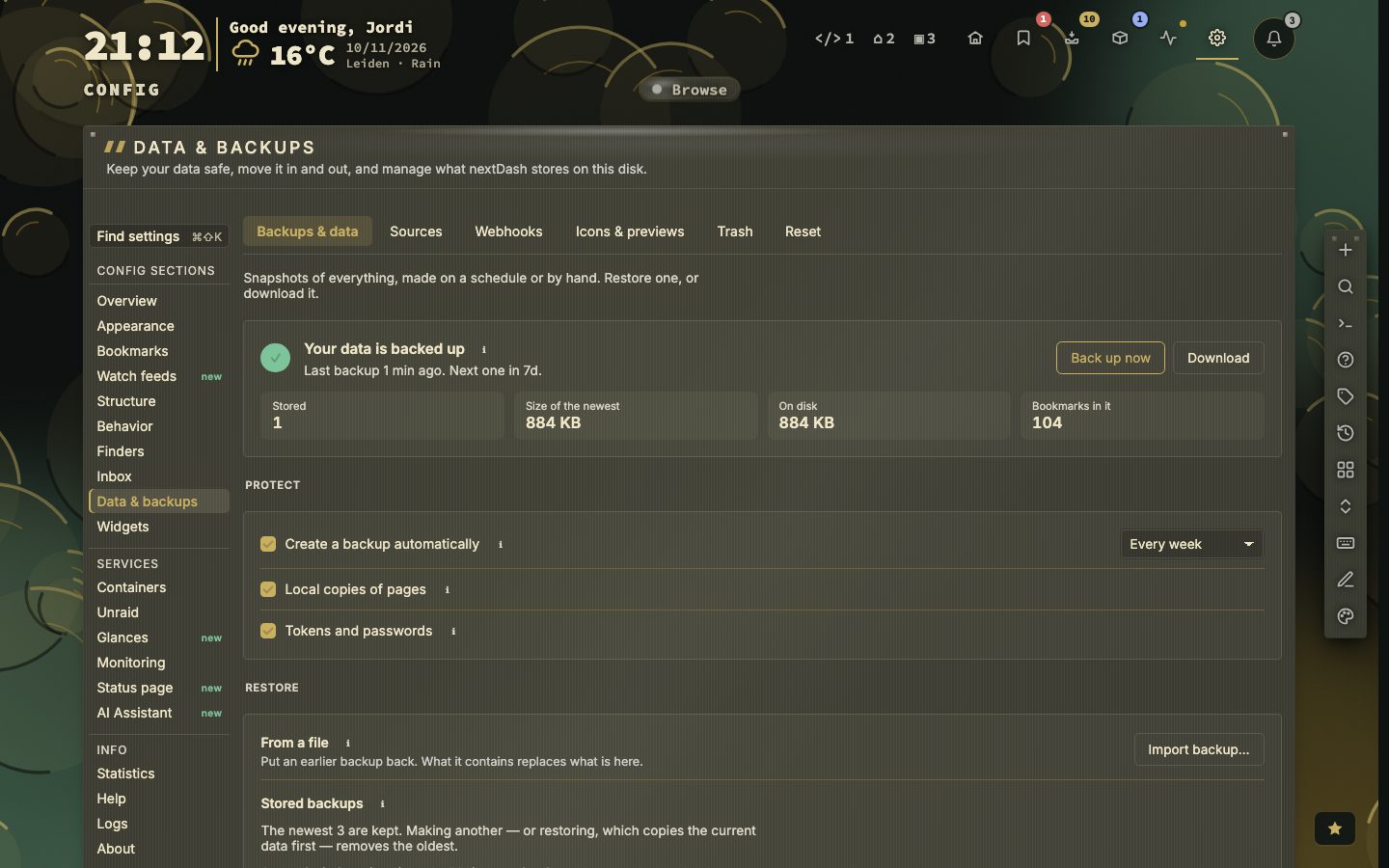
There is no database. Your whole installation is a folder of JSON files you can read in a text editor, copy to a USB stick or put in git: bookmarks per page, settings, your own themes, the inbox, the trash, health history, icons, local copies and automatic backups.
A backup carries the whole data directory. Two switches let you leave out the largest and most sensitive parts, local copies and stored tokens. Exports are available in several formats, so you can always take your bookmarks elsewhere.
Try it
- Open Config, then Data and backups.
- Download a backup, or export your bookmarks.
- Look inside the
datafolder next to your compose file.
Where an import goes
An import asks where the bookmarks go: onto the dashboard, or into the Inbox first. Into the Inbox, a folder becomes a tag instead of a category, and a link the dashboard already holds is skipped.
Bring in another dashboard
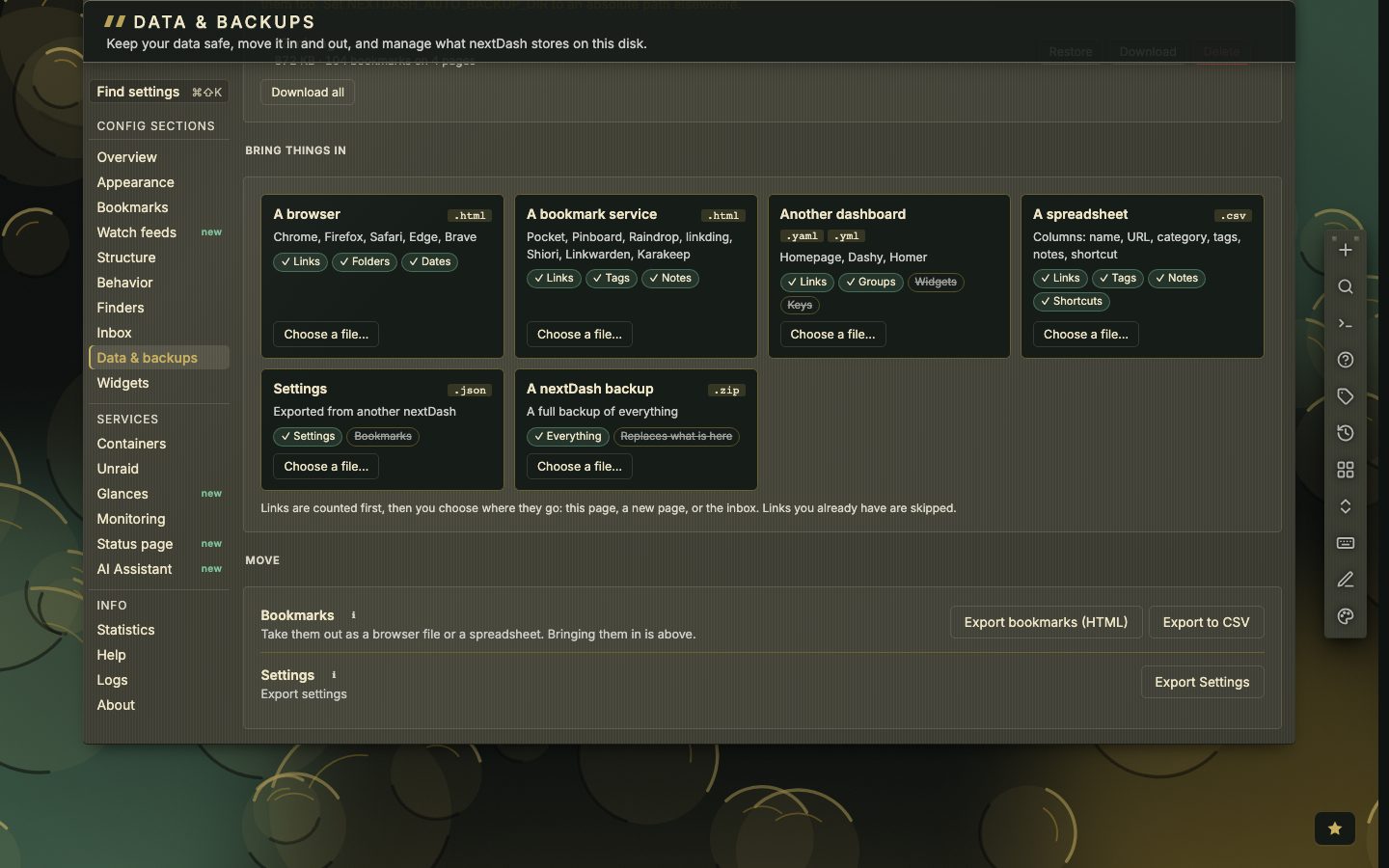
Data and backups has cards that say what can be imported. Next to bookmark files and backups, a Homepage, Dashy or Homer configuration (a .yaml file) can be imported.
What the folder holds
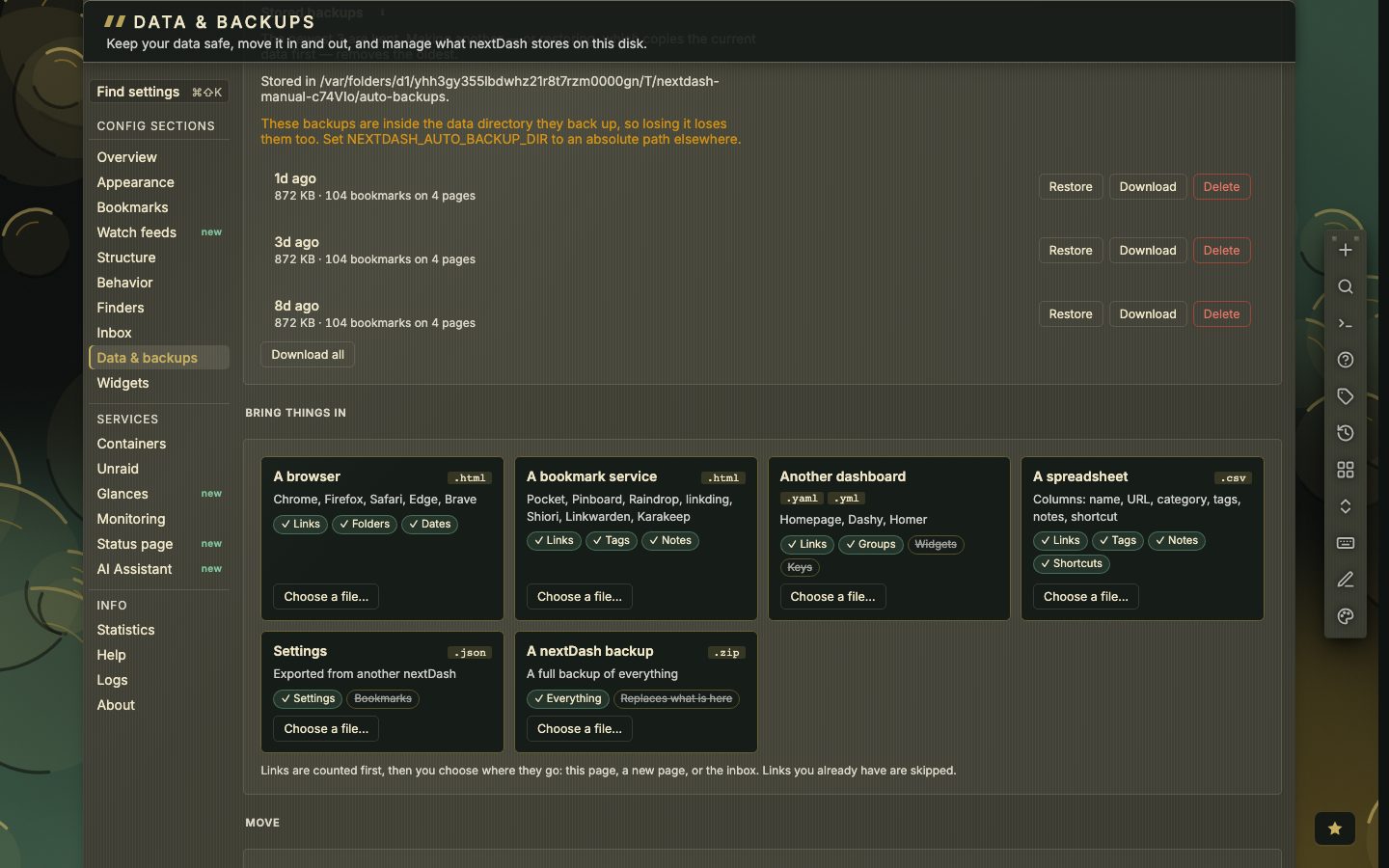
Docker mounts the folder, for example ./data at /app/data. Run as a binary, it is ./data next to the program, or the place NEXTDASH_DATA_DIR names. These are some of the files the manual names:
settings.json,finders.jsonandhealth-history.json: your settings, search shortcuts and check history.sources.jsonandwebhooks.json: your sources and webhook receivers, with owner-only permissions.ai-secrets.jsonandai-conversations.json: the assistant keys, kept apart from your settings, and its conversations.server.logandactivity.log: the server log and, when you ask for it, the activity trail.inbox-stats.jsonandinstall-id: the lifetime inbox counts and the random id used for the install count. Delete the id file for a new one.icons/,icon-sets/andauto-backups/: icons you chose, the cached app icon sets and the stored backups.
The folder is never served as a website. Only data/icons/ and an uploaded favicon or font are published. Settings, bookmark files, the inbox, the trash and the stored backups can be reached only through the API.
- 6import cards
- 5sources
- 3image cache sizes
Six cards for bringing things in
Each card says which file it takes, which services it covers, and what comes along (a green chip) and what does not (a grey one).
- A browser: an
.htmlfile from Chrome, Firefox, Safari, Edge or Brave. Links, folders and dates come along. - A bookmark service: an
.htmlfile from Pocket, Pinboard, Raindrop, linkding, Shiori, Linkwarden or Karakeep. Links, tags and notes come along. - Another dashboard: a
.yamlor.ymlfile from Homepage, Dashy or Homer. Links and groups come along, widgets and keys do not. - A spreadsheet: a
.csvfile with the columns name, URL, category, tags, notes and shortcut. - Settings: a
.jsonfile exported from another nextDash. Settings only, not bookmarks. - A nextDash backup: a
.zipfile. Everything comes along, and it replaces what is here.
The links are counted first, then you choose where they go: this page, a new page, or the Inbox. A new page is called Imported, or Imported 2 when that name is taken, so what is on the current page stays as it is.
Another dashboard, in detail
Pick the configuration file: services.yaml or bookmarks.yaml of a Homepage, conf.yml of a Dashy, or config.yml of a Homer. Each service or link becomes a bookmark with its name, address and group. Each group becomes a category, and a group inside a group becomes a category named after the inner group. Widgets, themes, colour schemes and API keys are not read, so no credential leaves the file. Add widgets afterwards under Config, then Widgets. A file that is too large or nested too deeply is refused as a whole.
Moving to another server
- 1Download a ZIP backup on the old server
- 2Start nextDash on the new one with its data folder on a volume
- 3Open Config, then Data and backups
- 4Press Import backup and pick the ZIP
- 5Check what came along: tokens only travel if you switched them on
Icons and previews
Containers and bookmarks to self-hosted apps get the icon of the app itself, from two open icon sets, dashboard-icons and selfh.st/icons. A container is matched by its image and name, a bookmark by its host, a private name such as sonarr.lan included. An icon you chose or uploaded is never replaced. Pick one with Choose app icon in the bookmark form; a chosen icon is copied into data/icons/ and is then an ordinary icon of yours. The server fetches the sets itself, once a week, so the browser never contacts them, and DISABLE_ICON_SETS=1 switches all of it off.
Under Icons & previews you can also refresh favicons (never, monthly, weekly or on every load), set the image cache to 50, 200 or 500 MB, and refresh or clear every stored link preview.