Find
Search bookmarks, tags and commands from one box.
- > Open search
- / Browse and filter by tag
- CtrlEnter Open the result in a new tab
- ShiftF Filter the current page in place
- f Filter to the focused bookmark's tag
- # Search by tag
Search finds a bookmark as you type, and it also runs commands, so the same box takes you to a page, a view or a setting.
Tags give you a second way in: pick one and the grid narrows to what carries it.
Try it
- Press > and type a few letters of a bookmark name.
- Move through the results with the arrow keys and press Enter.
- Press / to browse by tag instead.
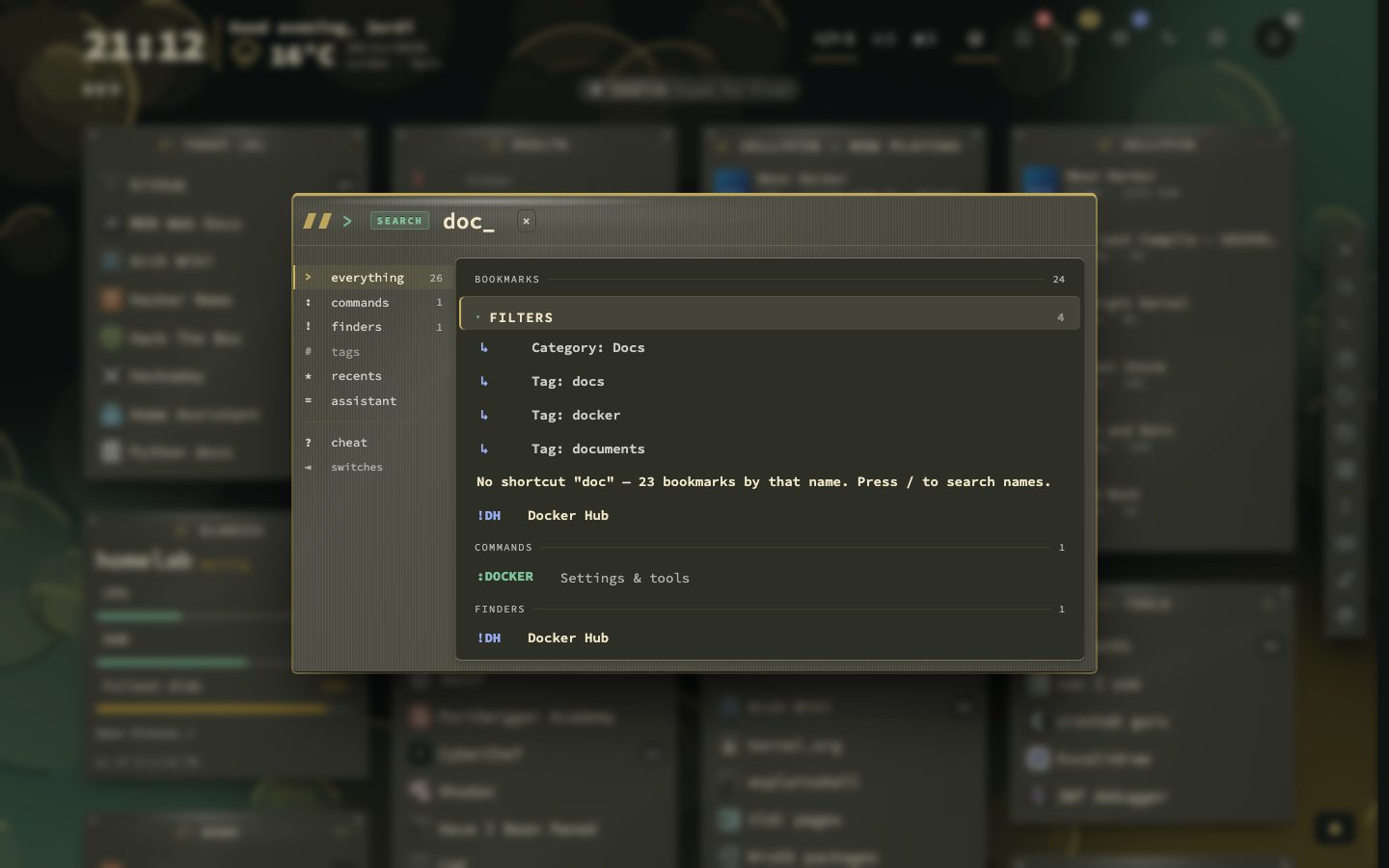
Search the web too
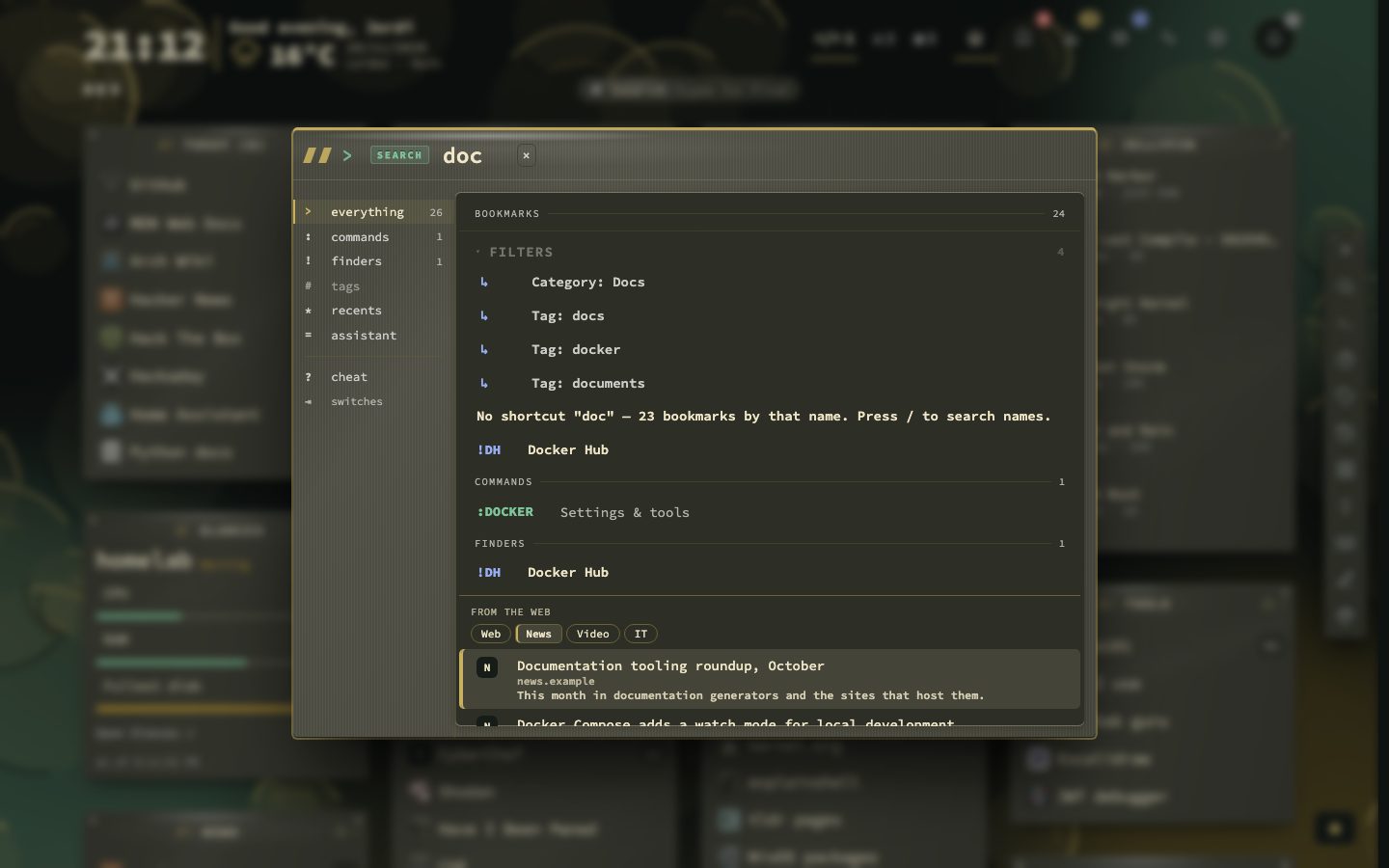
Connect your own SearXNG or the Brave Search API and the search panel can search the web as well, in tabs for Web, News and Video, plus IT with SearXNG. Results you already have as bookmarks are marked. Press Shift + Enter to search the web for what you typed.
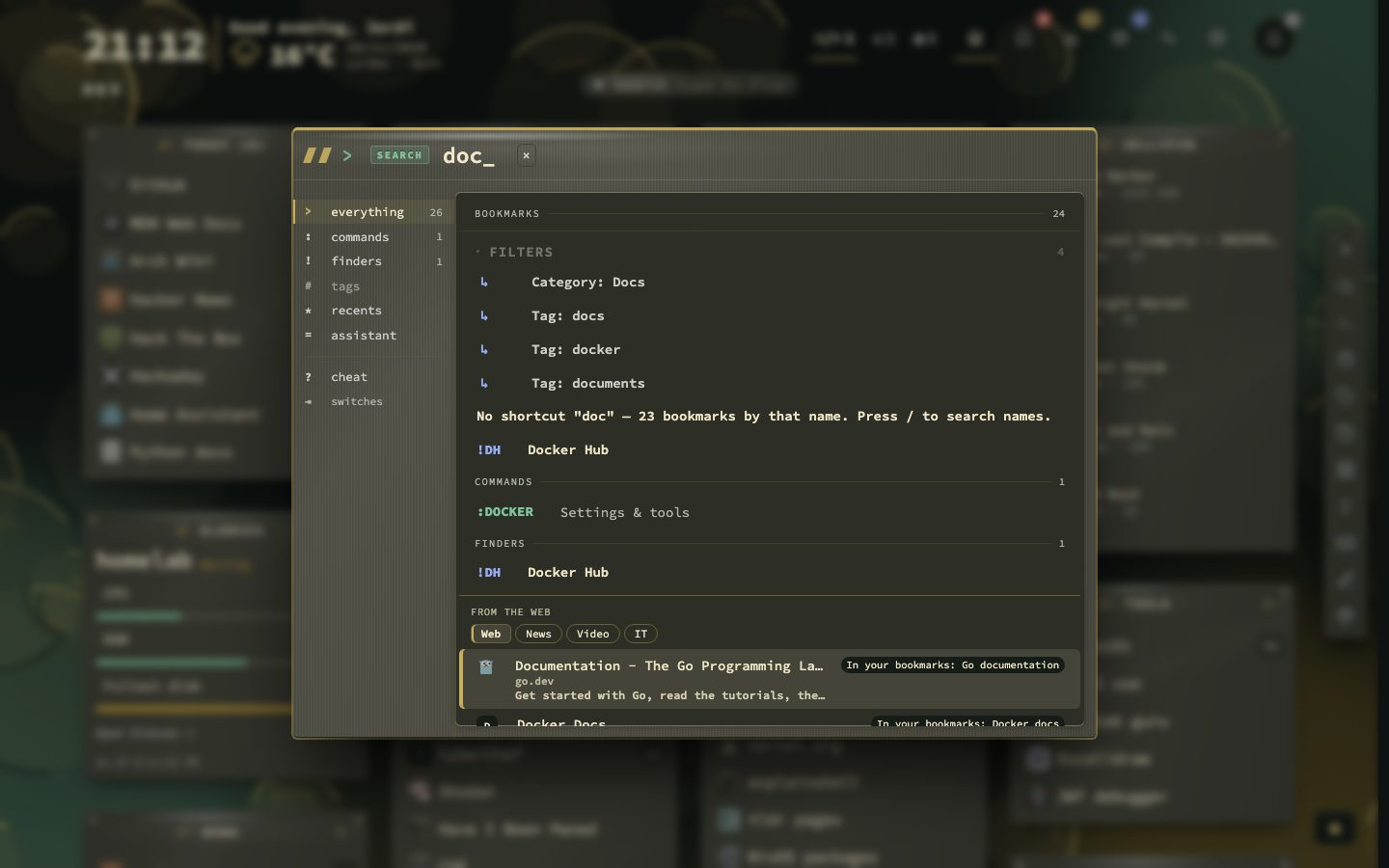
Search answers sums
Type 15% of 240, 2+2*3 or 5 km in mi and the answer is the top row. Enter copies it. Nothing leaves your browser, and a word, a shortcut, a date or a range such as 24/7 is never taken for a sum. A decimal comma works too: 1,5 + 1 is 2.5.
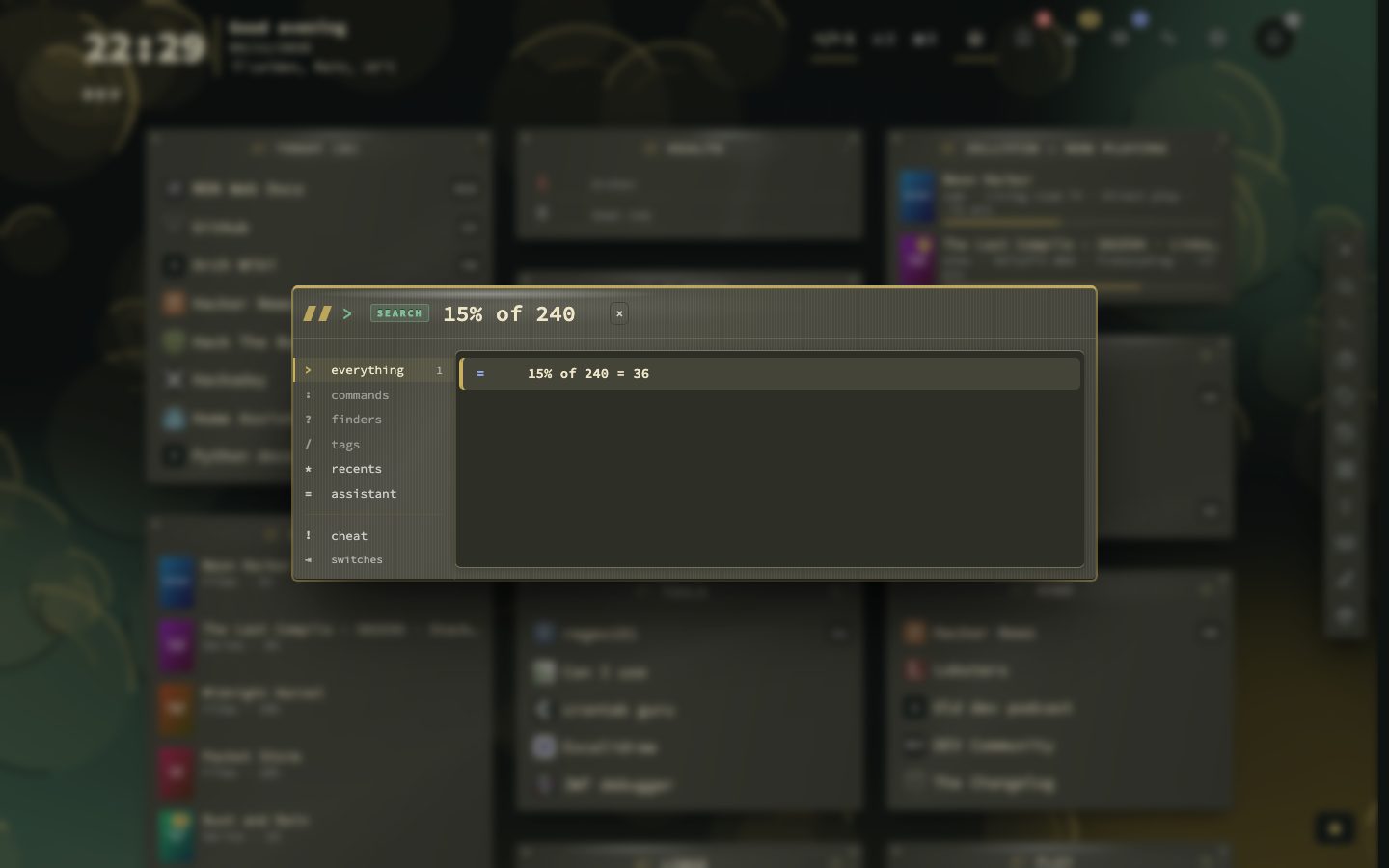
Small tools in the same row
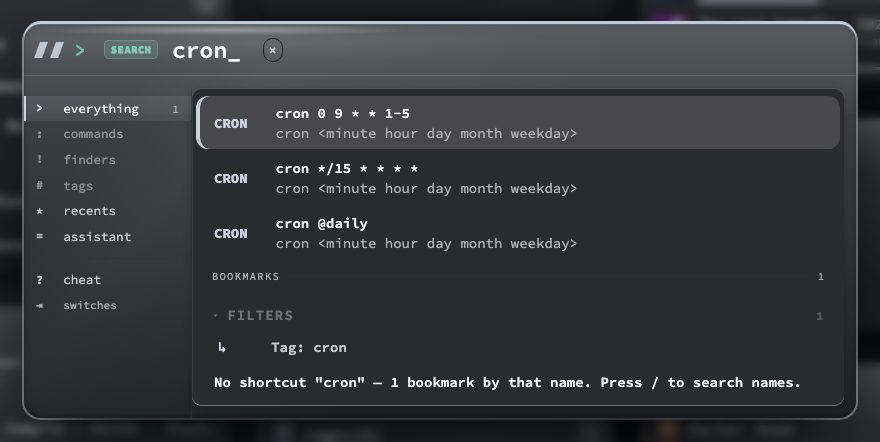
The top row also answers the questions a homelab asks all the time. Type 192.168.1.0/24 for the range and size of a subnet, 8096 for the service that uses a port, sha256 text, sha1 text or md5 text for a hash, base64 text or base64 decode text, uuid, pass 20 for a password of that length, a Unix time such as 1700000000 for its date, chmod 755 for rwxr-xr-x and back, or cron 0 9 * * 1-5 for what a schedule means and when it runs next. Enter copies the answer; for a cron line it copies the schedule itself, ready for a crontab.
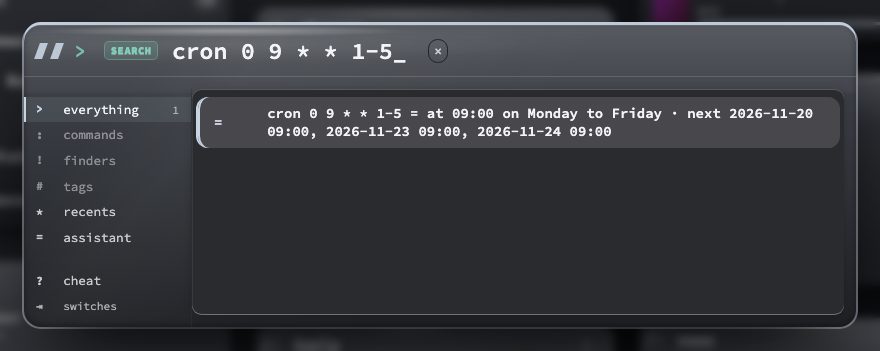
Each tool has a word or shape of its own, so an ordinary word or number is never taken for one: pass is still a bookmark and pass 20 is a password. The first letters of a tool’s word show how to use it, and the word followed by a space offers examples you can pick. Everything is worked out in your browser, hashes included, so nothing is sent anywhere and it works on a plain-http address. Cmd + V pastes copied text into an open panel.
Six more commands
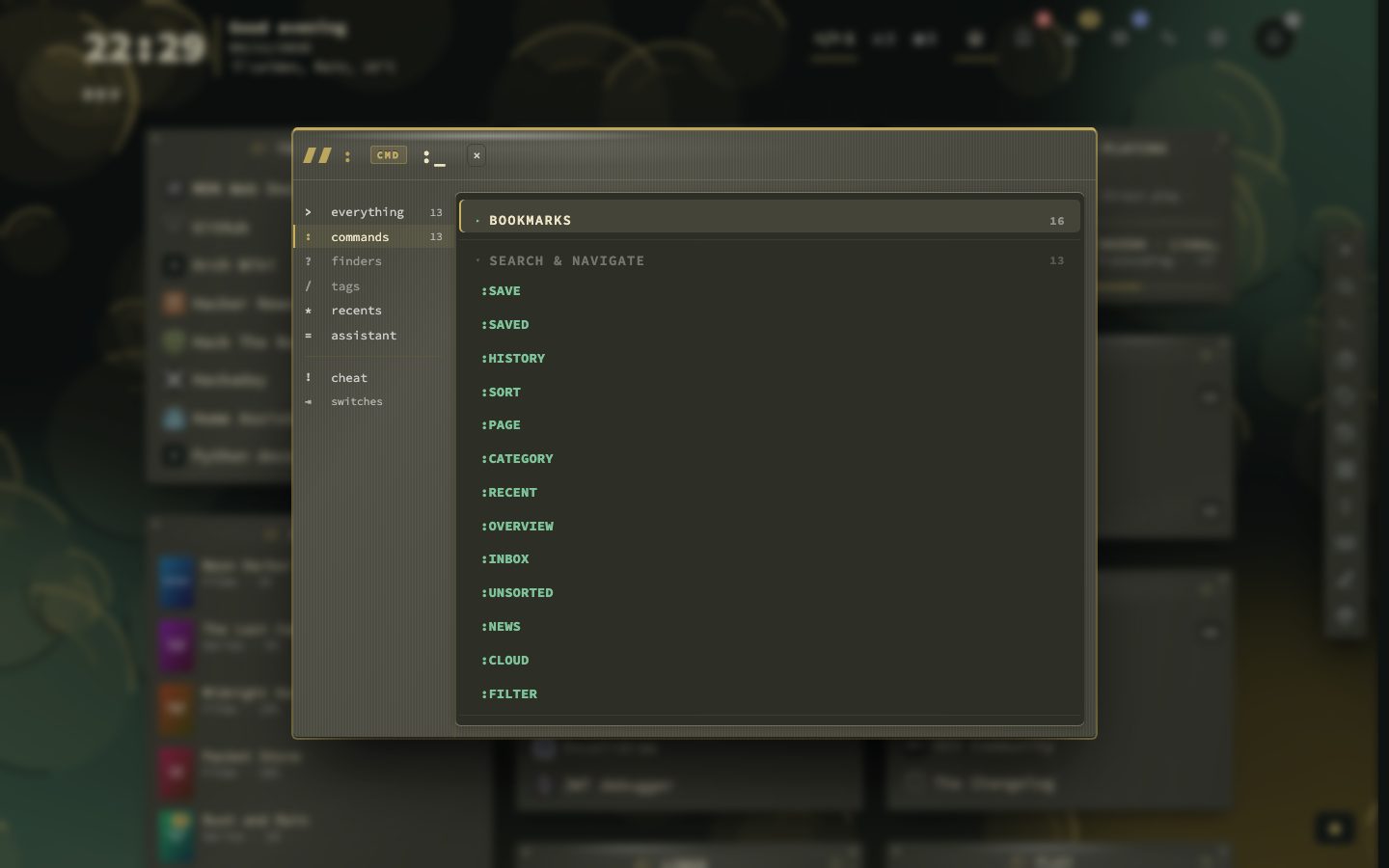
:news opens the news of the feeds you watch, :unsorted the bookmarks without a category, :cloud the tag cloud, :studio the theme studio, :legend the key legend and :hypr Hypr mode.
What the panel shows
Search, commands and finders are three modes of one panel. A rail on its left lists the modes and marks the one you are in. A mode your words do not reach is dimmed, and Tab switches between them. A > searches your bookmarks, : runs commands, ! uses a finder, # searches by tag, @ searches every page and a lone = opens the assistant.
Results are grouped by why they matched. Best matches are names, or words in a name, that start with what you typed, and that group stays open. Contains and In tags, note or url fold behind a heading and a count: click a heading to open it. An open group shows twelve rows and a row for the rest. The panel also remembers which result you picked for the letters you typed, so a word you always type for one bookmark soon puts it first.
With the panel empty, the first group is Usually now: up to three bookmarks you tend to open around this time of day, on the same kind of day, going by the last eight weeks. It needs at least three opens per bookmark and only shows when three qualify. It is worked out in your browser from your own history. Under it your recent and saved searches show as chips.
Narrow it with filters
Filters are words with a colon, and they are offered as you type. They combine with each other and with plain words.
tag:,category:andpage:(page:2,page:current,page:all) say where to look.status:takesonline,offline,broken,pinned,tagged,noted,feedand a few more.opened:andadded:taketoday,week,monthoryear.opened:neverfinds what you have never opened.- A
-in front of any filter turns it around:-tag:archive.
Tags have a mode of their own. # on the dashboard opens the panel on your tags, and #docker means the same as tag:docker. Join tags with AND and OR, written the same in every language: docker AND linux OR network finds what carries both docker and linux, or network. While you type, the panel offers the tags that complete the word, then AND and OR.
Beyond the page you are on
Start with @ to search every page at once, and each result names its page. Shift + F does the opposite: a bar above the grid hides the rows that do not match on this page, and keeps the layout and the cursor. Several words narrow it further, since every word must match in any order. Esc clears it and a second Esc closes it. :find text does the same from the command palette.
On a bookmark result, → unfolds its actions under the row: open, open in a new tab, edit, copy the address, show in the list and move to a page. Ctrl or Cmd + Enter opens a result in a new tab.
Searching from the address bar
nextDash describes itself to your browser as a search engine. In Firefox, add a keyword under Settings, Search, Search shortcuts. In Chrome, Edge and Brave, use Settings, Search engine, Manage search engines, Site search, and shorten the keyword, for example to nd. Then type the keyword, Tab, a term and Enter. Safari does not support this. A search also has an address of its own, #search?q=your+terms, that you can bookmark.