No accounts. No cloud. No noise. Just your links, your machine, and your fingers on the home row.
Let me describe a morning you probably recognise.
You open your browser. The bookmarks bar shows eleven of the four hundred links you’ve saved since 2019. You know the one you need is in there — somewhere between a folder called “read later” and a folder called “read later 2.” So you do what everyone does: you give up, type the domain from memory, and let autocomplete guess. Again.
Bookmarks were supposed to be the fastest way to get somewhere. Somewhere along the line they became a landfill.
nextDash is the fix. It’s a self-hosted bookmark dashboard you run on your own machine or container, open in your browser, and drive almost entirely from the keyboard. It has no user accounts, no cloud sync, and no telemetry — your links live in plain files in a folder you control. And once you’ve spent twenty minutes with it, reaching for the mouse to open a website starts to feel faintly ridiculous.
Here’s the tour.
The core idea: your links, arranged the way your brain works
nextDash organises around three simple ideas.
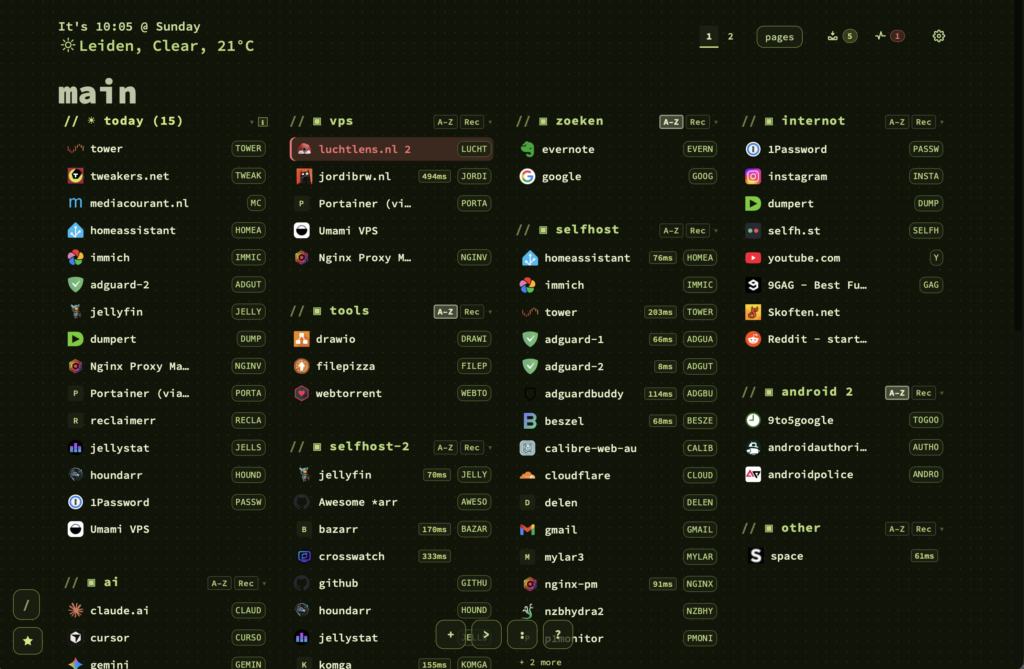
Pages are the top-level tabs of your dashboard — Work, Personal, Home lab, whatever your life looks like. Each page gets its own emoji, colour dot, bookmark list, and category set. Press 1 through 9 to jump straight to one. That’s the whole context switch: one key, instant.
Categories are the columns inside a page — dev, news, tools, clients. Drag them to reorder, long-press a header to rename, collapse the ones you don’t need today. Each category gets its own A–Z and Recent sort chips, so a category of daily tools can stay in your hand-picked order while a category of articles sorts itself by what you touched last.
Bookmarks are richer than the browser’s version: name, URL, category, tags, a plain-text note, an optional single-key shortcut, a pin, an open counter, and auto-fetched metadata (title, description, preview image) the moment you paste a URL.
And then there’s the Inbox — a lightweight capture page that sits at key 0. Someone sends you a link mid-meeting? Hit Ctrl+V on the dashboard, choose Save to Inbox, and move on with your day. Triage later, one item at a time, with J / K / O / P / R / D. Capture and organising are two different jobs, and nextDash refuses to make you do both at once.
The keyboard workflow: this is where it gets addictive
This is the part that makes nextDash feel less like a start page and more like a terminal for the web.
Getting around:
1–9— jump to a page tab;0— Inbox;Shift + ←/→— cycle pages↑ ↓ ← →— move the selection across the bookmark gridTab/Shift+Tab— step linearly through every bookmark on the pageG+1–9— jump straight to the nth category;G+P— first pinned bookmark;GG— very first bookmark,— page overview with bookmark counts for every pageEnterorSpace— open the focused bookmarkEsc— get out of anything (including undoing a drag you haven’t saved yet)
Acting on what’s selected:
;— inline edit, right where the bookmark sitsShift + M— Move to… popover, pick a category or page with arrowsShift + T— quick-tag popover with ranked tag suggestionsShift + D— quick delete, with undo in the toastCtrl + C— copy the URL (the row flashes green)[— pop the hover preview card
Adding things:
+orCtrl+Shift+A— the full new-bookmark modal&— the quick-add omnibox: typename | url | shortcuton one line and you’re doneCtrl+V— paste a URL straight onto the dashboard
Every one of these is discoverable, too. Press ! or F1 for a filterable cheat sheet, and the first time you brush past a feature nextDash drops a small, dismissible “Got it” balloon next to it — then never mentions it again.
Search, commands, and finders: three doors, one keystroke each
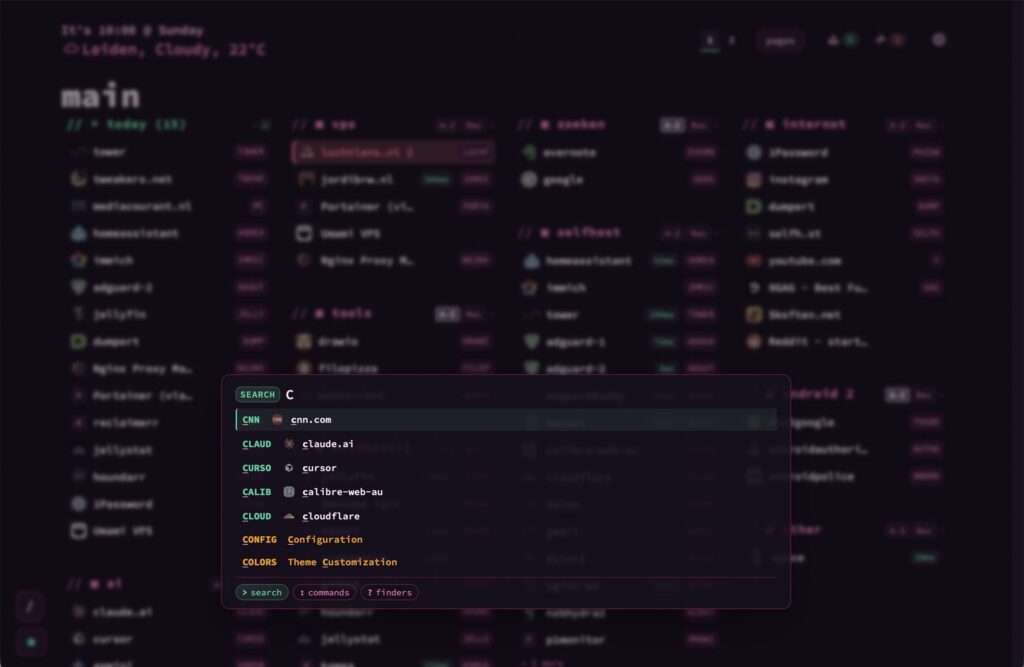
Press > and you get search — fuzzy, ranked by prefix, then word boundary, then substring, and it matches names, URLs, domains, tags, and your notes. The empty state offers your recent queries and saved searches as chips. Narrow it with filters typed inline: category:dev, tag:reference, page:all, status:broken, status:pinned. Autocomplete suggests values as you type each prefix. Press @ instead and you search across every page at once, with the page name shown as context on each result.
Press : and you get the command palette, and this is where nextDash quietly turns into a power tool. Commands are grouped into five collapsible sections, your recent ones float to the top, and toggles update in place with a (on) / (off) marker instead of throwing toasts at you. A taste of what’s in there:
:open last 10— reopen the ten bookmarks you most recently visited on this page:open tag research— open everything on the page carrying a tag:goto github.com— navigate anywhere, no address bar needed:stale 7— list everything you haven’t touched in a week:duplicates— find every bookmark saved twice:layout launcher,:theme dusk-horizon,:columns 4,:density compact— reshape the whole dashboard mid-thought:save— bottle up the search you keep retyping
Press ? and you get finders — configurable search shortcuts that send a query straight out to the web. ?g rust lifetimes and you’re on Google. Define as many as you like, reorder them, and nextDash tracks which ones you actually use.
Press / for the tag word cloud: a popularity-scaled cloud you can click to filter the dashboard down to just the bookmarks carrying those tags, with a bulk toolbar that stays live while the cloud is open.
Smart collections: groups that build themselves
Beyond the categories you create, nextDash generates its own, continuously:
- Today — bookmarks matching your work / evening / weekend keyword sets
- Recently opened — where you’ve actually been
- Most used — ranked by open count, because your real homepage isn’t the one you think it is
- Stale — links you haven’t visited in ages, quietly asking to be archived
- Tag collections — an automatic group for any tag that crosses a threshold you set
You don’t maintain these. They maintain themselves, and they’re often more honest about your habits than the folder structure you designed two years ago.
Health monitoring: because links rot
Every bookmark collection is slowly dying and most tools never tell you. nextDash has a dedicated health view — a heartbeat icon with a live counter pill in the header, red for broken and amber for warnings, invisible when everything’s fine.
Open it and you get a nine-stat summary, live online/offline status with ping timings, dead-link detection, duplicate grouping with merge, and stale-bookmark listings. Per row, an overflow menu offers real repairs: detect redirect (with a URL confirmation before it rewrites anything), refresh title, archive. Bulk-select to re-fetch favicons or delete in batches. Navigate it entirely by keyboard — j / k to move, Enter to edit, O to open. Filters, sorting, and search state persist across refreshes and sync into the URL, so you can bookmark a health view. Naturally.
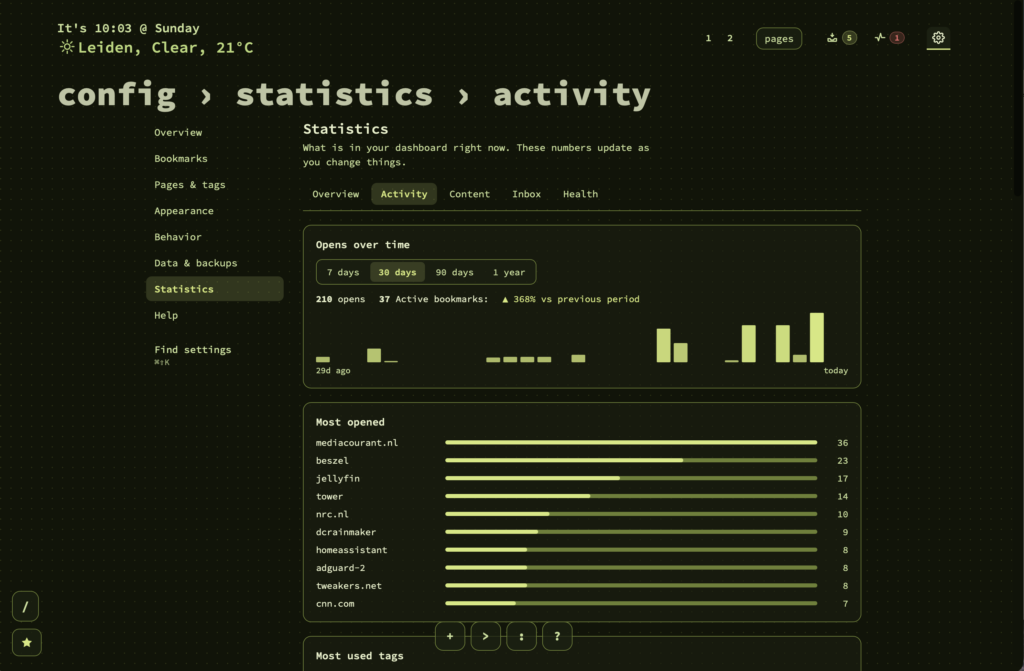
Pair that with Config → Stats: open counts, finder usage, week-over-week activity comparison, Inbox triage throughput (added vs. converted vs. discarded, average time to triage), a CSV export, and a last-backup date.
Make it yours
37+ built-in theme families in dark and light variants — Terminal Amber, Dusk Horizon, Moss & Stone, Candy Pop, Midnight Ink and many more — plus a full custom theme editor with live preview, contrast warnings, and export/import. Auto dark mode follows your system without clobbering your saved palette.
Layout presets cover Default, Compact, Cards, Masonry, Detailed List, and Launcher (big favicon tiles, if you want a phone-home-screen feel). Tune columns (1–6), density, font size and weight, background opacity, and background image or gradient. Seven font presets, from Source Code Pro to DM Sans. Move the button bar to the centre dock or any corner. Set a custom title and favicon that carry through to the web app manifest, so an installed PWA on your phone shows your branding.
The whole interface — including every settings explanation behind the little ℹ buttons — is fully translated into English, Dutch, German, and French.
Capture from anywhere: the browser extension
The nextDash Bookmark Saver extension saves your current tab in a couple of clicks: pre-filled title and URL, an auto-suggested single-key shortcut, page and category pickers, tags, a note, or a one-click Save to Inbox. It warns you about duplicate URLs and shortcut collisions. If a dashboard tab is open on the same server, it refreshes itself. Load it unpacked from the extension/ folder in the repo and point it at your server URL.
Self-hosted, and serious about it
nextDash ships as a single Go binary or a container image, stores everything in a data/ folder you mount, and takes about a minute to stand up.
It’s built for personal or small-team use on a trusted network — there are no user accounts, so anyone who can reach the URL can change things. The honest recommendation is: don’t expose it raw to the public internet. Put it behind Tailscale or another mesh VPN, or a reverse proxy with auth, or bind it to localhost and tunnel over SSH.
That said, the security work under the hood is real. Set NEXTDASH_WRITE_TOKEN and every destructive or write endpoint demands an X-NextDash-Token header — while the dashboard, config, and health pages inject it automatically so your browsing is unaffected. Restrict cross-origin access with NEXTDASH_CORS_ORIGINS. Get structured JSON activity logs for bookmark mutations, status checks, and security events, optionally rotated to disk. A restrictive Content-Security-Policy is on by default. Outbound fetches validate resolved IPs at dial time and pin public IPs for ~2 minutes, so a hostname can’t rebind to your private network between the safety check and the connection. Per-IP rate limits guard the SSRF-sensitive endpoints. And on boot, nextDash validates your port and data directory and exits with a clear error rather than starting half-broken.
Your data stays portable, too: full ZIP backup and restore covering pages, bookmarks, categories, finders, settings, themes and uploaded icons; CSV export with localised headers; settings-only export for migrations; and import straight from a Chrome, Firefox, or Edge bookmarks HTML file, where folders become categories, duplicates are skipped, and missing icons are batch-fetched with a progress bar.
Run it in sixty seconds
Drop this into a docker-compose.yml:
services:
  nextDash:
    image: ghcr.io/jordibrouwer/nextdash:latest
    container_name: nextDash
    ports:
      - "8080:8080"
    volumes:
      - ./data:/app/data
    environment:
      - PORT=8080
      # On a LAN or VPS, protect writes:
      # - NEXTDASH_WRITE_TOKEN=change-me-to-a-long-random-string
    restart: unless-stopped
Then:
docker compose up -dOpen http://localhost:8080, walk through the optional onboarding wizard, and add your first bookmark with &. Prefer a binary? go build -o nextDash && ./nextDash and you’re running.
Give it a week
Here’s the part I’d bet on: the first day you’ll use the mouse out of habit. By day three you’ll be hitting > before you think. By the end of the week you’ll press 1 on a colleague’s laptop and wonder why nothing happened.
nextDash is open source under the MIT licence, built on the excellent ThinkDashboard by MatiasDesuu, and developed in the open.
→ Grab it on GitHub — and if it earns a place in your setup, a ⭐ on the repo genuinely helps other people find it. Issues, feature requests, and translations are all welcome.
Your bookmarks have been waiting. Go get them.
[…] Previously: A theme is more than a palette, and two views stopped being drawn twice […]